Guides
Updated On 06 February 2025 |
Min(s) read
Installing FCM GUI on Wildfly 26
This section details the steps to install the FCM GUI on Wildfly 26.1.X.Final.
This is only a part of the full FCM installation.
Pre-requisites
Before installing the FCM GUI on Wildfly 26.1.X.Final,
- Download wildfly-26.1.X.Final.zip from Wildfly.
- Use the Jakarta EE 8 Full and Web Distribution version.
- Download FCM artifacts and fcm-wildfly-configuration-X.zip from Temenos Distribution.
The system requirements are as follows:
- Operating system must be Windows or Linux.
- Java 11 installed (as default java or JAVA_HOME environment variable set)
- FCM Database installed and running.
Installing FCM GUI
To install FCM GUI on Wildfly 26,
- Unzip wildfly-26.1.X.Final.zip into a directory named wildfly-26.1.X.Final.
- Unzip fcm-wildfly—configuration-xxxx.zip into a directory named fcm-wildfly- configuration-xxxx.
- Copy or merge the contents of the fcm-wildfly—configuration-xxxx/wildfly sub directory into the wildfly-26.1.X.Final directory.
Configuring Wildfly 26
To configure Wildfly 26,
- Edit the appropriate fcm-onsite-standalone-{dbname}.xml (replace {dbname} with the appropriate value) file in the wildfly-26.1.X.Final/standalone/configuration directory and update the following:
- DB connection URL - You must configure the parameters 'encrypt' and 'trustServerCertificate' in the standalone.xml according to the specific MSSQL database configuration.
<property name="com.temenos.fcm.datasource.url" value="${env.DB_CONNECTION_URL:jdbc:sqlserver://localhost:1433:databaseName=FCMDB;encrypt=false;trustServerCertificate=false;}"/> - User name
- Credential reference or password
- When the credential store is not used, update the PASSWORD using the below configuration.
<security> <user-name>${env.DB_USERNAME:model2}</user-name> <password>${env.DB_PASSWORD}</password> </security>set environment variables `DB_CONNECTION_URL`, `DB_USERNAME` and `DB_PASSWORD` to the appropriate values.
- Configure the memory allocation.
- On Linux, add the below line at the end of the wildfly-26.1.X.Final/bin/standalone.conf file.
JAVA_OPTS="$JAVA_OPTS -Xms1G -Xmx4G -XX:MetaspaceSize=1G -XX:MaxMetaspaceSize=2G"
- On Windows, add the following line before :JAVA_OPTS_SET in the wildfly- 26.1.X.Final/bin/standalone.conf.bat file.
set "JAVA_OPTS=%JAVA_OPTS% -Xms1G -Xmx4G -XX:MetaspaceSize=1G -XX:MaxMetaspaceSize=2G"
- On Linux, add the below line at the end of the wildfly-26.1.X.Final/bin/standalone.conf file.
The credential-store is a tool in Wildfly that stores the password in an encrypted format. The default password (ABCdef01) stored in dbcredstore.cs file is given as model2.
...
<property name="com.temenos.fcm.datasource.url" value="${env.DB_CONNECTION_URL:jdbc:postgresql://localhost:5432/FCMDB}"/>
...
<datasource jta="true" jndi- name="java:/jdbc/com/temenos/fcm/datasourceUncommitted"...
...
<security>
<user-name>${env.DB_USERNAME:model2}</user-name>
<credential-reference store="dbcredstore" alias="model2"/>
</security>
...
<xa-datasource jndi-name="java:/jdbc/com/temenos/fcm/xa/datasource"...
...
<security>
<user-name>${env.DB_USERNAME:model2}</user-name>
<credential-reference store="dbcredstore" alias="model2"/>
</security>
...
<subsystem  xmlns="urn:wildfly:elytron:15.1"  ...>
...
<credential-stores>
<credential-store  name="dbcredstore"  relative-to="jboss.home.dir" location="credential/dbcredstore.cs">
<credential-reference clear-text="fcmpassword"/>
</credential-store>
</credential-stores>
</subsystem>
 Test Configuration of FCM GUI
To perform the test configuration of FCM GUI,
- Start Wildfly by indicating the configuration file to use (replace {dbname} with the appropriate value):
cd wildfly-26.1.X.Final/bin
./standalone.bat -c fcm-onsite-standalone-{dbname}.xml
You must start WildFly without deploying the ear file to identify the issues with the configuration without the logs of the deployment. - Check the logs of the java version and the java options.
Java version log.
JAVA: "C:\Program Files\Amazon Corretto\jdk11.0.20_9\bin\java"
Java options log.
JAVA_OPTS: ... -Xms1G -Xmx4G -XX:MetaspaceSize=1G -XX:MaxMetaspaceSize=2G ...
- Do not ignore the errors.
Deploying FCM GUI
To deploy the FCM GUI on Wildfly 26,
- Stop WildFly.
- Copy the financial-crime-mitigation-form-ear-X.ear file into the wildfly- 26.1.X.Final/standalone/deployments directory.
- Start Wildfly with the below command.
cd wildfly-26.1.X.Final/bin ./standalone.bat -c fcm-onsite-standalone-{dbname}.xml - Check whether the ear file is deployed successfully.
WFLYSRV0010:  Deployed  "financial-crime-mitigation-form-ear-X.ear"  (runtime-name
: "financial-crime-mitigation-form-ear-X.ear")
- Ignore the warnings with the following codes.
- WFLYTX0013
- WFLYELY00023
- WFLYELY01084
- WFLYSRV0058
- WFLYSRV0059
- HHH90000014
- HHH000409
- HHH000398
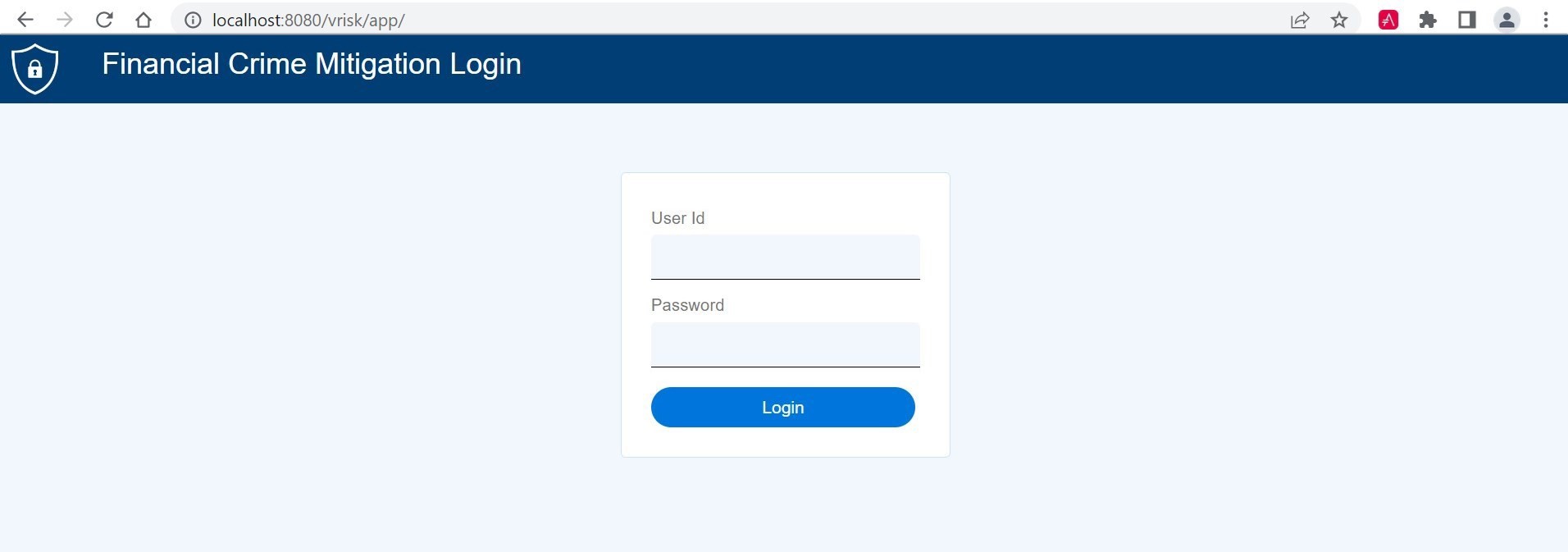
Accessing FCM GUI
To access the FCM GUI,
- Open a browser and navigate to http://localhost:8080/vrisk.
- Replace localhost with the appropriate hostname or IP address.
In this topic