Payments Integration with EQUENS Admin Messages Installation Guide
This document aims at explaining the installation procedures required to configure the property files and to deploy the Camel adapter package for Payments Integration with EQUENS Admin Messages.
System Requirements
The following are the pre-requisites for installing this package.
For the On-Prem Environment:
- ActiveMQ,
- JMS queue,
- JDK 21.
For the Cloud Environment:
- ActiveMQ,
- Helm,
- Kubernetes.
Pre-Installation Steps
The steps for pre-installing the package are provided below.
 Pre-Deployment Steps
The pre-deployment steps for Cloud and On-Prem deployments are the following.
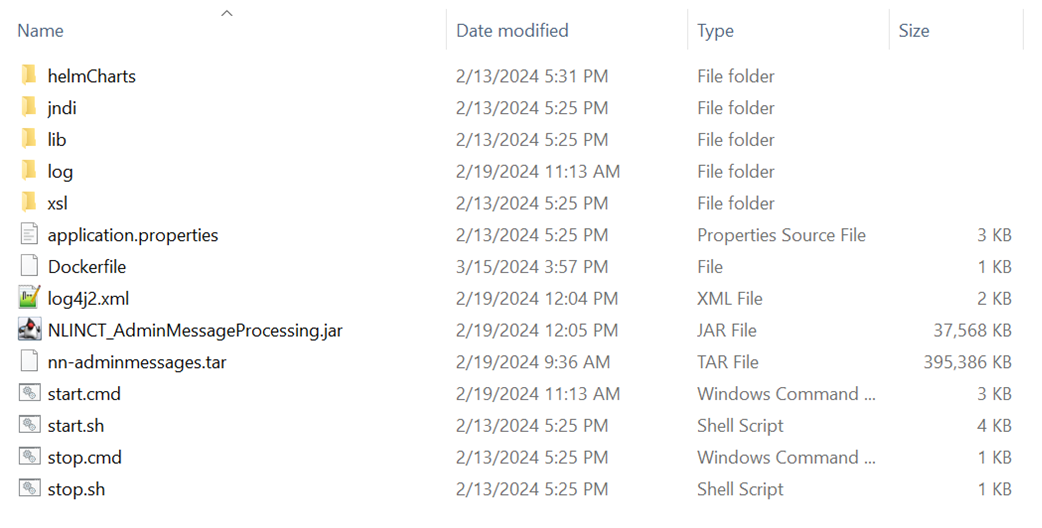
- Unzip the package NLINCT_AdminMessageProcessing.zip and place it in the required folder. The contents of the package will be as in the below snapshot.
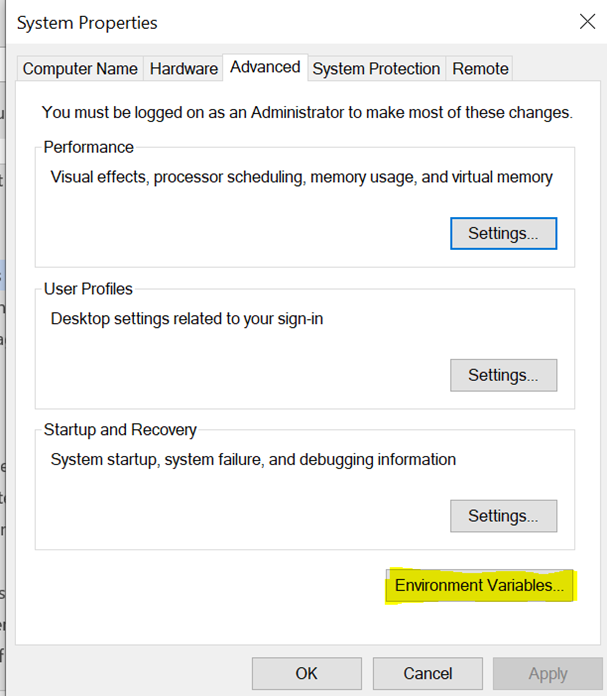
- Edit the system environment variables and click on Environment Variables button.
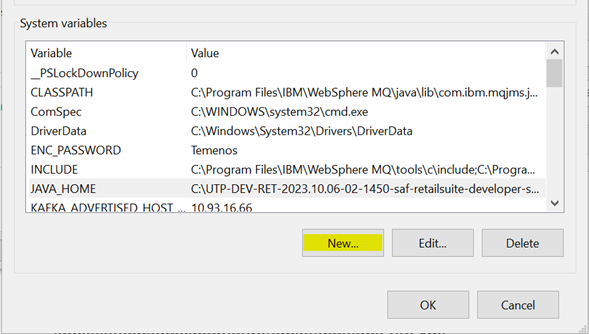
- Click on the New button to add a new system variable.
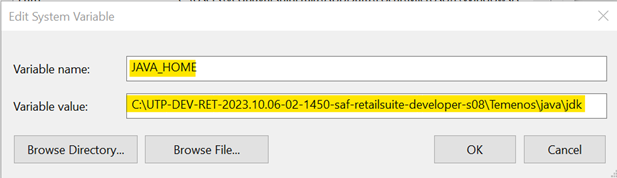
- Set the JAVA_HOME in system variables as per below.
- The queues configured in the variables below have to be created in the environment.
- ADMIN_MESSAGE_INPUT_QUEUE
- EQUENS_ACTIVEMQ_DESTINATION_QUEUE
- For ActiveMQ, the queues can be created from the ActiveMQ Console.
On-Prem Deployment Configurations
The On-Prem deployment configurations are described below.
Application.properties File Configurations
The application.properties file available in the package will be configured as per the instructions provided below.
- application.properties: Stores details regarding the External MQ broker connection, keystore and certificates to form and verify the signature.
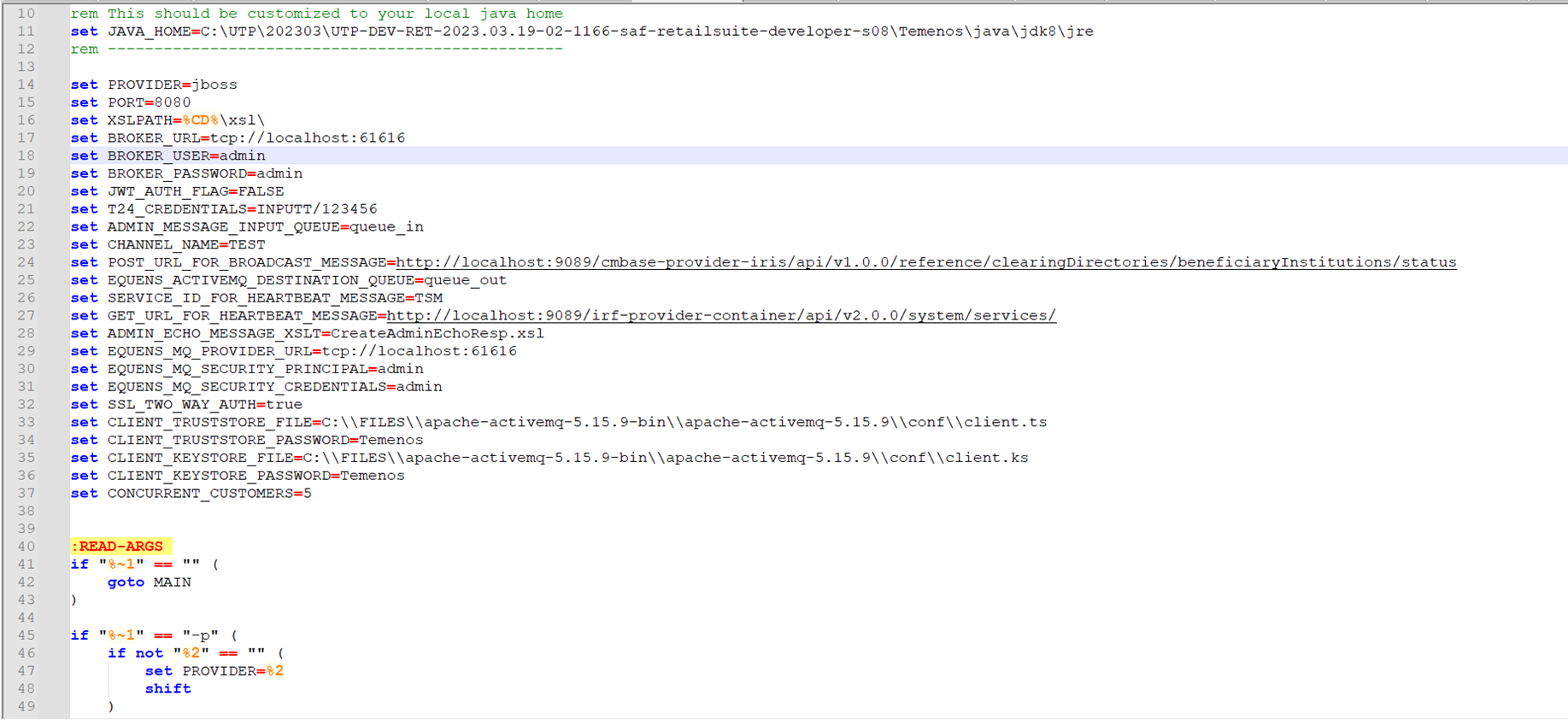
- Path inside the .zip: NLINCT_ AdminMessageProcessing /application.properties. These properties have been externalized. So kindly set the values in the start.cmd script if running it as a standalone application or set it up in the .yaml file in case of docker implementation.
Application.properties file is displayed below.
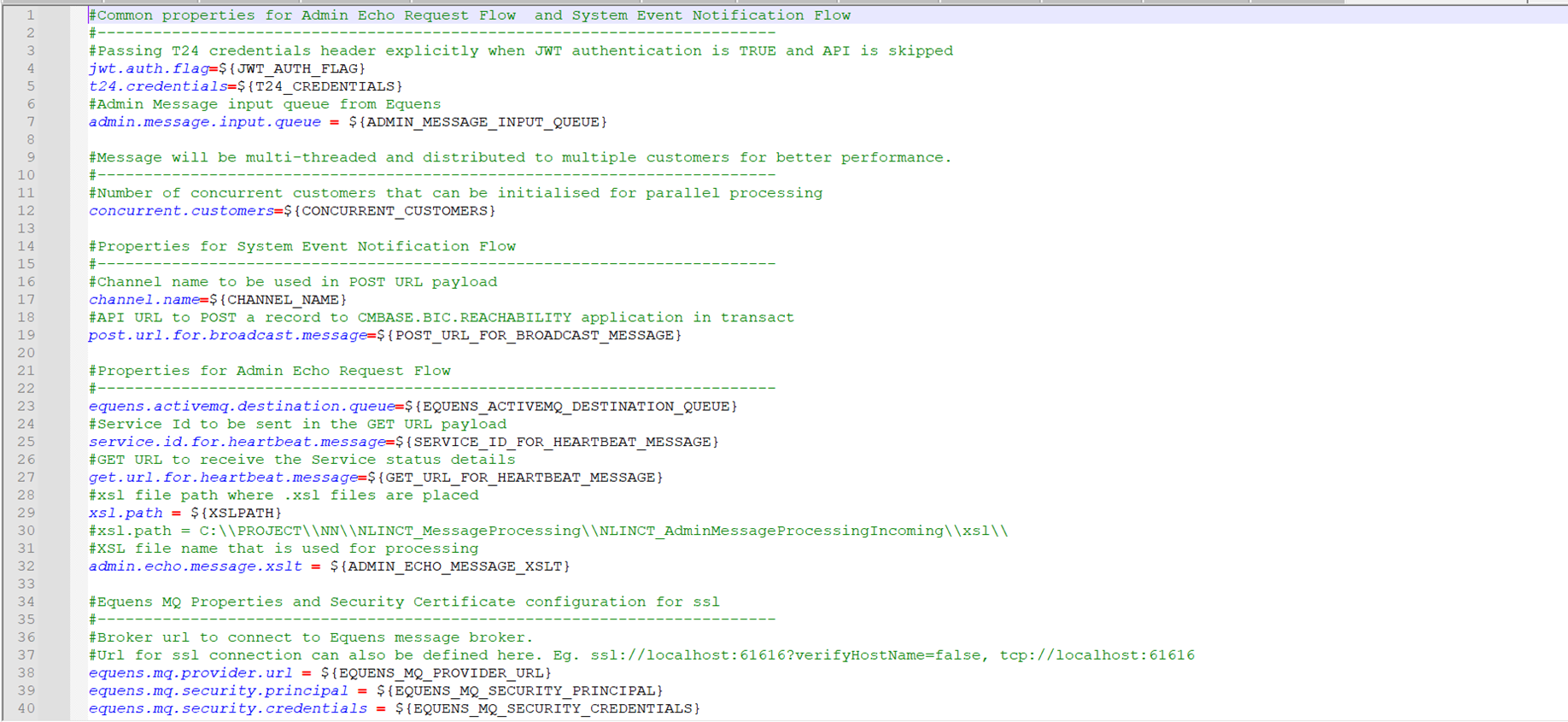
Please do not change the values in this file. The values can be set in the start.cmd script.
Start.cmd script is displayed below.
Log Configurations
The log configurations are the following.
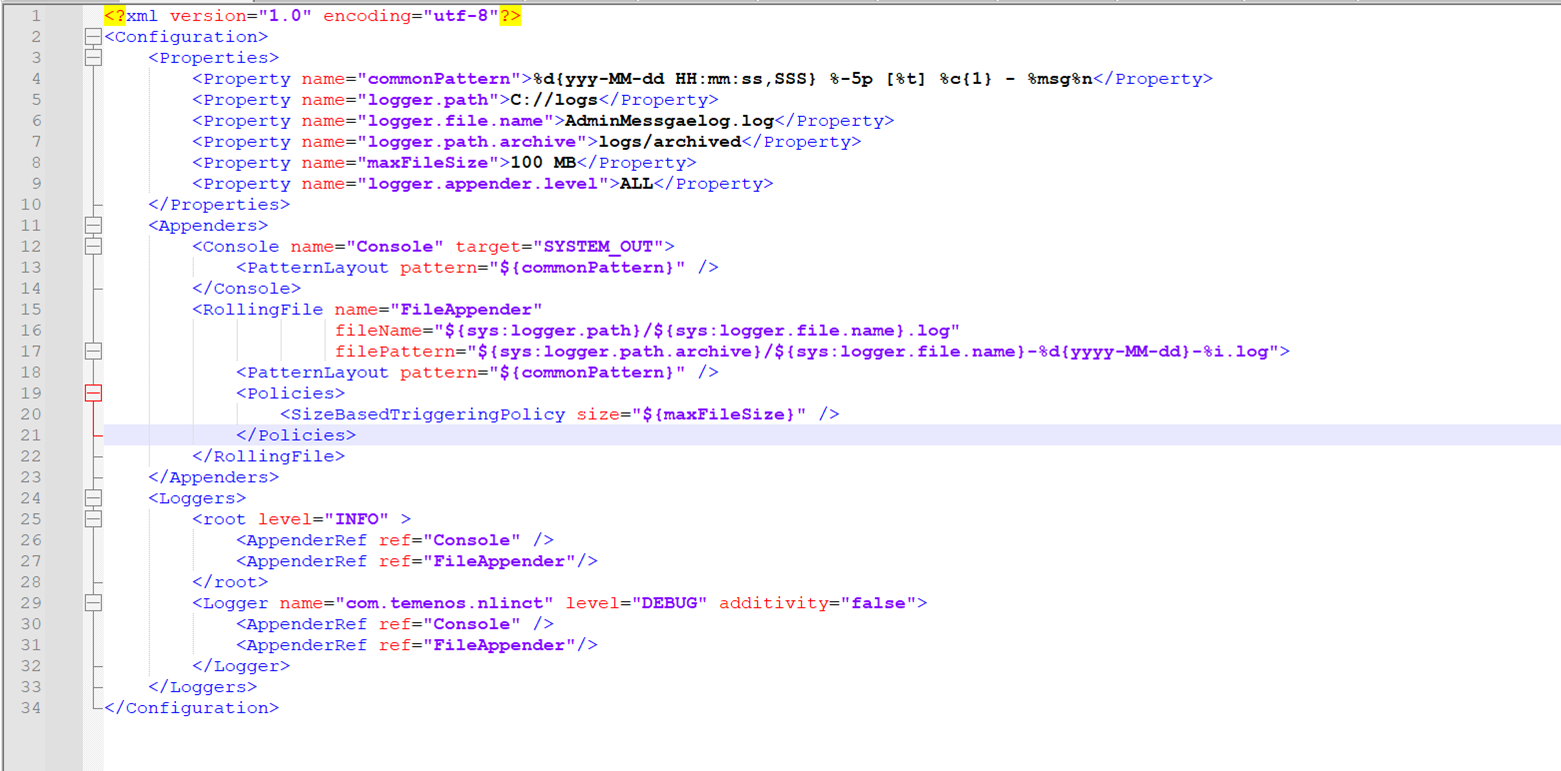
- log4j2.xml : Stored logger related details.
- Path inside .zip: NLINCT_ AdminMessageProcessing /log4j2.xml.
- Ensure the timestamp is given in the format below.
<Property name="commonPattern">%d{yyy-MM-dd HH:mm:ss,SSS} %-5p [%t] %c{1} - %msg%n</Property>
Cloud Deployment Configurations
The Cloud Deployment configurations are described below.
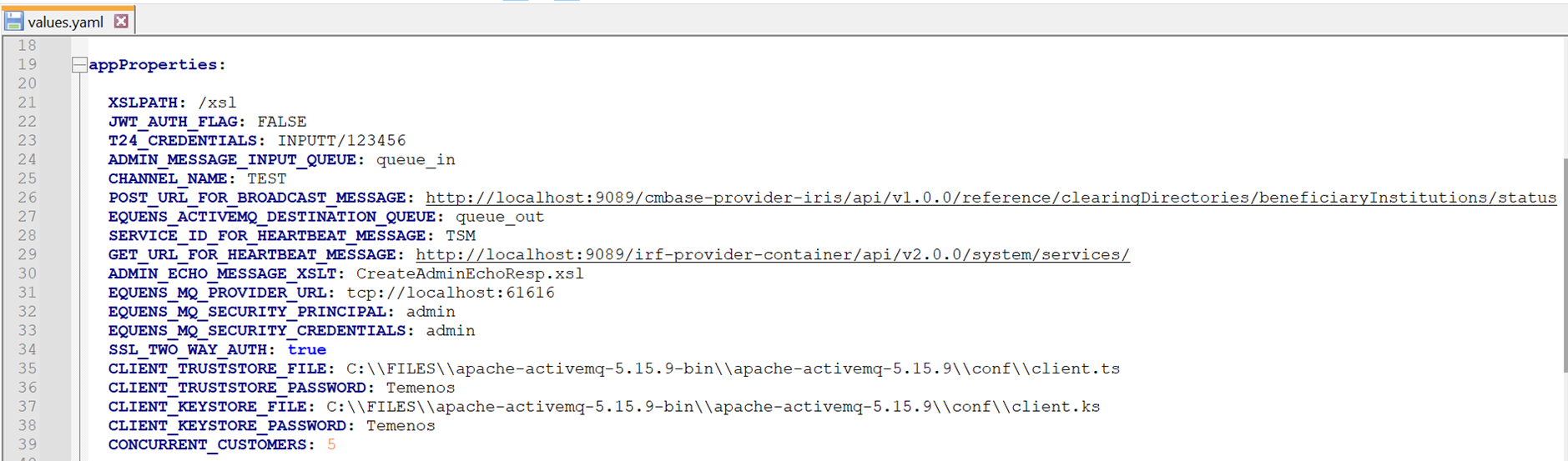
Values.yaml File Configurations
- Configure the required configurations in values.yaml file as displayed below.
Other Configurations
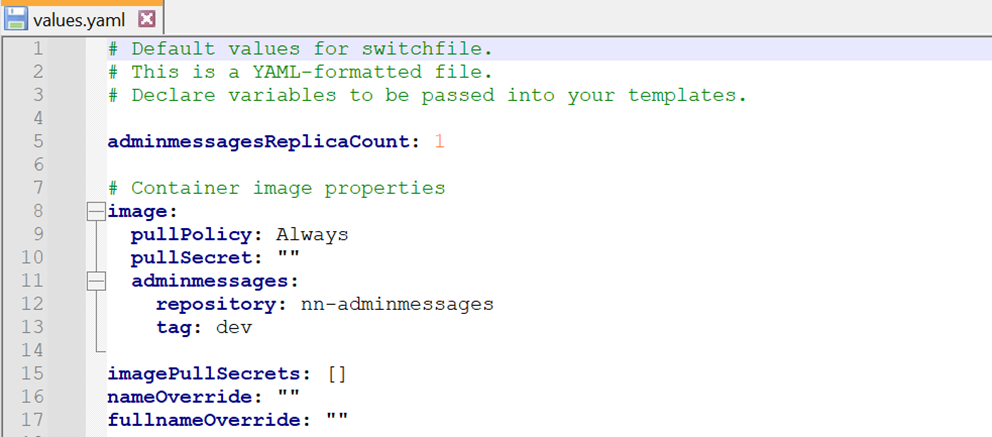
- Update the values.yaml file for increasing the instance count (by default it is one).
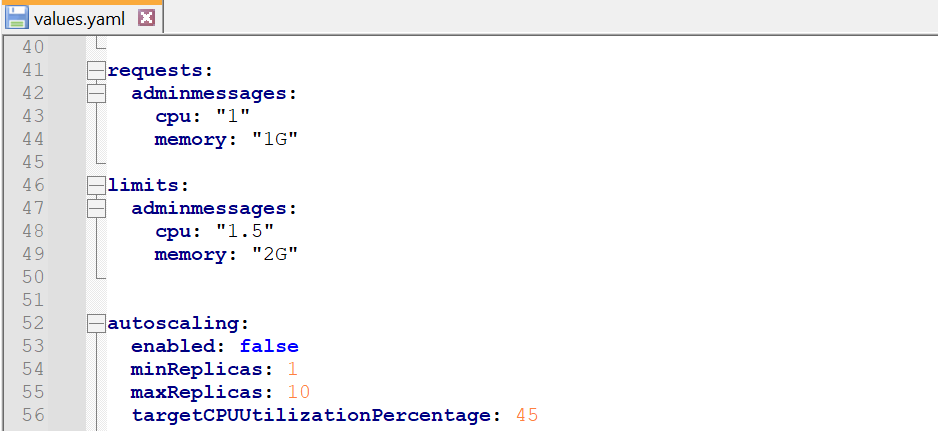
- Mention the range of memory and cores.
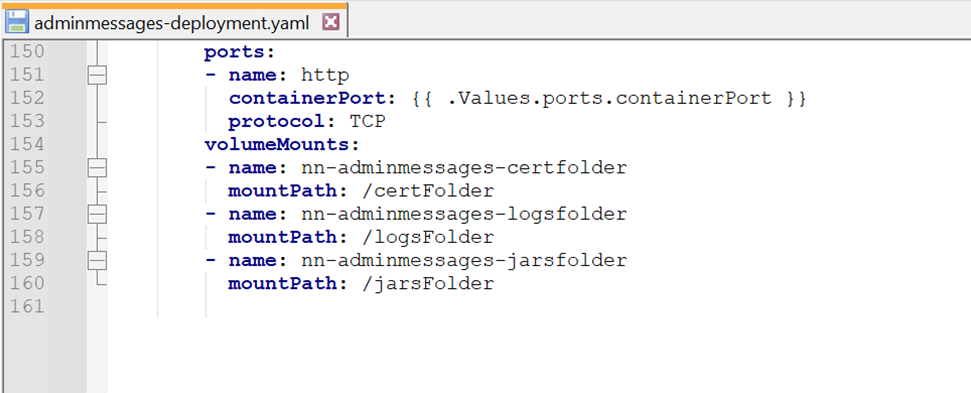
- Update the templates / adminmessages-deployment.yaml with the image name as required in the sample below.

- Update the templates / adminmessages-deployment.yaml file to configure the container instance of mount location.
Application Port Configurations
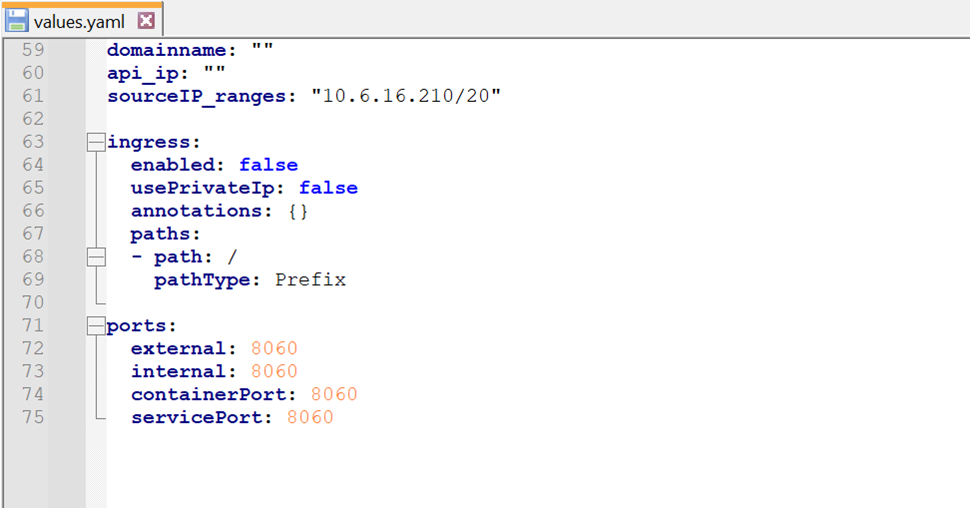
- The application port is 8060 and is configured in the values.yaml files. The ports and IP configuration provided in the values.yaml file is referred in the network-policy.yaml, service.yaml and deployment.yaml.
- Load balancer source IP range is referred from sourceIP_ranges in the values.yaml files.
Installation Steps
The steps for installing the package are provided below.
For On-Prem Environment
- Unzip the zip package into a folder NLINCT_ AdminMessageProcessing.
- Configure the java home path in NLINCT_ AdminMessageProcessing /start.cmd.
- Run the adapter by double clicking the start.cmd or use a console to run the following command.
start.cmd -p <application_server> -po <port>
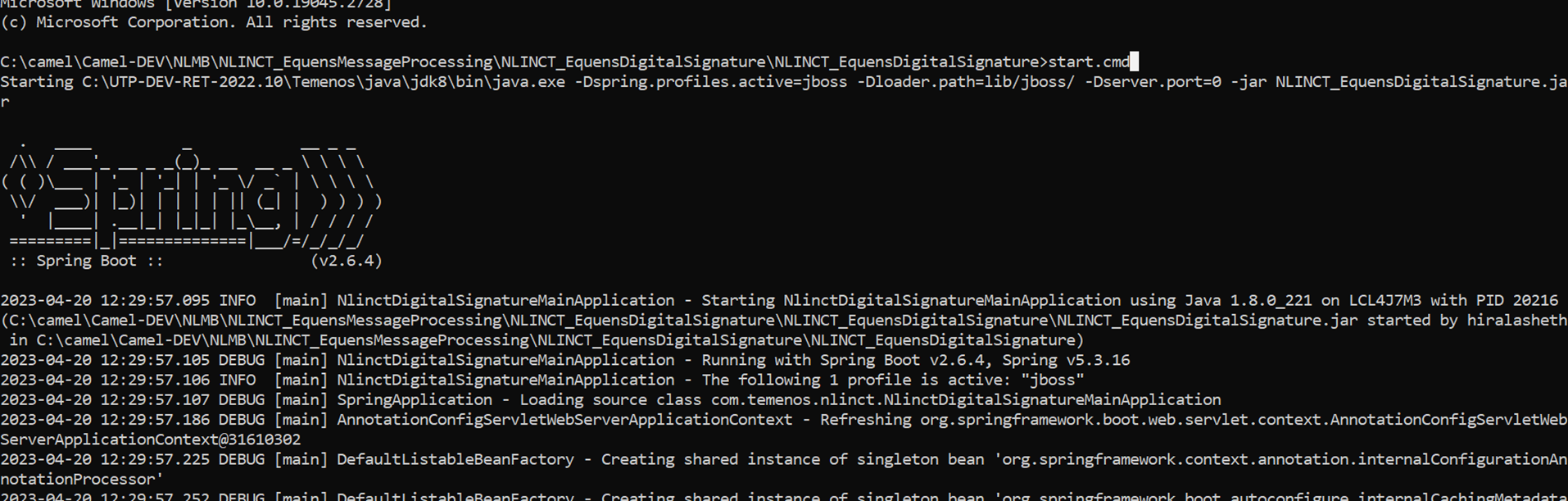
- Terminate the adapter by double clicking the stop.cmd or run the following command: stop.cmd
For Cloud Environment
- Download the zip file and provided and extract it in a folder in destination system.
- Check if any images are existing (using docker images command) in the destination system. If so remove them using:
- docker images,
- docker rm <image id> command.
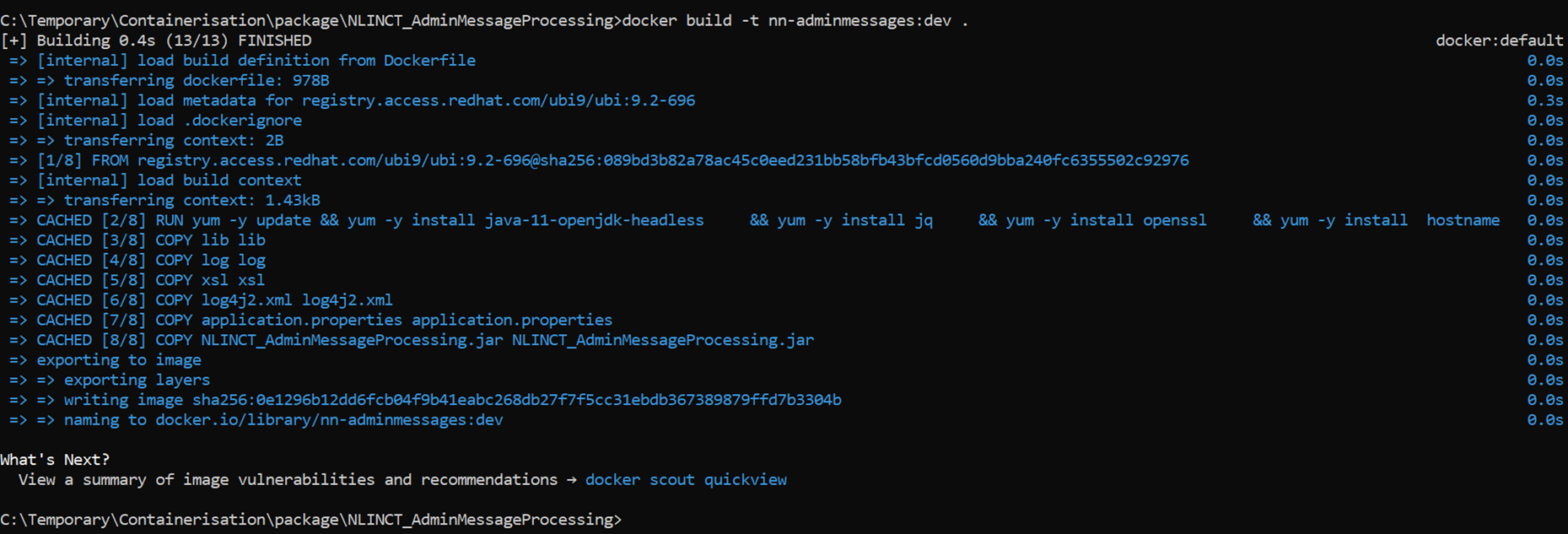
- Locate the Dockerfile folder and open command prompt to execute the following command. This will load the images into docker.
Load Images Syntax:
docker build -t <repository>:<tag>
Eg:docker build -t nn-adminmessages:dev
- For docker deployment only: Start a local docker registry server using docker image that will be used as a container registry hosting all the images deployment.
Start Local Registry Eg:docker run -d -p 5000:5000 --restart=always --name registry registry:2

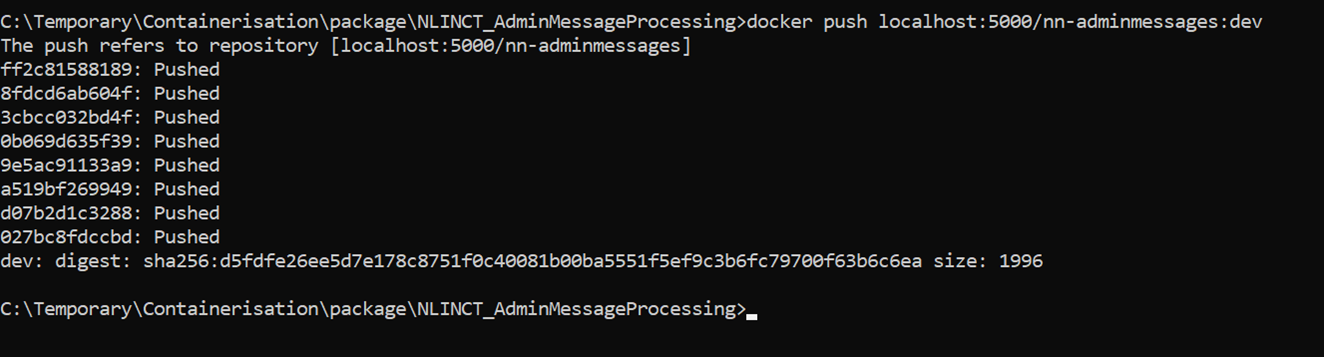
- Once registry is started, you need to tag and push the images that were loaded earlier. Syntax and samples for tag and push is mentioned below.
Docker tag images Syntax:
docker tag <Repository> <local registry host>:<local registry port>/<repository>:<tag>
where,
Repository – nn-adminmessages
local registry host – localhost
local registry port – 5000
tag – dev
Eg: docker tag nn-adminmessages:dev localhost:5000 nn-adminmessages:dev

Docker push images Syntax:
docker push <local registry port>/<repository>:<tag>
Eg: docker push localhost:5000/ nn-adminmessages:dev
- Navigate to helm folder and start nn-adminmessages services using below command.
Start nn-adminmessages services Syntax:
helm install -name <<image name>> . -n <<image namespace>> --create- namespace
Eg: helm install -name nn-adminmessages -n nn-adminmessages --create-namespace

- Check if the services are up using the command below.
Get pods Syntax:
Kubectl describe pods -n <<image namespace name>>
Eg: kubectl describe pods -n nn-adminmessages
- If the application is running, POD log will be generated with the keyword 'ACCEPTING_TRAFFIC'.
- To uninstall the afb service use the below command:
helm uninstall <<image name>> -n <<namespace name>>
Eg: helm uninstall nn-adminmessages -n nn-adminmessages
Special Instructions
In case of Linux environment:
- Kindly ensure that the start.sh has 'LF' as line separator.
- To start the adapter, run the following command:
sh start.sh -p <provider> -po <port>
- To terminate the adapter, run the following command:
sh stop.sh
In this topic