Python Script
This feature allows user to extend the framework to have customized validations as per their needs. This allows the user to store it as part of separate python hooks rather than making the change to the core framework. Validations can be performed both in request and response payloads.
Refer Supporting Python Script to know more about Python Script.
Creating and Editing Python Script
This section details about creating and editing Python Script.
 Creating Python Script
To create a python script,
- Navigate to Extensions > Python Script, on the left pane of the dashboard.
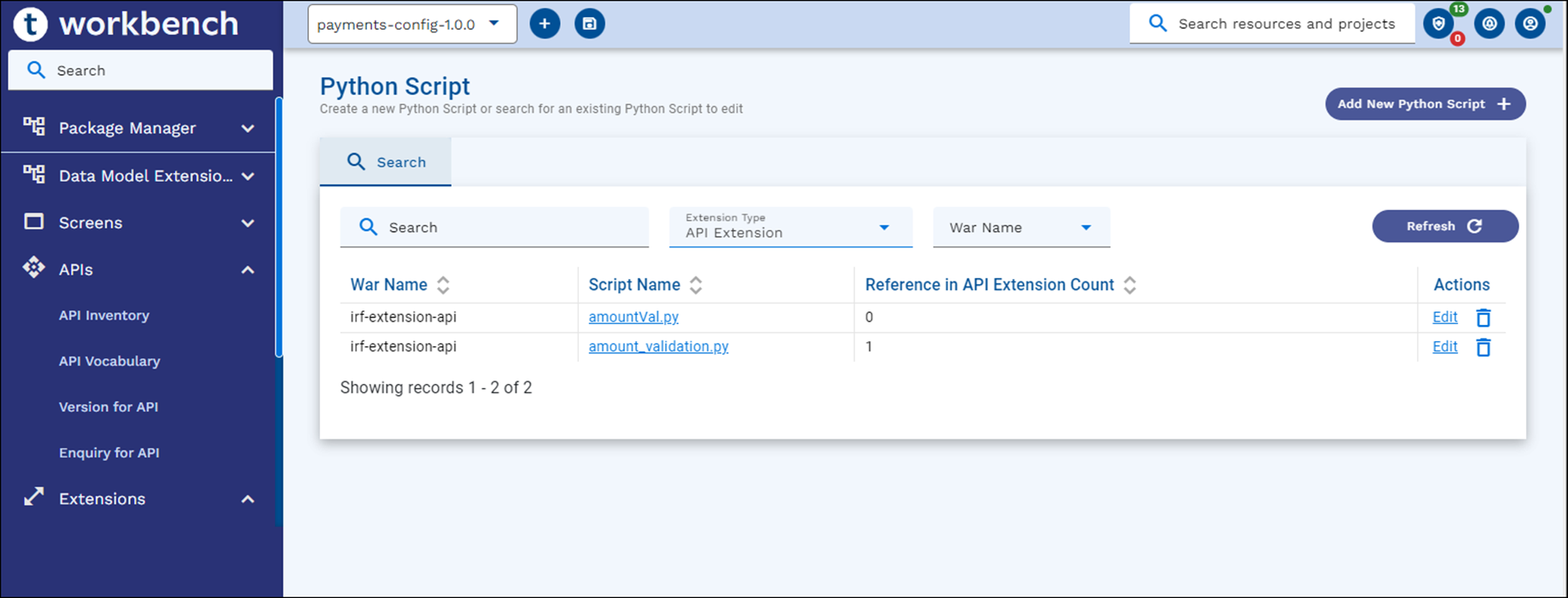
- Click Add Python Script on the Search page.
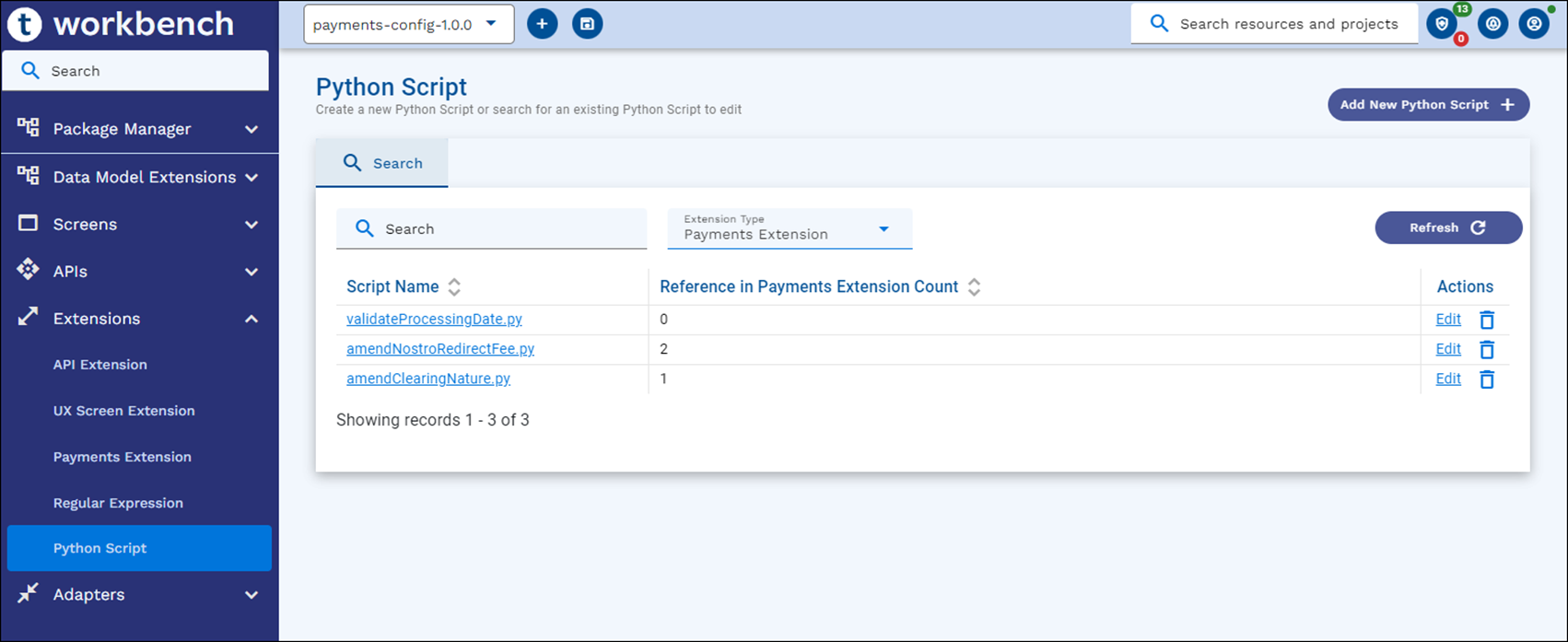
- Enter the following details in the New Python Script screen.
Field Action Mandatory – YES/NO Default Value Script Name Enter a relevant Python Script name. Tab out from this field appends .py by default YES Extension Type Dropdown, select API Extension, UX Resource Extension or Payments Extension YES First value from the list – API Extension War Name Select a war file from the dropdown. This field is shown only for API Extension type. YES (for API Extension) First value in the list - Enter the mandatory fields and the Python Script in the editor. Default script is loaded for each Extension Type.
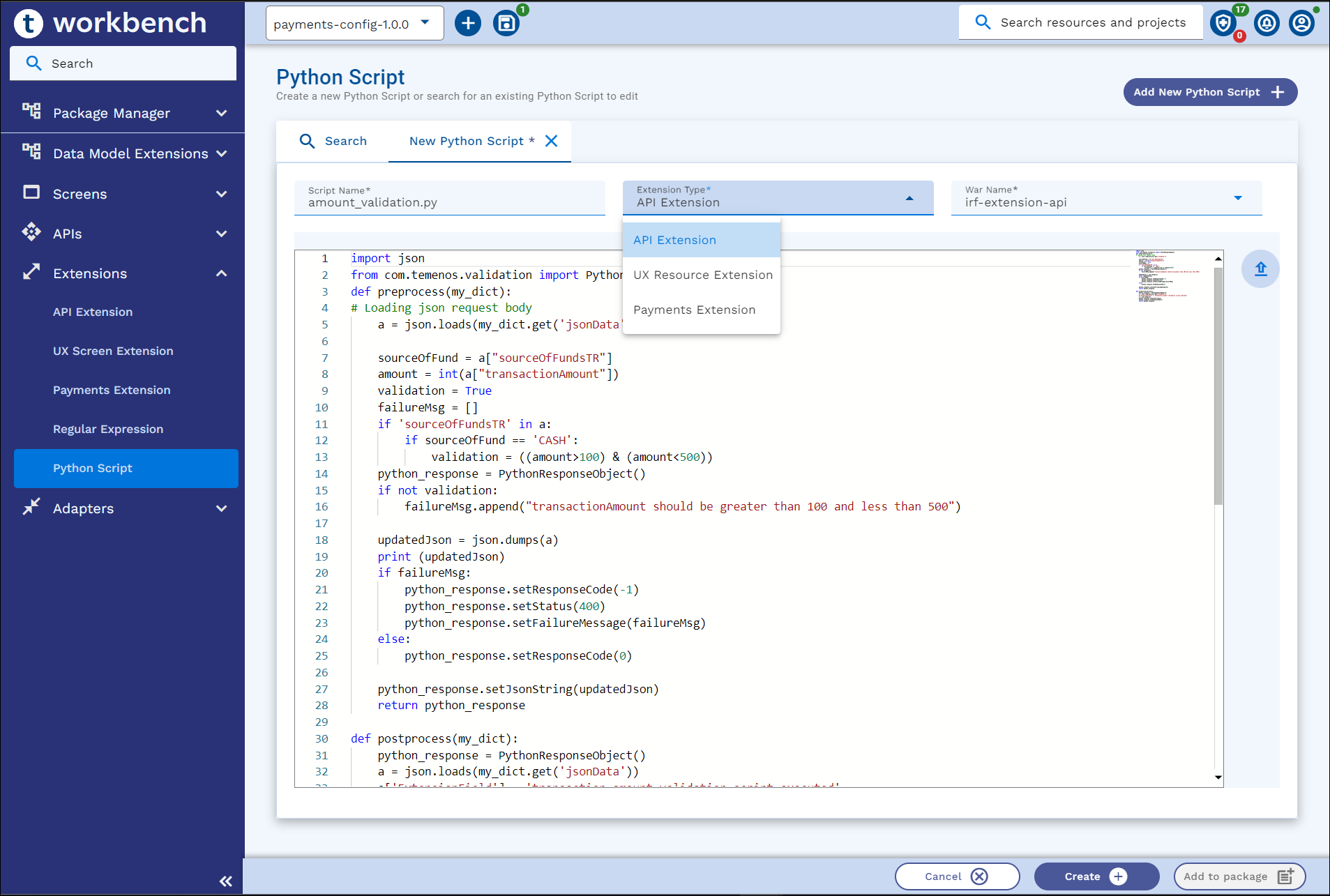
- Click Create to create and store the Python Script in Generic Configuration Microservice.
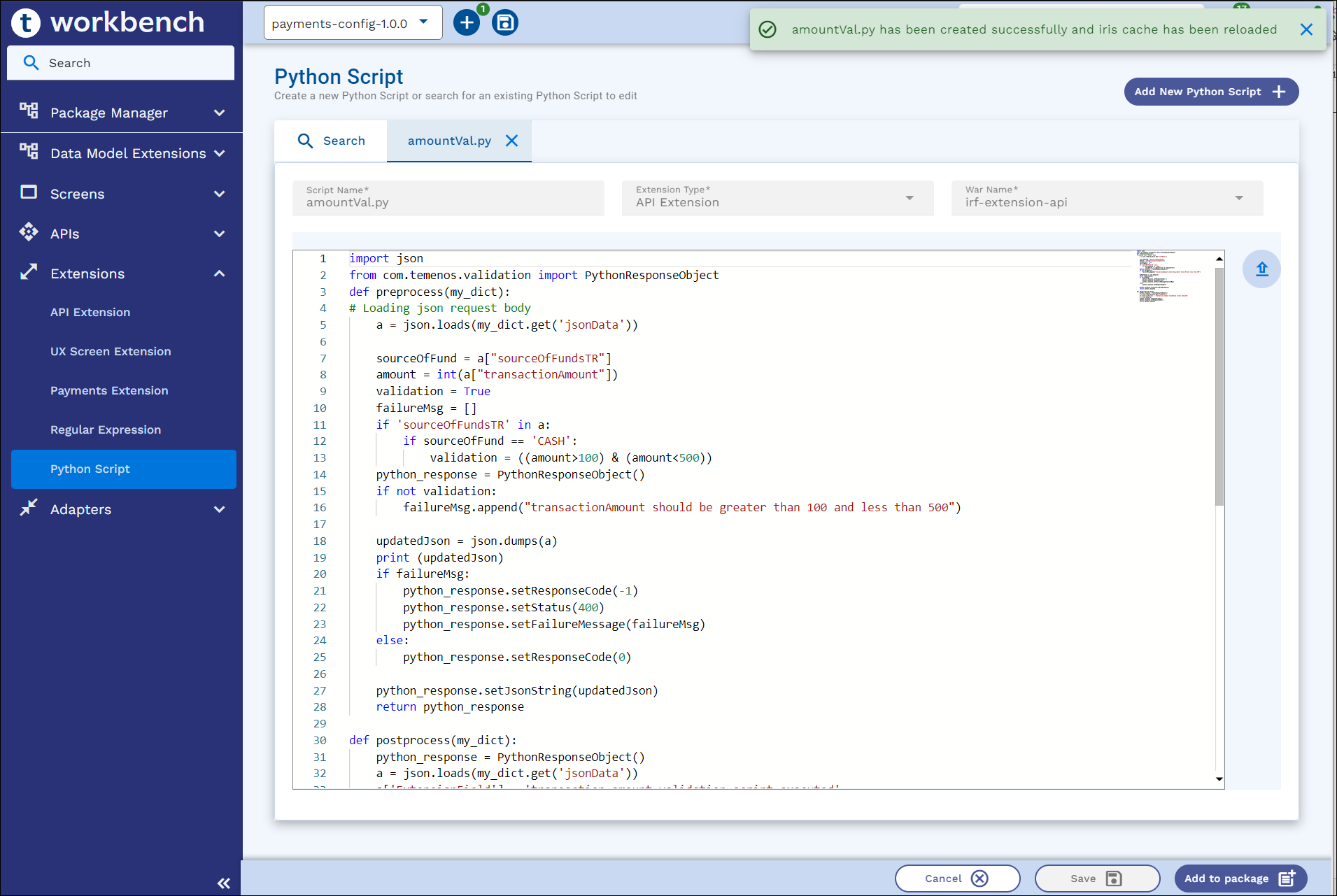
Python script for Extension Type: API Extension
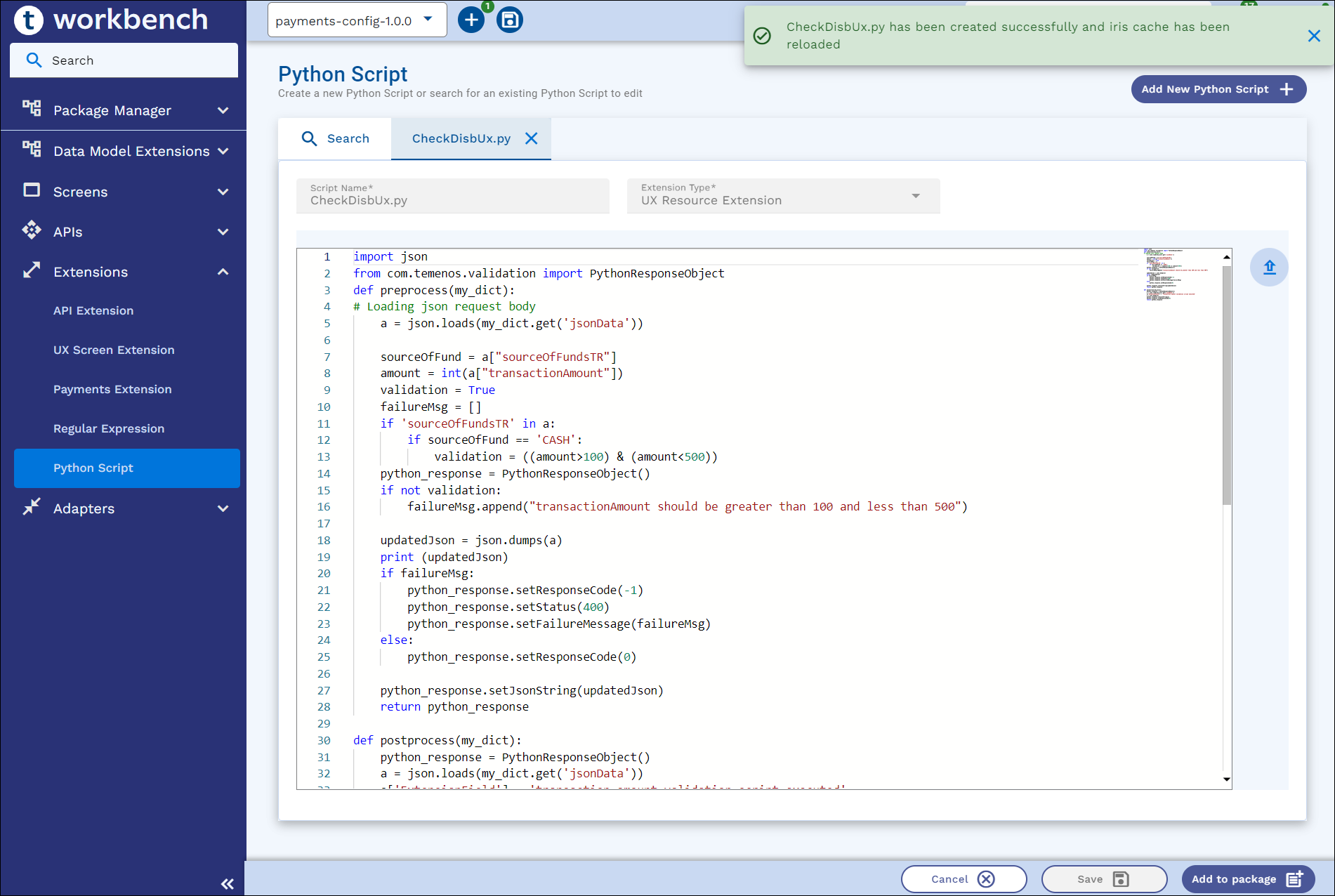
Python Script for Extension Type: UX Resource Extension (uses irf-rp-services.war by default)
Python Script for Extension Type: Payments Extension
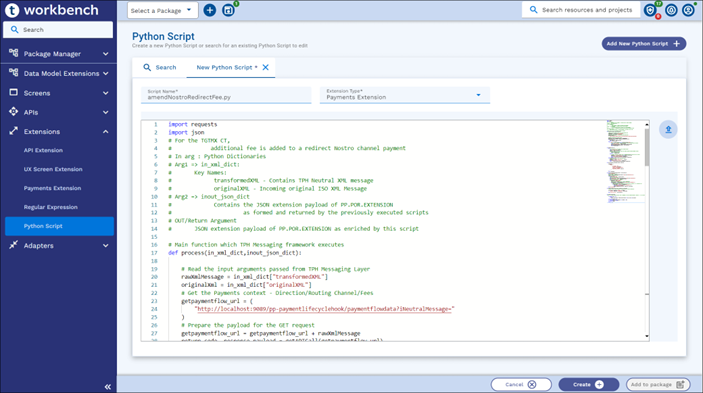 Default sample script is loaded for the user.
Editing Python Script
To edit an existing Python Script,
- Navigate to Extensions > Python Script on the dashboard left pane.
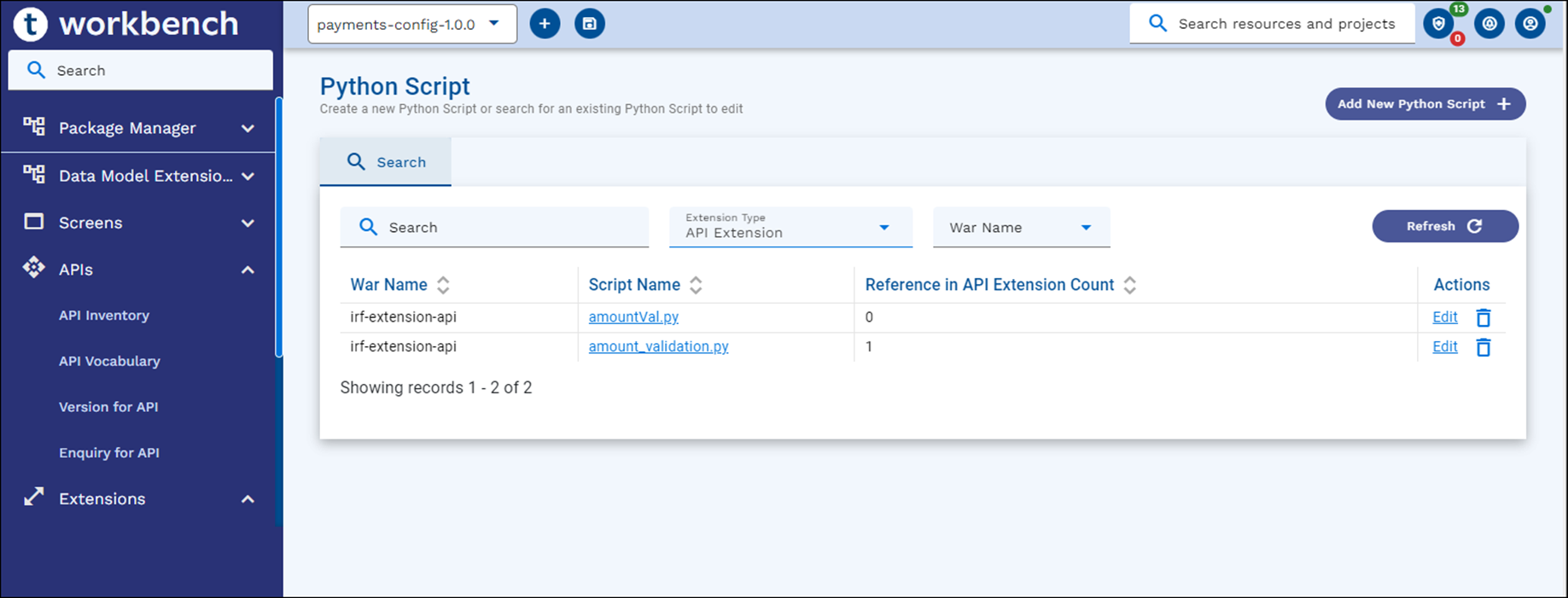
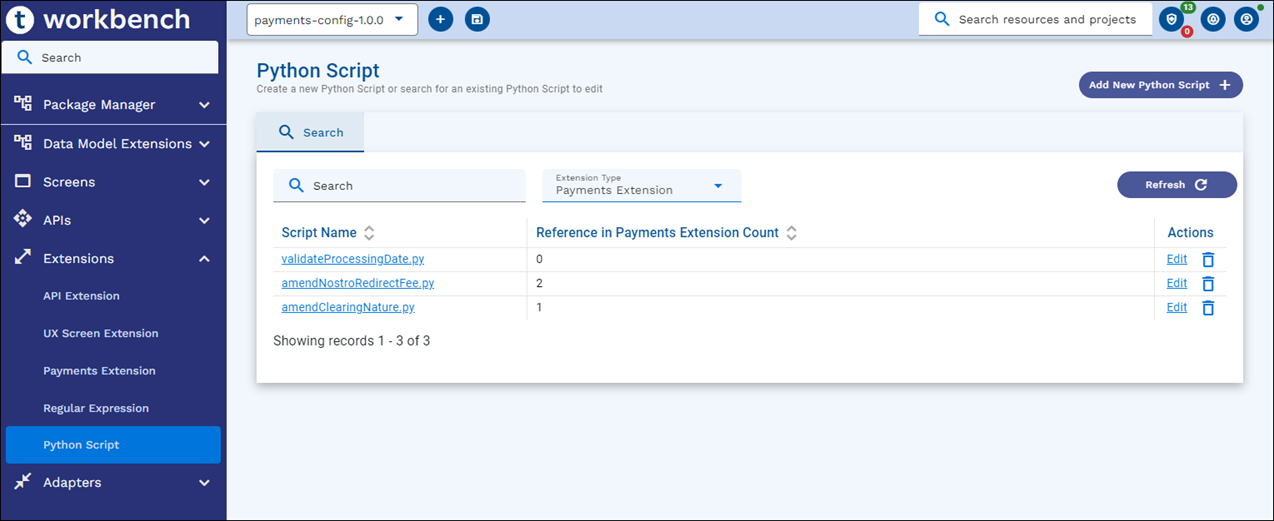
- Search for the Python Script and click Edit. We can apply search filter based on Extension Type or War name. For example, Editing Python script for Payments Extension Type.
- Update and click Save.
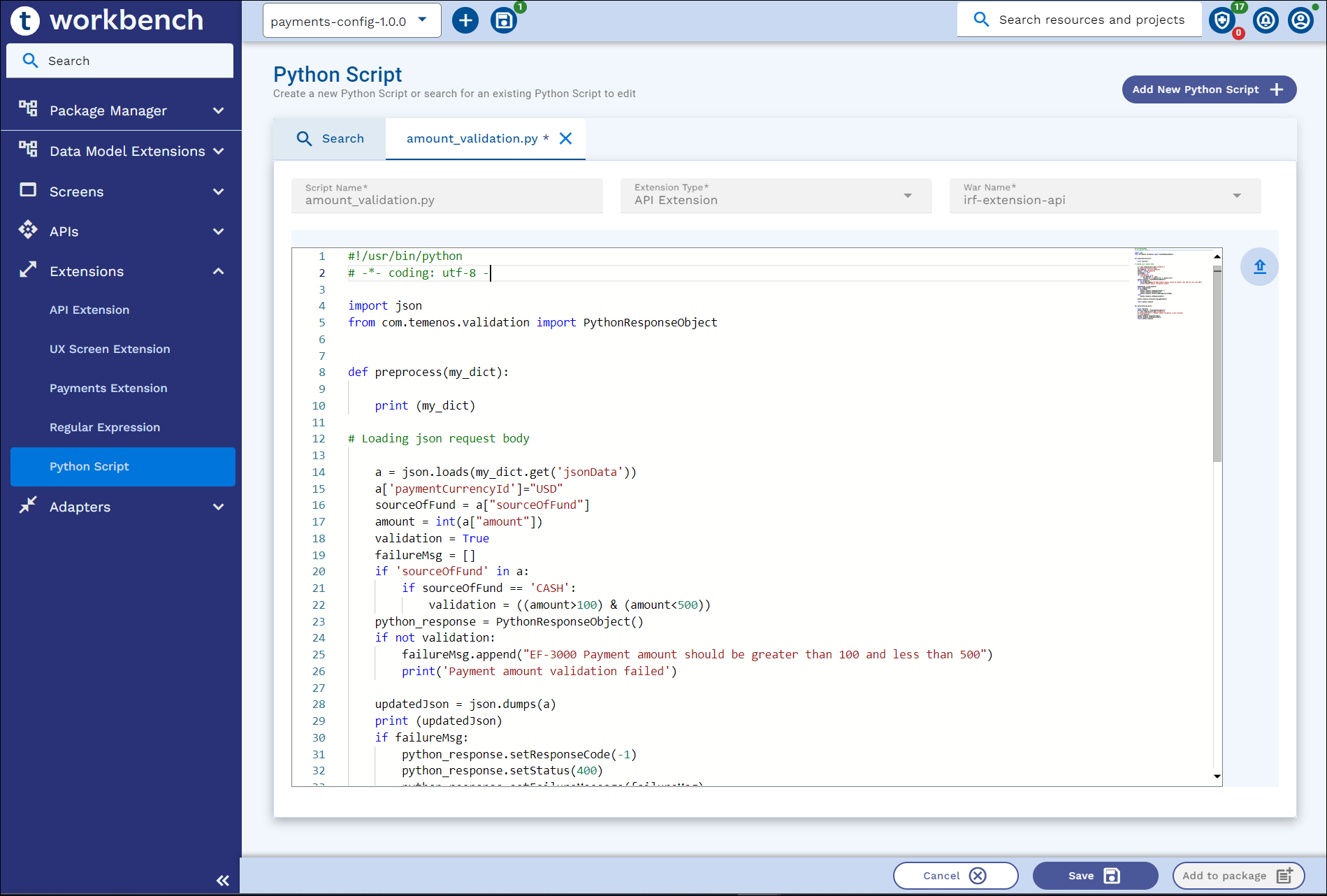
Packaging Python Script
As a prerequisite, Extension configuration for Python Script must be defined as System properties. Read the Configuration Parameter Reference section for more information.
- If Workbench is configured with non-Git mode, Add to Package button is available in all the screens.
- If Workbench is configured with Git mode, Add to Project button is available in all the screens.
To package an existing Python Script
- Navigate to Extensions > Python Script, on the dashboard’s left pane.
- Search for a Python Script record and click Edit.
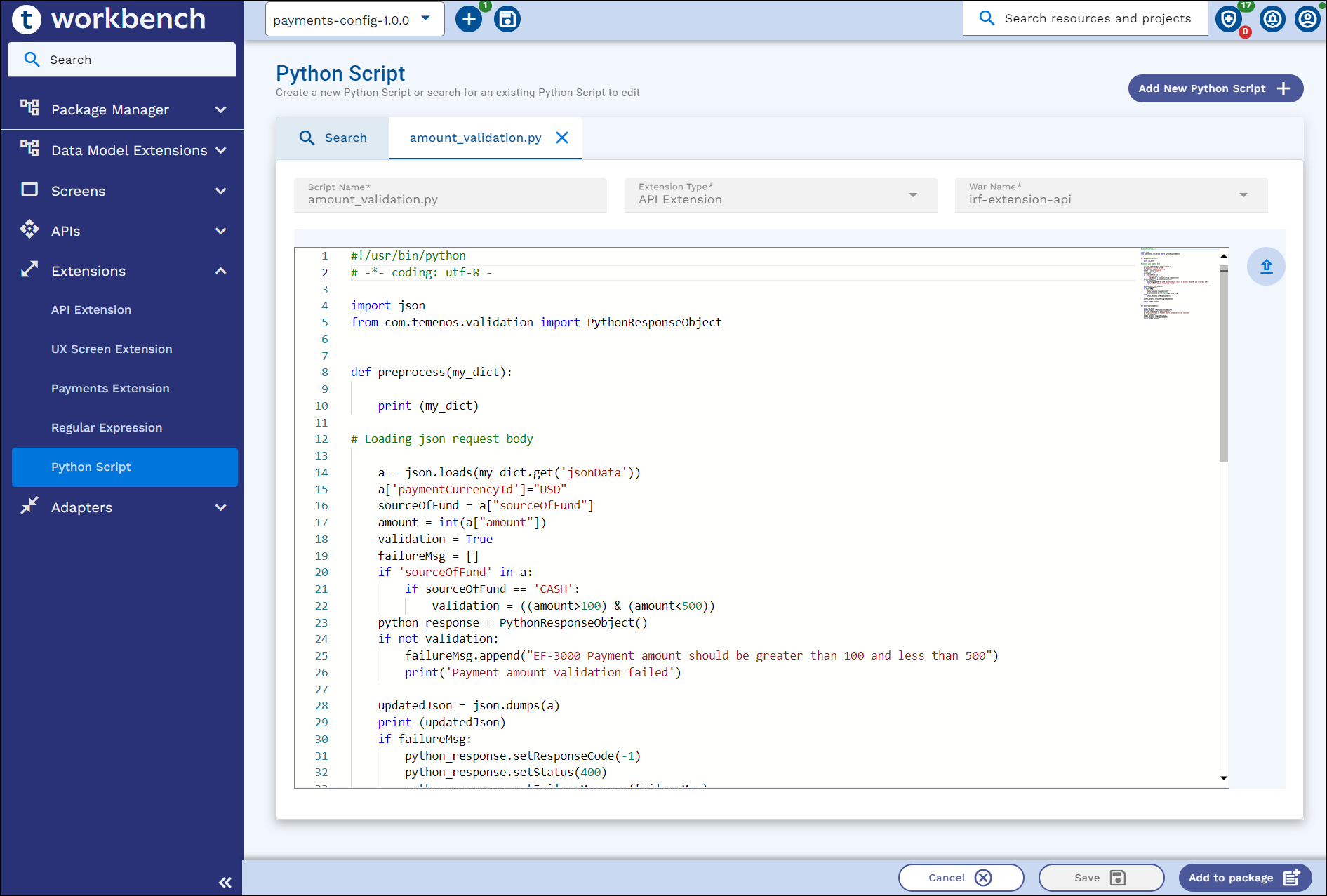
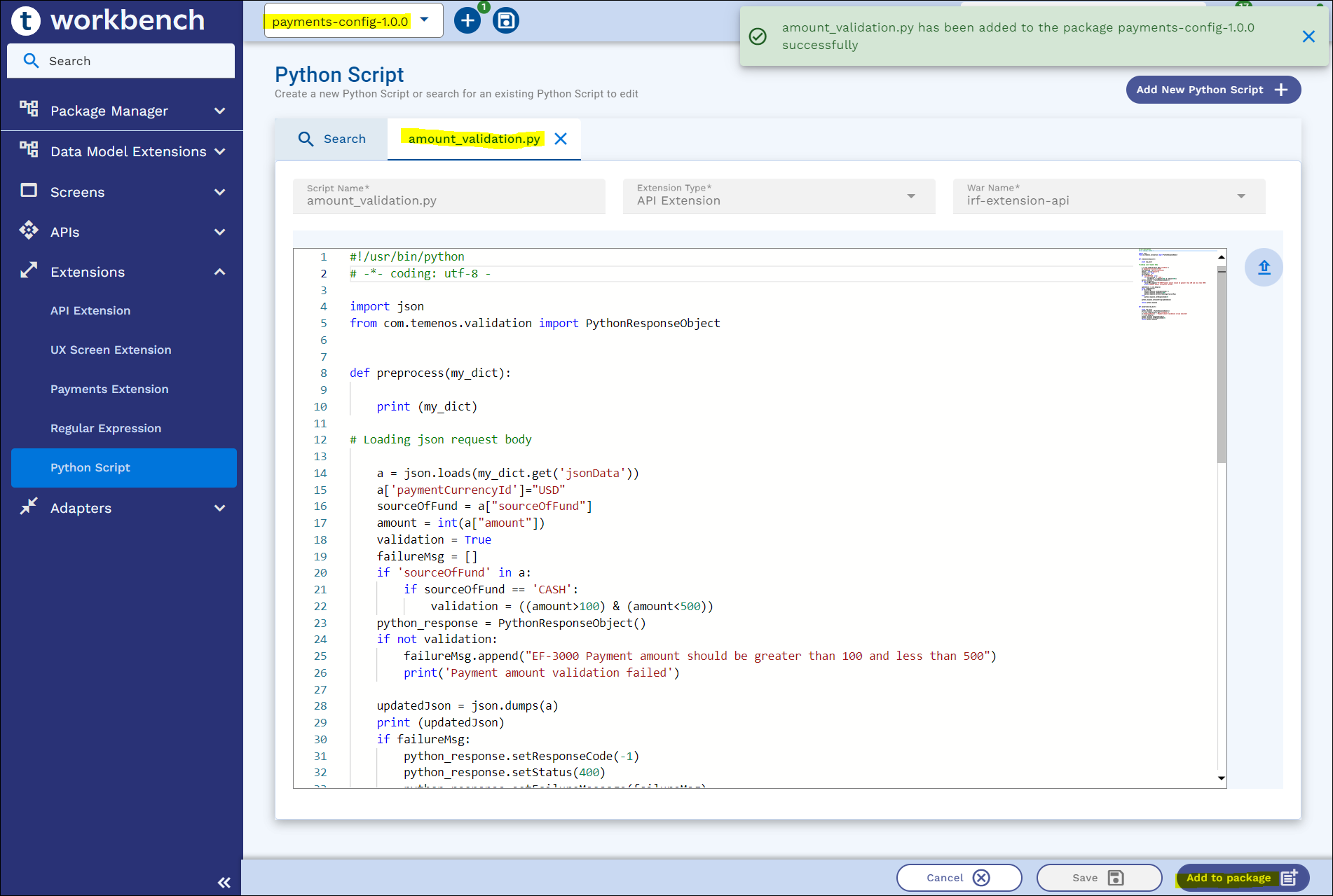
- Select a package or project from the top app bar and,
- Click Add to Package or Add to Project.
- On the appbar, click the ‘+’ icon and click either Add to Package/ Add to Project, or Add All to add Python Scripts to the package or project.
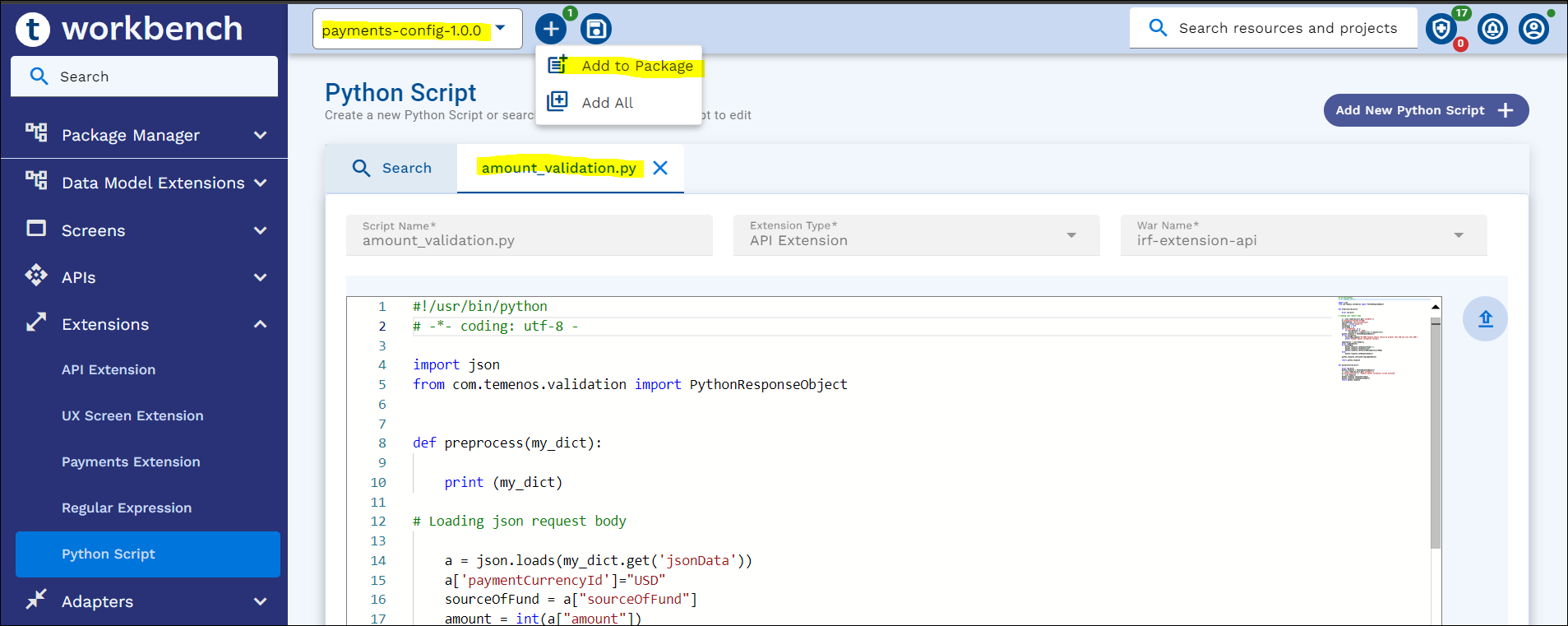
- Click Add to Package or Add to Project.
Deleting Python Script
This section details about deleting a python script. To delete an existing python script,
- Navigate to Extensions > Python Script on the dashboard left pane.
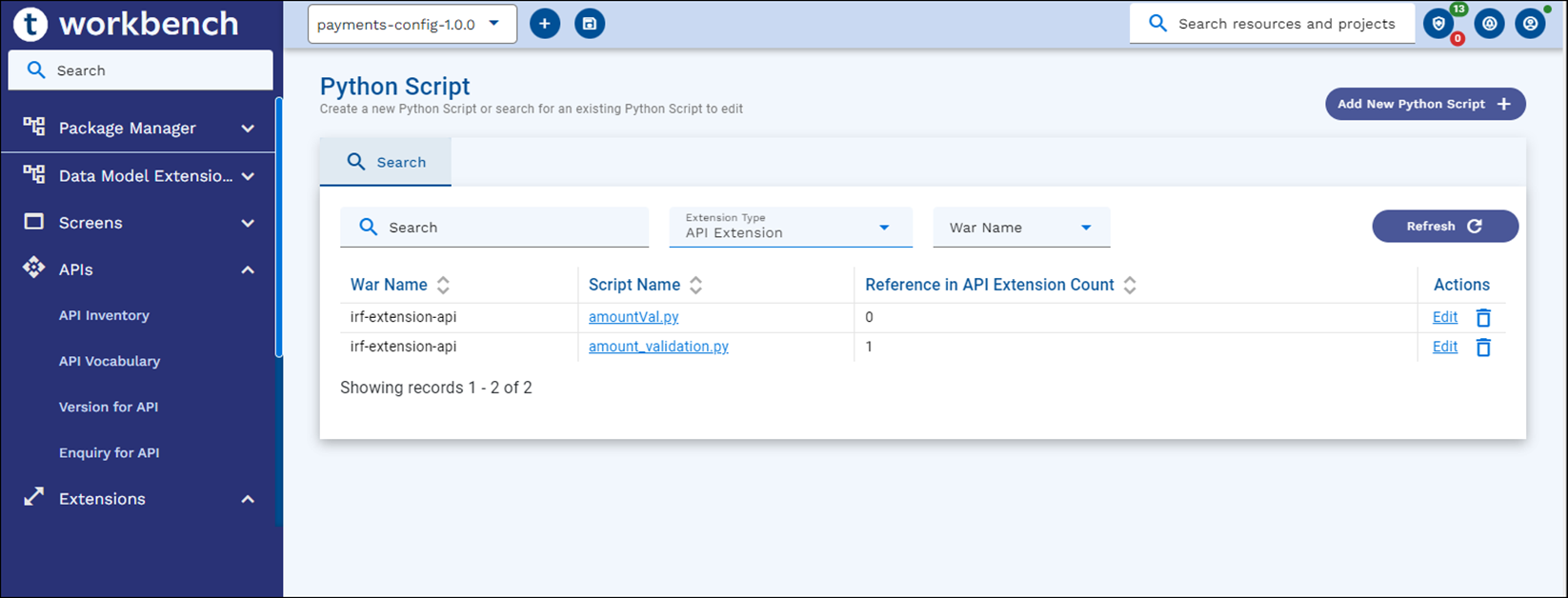
- Search for a python script of any extension type and click Delete.
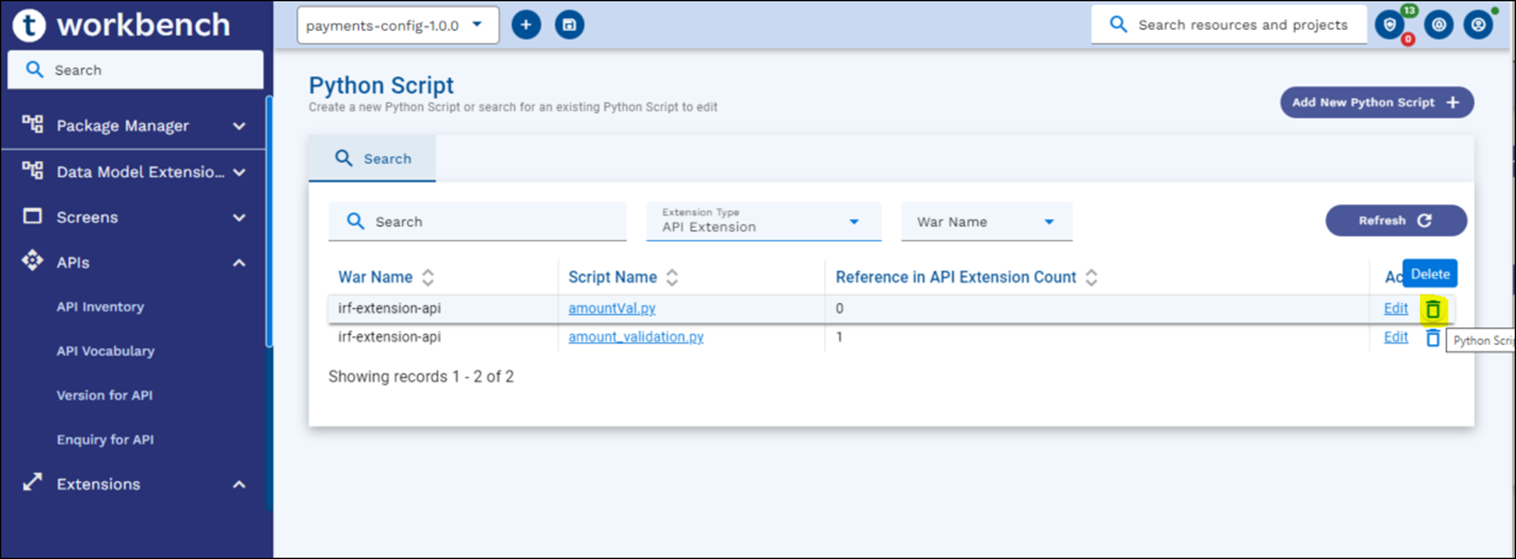
- In the Delete confirmation popup, click Delete. This deletes the python script from the config service.
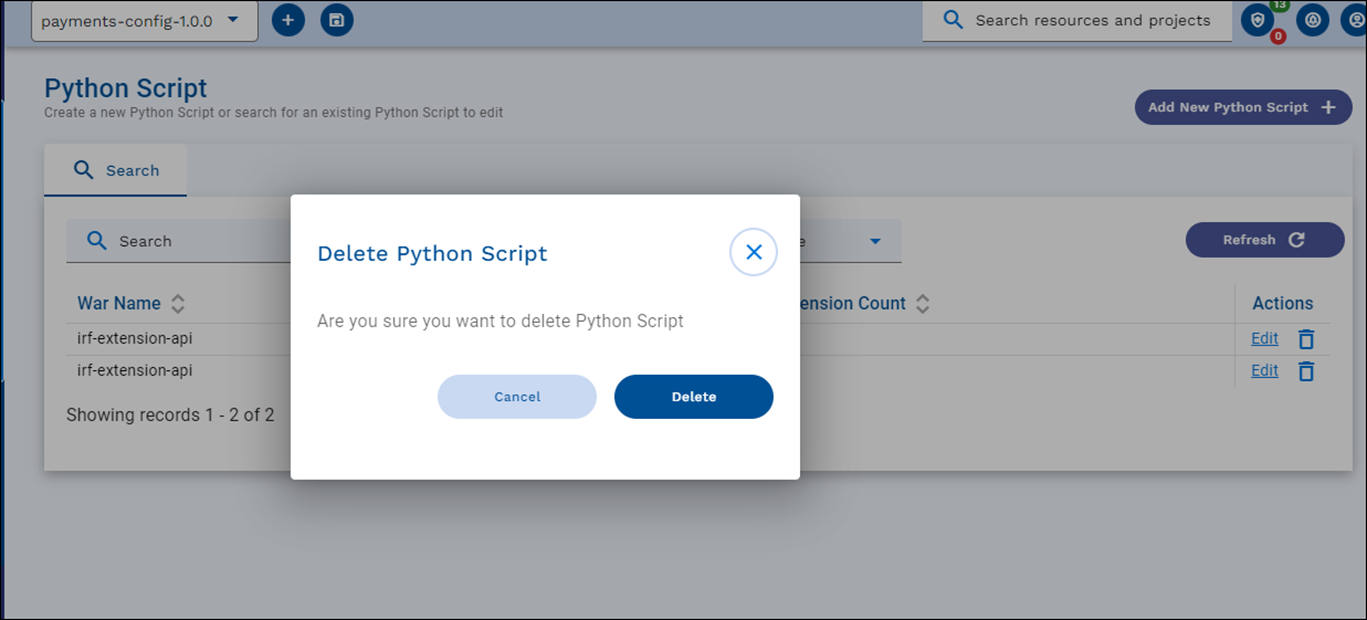
Python Script Delete is applicable for three extension types namely: API Extension, UX Resource Extension, Payments Extension.
-
For the API Extension type, if Reference in API Extension Count is not equal to 0, then the delete operation shows a warning as shown in the sample below.
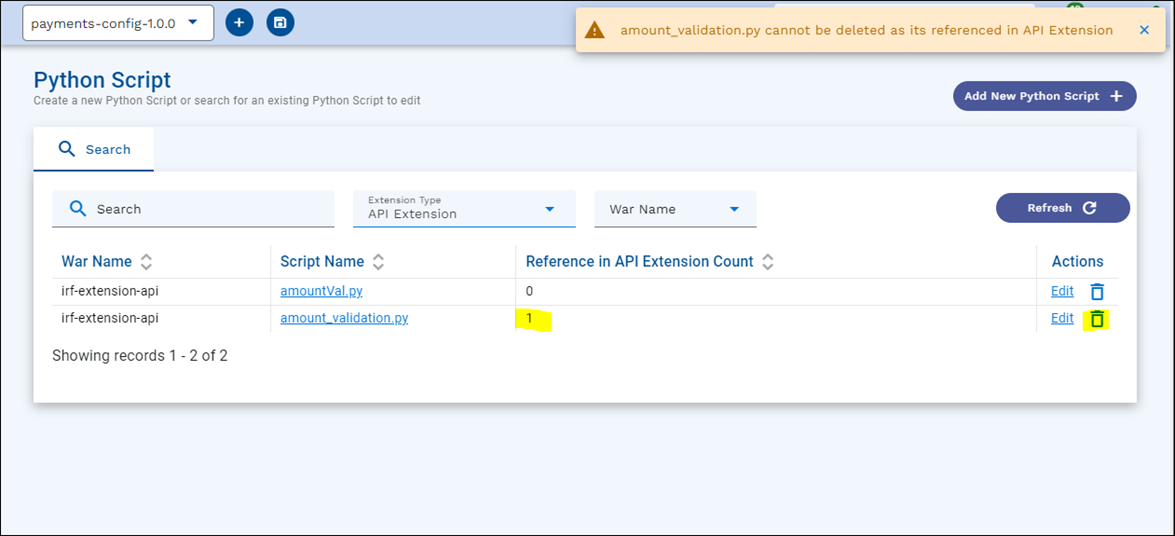
-
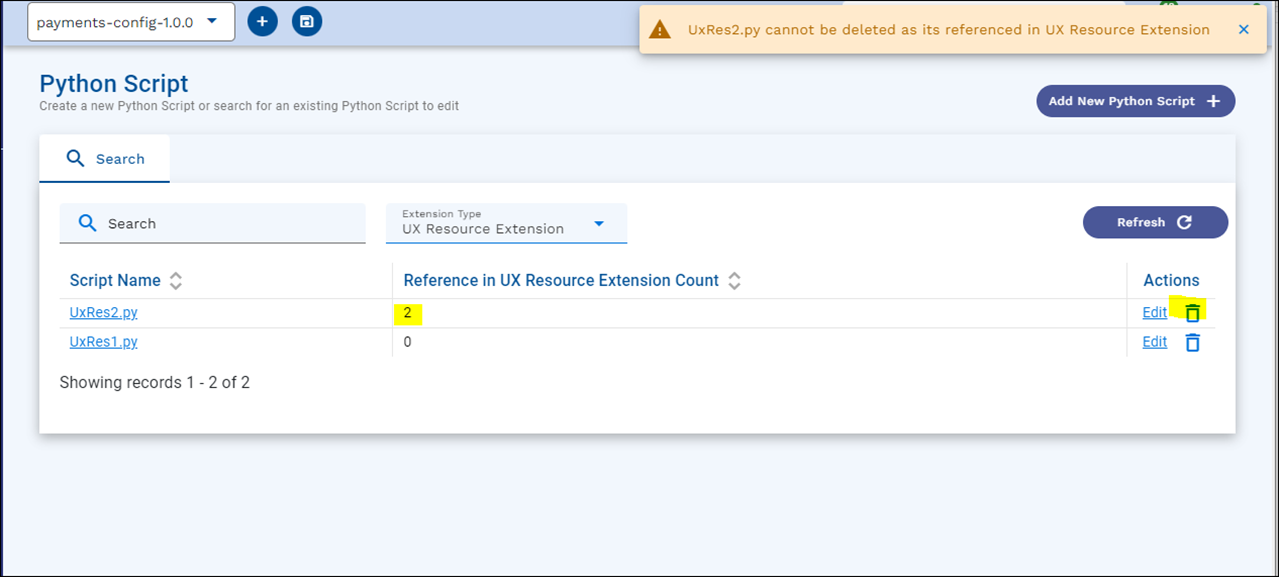
For the UX Resource Extension type, if Reference in UX Resource Extension Count is not equal to 0, then the delete operation shows a warning as shown in the sample below.
-
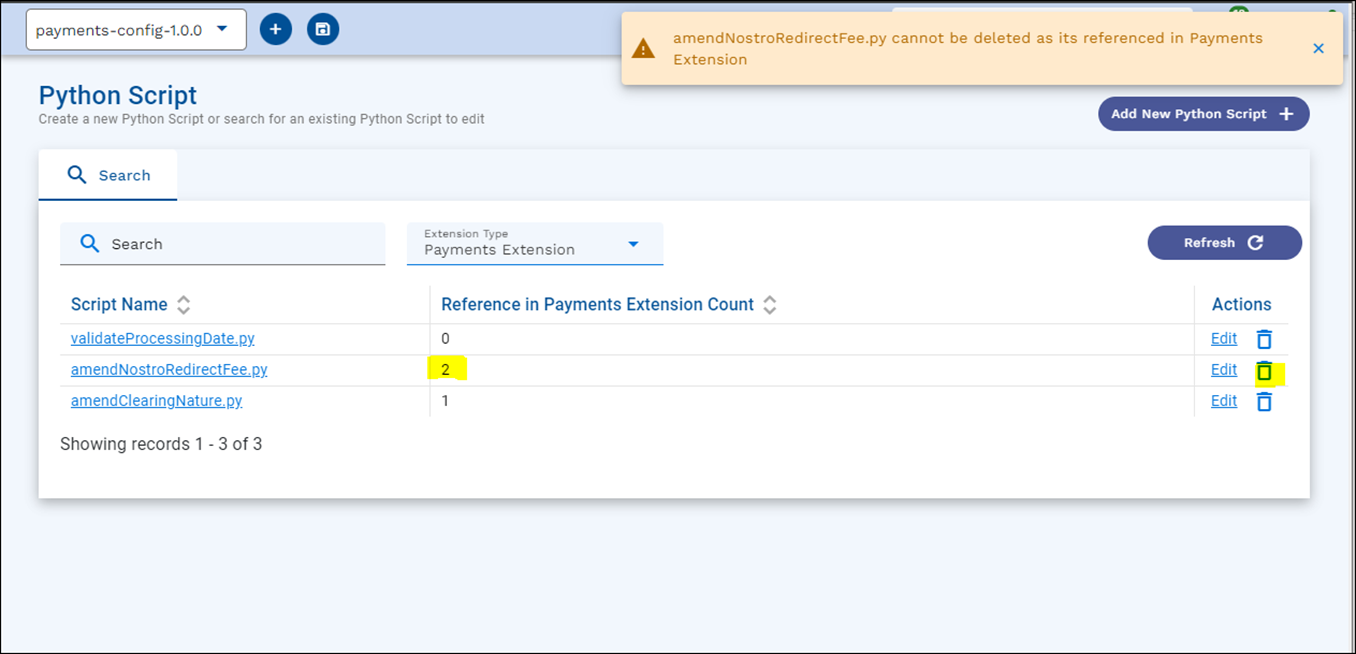
For the Payments Extension type, if Reference in Payments Extension Count is not equal to 0, then the delete operation shows a warning as shown in the sample below.
-
Delete operation deletes all the revisions of the python script if there are multiple revisions.
In this topic