Installing Aggregation Microservice in Azure
This section helps you to install the Aggregation Microservice in Azure.
Procedure
Follow the below steps to install the Account Aggregation Microservice into Azure:
- Copy the generated.zip file (from the target folder) in the installation directory.
- Extract the zip file.
- Azure CLI, python (preferably 3), maven are pre-requisites to deploy this in azure.
- If you are running the sh scripts, you need a Linux box or WSL or Mac OS, gitBash is not supported for azure cli as of now.
- Navigate to the installation directory in command prompt.
- Ensure that the folder name inside target/azure-functions is the same name as the functionApp Name you've provided in the script.
- Modify the resourcegroup, location,database details and so on in the install.sh or install.bat script specific to the installation. Ensure any property name is carefully changed, if it's used in multiple areas across the script, by finding and replacing the values.
- In case of multiple instances deployment, provide a unique value to the DEPLOYMENT_ENVIRONMENT property in install.bat/install.sh file, which creates unique Resource Group and app name.
- If the DEPLOYMENT_ENVIRONMENT property is not provided with any value, the default value of Resource Group and app name will be considered. This is expected to be the master script that creates the event hub for Arrangements, Holdings.
As a prerequisite, ensure that this is first deployed before deploying the other two MS.
- Execute the install.sh or the install.bat.
- Once the installation is done the functions are created in Azure.
- Login to Azure portal and check that the resourcegroup and functionsapps are created.
The master key token can also be retrieved from Azure portal, navigating as highlighted:
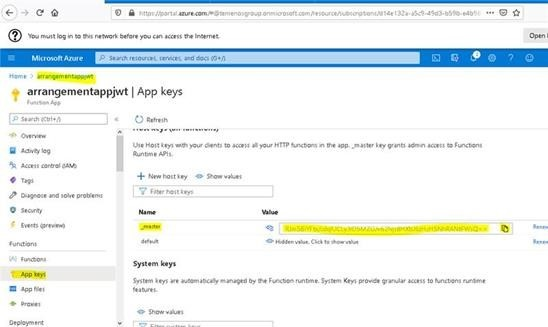
The masterKeyToken value can be used to Invoke Azure API functions from API Client with code(query param) or x-functions-key(header).
The command to be added in Azure Install.bat file.
Environment variables to be set:
RESOURCE_GROUP_NAME
APP_NAME
subscriptionid rem command to get the subscription Id call az account list | python -c "import json,sys;obj=json.load(sys.stdin); print(obj[0]['id'])" >> out.txt SET /p subscriptionid=< out.txt
masterKeyToken rem command to get the master API token. call az rest --method post --uri "/subscriptions/%subscriptionid%/resourceGroups/%RESOURCE_GROUP_NAME%/providers/Microsoft.Web/sites/%APP_NAME%/host/default/listKeys?api-version=2018-11-01" | python -c "import json,sys;obj=json.load(sys.stdin); print(obj['masterKey'])" >> out.txt SET /p masterKeyToken=< out.txt
The query parameter code as key and masterKeyToken fetched as value can be used to invoke the azure functions or the Header x-functions-key as key and masterKeyToken fetched as value can be used to invoke the azure functions.
In this topic