Installing Aggregation Microservice in Kubernetes (K8)
This section helps you to install the Account Aggregation Microservice in Kubernetes (K8).
Prerequisite
Ensure to install Docker Engine in the deployment environment and turn on Linux containers in Docker.
Enable Kubernetes
Kubernetes must be enable after the docker is installed. Here are the steps:
- Open the Docker Desktop app.
- In the Settings section, select the Enable Kubernetes checkbox.
- Navigate to Docker Settings > Resources. Increase the CPU and Memory as required.
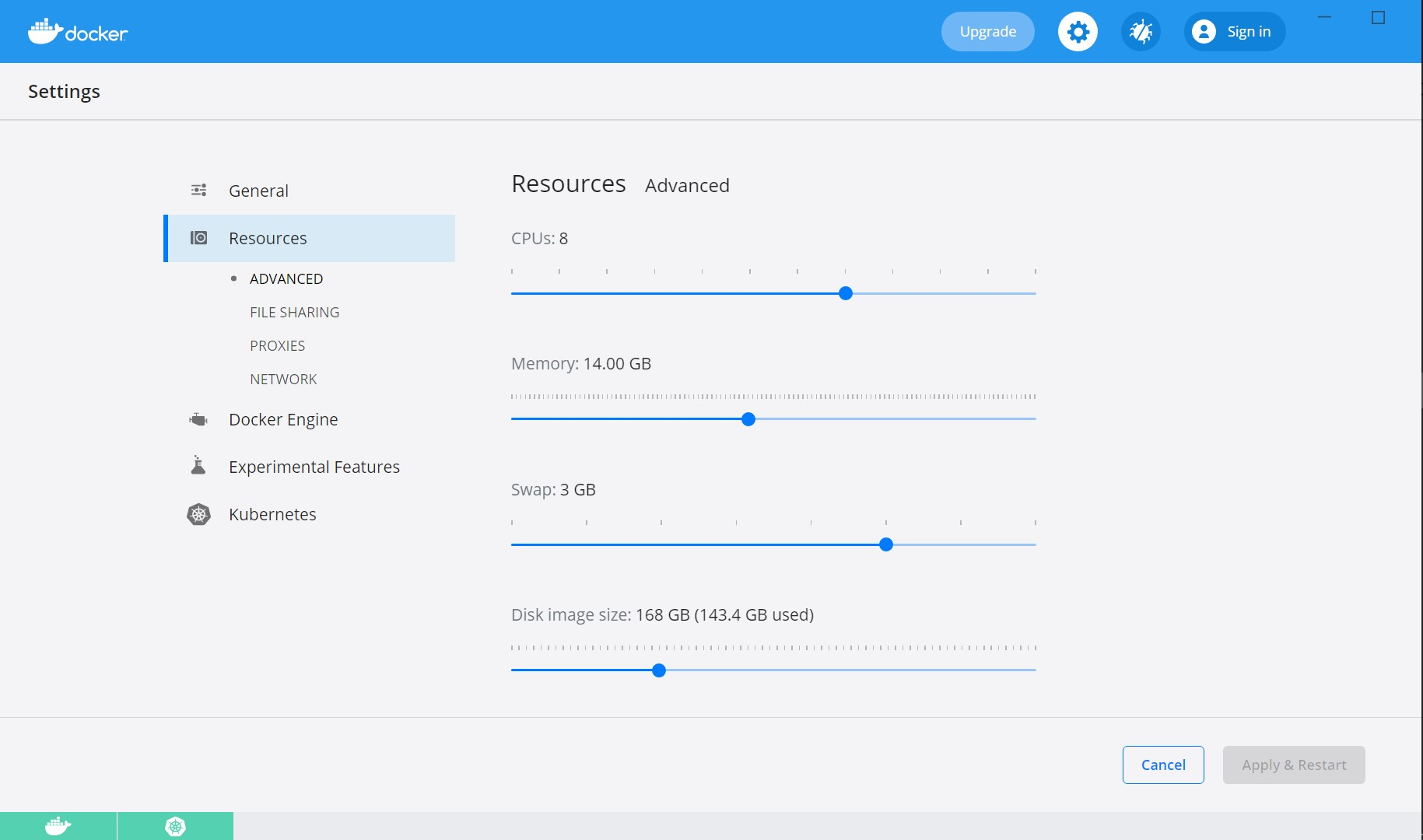
Kubernetes requires a minimum of 6 CPUs to run smoothly.
- Install Helm and set helm path as an environment variable on the system.
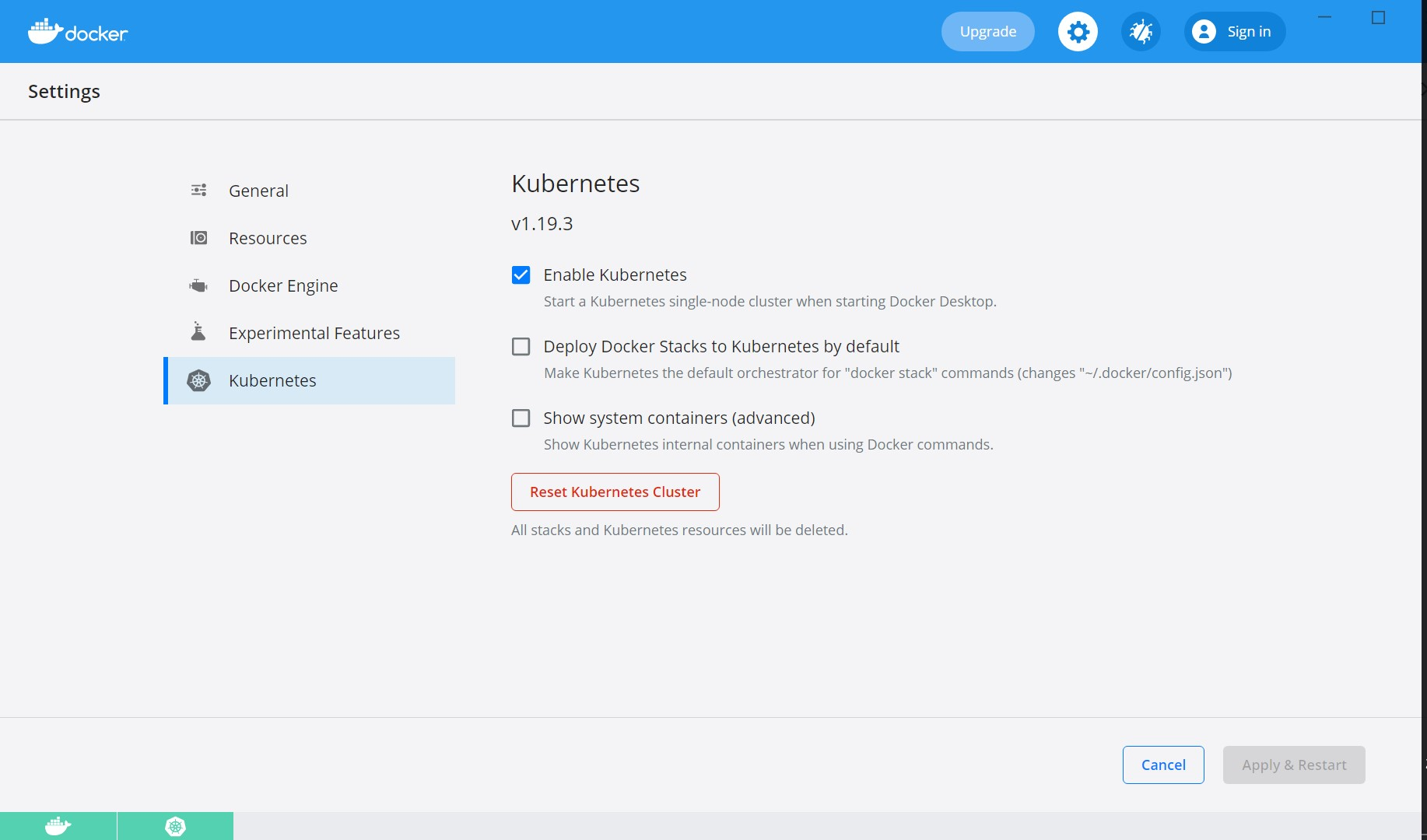
Deployment of Account Aggregation Microservice in Kubernetes Runtime
K8 Images
- In this deployment approach, use the ms-accountaggregate-helm-sql-pack-<release_number>.zip to load the docker images and then deploy the service in kubernetes cluster.

Prerequisites
Before executing the k8 startup (start_accountaggregate.sh/start_accountaggregate.bat) script, make sure the database scripts are executed and the database is up and running.
An active Kafka instance that need to be configured for generic ingestion (communicating with Arrangements and Holdings).
MySQL Datatbase
Install a standalone MySQL server manually.
Follow the steps to deploy the helm pack:
- Extract the archive file ms-accountaggregate-helm-sql-pack-<release_number>.zip, it will contain the images, create-namespace, start-accountaggregate and stop-accountaggregate scripts.
- Navigate to the images folder where the service and ingester images are available and load the docker images using the following docker command:
-
- docker load --input ms-accountaggregate-<image_name>-<release_number>.tar
For instance, docker load --input ms-accountaggregate-service-DEV.0.0-SNAPSHOT.tar

Ensure that the image loaded with the same tag as mentioned in the startup script (start_accountaggregate.sh).
To start the service, execute create-namespace file by using the command create_namespace.bat/bash create_namespace.sh for creating the respective namespace.
- Open the start_accountaggregate.bat/start_accountaggregate.sh by navigating to the folder where service startup scripts are available and configure DB and Kafka connection parameters as per the setup done as part of prerequisite step.
- Now, run the respective start-up script as required.
- For Windows : start_accountaggregation-mysql.bat
- For Linux : start_accountaggregation-mysql.sh
- For Windows : start_accountaggregation-mssql.bat
- For Linux : start_accountaggregation-mssql.sh
- For Windows : start_accountaggregation-oracle.bat
- For Linux : start_accountaggregation-oracle.sh
-
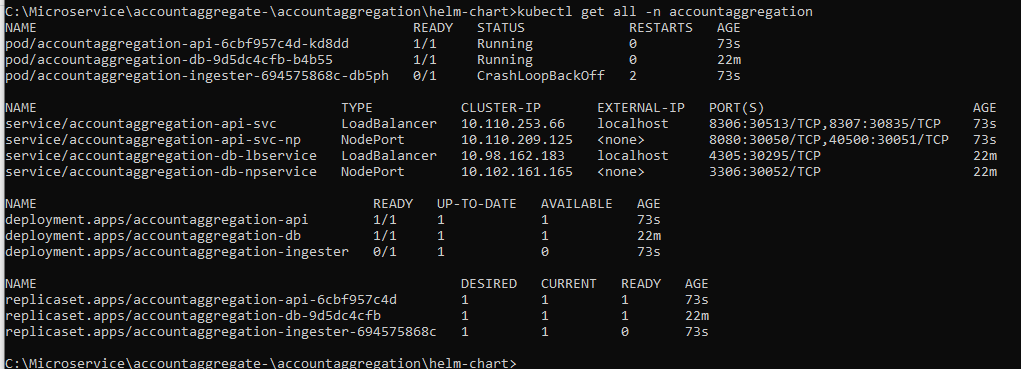
Once the services are up and running, perform kubectl get all -n accountaggregation to see all the resources for the Account Aggregation Microservice.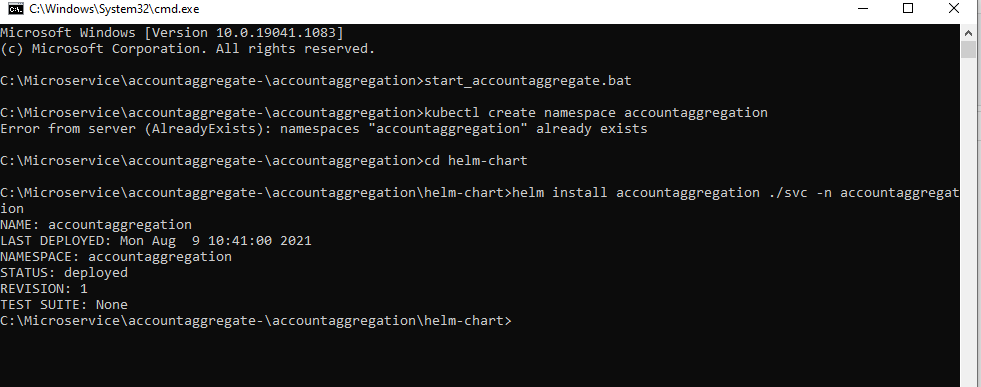
- Once the deployment is successful, the APIs can be tested.
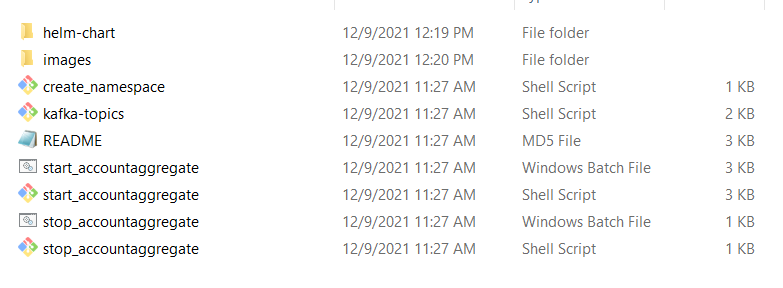
For MySQL:
For MSSQL:
For Oracle:
URL of API's follows the below structure:
 Base Path
http://<IP_ADDRESS>:<PORT>/<context-root>/api/<version>/
For example,
http://localhost:8300/ms-accountaggregate-api/api/v1.0.0/v1.0.0/
The resource path of the endpoint can be found in the swagger document.
Undeployment of Account Aggregation Microservice
Execute the files to stop the service.
For MySQL:
- For Windows stop_accountaggregation-mysql.bat
- For Linux : stop_accountaggregation-mysql.sh
For MSSQL:
- For Windows : stop_accountaggregation-mssql.bat
- For Linux : stop_accountaggregation-mssql.sh
For Oracle:
- For Windows : stop_accountaggregation-oracle.bat
- For Linux : stop_accountaggregation-oracle.sh
MSSQL Database
Install a standalone MSSQL server manually.
Follow the steps to deploy the helm pack:
- Extract the archive file ms-accountaggregate-helm-sql-pack-<release_number>.zip, it will contain the images, create-namespace, start-accountaggregate and stop-accountaggregate scripts.
- Navigate to the images folder where the service and ingester images are available and load the docker images using the following docker command:
-
- docker load --input ms-accountaggregate-<image_name>-<release_number>.tar
For instance, docker load --input ms-accountaggregate-service-DEV.0.0-SNAPSHOT.tar
Ensure that the image loaded with the same tag as mentioned in the startup script (start_accountaggregate.sh).
To start the service, execute create-namespace file by using the command create_namespace.bat/bash create_namespace.sh for creating the respective namespace. - Open the start_accountaggregate.bat/start_accountaggregate.sh by navigating to the folder where service startup scripts are available and configure DB and Kafka connection parameters as per the setup done as part of prerequisite step.
- Now, run the respective start-up script as required.
- For Windows : start_accountaggregation-mysql.bat
- For Linux : start_accountaggregation-mysql.sh
- For Windows : start_accountaggregation-mssql.bat
- For Linux : start_accountaggregation-mssql.sh
- For Windows : start_accountaggregation-oracle.bat
- For Linux : start_accountaggregation-oracle.sh
-
Once the services are up and running, perform kubectl get all -n accountaggregation to see all the resources for the Account Aggregation Microservice.
- Once the deployment is successful, the APIs can be tested.
For MySQL:
For MSSQL:
For Oracle:
URL of API's follows the below structure:
Base Path
http://<IP_ADDRESS>:<PORT>/<context-root>/api/<version>/
For example,
http://localhost:8300/ms-accountaggregate-api/api/v1.0.0/v1.0.0/
The resource path of the endpoint can be found in the swagger document.
Undeployment of Account Aggregation Microservice
Execute the files to stop the service.
For MySQL:
- For Windows stop_accountaggregation-mysql.bat
- For Linux : stop_accountaggregation-mysql.sh
For MSSQL:
- For Windows : stop_accountaggregation-mssql.bat
- For Linux : stop_accountaggregation-mssql.sh
For Oracle:
- For Windows : stop_accountaggregation-oracle.bat
- For Linux : stop_accountaggregation-oracle.sh
Oracle Database
Install a standaloneOracle server manually, or,
Follow the the steps given in the page Oracle Database Creation - Docker Image.
- Navigate to the extracted accountaggregation-helm-sql-pack-<release_number>.zip file : accountaggregation-helm-sql-pack-<release_number>\accountaggregation.
- Edit the DB related properties in the start script.
Follow the steps to deploy the helm pack:
- Extract the archive file ms-accountaggregate-helm-sql-pack-<release_number>.zip, it will contain the images, create-namespace, start-accountaggregate and stop-accountaggregate scripts.
- Navigate to the images folder where the service and ingester images are available and load the docker images using the following docker command:
-
- docker load --input ms-accountaggregate-<image_name>-<release_number>.tar
For instance, docker load --input ms-accountaggregate-service-DEV.0.0-SNAPSHOT.tar
Ensure that the image loaded with the same tag as mentioned in the startup script (start_accountaggregate.sh).
To start the service, execute create-namespace file by using the command create_namespace.bat/bash create_namespace.sh for creating the respective namespace. - Open the start_accountaggregate.bat/start_accountaggregate.sh by navigating to the folder where service startup scripts are available and configure DB and Kafka connection parameters as per the setup done as part of prerequisite step.
- Now, run the respective start-up script as required.
- For Windows : start_accountaggregation-mysql.bat
- For Linux : start_accountaggregation-mysql.sh
- For Windows : start_accountaggregation-mssql.bat
- For Linux : start_accountaggregation-mssql.sh
- For Windows : start_accountaggregation-oracle.bat
- For Linux : start_accountaggregation-oracle.sh
-
Once the services are up and running, perform kubectl get all -n accountaggregation to see all the resources for the Account Aggregation Microservice.
- Once the deployment is successful, the APIs can be tested.
For MySQL:
For MSSQL:
For Oracle:
URL of API's follows the below structure:
Base Path
http://<IP_ADDRESS>:<PORT>/<context-root>/api/<version>/
For example,
http://localhost:8300/ms-accountaggregate-api/api/v1.0.0/v1.0.0/
The resource path of the endpoint can be found in the swagger document.
Undeployment of Account Aggregation Microservice
Execute the files to stop the service.
For MySQL:
- For Windows stop_accountaggregation-mysql.bat
- For Linux : stop_accountaggregation-mysql.sh
For MSSQL:
- For Windows : stop_accountaggregation-mssql.bat
- For Linux : stop_accountaggregation-mssql.sh
For Oracle:
- For Windows : stop_accountaggregation-oracle.bat
- For Linux : stop_accountaggregation-oracle.sh
PostgreSQL Database
Follow the steps to deploy the helm pack:
- Extract the archive file ms-accountaggregate-helm-sql-pack-<release_number>.zip, it will contain the images, create-namespace, start-accountaggregate and stop-accountaggregate scripts
- Navigate to the images folder where the service and ingester images are available and load the docker images using the following docker command:
-
- docker load --input ms-accountaggregate-<image_name>-<release_number>.tar
For instance, docker load --input ms-accountaggregate-service-DEV.0.0-SNAPSHOT.tar

Ensure that the image loaded with the same tag as mentioned in the startup script (start_accountaggregate.sh).
To start the service, execute create-namespace file by using the command create_namespace.bat/bash create_namespace.sh for creating the respective namespace.
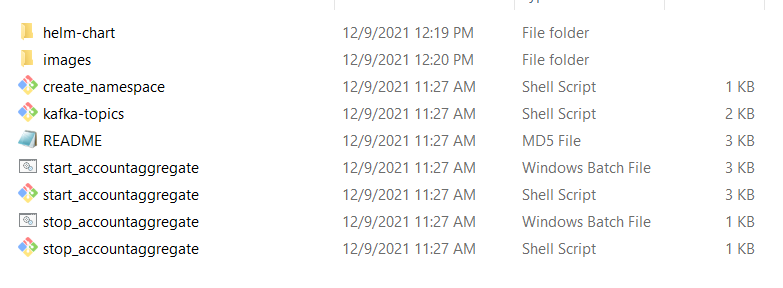
- Navigate to the folder where service startup scripts are available and configure DB and Kafka connection parameters as per the setup done as part of the prerequisite step.
- Now, run the respective start-up script as required.
- For Windows : start_accountaggregation-mysql.bat
- For Linux : start_accountaggregation-mysql.sh
- For Windows : start_accountaggregation-mssql.bat
- For Linux : start_accountaggregation-mssql.sh
- For Windows : start_accountaggregation-oracle.bat
- For Linux : start_accountaggregation-oracle.sh
- For Windows : start_accountaggregation-postgresql.bat
- For Linux : start_accountaggregation-postgresql.sh
-
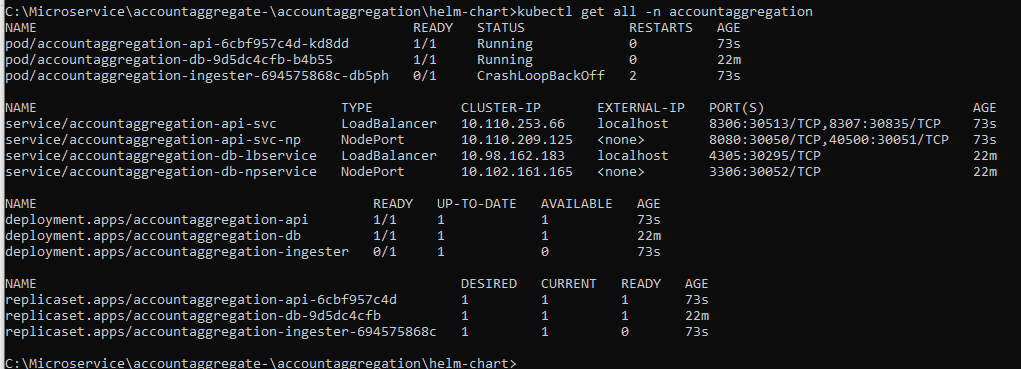
Once the services are up and running, perform kubectl get all -n accountaggregation to see all the resources for the Account Aggregation Microservice.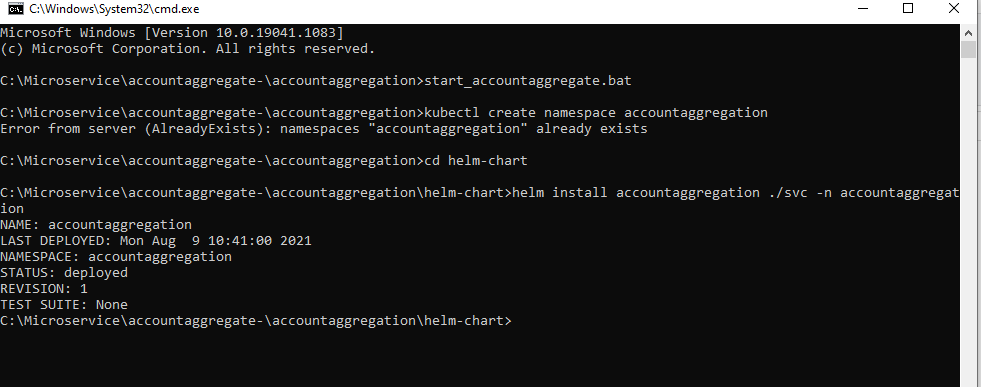
- Once the deployment is successful, the APIs can be tested.
For MySQL:
For MSSQL:
For Oracle:
For PostgreSQL:
URL of API's follows the below structure:
Base Path
http://<IP_ADDRESS>:<PORT>/<context-root>/api/<version>/
For example,
http://localhost:8300/ms-accountaggregate-api/api/v1.0.0/v1.0.0/
The resource path of the endpoint can be found in the swagger document.
Undeployment of Account Aggregation Microservice
Execute the files to stop the service.
For MySQL:
- For Windows stop_accountaggregation-mysql.bat
- For Linux : stop_accountaggregation-mysql.sh
For MSSQL:
- For Windows : stop_accountaggregation-mssql.bat
- For Linux : stop_accountaggregation-mssql.sh
For Oracle:
- For Windows : stop_accountaggregation-oracle.bat
- For Linux : stop_accountaggregation-oracle.sh
For PostgreSQL:
- For Windows : stop_accountaggregation-postgresql.bat
- For Linux : stop_accountaggregation-postgresql.sh
K8 Ingress
This deployment approach exposes the Account Aggregation MS APIs through the domain name "accountaggregation.com" and is implemented based on the nginx ingress controller service in K8 pack.
Follow the below steps (prior to deployment of the K8 packs) to configure and access the MS APIs through the domain name.
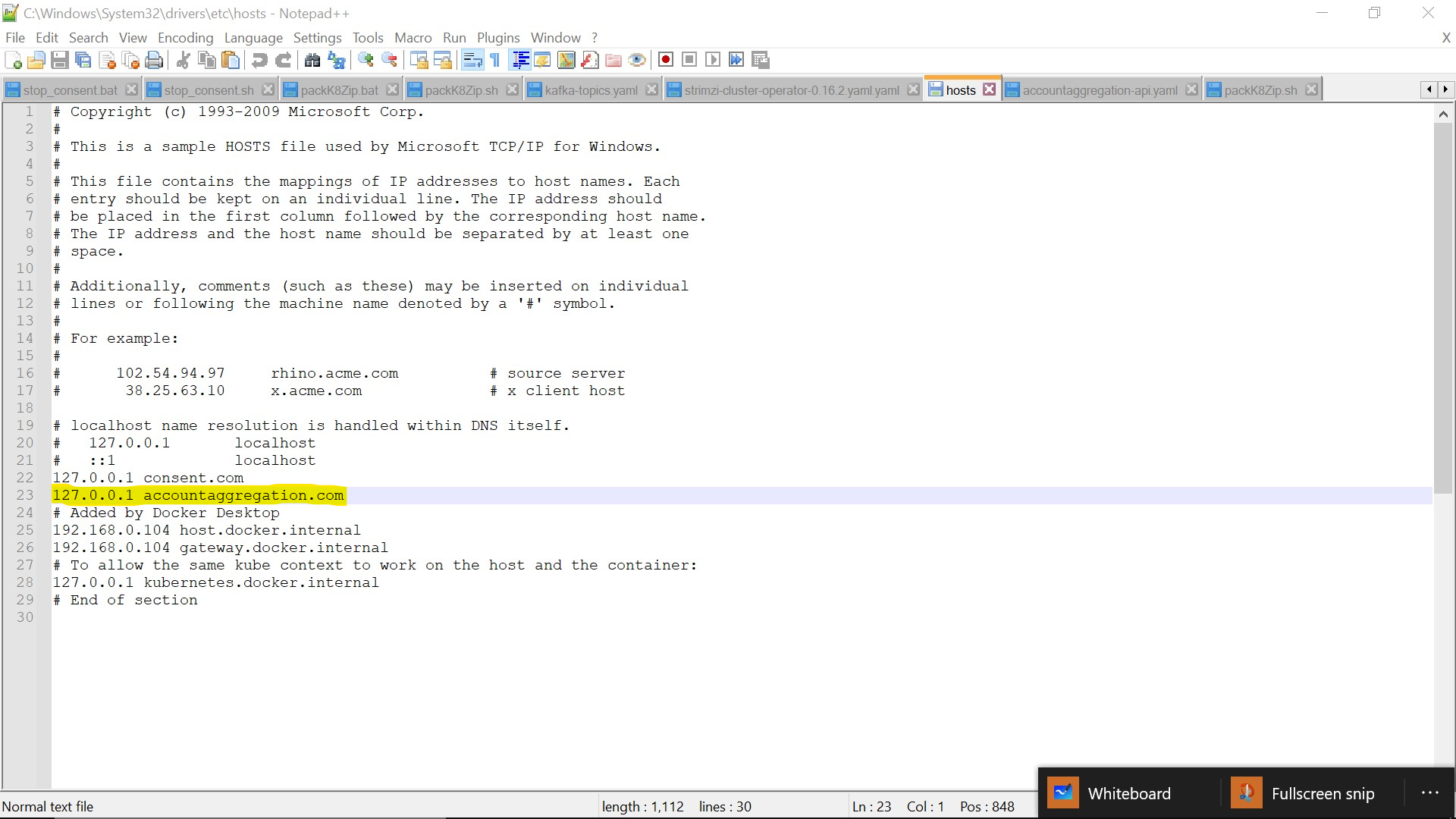
- Set the domain name ("127.0.0.1 accountaggregation.com") in the hosts file of Windows by navigating to C:\Windows\System32\drivers\etc
- Restart the system for the changes to come in effect.
- Navigate to operator folder and execute start-ingress-controller.bat/start-ingress-controller.sh file to start the ingress controller.
-
Now, deploy the K8 (Helm images) packs by following the respective deployment instructions mentioned on the other tabs.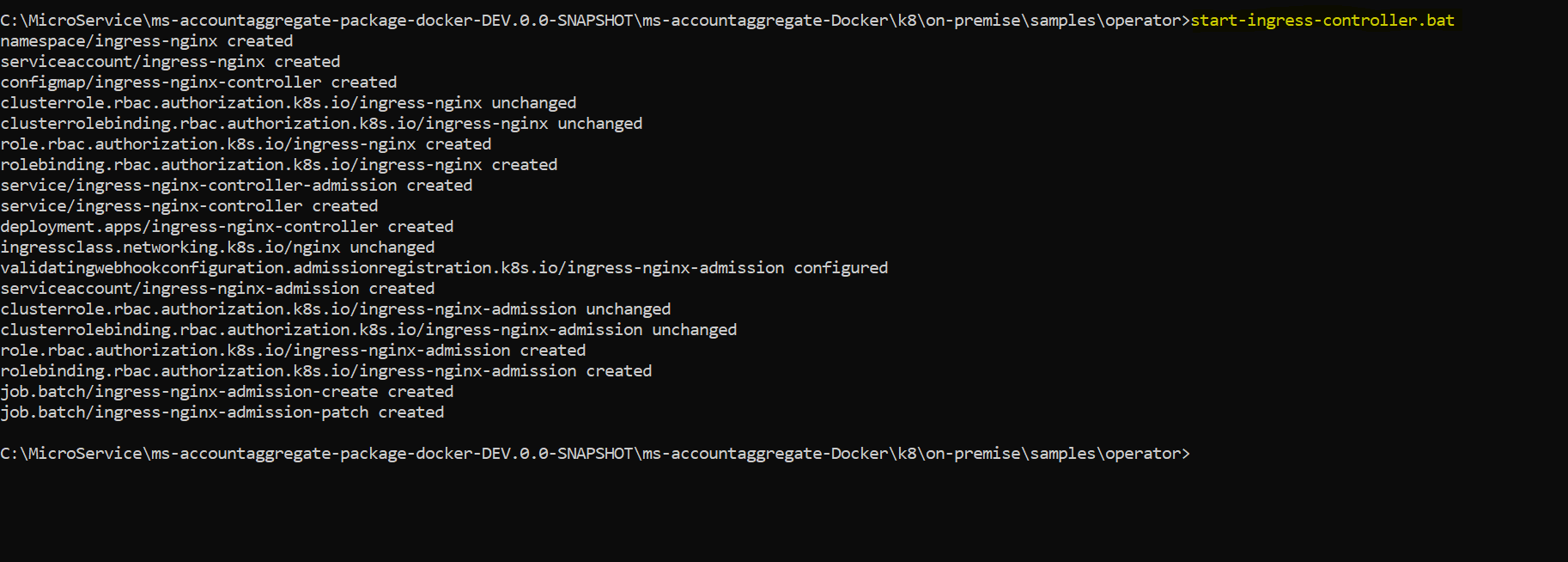
- Execute start-ingress.bat/start-ingress.sh to start the ingress services by navigating to samples folder in K8 (Helm images) package accordingly as shown below:
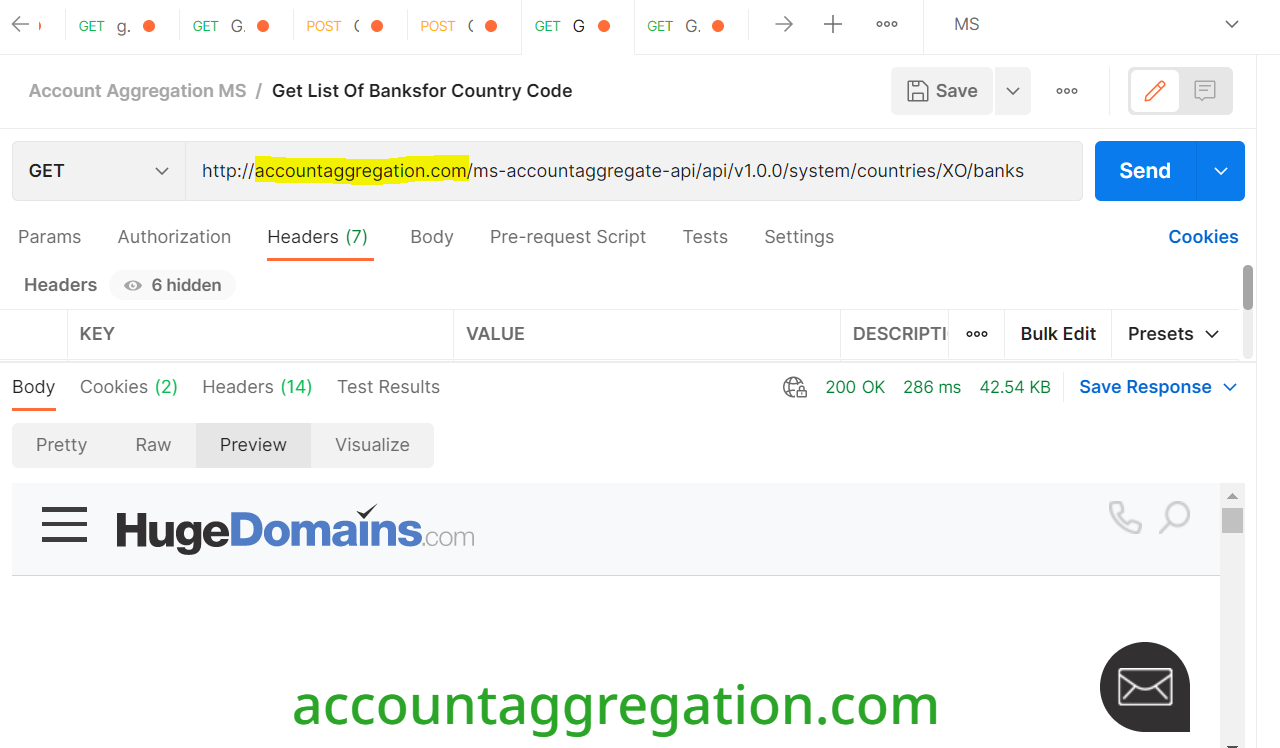
- Access the Account Aggregation APIs using the domain name accountaggregation.com as shown below:

URL of API's follows the below structure:
Base Path
http://<DOMAIN_NAME>/<context-root>/api/<version>/
For example,
http://accountaggregation.com/ms-accountaggregation-api/api/v1.0.0/
The resource path of the endpoint can be found in the swagger document.
Undeployment
For undeployment of ingress we just need to execute stop-ingress.bat/stop-ingress.sh as shown below by navigating to the samples folder of K8 (Helm images) package.

In this topic