Deploying Campaign Microservice on Kubernetes (K8)
This section explains how to deploy the Campaign Microservice on K8.
Deployment Artefacts
Campaign Microservices for docker deployment is available as a single release bundle ms-campaign-package-docker-<release_number>.zip.
Prerequisite
- Install Docker Engine in the deployment environment.
- Turn on Linux containers in docker.
- Enable Kubernetes in docker.
- Navigate to https://helm.sh/docs/intro/install/ and download the helm package.
Deployment of Campaign Microservice on Docker
Follow the steps below to deploy the Campaign docker package:
- Extract the ms-campaign-package-docker-<release_number>.zip file.

The extracted package contains the configuration files of Docker,K8 and the respective bat and sh files.
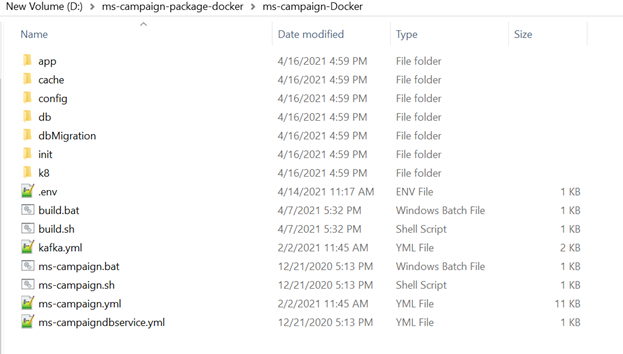
For MYSQL
- Navigate to ms-campaign-Docker\k8\on-premise\svc\templates\svc and then enable JWT Authentication in campaignms-configmap.yaml.
- From the Command Prompt, go to the directory where the .bat and .sh files are available. Run the following command that creates an image and a K8 container for the image.
- For Windows: start_campaigns.bat
- For Linux: start_campaigns.sh
- After the successful deployment, the database, collections, and reference data(master data) are loaded into the database for the Campaign Microservice.
- After the Campaign Microservice is up and running on Docker, run the following URL to receive the response.
The structure of the URL of APIs is as follows.
Base Path: http://<IP_ADDRESS>:<PORT>/<context-root>/api/<version>/
For example, http://localhost:8900/ms-campaign-api/api/v1.0.0/
The resource path of the endpoint is available in the swagger document of the respective APIs.
A sample endpoint of the Campaign Microservicecould be http://localhost:8900/ms-campaign-api/api/v1.0.0/origination/campaigns.
Alternatively, the Microservice status is obtained through the Health Check API.
After post-installation, you can view the table grid with no data.
For MSSQL
- Navigate to ms-campaign-Docker\k8\on-premise\svc\templates\svc and then enable JWT Authentication in campaignms-configmap.yaml.
- From the Command Prompt, go to the directory where the .bat and .sh files are available. Run the following command that creates an image and a K8 container for the image.
- For Windows: start_campaigns-mssql.bat
- For Linux: start_campaigns-mssql.sh
- After the successful deployment, the database, collections, and reference data(master data) are loaded into the database for the Campaign Microservice.
- After the Campaign Microservice is up and running on Docker, run the following URL to receive the response.
The structure of the URL of APIs is as follows.
Base Path: http://<IP_ADDRESS>:<PORT>/<context-root>/api/<version>/
For example, http://localhost:8900/ms-campaign-api/api/v1.0.0/
The resource path of the endpoint is available in the swagger document of the respective APIs.
A sample endpoint of the Campaign Microservicecould be http://localhost:8900/ms-campaign-api/api/v1.0.0/origination/campaigns.
Alternatively, the Microservice status is obtained through the Health Check API.
Undeployment
To stop and delete the existing container, run the following command from the location where the campaign docker started.
- For Windows: stop_campaigns.bat /stop_campaigns-mssql.bat
- For Linux: stop_campaigns.sh/stop_campaigns-mssql.sh
K8 Images
Campaign Microservice for K8 deployment is available as single release bundle, which is ms-campaign-helm-sql-pack-<release_number>.zipto load the docker images and then deploy the service in kubernetes clusterfor.
Prerequisite
Before the K8 deployment, ensure that MYSQL/MSSQL/ORACLE server is up and running.
Deployment of Campaign Microservice on K8
Follow the steps below to deploy the Campaign K8 package:
- Unzip the ms-campaign-helm-sql-pack-<release_number>.zip, which contains the required images.
- Navigate to the folder where the service, ingester and database images are available.
- Navigate to the images folder. Open the command prompt using docker load --input <image-name>and load the images on the docker.
- Once all the images are loaded , navigate to the ms-campaign-helm-sql-pack folder where the bat and sh files are available.
- For Windows:
start_campaigns-mssql.bat / start-campaign.bat / start_campaigns-oracle.bat - For Linux:
start_campaigns-mssql.sh / start-campaign.sh / start_campaigns-oracle.sh

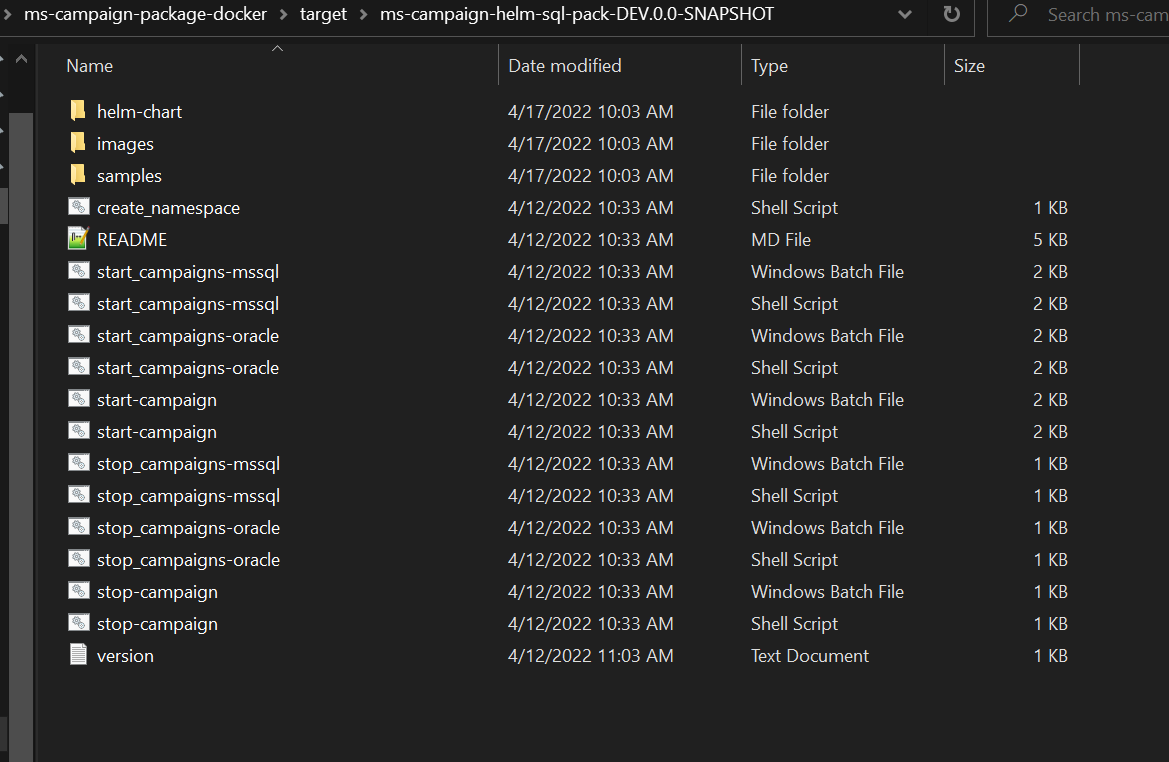

| Script | Description |
|---|---|
| start_campaigns-mssql.bat / start_campaigns-mssql.sh for MSSQL | The script deploys the necessary components for a Microservice. It includes the deployment of the streaming services to run the Microservice independently. |
| start-campaign.bat / start-campaign.sh for Mysql | |
| start_campaigns-oracle.bat / start_campaigns-oracle.sh for Oracle | |
| start_campaigns-postgresql.bat / start_campaigns-postgresql.sh for Postgresql |
Use the following commands for the respective platforms.
- Once the Campaign Microservice is up and running in k8, check the API's in the package.
The structure of the URL of APIs is as follows.
- Base Path:http://<IP_ADDRESS>:<PORT>/<context-root>/api/<version>/
- For example, http://localhost:8900/ms-camoaign-api/api/v2.0.0/
Alternatively, you can obtain the Microservice status through the Health Check.
Undeployment
To stop and remove the existing container, execute the below command from the location where the campaign docker is started.
- For Windows : stop-campaign.bat / stop_campaigns-mssql.bat / stop_campaigns-oracle.bat
- For Linux : stop-campaign.sh / stop_campaigns-mssql.sh / stop_campaigns-oracle.sh
In this topic