Installing Due Diligence Microservices on AWS
This section explains you the installation of Due Diligence Microservice on AWS.
Prerequisite:
AWS CLI and Python 2.7.x should be installed prior to the deployment.
Procedure:
For DynamoDB
- Download the generated zip file from the target folder to the installation folder and extract the zip file.
- To enable deployments on multiple environments (DEV, UAT, and Prod) for same microservices within same account, set DEPLOYMENT_ENVIRONMENT variable with respective value.
- To enable authorization and authentication, follow these steps:
- In addition to the API key, enable JWT Authentication in the installation scripts.
- To enable security policies and access rights to the APIs, perform the XACML configurations in the installation scripts.
- In AWS command line, go to the installation directory.
- Modify the region information in install-aws.shscript specific to your installation:
--region us-west-2
--event-source-arn arn:aws:kinesis:us-west-2
--uri arn:aws:apigateway:us-west-2:lambda:path/2015-03-31/functions/arn:aws:lambda:us-west-2
- Excecute install-aws.sh shell script to create the resources.
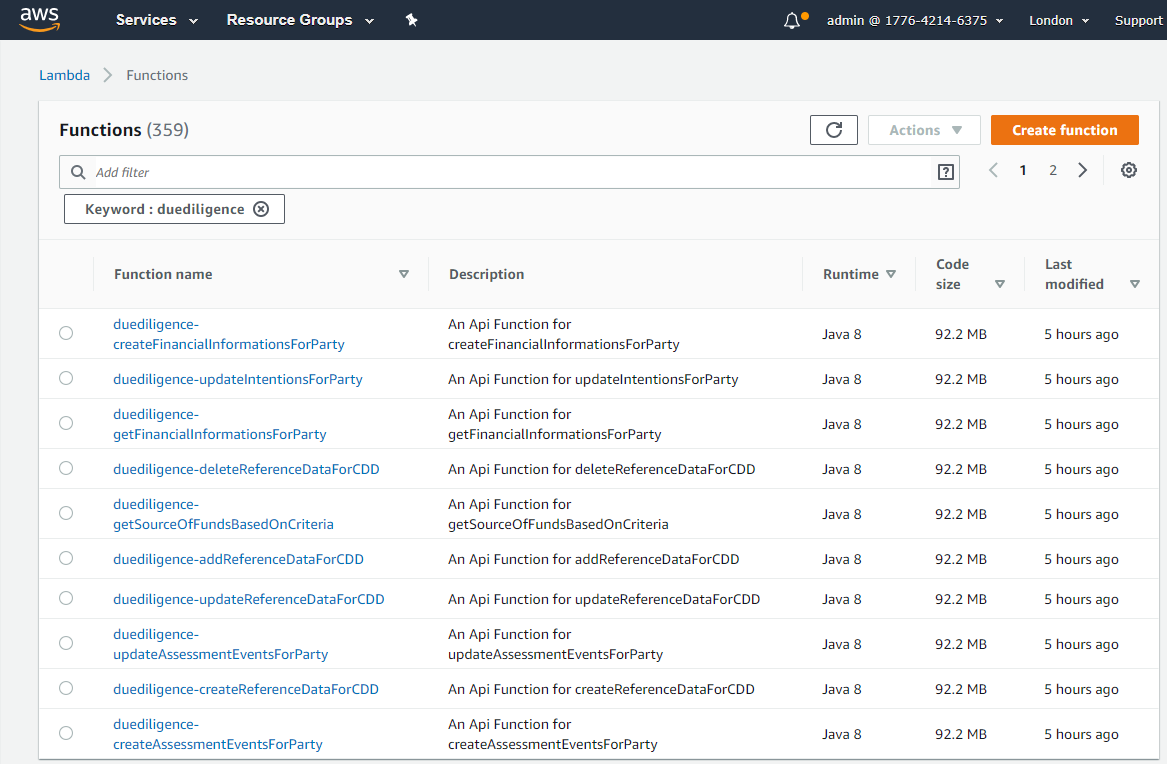
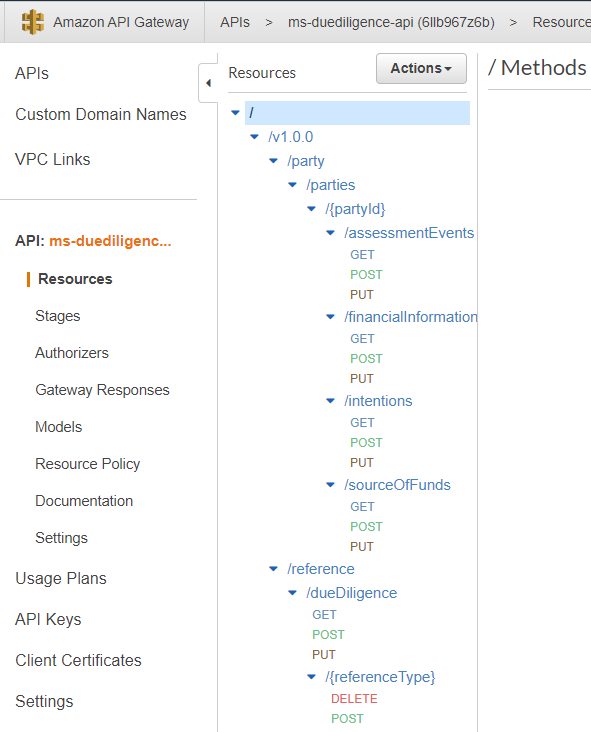
- Sign in to the AWS portal and verify if Lambda functions and API Gateways are created.
- Lambda functions
- API Gateways
After the successful deployment load the database, collections, and the reference data(master data) into the dynamo database for Due Diligence Microservice.
- Lambda functions
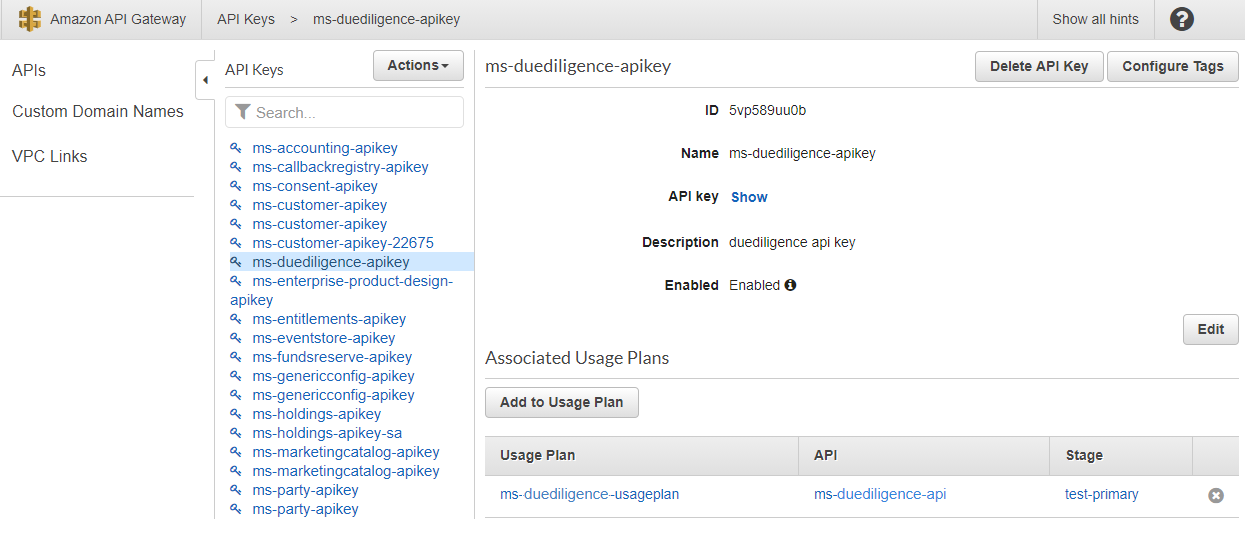
- To obtain the API key for all the endpoints in AWS, go to the API Keys section under the Amazon API gateway and select the corresponding API key. Click Show.
The API key must be a part of the header (x-api-key) in all the requests.
The Base path of the API gateway URL follows the structure below:
 Base URI
https://<REST-API-ID>.execute-api.<LOCATION>.amazonaws.com/<DEPLOYMENT_ID>
For example,
https://6llb967z6b.execute-api.eu-west-2.amazonaws.com/ms-duediligence-api
For information on the resource path of the endpoint, see the Enterprise APIs section.
Below is a sample endpoint of due diligence.
https://ffircl61le.execute-api.eu-west-2.amazonaws.com/ms-duediligence-api/v1.0.0/party/parties/{partyId}/assessmentEvents
You can retrieve the Rest API Id from Amazon API Gateway as shown below.

For PostgreSQL DB
- Download the generated zip file from the target folder to the installation folder and extract the zip file.
- To enable deployments on multiple environments (DEV, UAT, and Prod) for same microservices within same account, set DEPLOYMENT_ENVIRONMENT variable with respective value.
- To enable authorization and authentication, follow these steps:
- In addition to the API key, enable JWT Authentication in the installation scripts.
- To enable security policies and access rights to the APIs, perform the XACML configurations in the installation scripts.
- In AWS command line, go to the installation directory.
- Modify the region information in install-aws-postgresql.shscript specific to your installation:
--region us-west-2
--event-source-arn arn:aws:kinesis:us-west-2
--uri arn:aws:apigateway:us-west-2:lambda:path/2015-03-31/functions/arn:aws:lambda:us-west-2
- Execute install-aws-postgresql.sh shell script to create the resources.
- Sign in to the AWS portal and verify if Lambda functions and API Gateways are created.
- Lambda functions
- API Gateways
After the successful deployment load the database, collections, and the reference data(master data) into the dynamo database for Due Diligence Microservice.
- Lambda functions
- To obtain the API key for all the endpoints in AWS, go to the API Keys section under the Amazon API gateway and select the corresponding API key. Click Show.
The API key must be a part of the header (x-api-key) in all the requests.
The Base path of the API gateway URL follows the structure below:
Base URLhttps://<REST-API-ID>.execute-api.<LOCATION>.amazonaws.com/<DEPLOYMENT_ID>
For example,
https://6llb967z6b.execute-api.eu-west-2.amazonaws.com/ms-duediligence-api
For information on the resource path of the endpoint, see the Enterprise APIs section.
Below is a sample endpoint of due diligence.
https://ffircl61le.execute-api.eu-west-2.amazonaws.com/ms-duediligence-api/v1.0.0/party/parties/{partyId}/assessmentEvents
You can retrieve the Rest API Id from Amazon API Gateway as shown below:
In this topic