Deploying Service Request Microservice on Azure
This section explains how to deploy the Service Request microservice on the Azure cloud. To do so, you need to perform the following tasks:
Configuration
Setting up Azure Command Line
To set up the Azure Command Line Interface, follow these steps.
- Download and install the Azure CLI 2.2.0 from here.
- After installing the Azure CLI, sign-in to Azure Portal from CLI by using the following CLI command:
az login -u <username> -p <password>
Deployment Artefacts
The folder structure of the Service Request Microservice is available as a single release bundle. For example, ms-servicerequest-package-azure-<release.xxx>.zip.
This bundle contains the following files:
ms-servicerequest-package-azure-<release.xxx>.jar.- Azure Script files:
- install.sh/install.bat: This script is used to deploy the Service Request Microservice in the Azure environment.
- destroy.sh/destroy.bat: This script is used to stop the Azure services and delete them from the Azure environment.
- Folder structure for the ms-servicerequest-package-azure-<release.xxx>.zip.
Deploying Service Request Microservice on Azure
Prerequisites
Before deploying the Service Request Microservice on Azure ensure that you meet the following prerequisites:
- Install the Azure Command Line Interface. For more information about the installation, click here.
- Install Maven.
- Install Python 3.
- If you are executing the sh scripts, install Linux Box or WSL or Mac OS.
gitBash is not supported for the Azure CLI.
DB connectivity from Temenos Network may not happen, in that case ddl scripts will not be executed. Execute the ddl scripts outside the Temenos network, if it fails.
Azure Properties
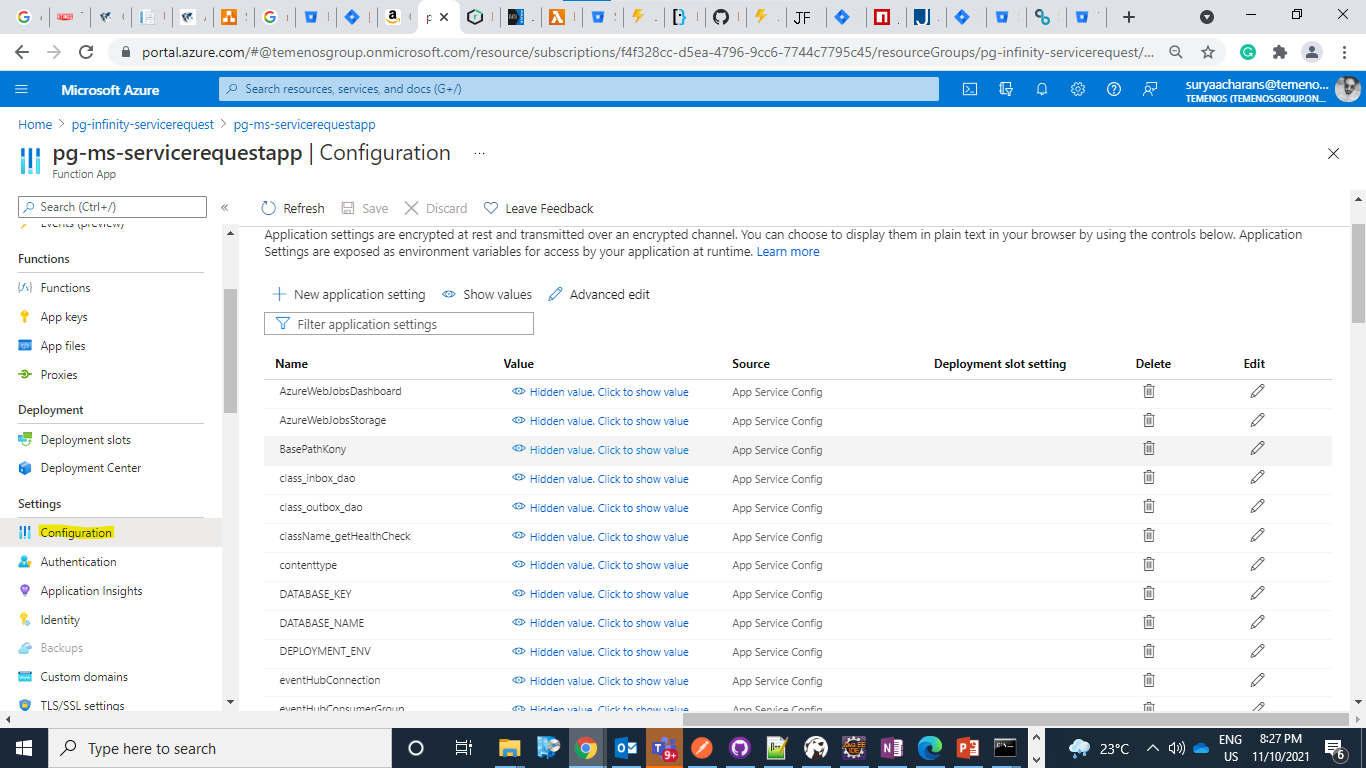
Azure properties can be validated based on the database against the sample values mentioned in Service-Request Azure Configuration.During the service request deployment, the user can find the configuration tab in the service request function app.
Mongo DB
To deploy the Service Request Microservice on Azure, follow these steps.
- Download the generated zip file from the target folder to the installation directory.
- Extract the zip file.
- Change the URLs in the DB connection for the MONGODB_CONNECTIONSTR and MONGOSHELL_CONNECT_STR properties.
- For the multiple deployment instances, provide a unique value to the DEPLOYMENT_ENVIRONMENT property, and for a resource group.
- If you are running the sh scripts, you need a Linux box or WSL or Mac OS, gitBash is not supported for azure cli as of now.
- In Command Prompt, navigate to installation directory.
- Modify the installation-specific details such as resource group, location, and DB details in the install-mongo.sh/install-mongo.bat script. Ensure any property name is carefully changed , if its used in multiple areas across the script , by finding and replacing the values.
- After you modify the install-specific details, execute either install-mongo.sh or install-mongo.bat. After successful installation, the functions are created in Azure.
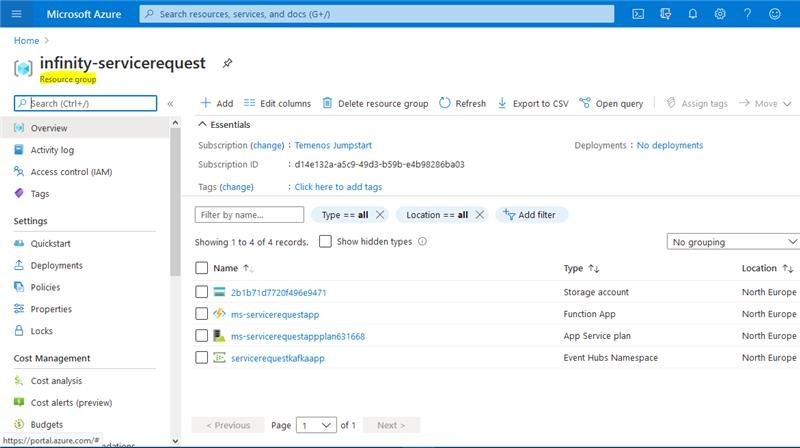
- Sign-in to the Azure portal and verify whether the resourcegroup and the functionapps are created.
Undeployment
To undeploy the Service Request Microservice from Azure, follow these steps.
For Mongo DB
- Provide value for DEPLOYMENT_ENVIRONMENT in destroy-mongo.sh/destroy-postgres.bat as mentioned in the deployment steps to match the resource group name while performing undeployment.
- During the deployment process, if the DEPLOYMENT_ENVIRONMENT is not provided with any value then do not provide the value during undeployment.
- Execute the destroy-mongo.sh/destroy-postgres.bat accordingly to release the resources created in azure cloud.
Postgre SQL
To deploy the Service Request Microservice on Azure, follow these steps.
- Download the generated zip file from the target folder to the installation directory.
- Extract the zip file.
- For the multiple deployment instances, provide a unique value to the DEPLOYMENT_ENVIRONMENT property, and for a resource group.
- If you are running the sh scripts, you need a Linux box or WSL or Mac OS, gitBash is not supported for azure cli as of now.
- In Command Prompt, go to the installation directory.
- Modify the installation-specific details such as resource group, location, and DB details in the install-postgres.sh/install-postgres.bat script. Ensure any property name is carefully changed , if its used in multiple areas across the script , by finding and replacing the values.
- After you modify the install-specific details, execute either install-postgres.sh or install-postgres.bat. After successful installation, the functions are created in Azure.
- Sign-in to the Azure portal and verify whether the resourcegroup and the functionapps are created.
Resource Group
Function App
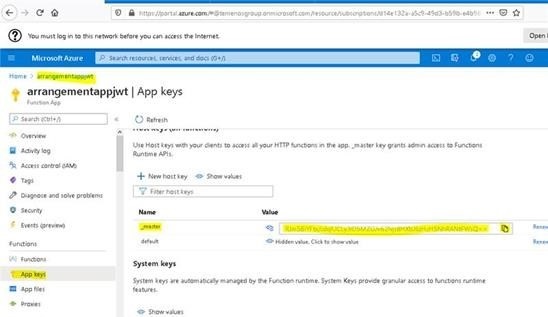
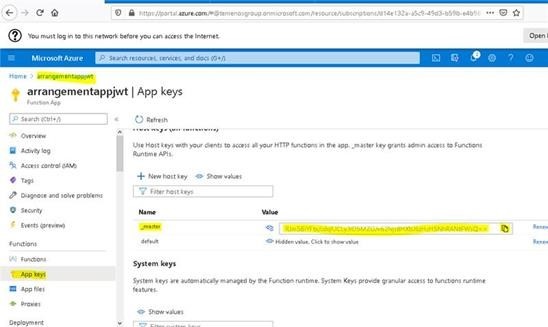
- The master key token can also be retrieved from Azure portal, navigating as highlighted:
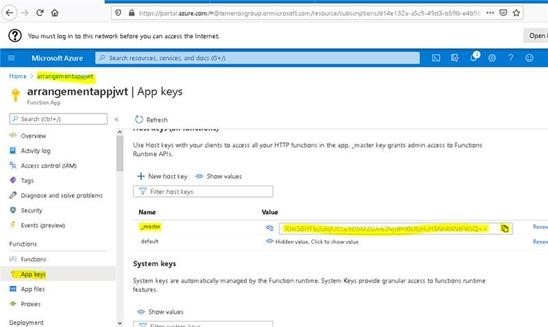
- The masterKeyToken value can be used to Invoke Azure API functions from API Client with code(query param) or x-functions-key(header).
Undeployment
To undeploy the Service Request Microservice from Azure, follow these steps.
For PostgreSQL
- Provide value for DEPLOYMENT_ENVIRONMENT in
destroy-mongo.sh/destroy-postgres.batas mentioned during deployment steps to match the resource group name for which undeployment must be done. - If DEPLOYMENT_ENVIRONMENT is not provided with any value during deployment process then no need to provide any value during undeployment as well.
- Execute the
destroy-mongo.sh/destroy-postgres.bataccordingly to release the resources created in azure cloud.
Alternatively, the command to be added in Azure Install.bat file to retrieve the master key via CLI. Environment variables to be set :
- RESOURCE_GROUP_NAME
- APP_NAME
- subscriptionid rem command to get the subscription ID call az account list | python -c "import json,sys;obj=json.load(sys.stdin); print(obj[0]['id'])" >> out.txt SET /p subscriptionid=< out.txt
- masterKeyToken rem command to get the master API token. call az rest --method post --uri "/subscriptions/%subscriptionid%/resourceGroups/%RESOURCE_GROUP_NAME%/providers/Microsoft.Web/sites/%APP_NAME%/host/default/listKeys?api-version=2018-11-01" | python -c "import json,sys;obj=json.load(sys.stdin); print(obj['masterKey'])" >> out.txt SET /p masterKeyToken=< out.txt.
The query parameter "code" as key and masterKeyToken fetched as value can be used to invoke the azure functions or the header "x-functions-key" as key and masterKeyToken fetched as value can be used to invoke the azure functions.
In this topic