Enabling Authentication using Keycloak - IRIS
This section helps you to enable the authentication using Keycloak - IRIS.
Keycloak Setup
Keycloak is an open source software product to allow single sign-on with Identity and Access Management aimed at modern applications and services.
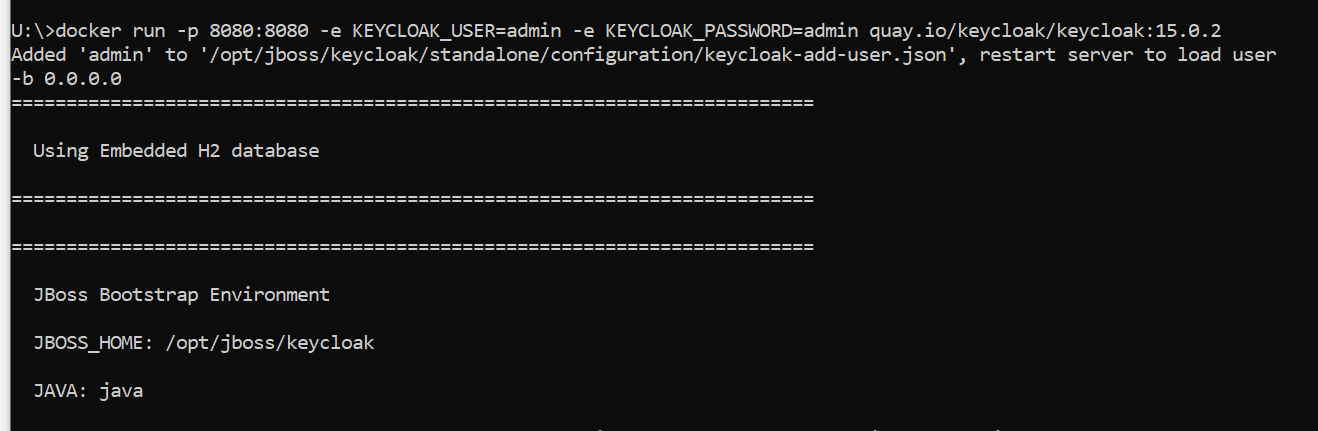
Start the keycloak by using the following command :
docker run -p 8080:8080 -e KEYCLOAK_USER=admin -e KEYCLOAK_PASSWORD=admin quay.io/keycloak/keycloak:15.0.2
Keycloak Client Configuration
Follow these steps for keycloak client configuration:
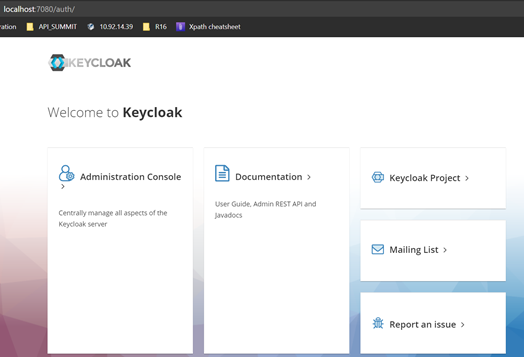
- In KeyCloak web application (http://localhost:8080/auth/), login to the admin console with the created user name and password (admin/admin).
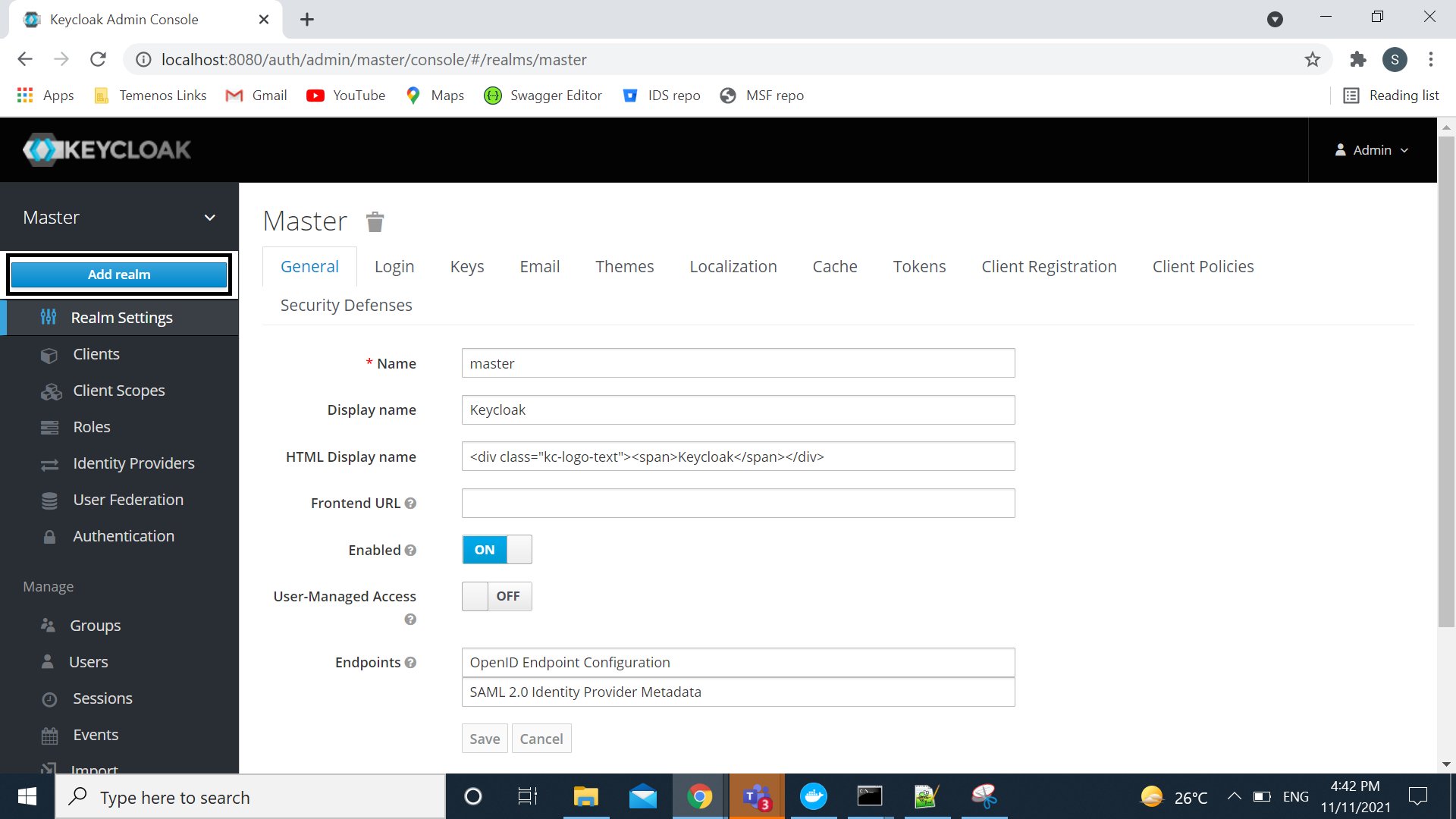
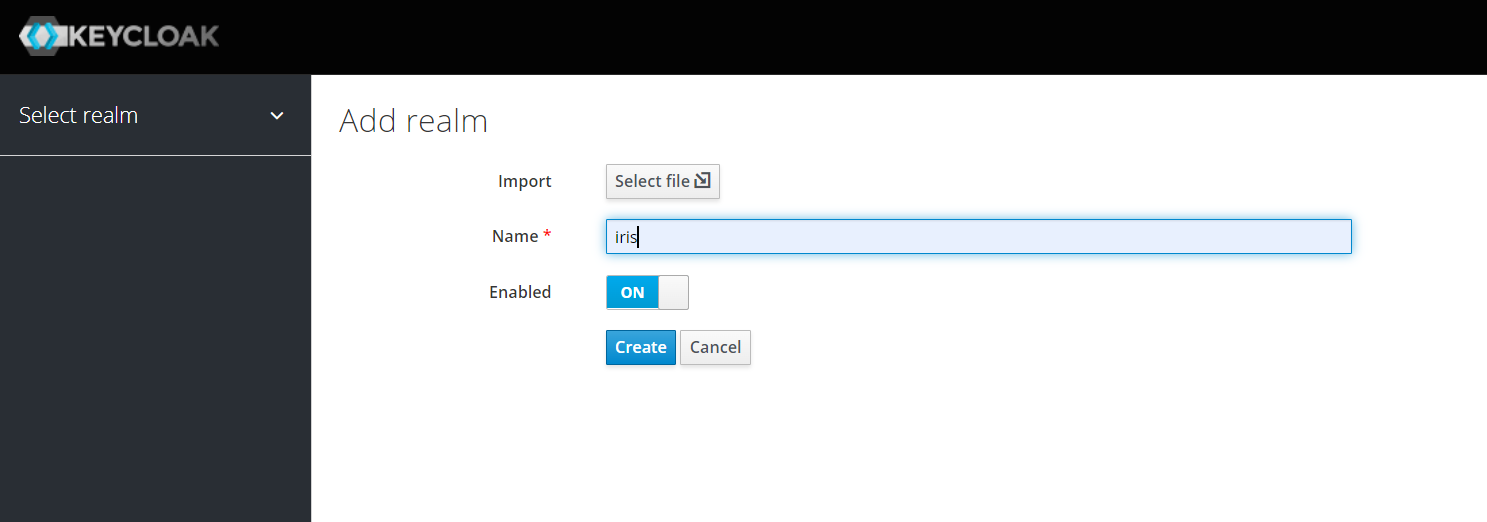
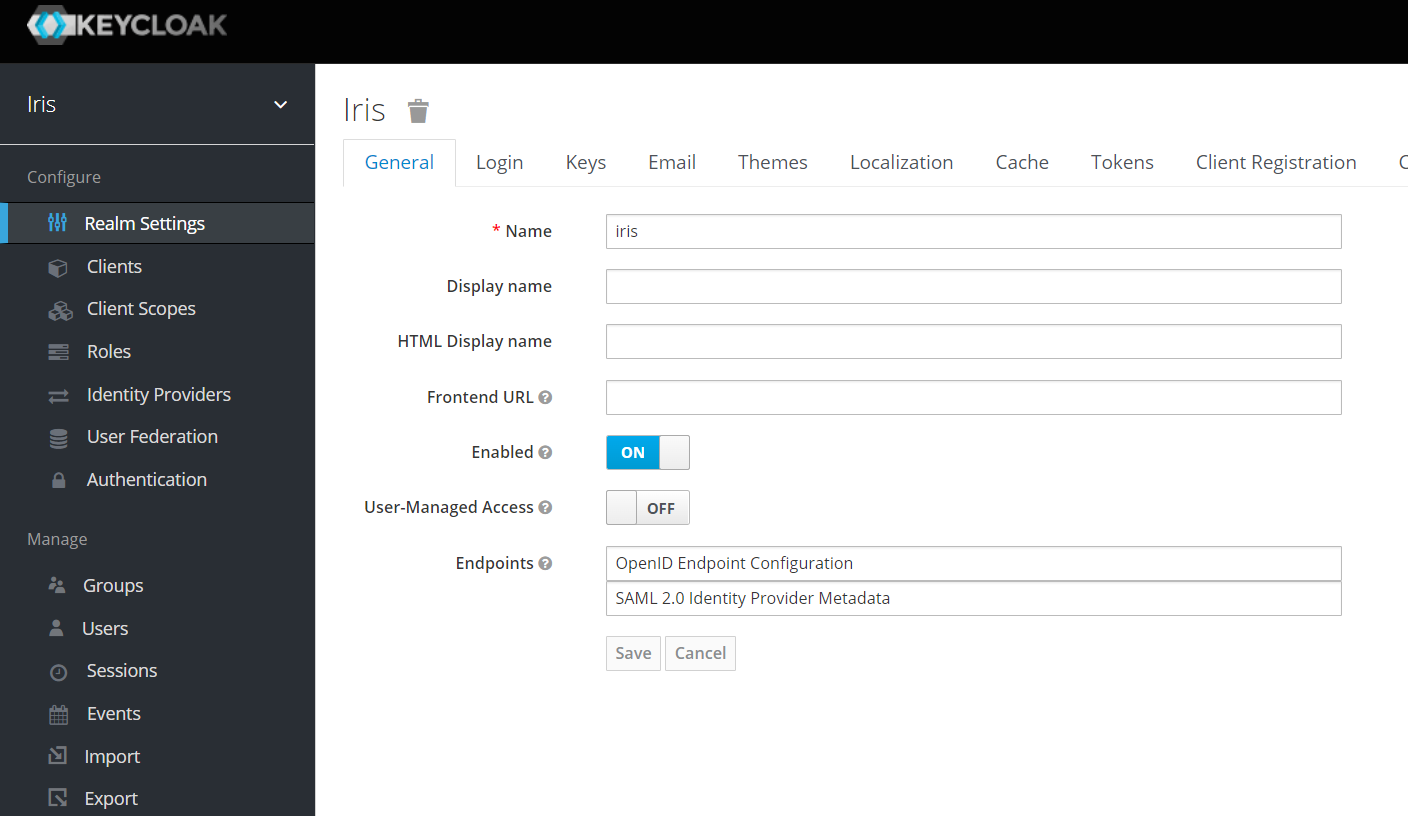
- Create a new realm name.
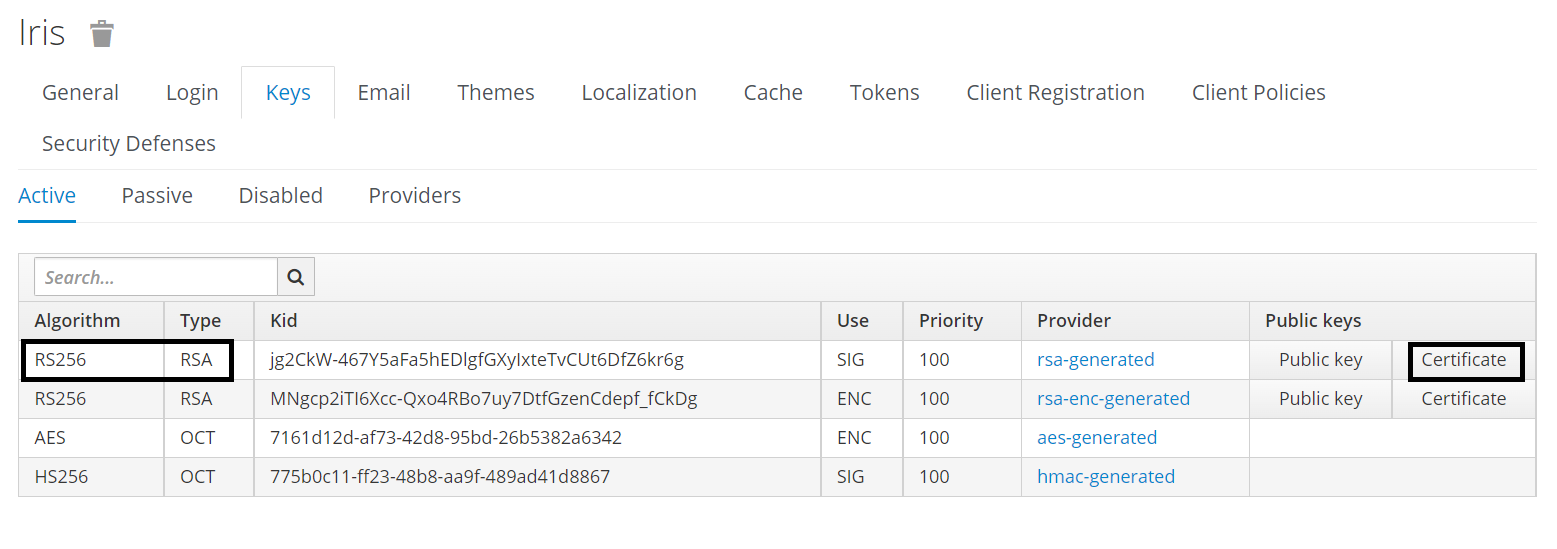
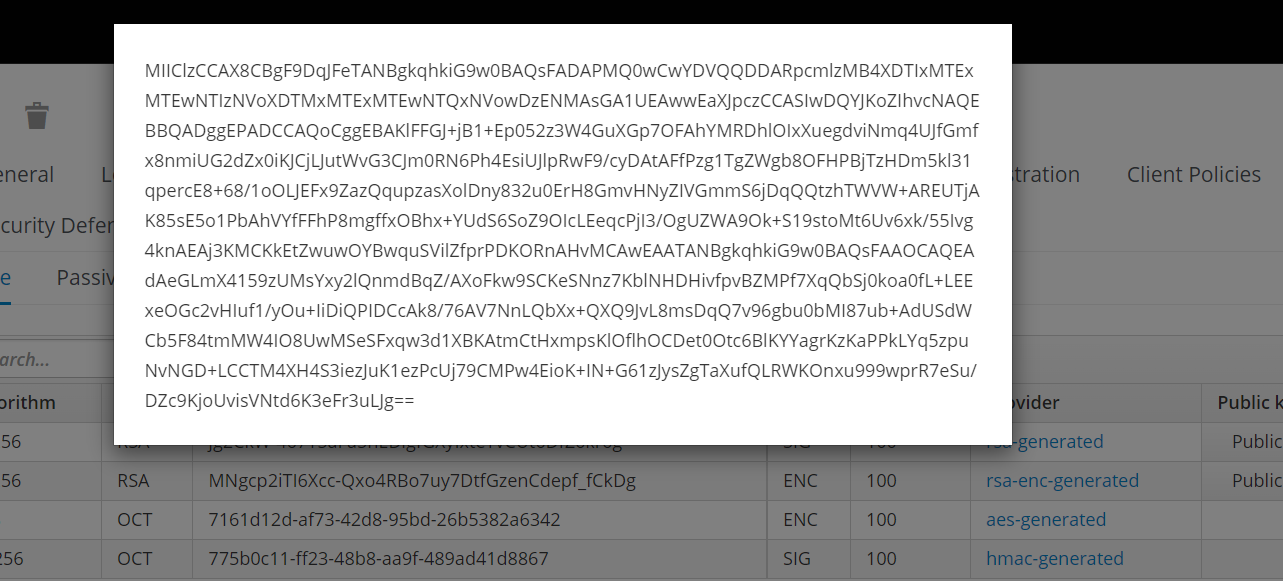
- Copy the Certificate value which is used to set as pkCertEncoded value in the iris war.
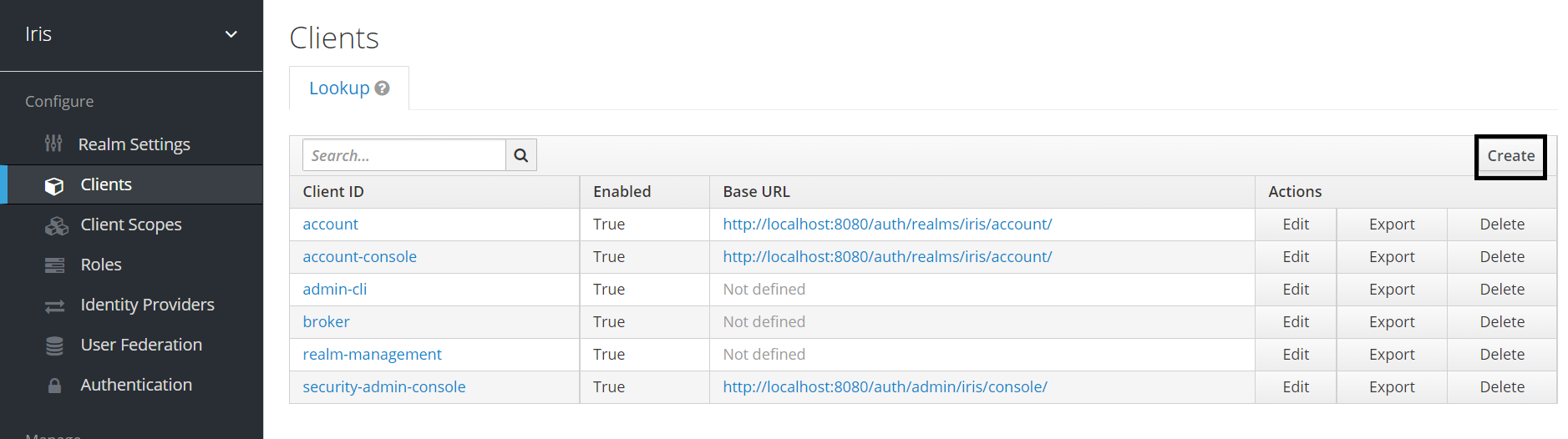
- Create a new client from the Clients tab.
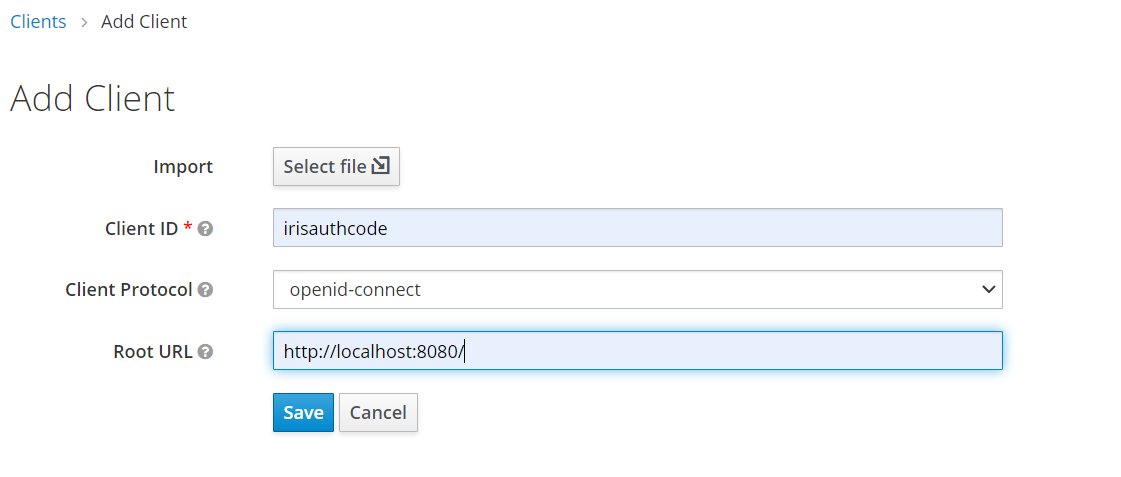
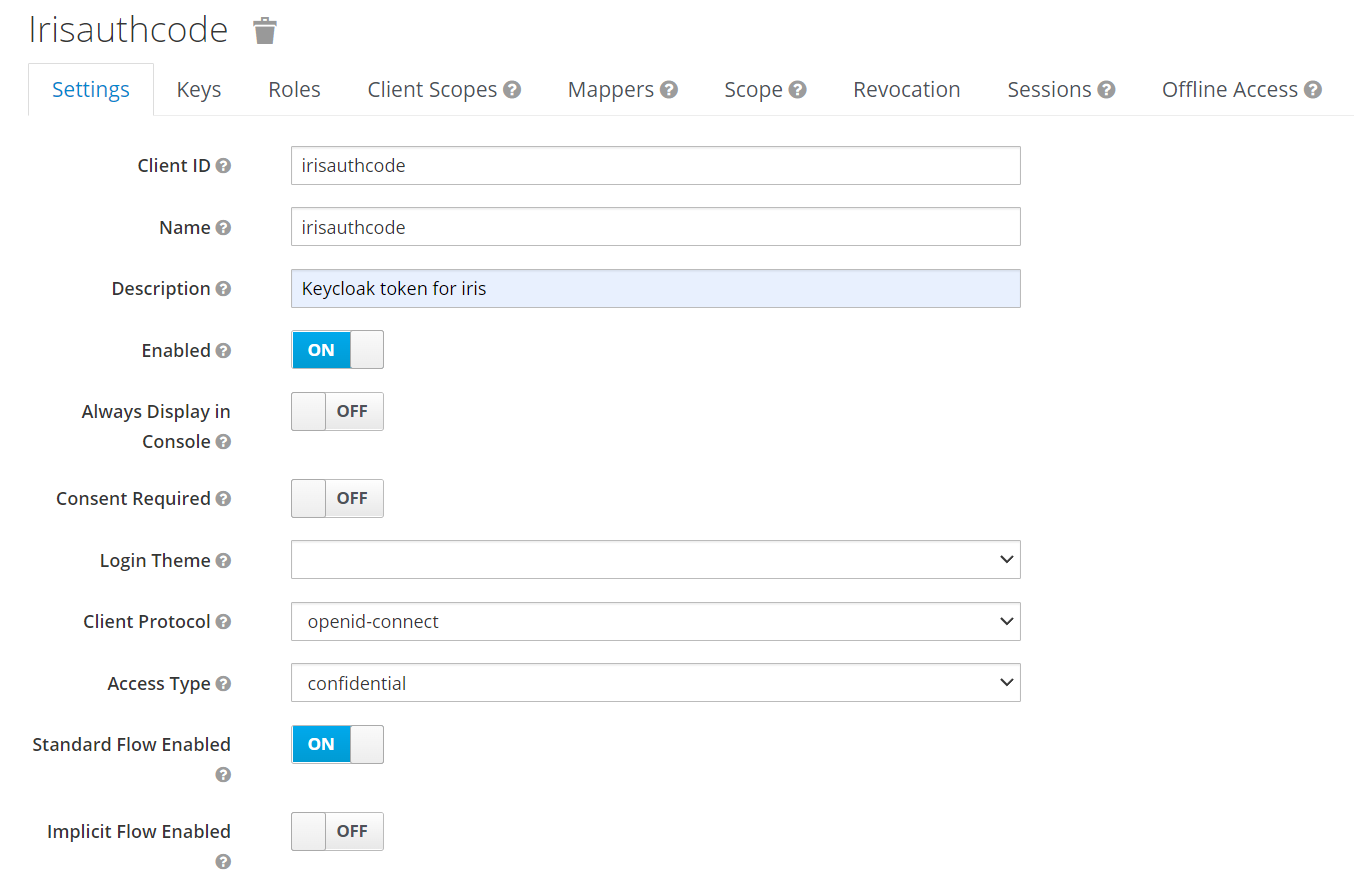
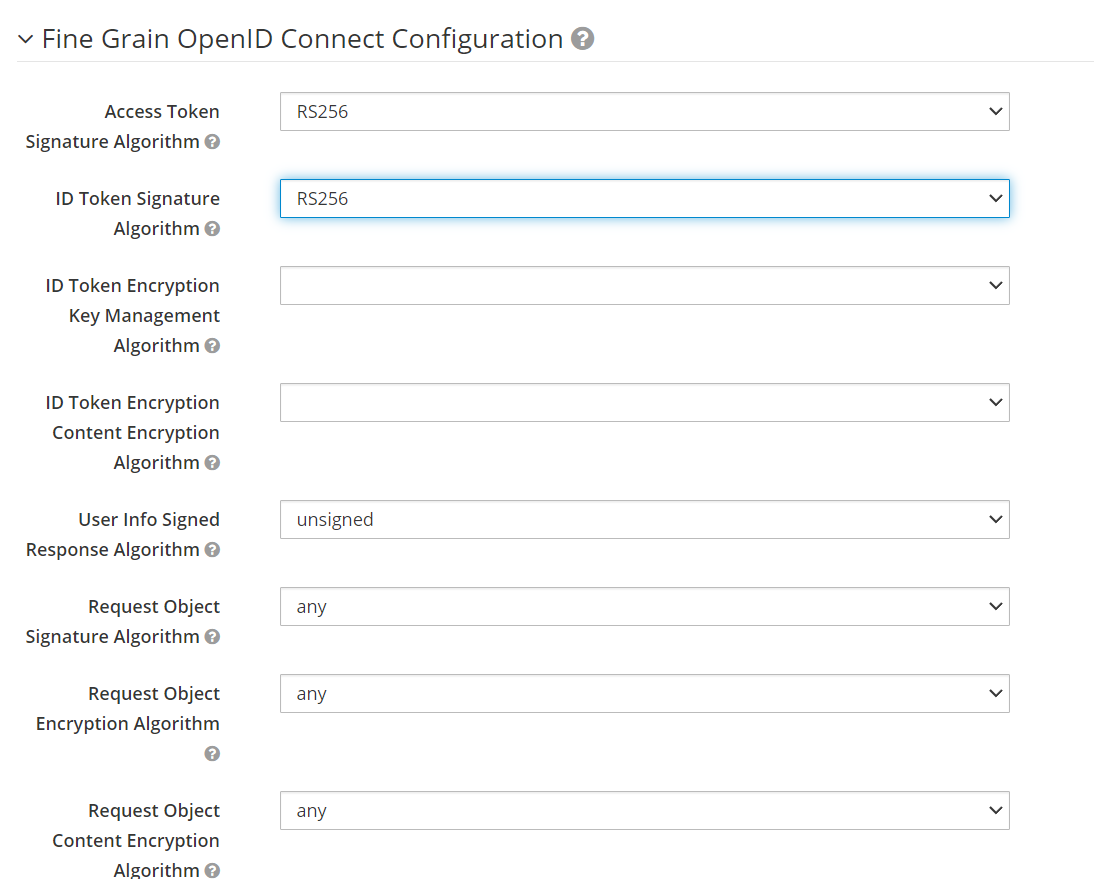
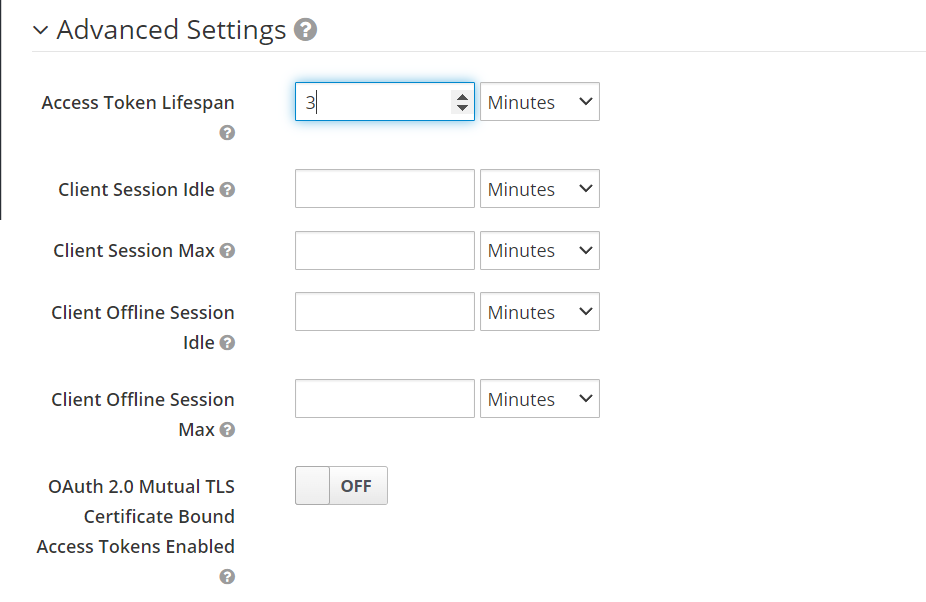
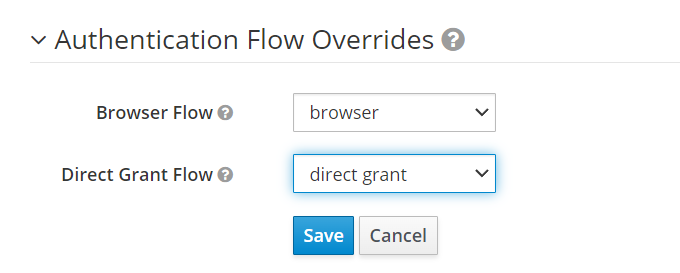
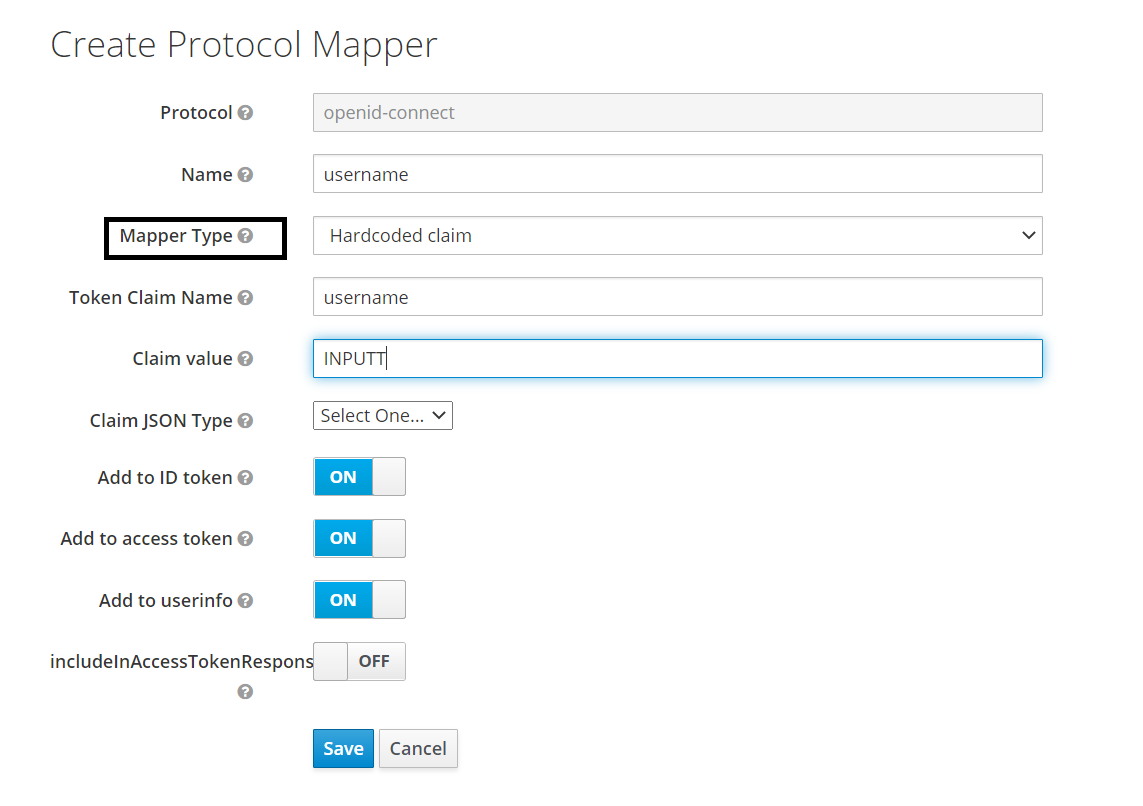
- Create a hard-coded mapper for the client created.
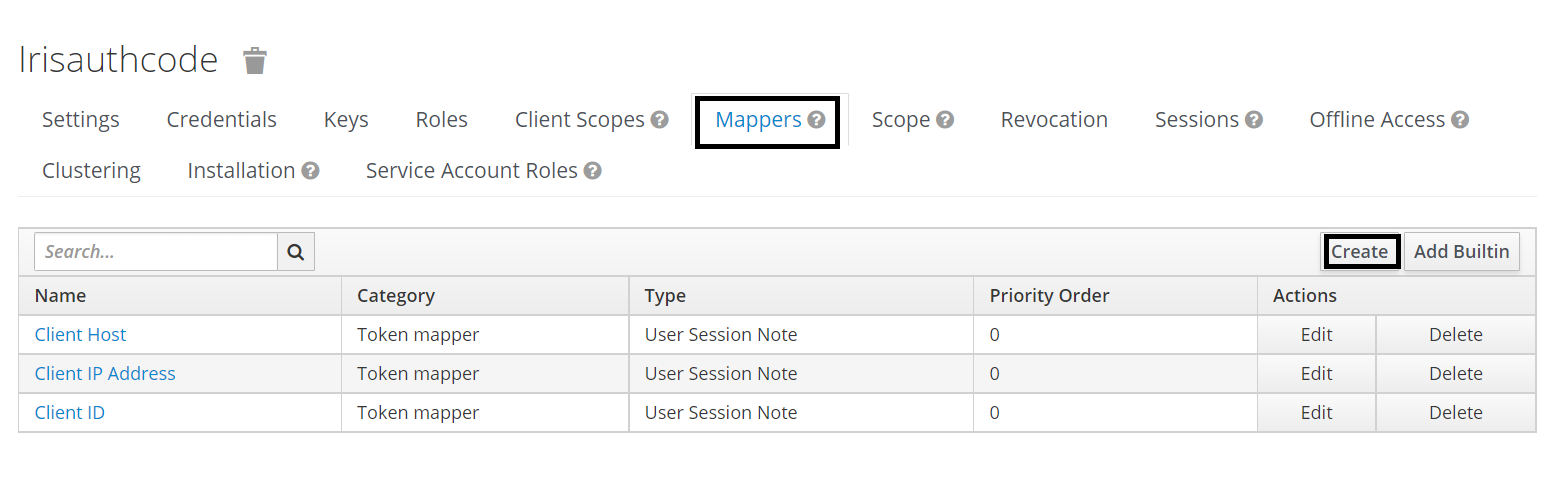
Create Protocol Mapper
- On click of the highlighted Endpoints , the following configuration details are displayed. Configure the following properties as follows:
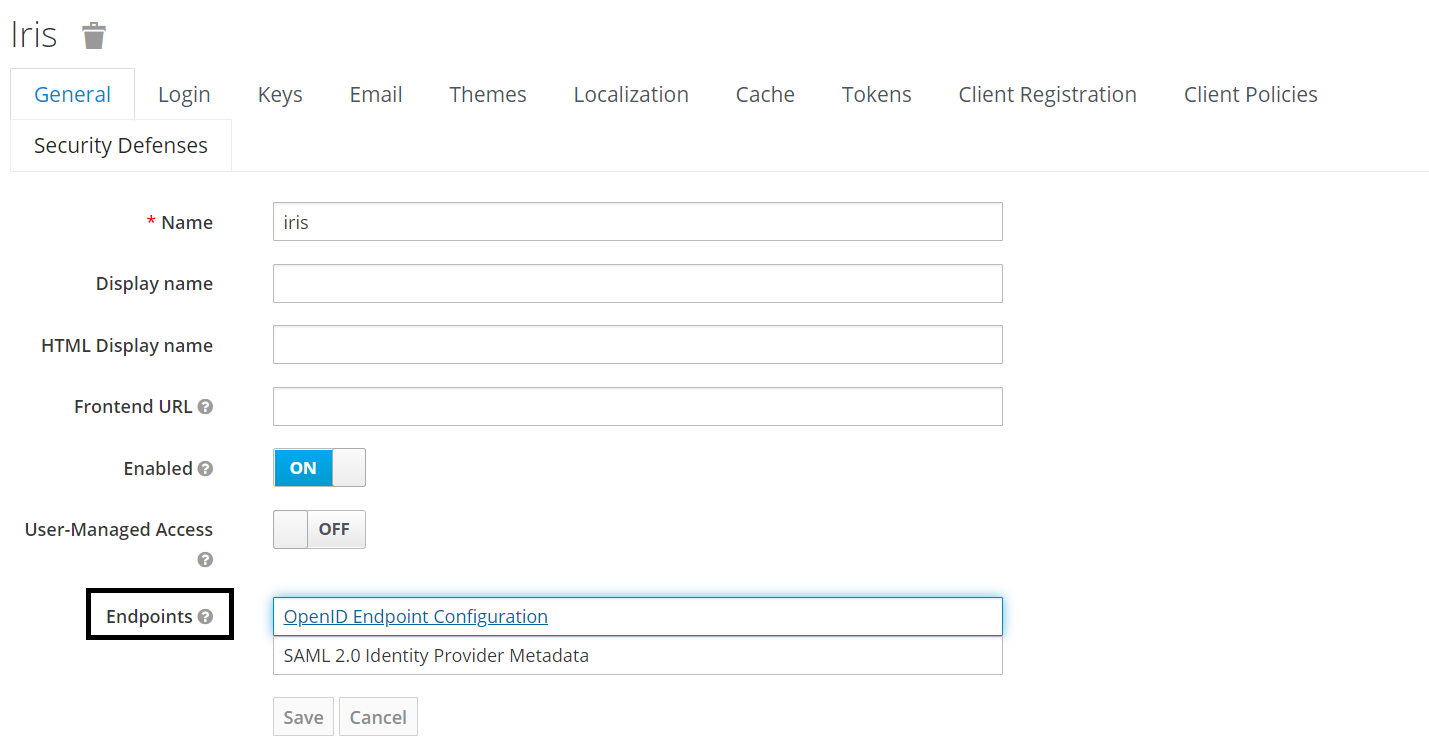
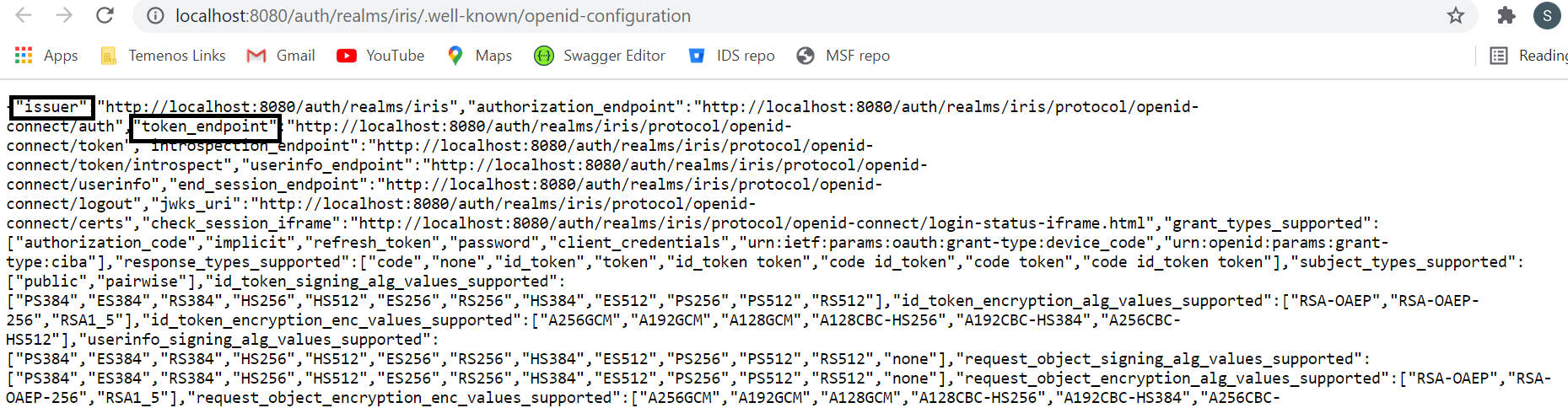 Localhost must be replaced with the system IP address in the IRIS and Microservices configurations.
Keycloak Configurations:
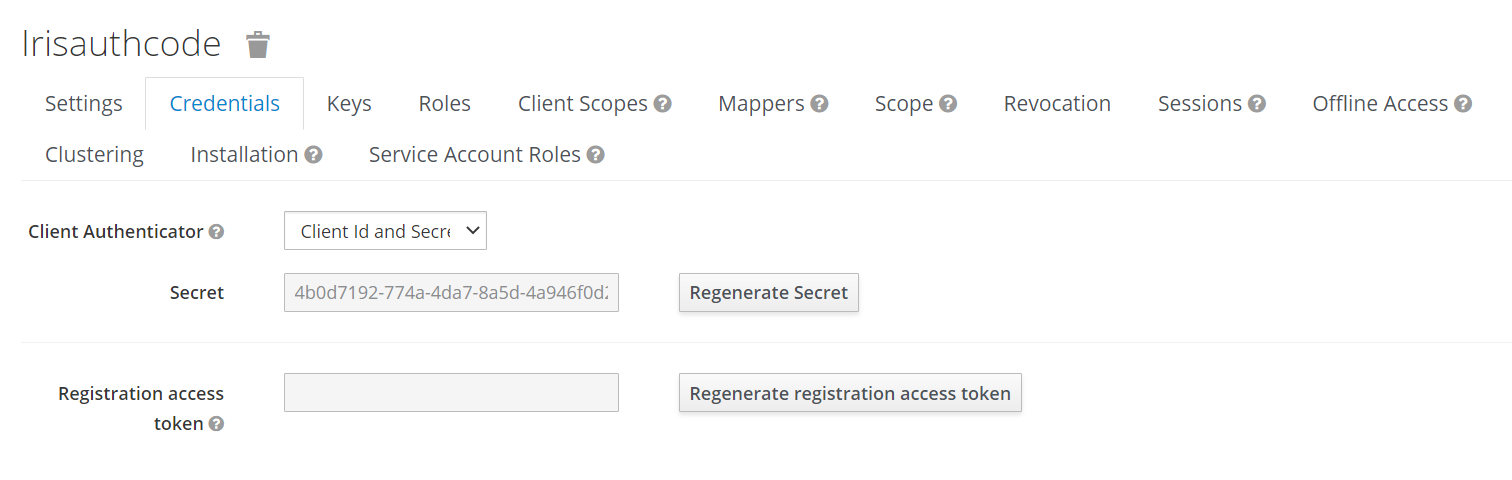
Properties Default Values Description temn.msf.security.tokengen.oauth.url http://10.92.201.101:8080/auth/realms/iris/protocol/openid-connect/token URL of the keycloak server temn.msf.security.tokengen.oauth.grant.type client_credentials Grant type of token generation temn.msf.security.tokengen.oauth.client.id irisauthcode Client name which configured in Keycloak Server temn.msf.security.tokengen.oauth.scope openid Scope of client temn.msf.security.tokengen.client.secret 4b0d7192-774a-4da7-8a5d-4a946f0d2ca7 Client secret which is copied from the Keycloak Server serviceadaptor.preprocessorimpl.class com.temenos.Microservice.framework.core.security.GenerateKeycloakToken framework class which configured for generating token from keycloak server Currently, only the client_credentials grant type is supported.
Furthermore, Keycloak is disable in all stacks by default. To enable it, set the property serviceadaptor.preprocessorimpl.class as com.temenos.Microservice.framework.core.security.GenerateKeycloakToken.
The above mentioned properties should be set in the ingester container of the respective stacks for keycloak to be enabled.
Docker
The required properties are set in the ms-marketingcatalog-mongo.yml/ms-marketingcatalog-mongo-pit.yml/ms-marketingcatalog-postgres.yml/ms-marketingcatalog-postgres-pit.yml as a configurable properties to enable Keycloak, which in turn refer the ENV.env files for the values of the respective properties mentioned in the yml files.
ms-marketingcatalog-mongo.yml
#---  KeyCloak Configuration ---
temn.msf.security.tokengen.oauth.url: ${temn_msf_security_tokengen_oauth_url}
temn.msf.security.tokengen.oauth.grant.type: ${temn_msf_security_tokengen_oauth_grant_type}
temn.msf.security.tokengen.oauth.client.id : ${temn_msf_security_tokengen_oauth_client_id}
temn.msf.security.tokengen.client.secret: ${temn_msf_security_tokengen_client_secret}
temn.msf.security.tokengen.oauth.scope: ${temn_msf_security_tokengen_oauth_scope}
temn.msf.security.tokengen.oauth.username: ${temn_msf_security_tokengen_oauth_username}
temn.msf.security.tokengen.oauth.password: ${temn_msf_security_tokengen_oauth_password}
serviceadaptor.preprocessorimpl.class: ${serviceadaptor_preprocessorimpl_class}ENV.env#keycloak configuration temn_msf_security_tokengen_oauth_url="http://127.0.0.1:8034/auth/realms/test/protocol/openid-connect/token" temn_msf_security_tokengen_oauth_grant_type="client_credentials" temn_msf_security_tokengen_oauth_client_id="testIRIS" temn_msf_security_tokengen_client_secret="c80e7b29-d188-48cc-af9a-e9217e69255e" temn_msf_security_tokengen_oauth_scope="openid" temn_msf_security_tokengen_oauth_username="" temn_msf_security_tokengen_oauth_password="" serviceadaptor_preprocessorimpl_class=""
K8
The required properties are set in the marketingcatalog-configmap.yaml as a configurable properties to enable keycloak which in turn refer the start scripts(start-marketingcatalog-mongo.bat/start-marketingcatalog-mongo.sh/start-marketingcatalog-postgresql.bat/start-marketingcatalog-postgresql.sh) for the values of the respective properties.
marketingcatalog-configmap.yamltemn.msf.security.tokengen.oauth.url: {{ .Values.env.keycloak.oauth_url | quote }}
temn.msf.security.tokengen.oauth.grant.type: {{ .Values.env.keycloak.grant_type | quote }}
temn.msf.security.tokengen.oauth.client.id : {{ .Values.env.keycloak.client_id | quote }}
temn.msf.security.tokengen.client.secret: {{ .Values.env.keycloak.client_secret | quote }}
temn.msf.security.tokengen.oauth.scope: {{ .Values.env.keycloak.oauth_scope | quote }}
serviceadaptor.preprocessorimpl.class: {{ .Values.env.keycloak.preprocessorimpl_class | quote }}
temn.msf.security.tokengen.oauth.username: {{ .Values.env.keycloak.username | quote }}
temn.msf.security.tokengen.oauth.password: {{ .Values.env.keycloak.password | quote }}
start-marketingcatalog-mongo.bat
REM KEYCLOAK PROPERTIES
SET oauth_url=http://127.0.0.1:8034/auth/realms/test/protocol/openid-connect/token
SET client_id=testIRIS
SET grant_type=client_credentials
SET client_secret=c80e7b29-d188-48cc-af9a-e9217e69255e
SET oauth_scope=openid
SET username=msuser
SET password=123456
SET preprocessorimpl_class=""
values.yaml
If value for a property has not been set in start scripts, then the respective keycloak configuration properties's values will be taken from values.yaml .
keycloak:
    oauth_url: http://127.0.0.1:8034/auth/realms/test/protocol/openid-connect/token
    client_id: testIRIS
    grant_type: client_credentials
    client_secret: c80e7b29-d188-48cc-af9a-e9217e69255e
    oauth_scope: openid
    username: msuser
    password: 123456
    preprocessorimpl_class: ""
Azure
The required properties to enable keycloak should be set in the install.sh/install-postgresql.sh and install.bat/install-postgresql.bat files as below.
install.sh#Keycloak configurations export OAUTH_URL="http://127.0.0.1:8034/auth/realms/test/protocol/openid-connect/token" export GRANT_TYPE="client_credentials" export CLIENT_ID="testIRIS" export CLIENT_SECRET="c80e7b29-d188-48cc-af9a-e9217e69255e" export OAUTH_SCOPE="openid" export USERNAME= export PASSWORD= export PREPROCESSORIMPL_CLASS="com.temenos.Microservice.framework.core.security.GenerateKeycloakToken"
AWS
The required properties to enable keycloak should be set in the install-aws.sh and install-aws-postgresql.sh files as below.
install-aws.sh#Keycloak configurations export OAUTH_URL="http://127.0.0.1:8034/auth/realms/test/protocol/openid-connect/token" export GRANT_TYPE="client_credentials" export CLIENT_ID="testIRIS" export CLIENT_SECRET="c80e7b29-d188-48cc-af9a-e9217e69255e" export OAUTH_SCOPE="openid" export USERNAME= export PASSWORD= export PREPROCESSORIMPL_CLASS=""
Enable Keycloak in IRIS
Prerequisite:
Authentication must be enabled in the IRIS.
Procedure:
Set the below mentioned properties in spring-jwt-iris-authenticator.xml located in the path \WEB-INF\classes\ in irf-provider-container.war
- Set the value issuer, from the Endpoints details.
- Set the value pkCertEncoded, from the Certificate value which was copied earlier.
- Set the value principalClaim, as username.
<beans:bean id="oidcProviderServer" class="com.temenos.security.oidc.common.OidcProviderServer">
    <beans:property name="issuer" value="http://10.92.201.101:8080/auth/realms/iris" />
    <beans:property name="pkEncoded" value="" />
    <beans:property name="pkCertEncoded" value="MIIClzCCAX8CBgF9DqJFeTANBgkqhkiG9w0BAQsFADAPMQ0wCwYDVQQDDARpcmlzMB4XDTIxMTExMTEwNTIzNVoXDTMxMTExMTEwNTQxNVowDzENMAsGA1UEAwwEaXJpczCCASIwDQYJKoZIhvcNAQEBBQADggEPADCCAQoCggEBAKlFFGJ+jB1+Ep052z3W4GuXGp7OFAhYMRDhlOIxXuegdviNmq4UJfGmfx8nmiUG2dZx0iKJCjLJutWvG3CJm0RN6Ph4EsiUJlpRwF9/cyDAtAFfPzg1TgZWgb8OFHPBjTzHDm5kl31qpercE8+68/1oOLJEFx9ZazQqupzasXolDny832u0ErH8GmvHNyZIVGmmS6jDqQQtzhTWVW+AREUTjAK85sE5o1PbAhVYfFFhP8mgffxOBhx+YUdS6SoZ9OIcLEeqcPjI3/OgUZWA9Ok+S19stoMt6Uv6xk/55Ivg4knAEAj3KMCKkEtZwuwOYBwquSVilZfprPDKORnAHvMCAwEAATANBgkqhkiG9w0BAQsFAAOCAQEAdAeGLmX4159zUMsYxy2lQnmdBqZ/AXoFkw9SCKeSNnz7KblNHDHivfpvBZMPf7XqQbSj0koa0fL+LEExeOGc2vHIuf1/yOu+IiDiQPIDCcAk8/76AV7NnLQbXx+QXQ9JvL8msDqQ7v96gbu0bMI87ub+AdUSdWCb5F84tmMW4IO8UwMSeSFxqw3d1XBKAtmCtHxmpsKlOflhOCDet0Otc6BlKYYagrKzKaPPkLYq5zpuNvNGD+LCCTM4XH4S3iezJuK1ezPcUj79CMPw4EioK+IN+G61zJysZgTaXufQLRWKOnxu999wprR7eSu/DZc9KjoUvisVNtd6K3eFr3uLJg==" />
    <beans:property name="pkCertFilePath" value="" />
    <beans:property name="pkJwksUri" value="" />
    <beans:property name="decryptingJwkEncoded" value="" />
    <beans:property name="principalClaim" value="username" />
</beans:bean>
In this topic