HMS Transact Ingestion
HMS Transact Ingestion is a form of Internal Ingestion that is used to ingest data from the external system into a Microservice.
- Configuration DES - Used to configure some of the DES properties as per the streaming vendor such as:
- RR.PARAM and ILP Configuration - Used to insert the data from Transact to Microservices.
Holdings Microservice always consumes the latest data from Data Event Streaming (DES) which compares the processing time of the latest data with the existing data in the database.
You can check the Configuration for the Transact Ingester at:
- Azure
- MongoDB: holdingst24ingesterapp
- PostgreSQL DB: holdingst24ingesterapp
- AWS
- Dynamo DB: INTERNAL_INGESTER_CONFIG
- PostgreSQL DB: INTERNAL_INGESTER_CONFIG
Configuration DES
Holdings Microservice uses the full data event
 Kafka - J2EE
- Navigate to F:\UTP-DEV-RET-2021.03.04-01-1064-saf-retailsuite-developer-s08\Temenos\TAFJ\conf\tafj.properties.
- Set
temn.tafj.runtime.use.df.cacheto true.
- Navigate to F:\UTP-DEV-RET-2021.03.04-01-1064-saf-retailsuite-developer-s08\Temenos\DES\des-docker\src\main\resources\des-config\des-kafka-t24.properties.
- Update the following property in the Event Pull Adapter section, for DES to understand from where t24 tables must pull data and post it into Kafka.
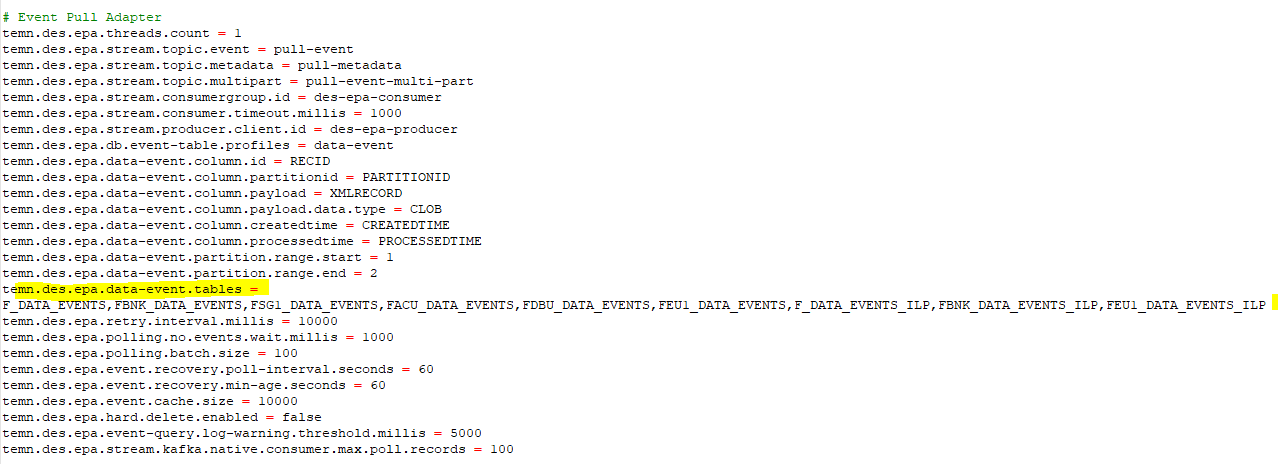
The file name mentioned will change based on the company mnemonic.
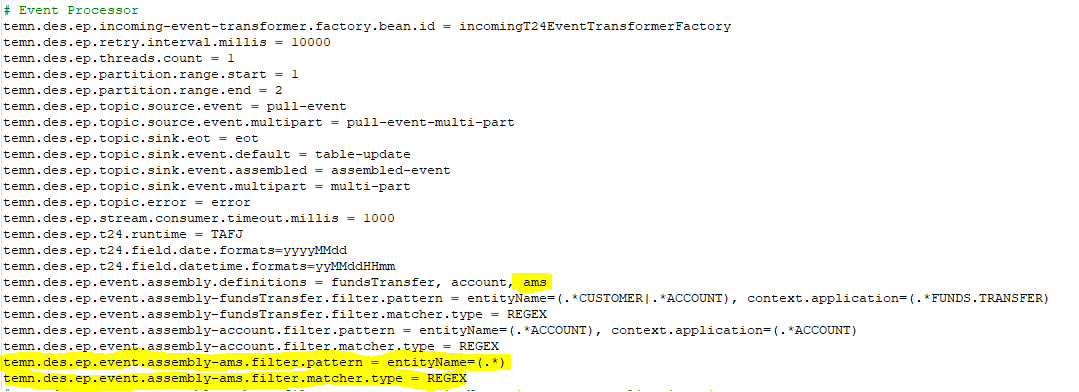
- Update the Event Processor section, and add new assembly definition for Holdings Microservice, for DES to understand from the regex pattern which event must be posted into the assembled-event topic.
EventHub - Azure
- Navigate to F:\UTP-DEV-RET-2021.03.04-01-1064-saf-retailsuite-developer-s08\Temenos\TAFJ\conf\tafj.properties.
- Set
temn.tafj.runtime.use.df.cacheto true.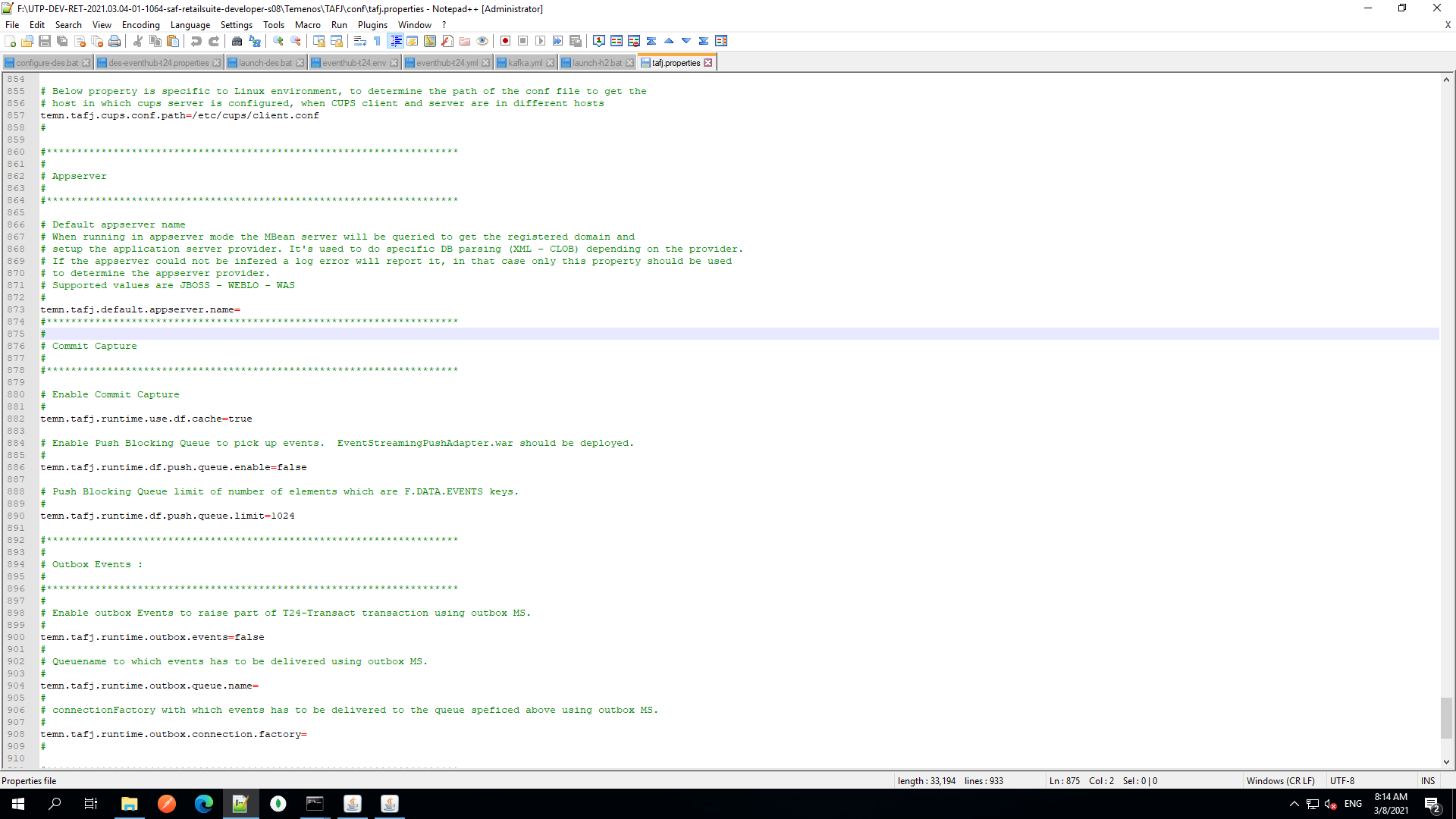
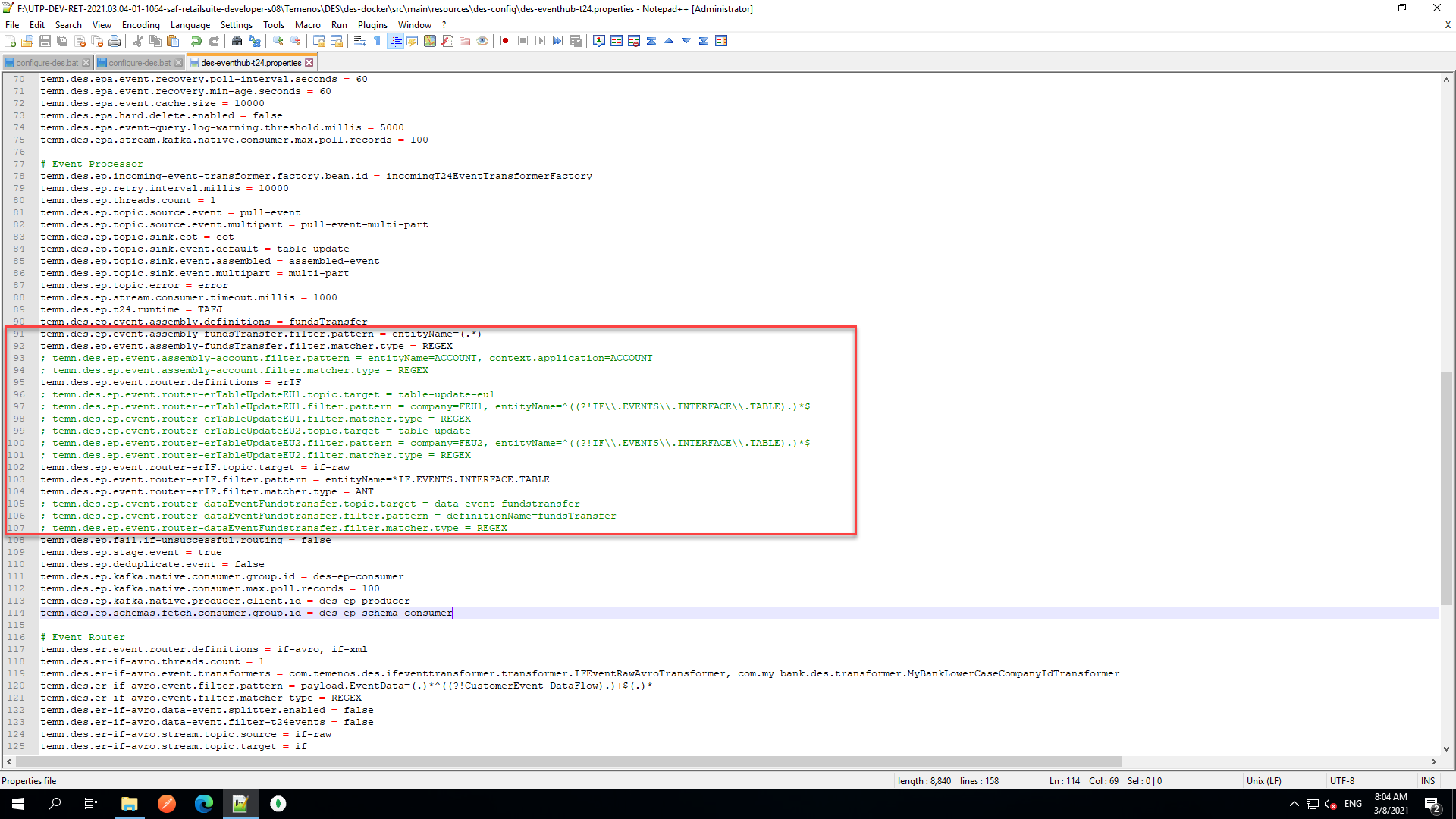
- Navigate to F:\UTP-DEV-RET-2021.03.04-01-1064-saf-retailsuite-developer-s08\Temenos\DES\des-docker\src\main\resources\des-config\des-eventhub-t24.properties.
- In the Event Processor block, make the changes as show in below image highlighted in red.
- Navigate to F:\UTP-DEV-RET-2021.03.04-01-1064-saf-retailsuite-developer-s08\Temenos\DES\des-docker\config\eventhub-t24.env.
- Add the following event hub properties as per your configuration in azure.


#Event Hub Properties
EVENT_HUB_RESOURCE_GROUP_HOST=transactdessur.servicebus.windows.net
EVENT_HUB_RESOURCE_GROUP_PORT=9093
EVENT_HUB_SHARED_ACCESS_KEY=4CX2krSX9MdlTHIAO158ayC8+DJPNQD7cA84uj4S/JA=
#Since Event hub supports only 10 eventhubs per name space so we are seperate the config-installer seperate Event hub
EVENT_HUB_CI_RESOURCE_GROUP_HOST=transactdessurschema.servicebus.windows.net
EVENT_HUB_CI_RESOURCE_GROUP_PORT=9093EVENT_HUB_CI_SHARED_ACCESS_KEY=gHDAsboJCRgPo++/87SGWcDPxeUHJci/3ULS0kIEKKU=
#Event hub config for demo webapp, since webapp using spring config
EVENT_HUB_JASS_CONFIG=-DeventHubPassword="Endpoint=sb://transactdessur.servicebus.windows.net/;SharedAccessKeyName=RootManageSharedAccessKey;SharedAccessKey=4CX2krSX9MdlTHIAO158ayC8+DJPNQD7cA84uj4S/JA="EVENT_HUB_DWA_RESOURCE_GROUP_HOST=-Devent.hub.resource.group.host=transactdessur.servicebus.windows.net
EVENT_HUB_DWA_RESOURCE_GROUP_PORT=-Devent.hub.resource.group.port=9093
- Navigate to F:\UTP-DEV-RET-2021.03.04-01-1064-saf-retailsuite-developer-s08\Temenos\DES\des-docker\src\eventhub-t24.yml
- Remove the volumes from
eventhub-t24.ymland add to kafka.yml as following.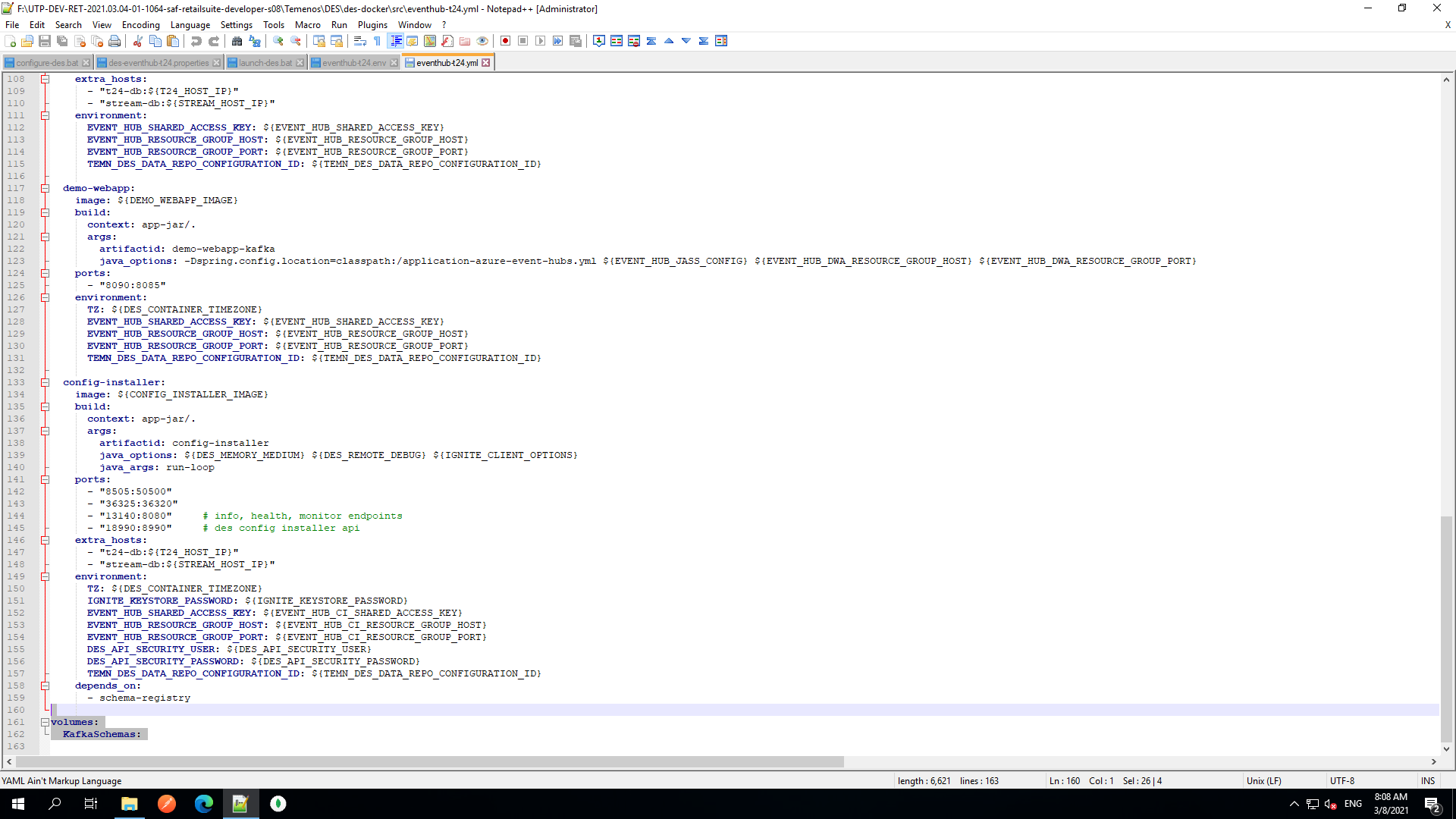

- Navigate to F:\UTP-DEV-RET-2021.03.04-01-1064-saf-retailsuite-developer-s08\Temenos\DES\des-docker\utp\modelbank\configure-des.bat
- Update :installDesConfig properties as shown in below image highlighted in red.

- Navigate to F:\UTP-DEV-RET-2021.03.04-01-1064-saf-retailsuite-developer-s08\Temenos\launch-des.bat
- Set the env for eventhub as shown in below image highlighted in red.

Alternative to start DES:
If launch-des.bat fails to start the DES or if it fails by throwing error try the alternative way:
- Navigate to F:\UTP-DEV-RET-2021.03.04-01-1064-saf-retailsuite-developer-s08\Temenos\DES\des-docker\des-tool.bat

- From F:\UTP-DEV-RET-2021.03.04-01-1064-saf-retailsuite-developer-s08\Temenos\DES\des-docker\des-tool.bat, open the command prompt and execute the following commands:
des-tool.bat builddes-tool.bat install-
des-docker.bat build des-docker.bat up -d
To check the DES_Configuration:
- In the SQL window execute the following command:
select * from F_EB_DES_CONFIG;
RECID | XMLRECORD
kafka | <row id='kafka'><c1 m='1'>temn.des.version</c1><c2 m='1'>2019-02-07T13:17:58.113</c2><c1 m='2'>temn.
Here, it must not be kafka, it must be event hub. If it is, execute the following commands:
- From F:\UTP-DEV-RET-2021.03.04-01-1064-saf-retailsuite-developer-s08\Temenos\DES\des-docker\des-tool.bat open the command prompt and execute the following command:
des-tool.bat stage-des-config F:\UTP-DEV-RET-2021.03.04-01-1064-saf-retailsuite-developer-s08\Temenos\DES\des-docker\src\main\resources\des-config\des-eventhub-t24.properties eventhub
- From F:\UTP-DEV-RET-2021.03.04-01-1064-saf-retailsuite-developer-s08\Temenos\DES\des-docker\des-tool.bat open the command prompt and execute the following command:
- In the SQL window execute the following command:
select * from F_EB_DES_CONFIG;
RECID | XMLRECORD
kafka | <row id='kafka'><c1 m='1'>temn.des.version</c1><c2 m='1'>2019-02-07T13:17:58.113</c2><c1 m='2'>temn.
eventhub | <row id='eventhub'><c1 m='1'>temn.des.version</c1><c2 m='1'>2019-02-07T13:17:58.113</c2><c1 m='2'>temn.
Check whether the DES is created successfully using the following commands:
- docker ps -a

- docker logs –f src_event-processor_1
Here you could see the eventhub connecting to the created transactdessur.servicebus.windows.net:9093.
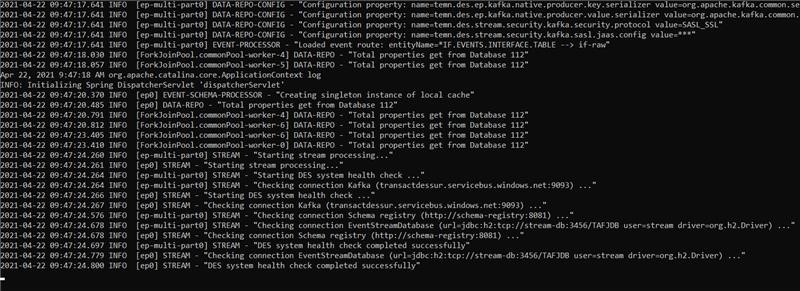
- docker ps -a
Kinesis - AWS
Ensure that you configure the EventHub Creation for Transact ingestion in HMS Configuration. For more information, refer to HMS Transact Kinesis Creation.
- Navigate to F:\UTP-DEV-RET-2021.03.04-01-1064-saf-retailsuite-developer-s08\Temenos\TAFJ\conf\tafj.properties.
- Set
temn.tafj.runtime.use.df.cacheto true.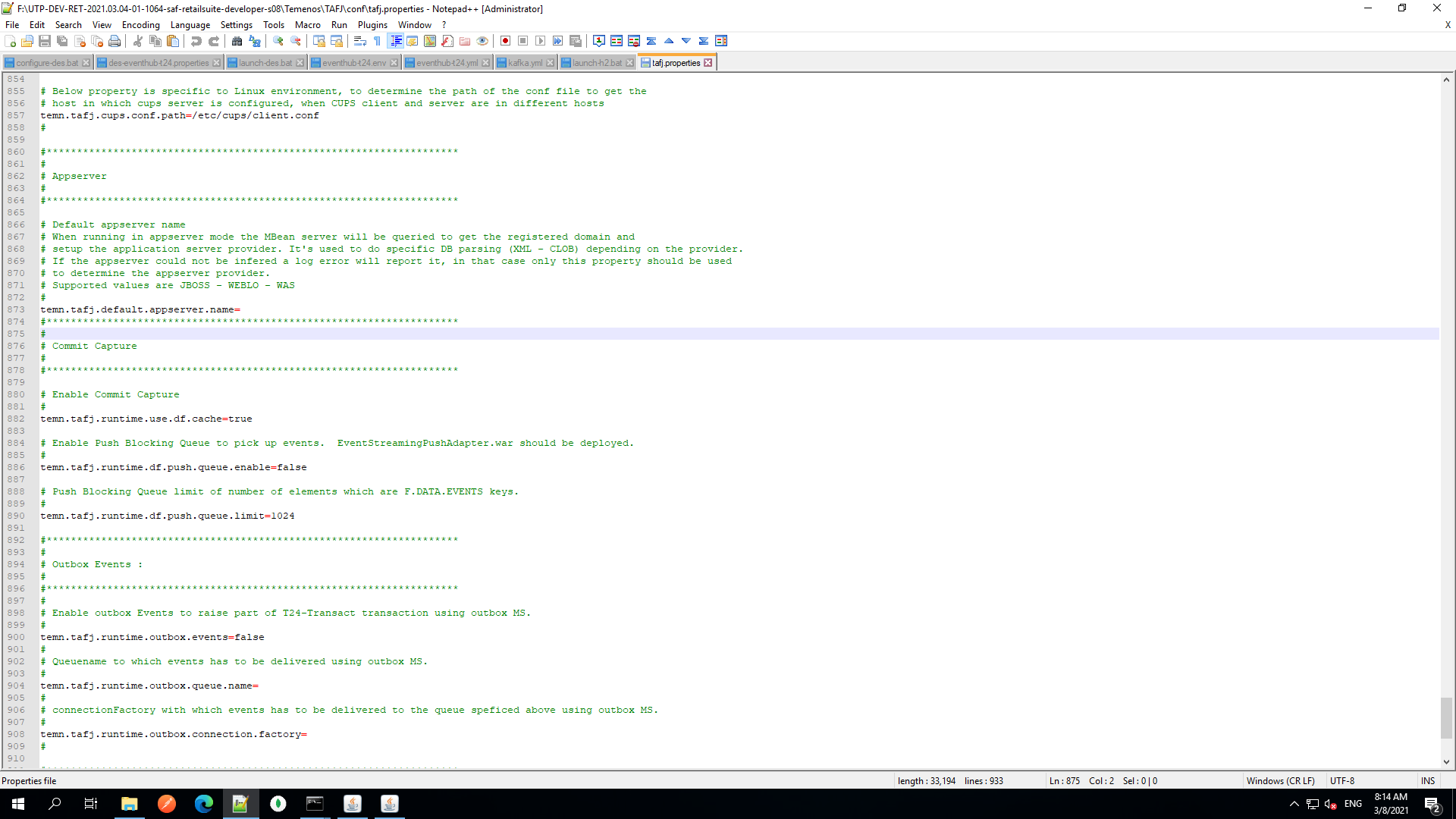
- Navigate to F:\UTP-DEV-RET-2021.03.04-01-1064-saf-retailsuite-developer-s08\Temenos\DES\des-docker\src\main\resources\des-config\des-kinesis-t24.properties.
- In the Event Processor block, make the changes as shown below highlighted in red:

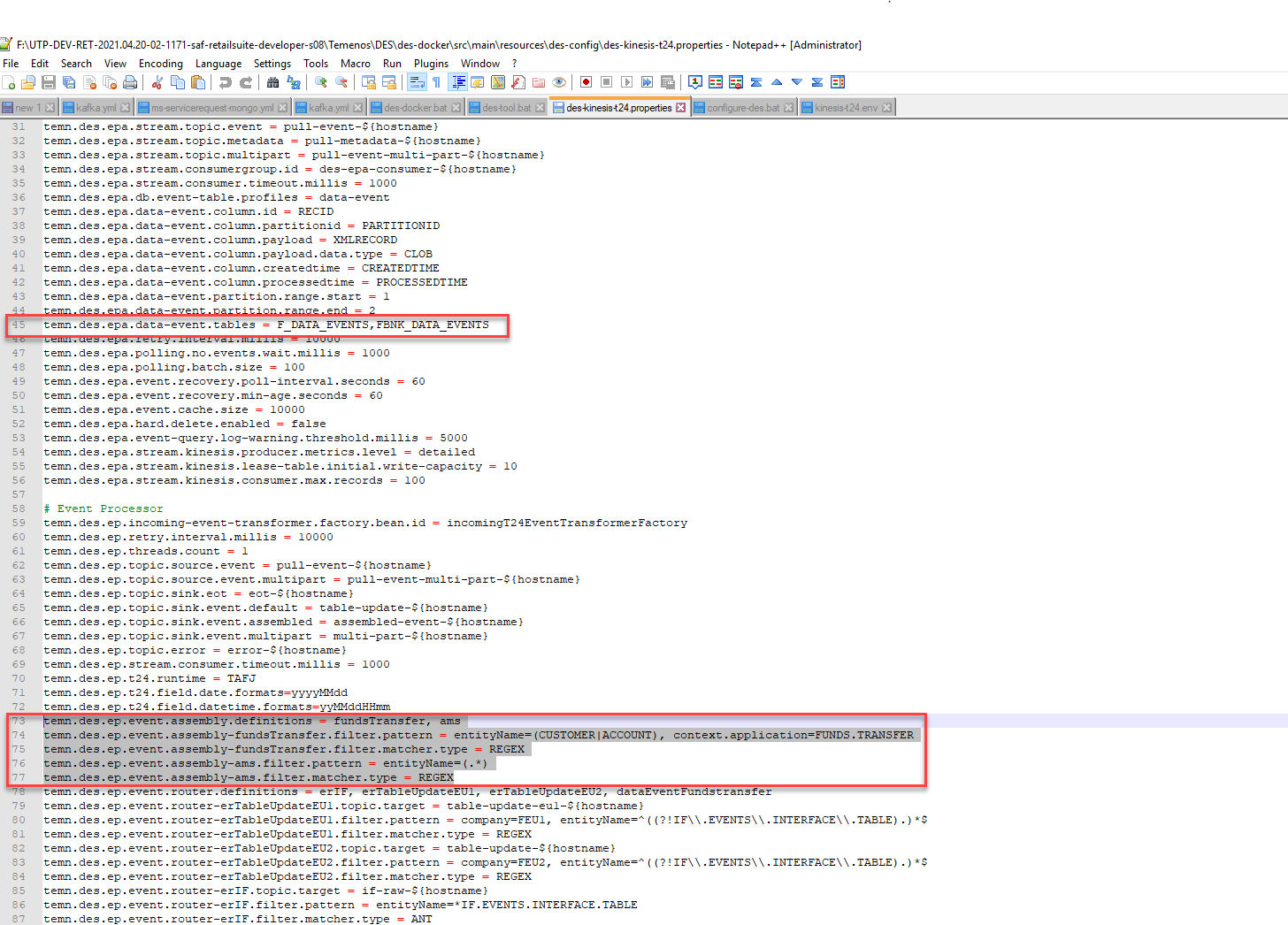
- Navigate to F:\UTP-DEV-RET-2021.03.04-01-1064-saf-retailsuite-developer-s08\Temenos\DES\des-docker\config\kinesis-t24.env.
- Add the following Kinesis properties as per your configuration in AWS
AWS_REGION=eu-west-2AWS_ACCESS_KEY_ID=AKIAJ2OHEFOWXOZGBMOAAWS_SECRET_ACCESS_KEY=PxkgTRaPxrKgcXUy72befXiCXh1xeqFDfSKaKdPX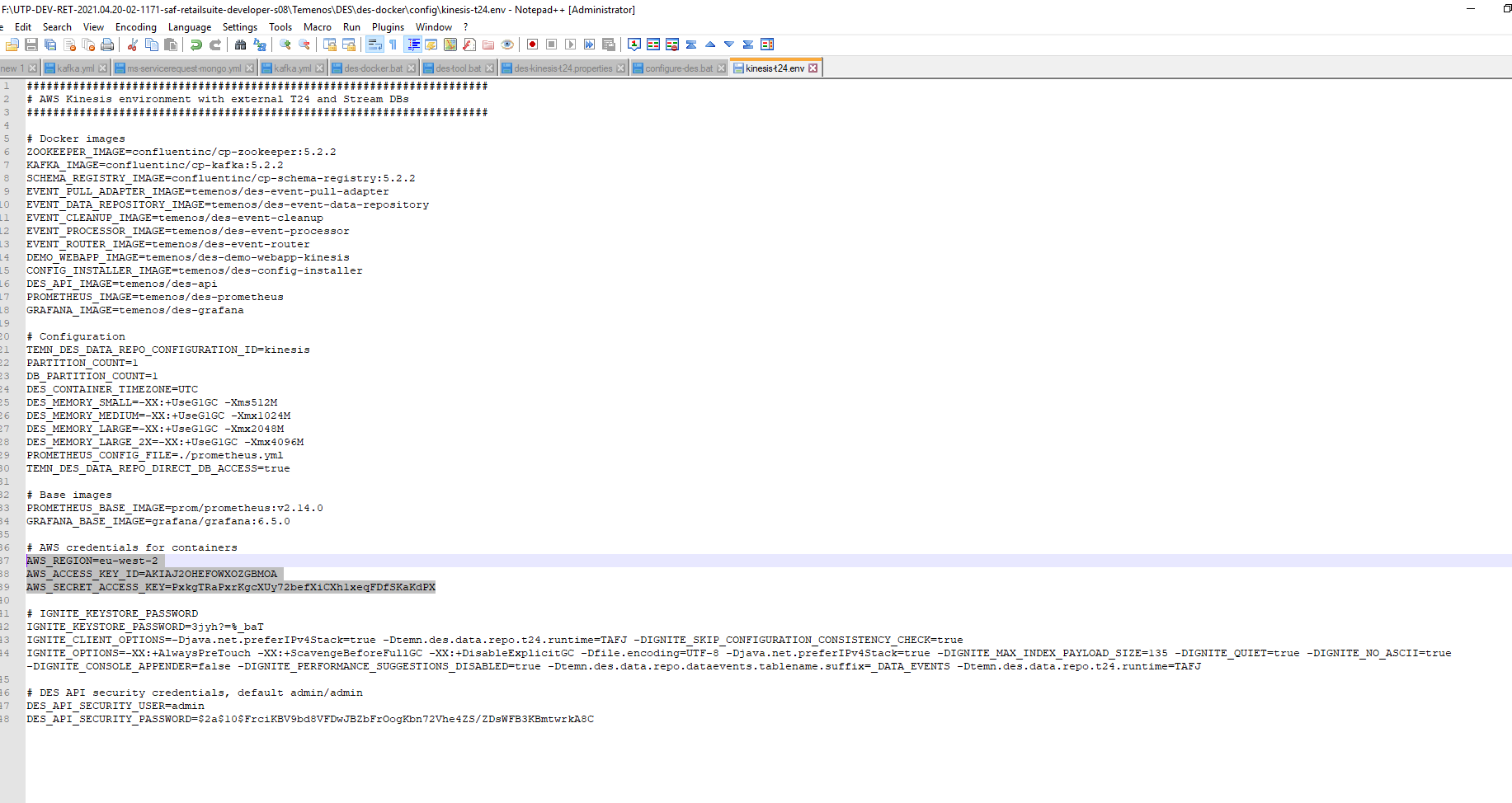
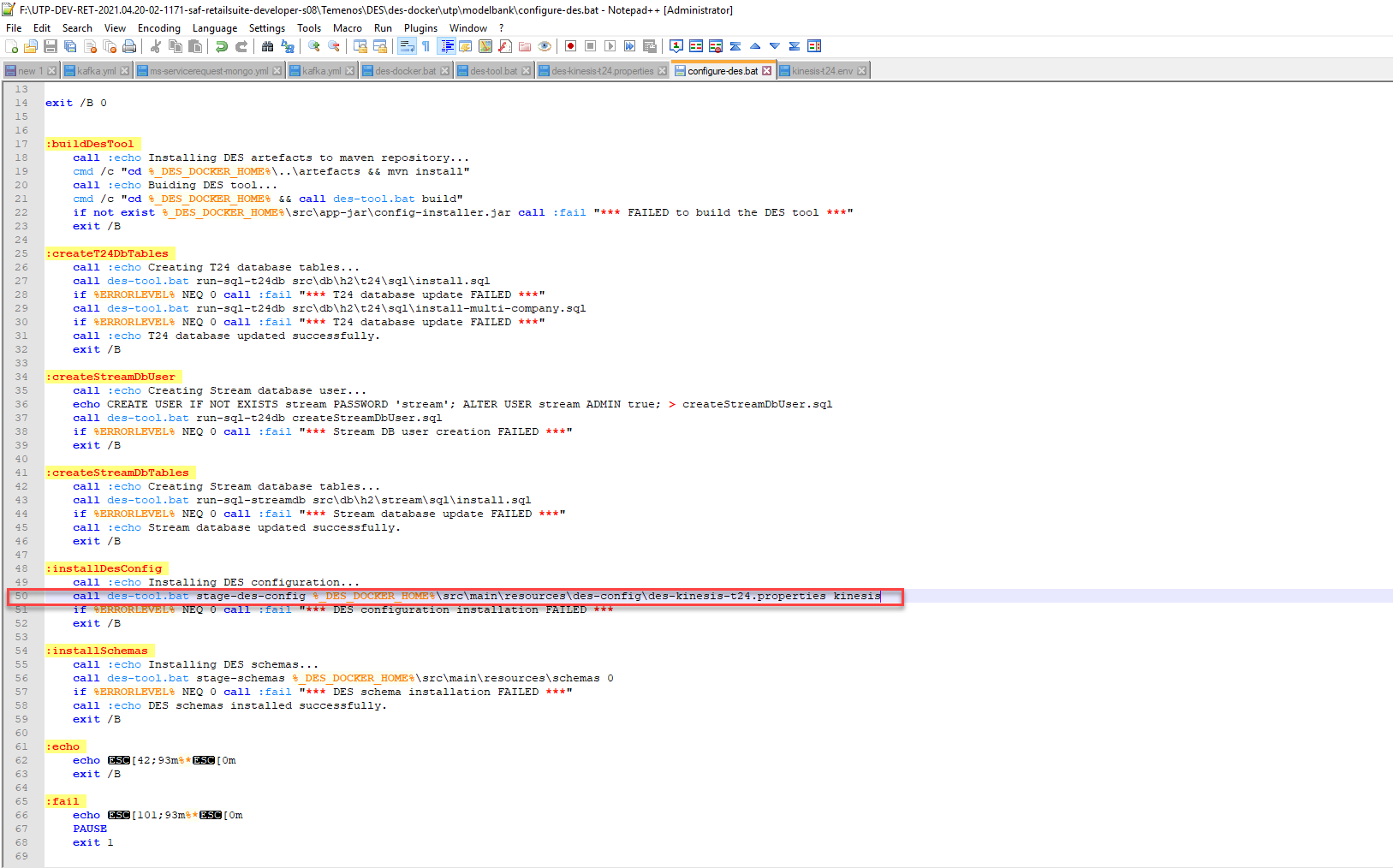
- Navigate to F:\UTP-DEV-RET-2021.03.04-01-1064-saf-retailsuite-developer-s08\Temenos\DES\des-docker\utp\modelbank\configure-des.bat
- Change line 50 as shown in figure
- Navigate to F:\UTP-DEV-RET-2021.03.04-01-1064-saf-retailsuite-developer-s08\Temenos\launch-des.bat
- Update the following in
:installDesConfig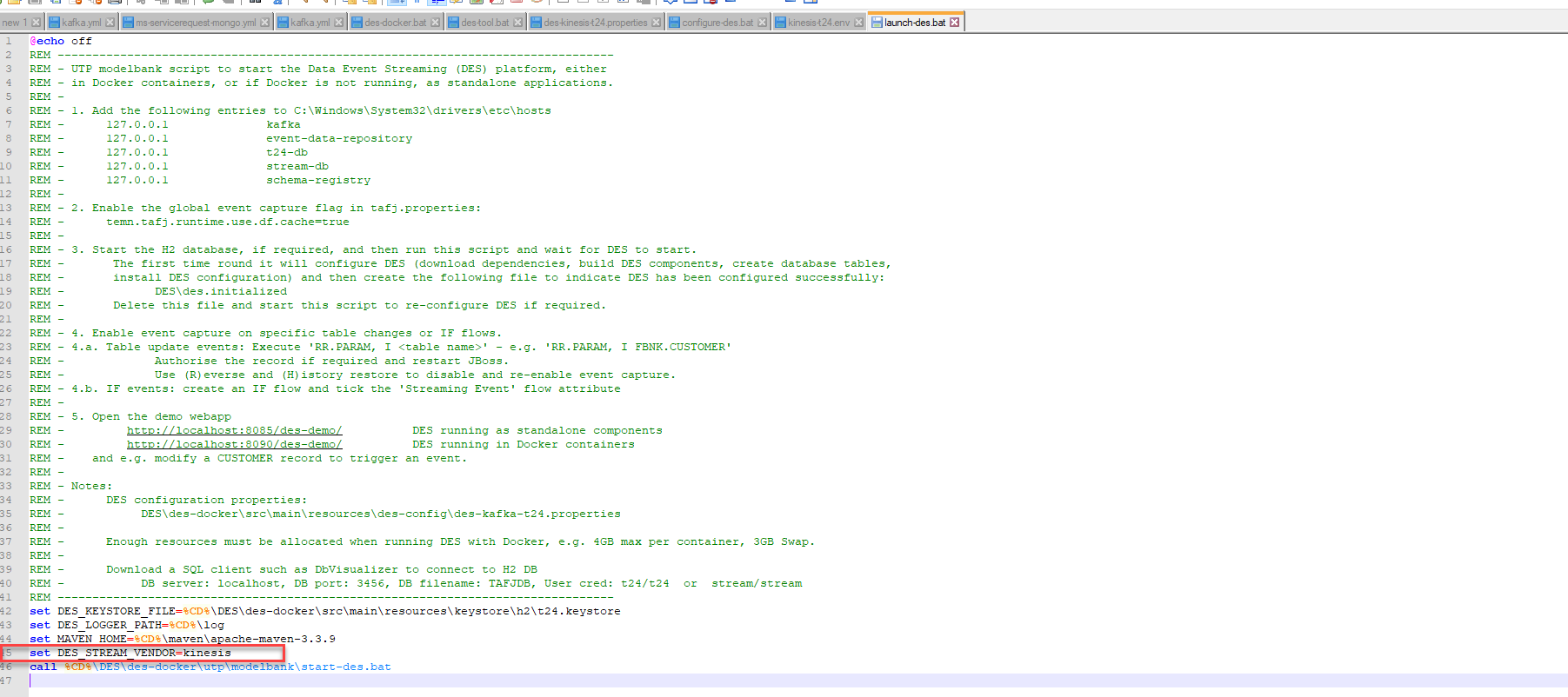
Alternative to start DES:
If launch-des.bat fails to start the DES or if it fails by throwing error try the alternative way:
- Navigate to F:\UTP-DEV-RET-2021.03.04-01-1064-saf-retailsuite-developer-s08\Temenos\DES\des-docker\des-tool.bat
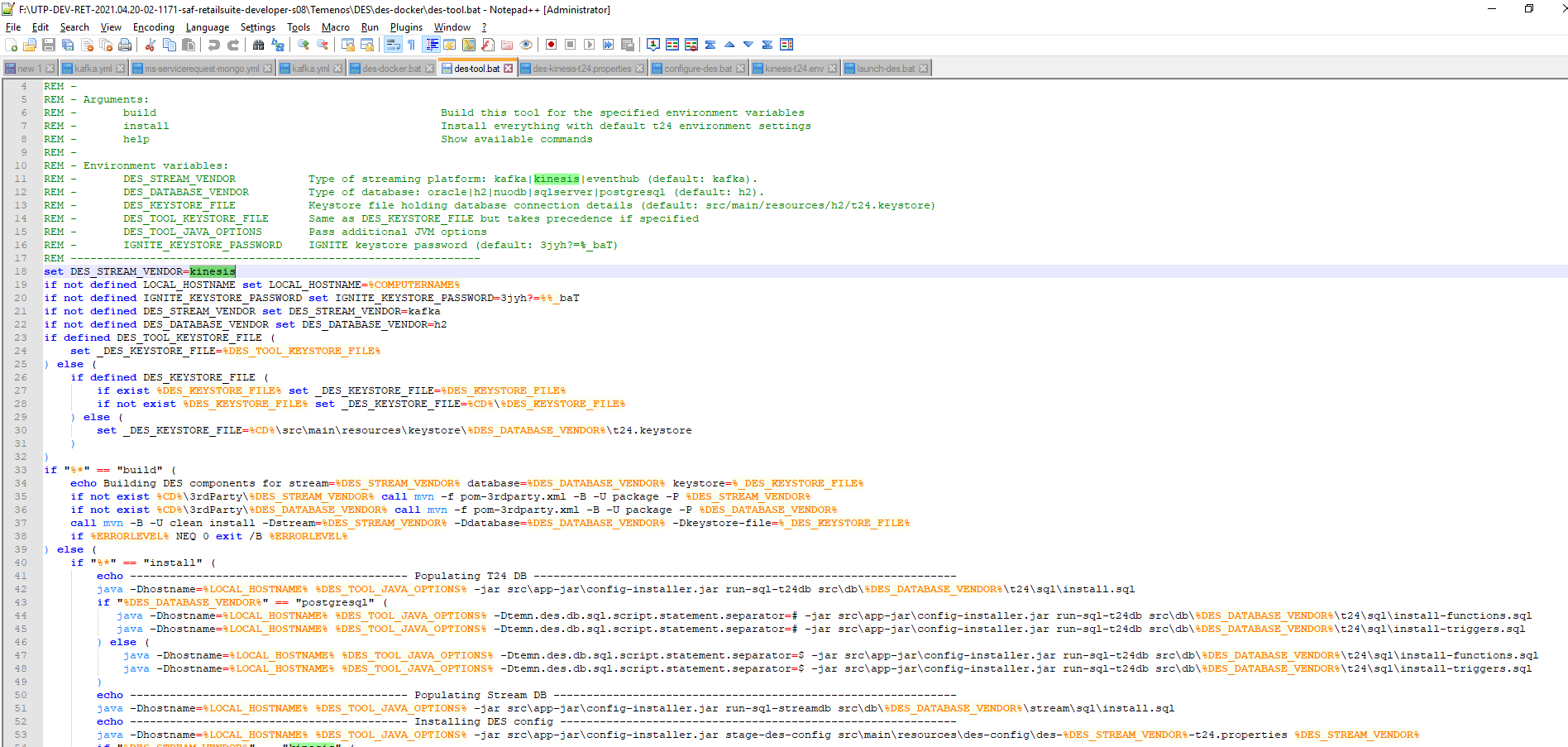
- From F:\UTP-DEV-RET-2021.03.04-01-1064-saf-retailsuite-developer-s08\Temenos\DES\des-docker\des-tool.bat open the command prompt and execute the following commands:
des-tool.bat builddes-tool.bat installdes-docker.bat build-
des-docker.bat up -d
To check the DES_Configuration:
- In the SQL window, execute the following command:
select * from F_EB_DES_CONFIG;
RECID | XMLRECORD
kafka | <row id='kafka'><c1 m='1'>temn.des.version</c1><c2 m='1'>2019-02-07T13:17:58.113</c2><c1 m='2'>temn.
Here, it must not be kafka, it must be kinesis. Then, execute the following commands:
From F:\UTP-DEV-RET-2021.03.04-01-1064-saf-retailsuite-developer-s08\Temenos\DES\des-docker\des-tool.bat open the command prompt and execute the following commands:
des-tool.bat stage-des-config F:\UTP-DEV-RET-2021.03.04-01-1064-saf-retailsuite-developer-s08\Temenos\DES\des-docker\src\main\resources\des-config\des-kinesis-t24.properties kinesis
- In the SQL window, execute the following command:
select * from F_EB_DES_CONFIG;
RECID | XMLRECORD
kinesis | <row id='kinesis'><c1 m='1'>temn.des.version</c1><c2 m='1'>2019-02-07T13:17:58.113</c2><c1 m='2'>tem>temn.
Check whether the DES is created successfully using the following commands:
docker ps -a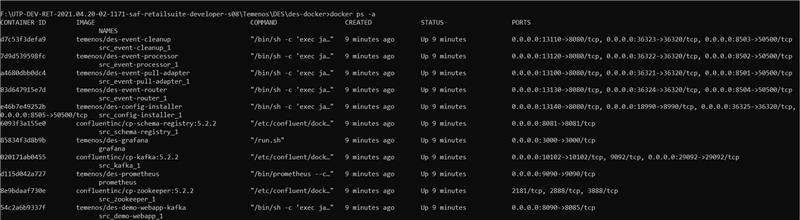
docker logs –f src_event-processor_1Here you can view the aws kinesis connecting to the assembled-event-MSRetail.
RR.PARAM and ILP Configuration through DES
RR.PARAM Configuration
The following entries must be added in the RR.PARAM application for Holdings Microservice:
Legacy Details
| F.CATEGORY | FXXX.ACCOUNT | FXXX.LD.SCHEDULE.DEFINE |
| F.DATES | FXXX.ACCOUNT$HIS | FXXX.PD.PAYMENT.DUE |
| FXXX.RELATION | FXXX.AZ.ACCOUNT | FXXX.PD.REPAYMENT |
| F.AZ.PRODUCT.PARAMETER | FXXX.LD.LOANS.AND.DEPOSITS |
Legacy Interest Details
| FXXX.ACCOUNT.CREDIT.INT | FXXX.GROUP.CREDIT.INT | FXXX.LMM.ACCOUNT.BALANCES |
| FXXX.ACCOUNT.DEBIT.INT | FXXX.GROUP.DEBIT.INT | FXXX.LMM.SCHEDULES.PAST |
| FXXX.ACCT.CAPITALISATION | FXXX.GROUP.CAPITALISATION |
Enrichment Details
| FXXX.TRANSACTION | F.POSTING.RESTRICT | F.MANAGED.ACCOUNT |
| F.EB.LOOKUP | F.DEPT.ACCT.OFFICER | F.AA.CUSTOMER.ROLE |
| F.COMPANY | FBNK.AA.PRODUCT | FXXX.CUSTOMER |
Holdings Details
| FXXX.EB.CONTRACT.BALANCES | FXXX.SEC.TRADE | FXXX.SECURITY.TRANSFER |
| FXXX.STMT.ENTRY | FXXX.DX.TRADE | FXXX.SEC.OPEN.ORDER |
Portfolio Details
| FXXX.SEC.ACC.MASTER | FXXX.SEC.TRADE | F.SUB.ASSET.TYPE |
| FXXX.SC.POS.ASSET | FXXX.DX.TRADE | F.SECURITY.MASTER |
Payment Order Details
| F.POR.SUPPLEMENTARY.INFO | F.POR.TRANSACTION |
| F.PP.STATUS.CODE | FXXX.PAYMENT.ORDER |
Arrangement Details
| FXXX.AA.ARRANGEMENT | FXXX.ACCOUNT.CLOSED | FXXX.AA.ARR.PAYMENT.SCHEDULE |
| FXXX.AA.ARR.ACCOUNT | FXXX.AA.ARR.STATEMENT | FXXX.AA.INTEREST.ACCRUALS |
| FXXX.AA.ARR.CUSTOMER | FXXX.AA.ARR.TERM.AMOUNT | FXXX.AA.BILL.DETAILS |
| FXXX.AA.ARR.OFFICERS | FXXX.AA.ARR.INTEREST | FXXX.AA.ARR.FACILITY |
| FXXX.AA.ACCOUNT.DETAILS | FXXX.EB.CASHFLOW | |
Here is a sample RR.PARAM record
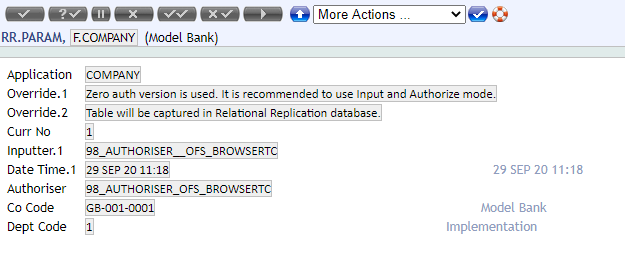
While committing the RR.PARAM record, DES creates the corresponding schema for the application. Therefore, ensure that DES is running while creating records in RR.PARAM.
ILP Configuration
ILP enables ingesting the legacy records into Holding Microservice.
Configure RR.INITIAL.LOAD.PARAMETER for applications that need ILP to be ran.
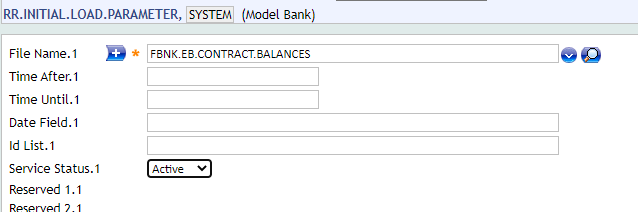
After RR.INITIAL.LOAD.PARAMETER is configured, start TSM and BNK/RR.INITIAL.LOAD.SERVICE (name of the service changes based in company). Run the service for ILP.
The following table displays the order in which the RR.PARAM must be created and ILP service must run:
| Order No | Application |
|---|---|
| 1 | F.LANGUAGE |
| 1 | FBNK.EB.CONTRACT.BALANCES |
| 1 | FBNK.TRANSACTION |
| 1 | EB.LOOKUP |
| 2 | F.COMPANY |
| 2 | F.POSTING.RESTRICT |
| 2 | F.DEPT.ACCT.OFFICER |
| 2 | FBNK.AA.PRODUCT |
| 2 | F.AA.CUSTOMER.ROLE |
| 2 | F.MANAGED.ACCOUNT |
| 2 | FBNK.STMT.ENTRY |
| 3 | FBNK.CUSTOMER |
| 4 | FBNK.AA.ARRANGEMENT |
| 4 | FBNK.AA.ARR.FACILITY |
| 4 | FBNK.SEC.ACC.MASTER |
| 5 | FBNK.AA.ARR.ACCOUNT |
| 5 | FBNK.AA.ARR.OFFICERS |
| 5 | FBNK.AA.ARR.CUSTOMER |
| 5 | FBNK.AA.ACCOUNT.DETAILS |
| 6 | FBNK.AA.ARR.STATEMENT |
| 6 | FBNK.AA.ARR.TERM.AMOUNT |
| 6 | FBNK.AA.ARR.INTEREST |
| 7 | FBNK.ACCOUNT.CLOSED |
| 8 | FBNK.EB.CASHFLOW |
| 9 | FBNK.AA.BILL.DETAILS |
| 9 | FBNK.AA.ARR.PAYMENT.SCHEDULE |
| 9 | FBNK.AA.INTEREST.ACCRUALS |
In this topic