Deploying Party Microservice on AWS
This section explains how to deploy the Party Microservice on the AWS cloud. To do so, you need to perform the following tasks:
Deployment Artefacts
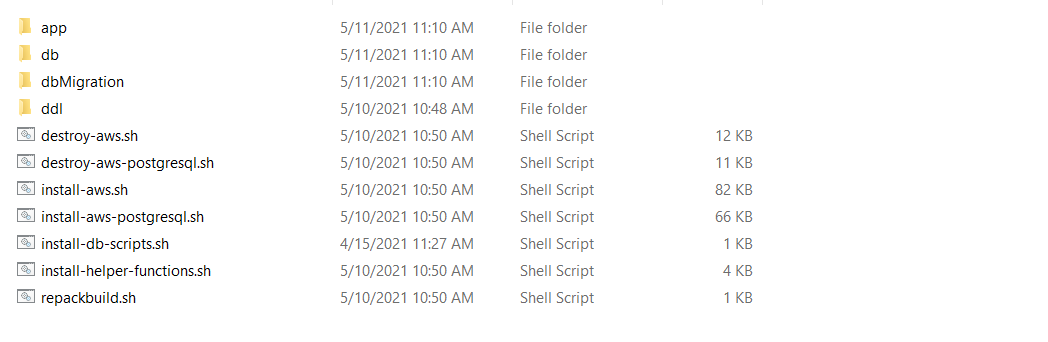
The Party Microservice for AWS deployment is available as a single release bundle. For example, ms-party-package-aws-<release_number>.zip.
This bundle contains the following files:
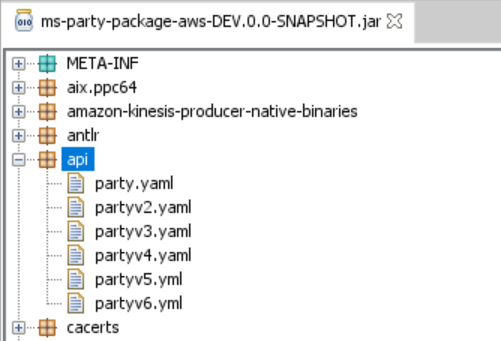
ms-party-package-aws-<release_number>.jar-
AWS Script files:
- install-aws.sh/install-aws-postgresql.sh script: This script installs the Party Microservice in the Standalone mode.
- destroy-aws.sh/destroy-aws-postgresql.sh: This script uninstalls and deletes the resources.
The OAS Swagger JSON document will be available at /ms-party-package-aws-<release no>.jar/api.
Deploying Party Microservice on AWS
Prerequisites
Before deploying Party Microservice on AWS, ensure to meet the following prerequisites:
- Install the Azure Command Line Interface. For more information about the installation, click here.
- Install the Python 2.7.x. For more information about the installation, click here.
To deploy the Party Microservice on AWS, follow these steps.
For DynamoDB
- Download the generated zip file from the target folder to the installation folder and extract the zip file.
- To enable deployments on multiple environments such as Dev, UAT, and Prod for the same Microservice and within the same account, set the DEPLOYMENT_ENVIRONMENT variable with an applicable value.
- In addition to the API key, to enable the internal authentication, you must perform the JWT Authentication in the installation scripts.
- To enable security policies and access rights to the APIs, perform the XACML configurations in the installation scripts.
- In the AWS Command Line, go to the installation directory.
- To deploy the microservice, run the install-aws.shfrom shell scripts to create the resources.
- --region us-west-2.
- --event-source-arn arn:aws:kinesis:us-west-2.
- --uri arn:aws:apigateway:us-west-2:lambda:path/2015-03-31/functions/arn:aws:lambda:us-west-2.
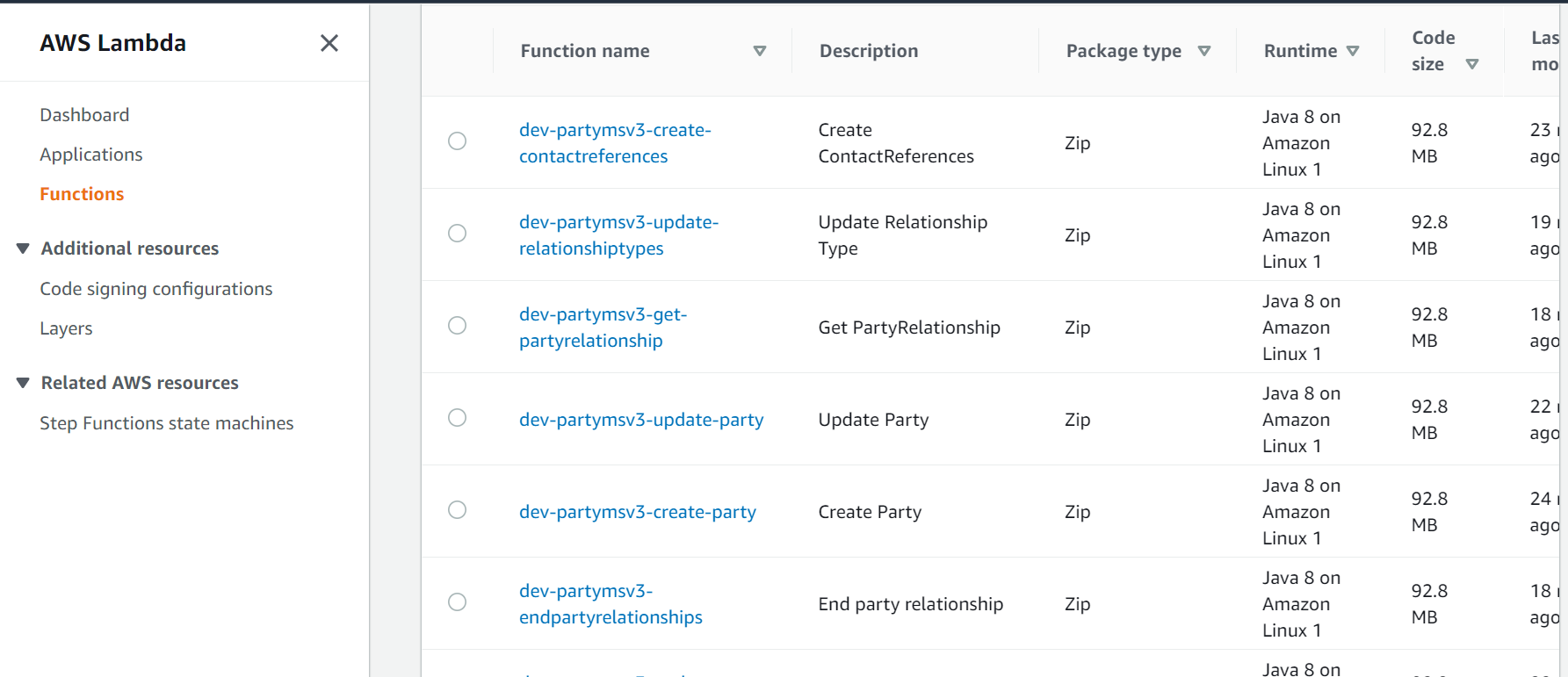
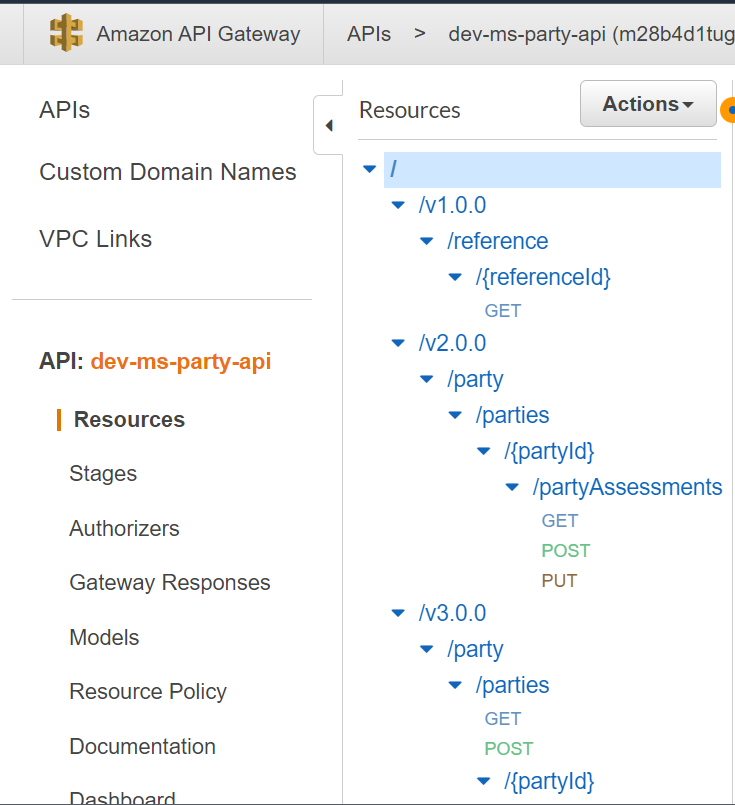
- After deployment sign into AWS portal and verify the Lambda functions and API Gateways.
- Lambda Functions
- API Gateways
- Lambda Functions
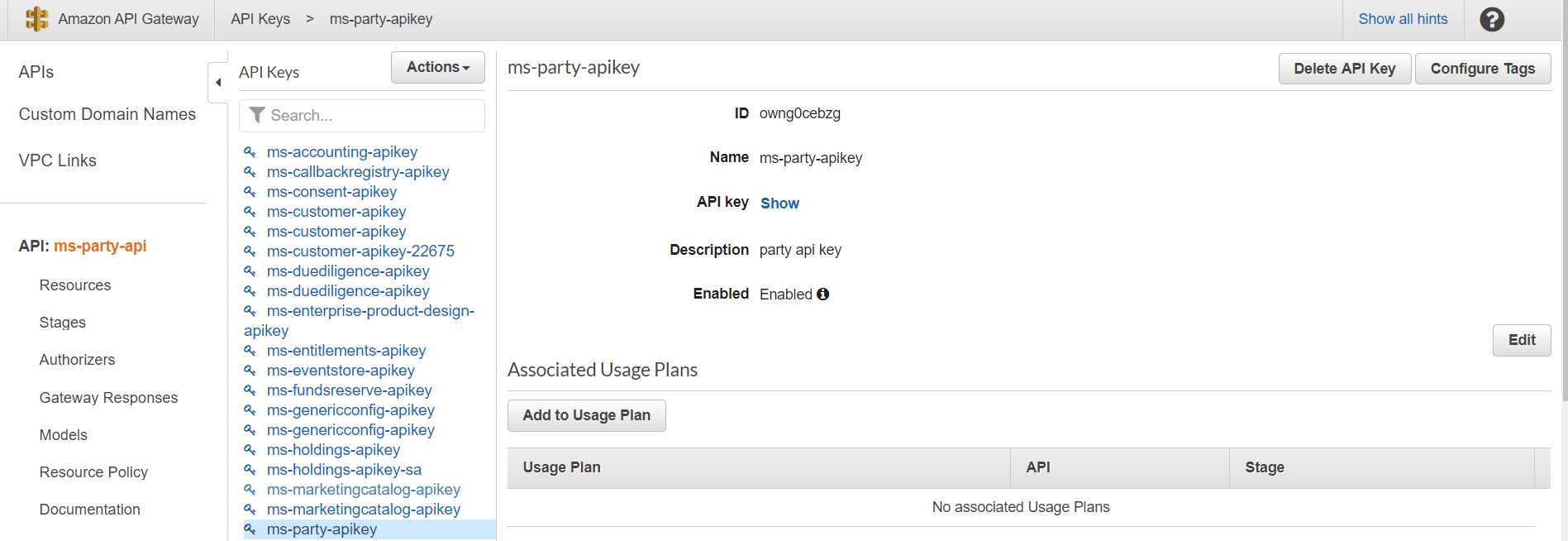
- To obtain the API key for all the endpoints in AWS, follow these steps.
- Navigate API Key section under the Amazon API Gateway.
-
Select the corresponding API key, and click Show.
The API key must be a part of the header (x-api-key) in all the requests.
- After the successful deployment, load database, collections, and reference data(master data) into the dynamo database for the Party microservice.
- The base path of the API Gateway URL is as follows.
Base Path: https://<REST-API-ID>.execute-api.<LOCATION>.amazonaws.com/<DEPLOYMENT_ID>
For example, https://0mnkccy9mh.execute-api.eu-west-2.amazonaws.com/ms-party-api
The resource path of the endpoint is available in the swagger document of the respective APIs.
A sample endpoint of the party could be https://0mnkccy9mh.execute-api.eu-west-2.amazonaws.com/ms-party-api/v3.0.0/party/parties.
For example,
You can obtain the Rest API ID from the Amazon API Gateway. Ensure to replace the location and deployment ID with appropriate values provided in the script during deployment.

For PostgreSQL
- Download the generated zip file from the target folder to the installation folder and extract the zip file.
- To enable deployments on multiple environments such as Dev, UAT, and Prod for the same Microservice and within the same account, set the DEPLOYMENT_ENVIRONMENT variable with an applicable value.
- In addition to the API key, to enable the internal authentication, you must perform the JWT Authentication in the installation scripts.
- To enable security policies and access rights to the APIs, perform the XACML configurations in the installation scripts.
- In the AWS Command Line, go to the installation directory.
- To deploy the microservice, run the install-aws-postgresql.sh from shell scripts to create the resources.
- After deployment sign into AWS portal and verify the Lambda functions and API Gateways.
- Lambda Functions
- API Gateways
- Lambda Functions
- To obtain the API key for all the endpoints in AWS, follow these steps.
- Navigate API Key section under the Amazon API Gateway.
-
Select the corresponding API key, and click Show.
The API key must be a part of the header (x-api-key) in all the requests.
- After the successful deployment, load database, collections, and reference data(master data) into the dynamo database for the Party microservice.
- The base path of the API Gateway URL is as follows.
Base Path: https://<REST-API-ID>.execute-api.<LOCATION>.amazonaws.com/<DEPLOYMENT_ID>
For example, https://0mnkccy9mh.execute-api.eu-west-2.amazonaws.com/ms-party-api
The resource path of the endpoint is available in the swagger document of the respective APIs.
A sample endpoint of the party could be https://0mnkccy9mh.execute-api.eu-west-2.amazonaws.com/ms-party-api/v3.0.0/party/parties.
You can obtain the Rest API ID from the Amazon API Gateway. Ensure to replace the location and deployment ID with appropriate values provided in the script during deployment.
In this topic