Installing Marketing Catalog Microservices on K8
To deploy Marketing Catalog Microservice on K8, follow these steps.
- Extract the
ms-marketingcatalog-package-docker-<release_number>.zipfile.
-
The extracted package contains the configuration files. Go to k8/on-premise.
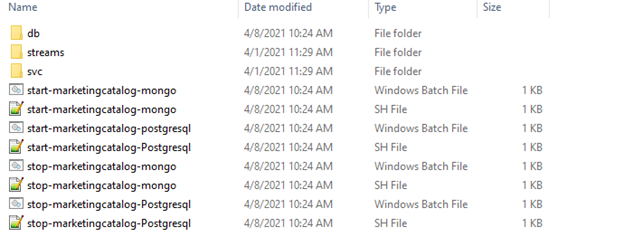
- Open the Command Prompt in an On-Premise folder.
If Strimzi is not installed in the machine, go to the Streams folder and run ./strimzi-install.sh. This is a one-time step and should be repeated if we reset our Kubernetes cluster.
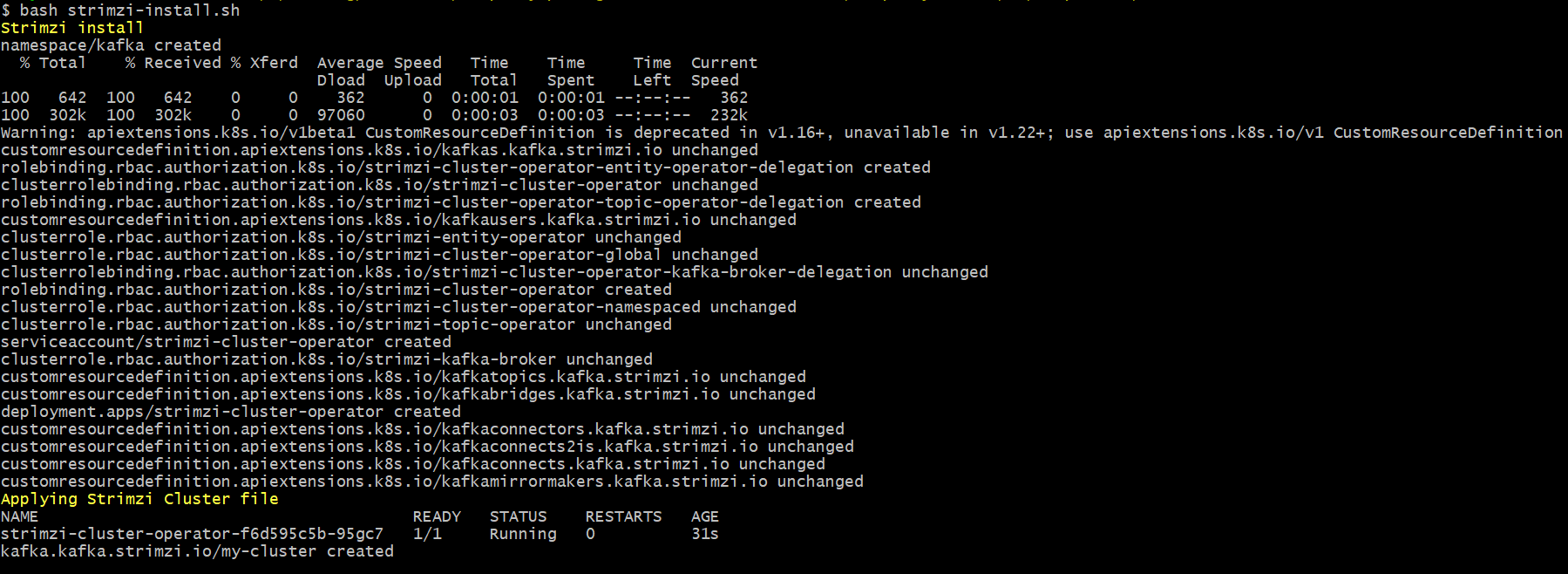
- To check if pods are up and running, execute kubectl get pods -n kafka.

- To enable authorization and authentication, follow these steps:
- To enable the in-house authentication in addition to API key, enable JWT Authentication in marketingcatalog-configmap.yml.
- To enable security policies and access rights to the APIs, perform the XACML configurations in marketingcatalog-configmap.yml.
-
To enable third party authentication, perform Keycloak configuration in ingester container in marketingcatalog-configmap.yml.
Following is the list of services with its CPU memory limit.
Services CPU Limit API 812M Ingester 1G
K8 Images
Install a standalone MongoDB server either manually (or) Follow the steps below to deploy the Marketing Catalog docker Helm package.
For Mongo DB
Marketing Catalog Microservices for K8 deployment is available as single release bundle marketing catalog-helm-mongo-pack-<release_number>.zip to load the docker images and then deploy the service in kubernetes cluster for Mongo DB.
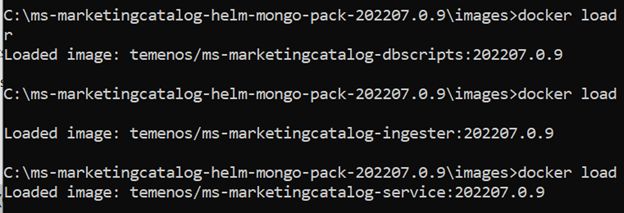
- Unzip the marketing catalog-helm-mongo-pack file which contains the required images as the tar file.

- Navigate to the folder where the service, ingester, and database images are available.
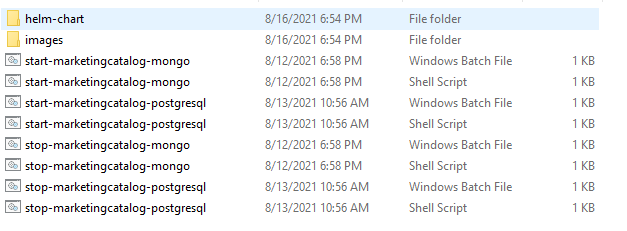
- Navigate inside the images folder.

- Load the images on the docker using the command docker load --input <image-name>.
- Once the images are loaded into the docker start the mongo scripts by navigating to the folder where the scripts are available.
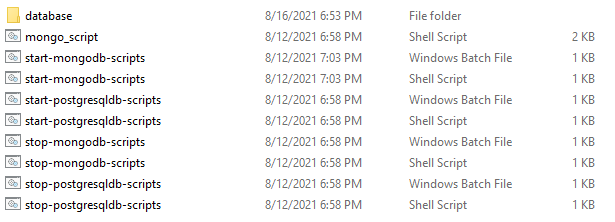
...\ms-marketingcatalog-package\ms-marketingcatalog-package-docker\target\
ms-marketingcatalog-docker\k8\on-premise\db>start-mongodb-scripts.bat
- Once all the configurations are done start the Microservice by navigating to the folder where the bat and sh files are available under marketingcatalog-helm-pack-mongo folder.
MongoDB Script Description start-marketingcatalog-mongo.bat / start-marketingcatalog-mongo.sh The script is used to deploy the necessary components for a Microservice. It includes the deployment of the streaming services to run the Microservice independently. - Use the following commands for the respective platforms.
- You must load the collections and reference data(master data) that are loaded into the database. To load the database, follow the below steps.
- After the successful deployment, run kubectl get pods -n mongodb commands to check whether mongo pods are up and running.

- Run the following commands on mongo:
- kubectl exec -it mongodb-0 -n mongodb -c mongod bash
- kubectl exec -it mongodb-1 -n mongodb -c mongod bash
- kubectl exec -it mongodb-2 -n mongodb -c mongod bash
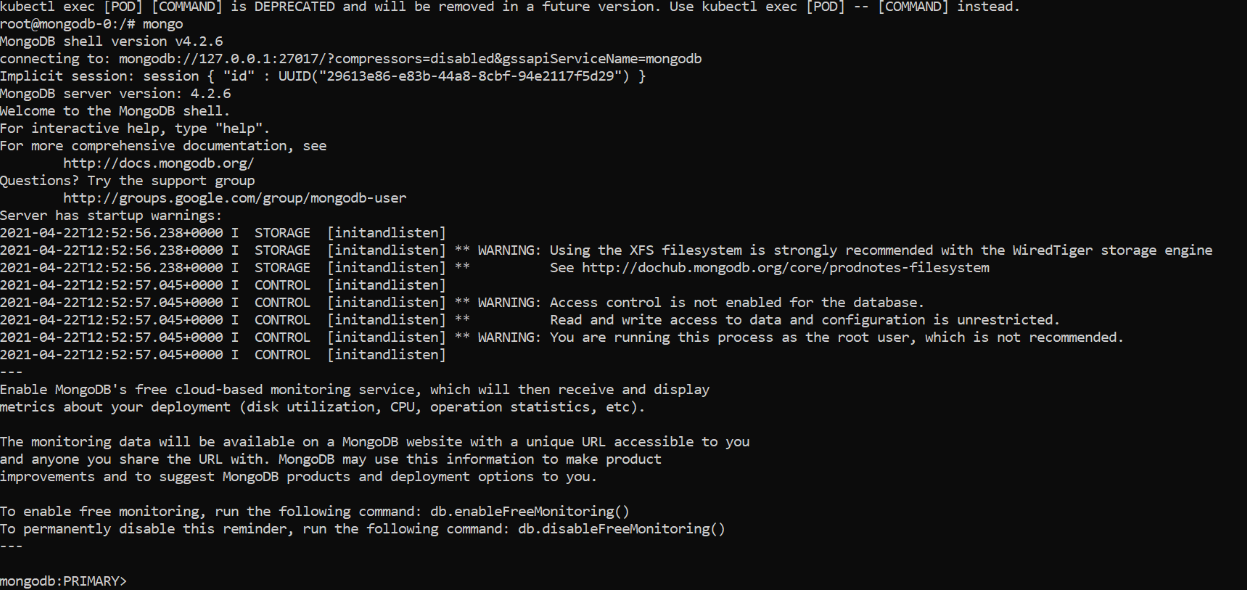
- In the earlier instance, mongodb-0 port is allocated as primary. Hence, follow these steps.
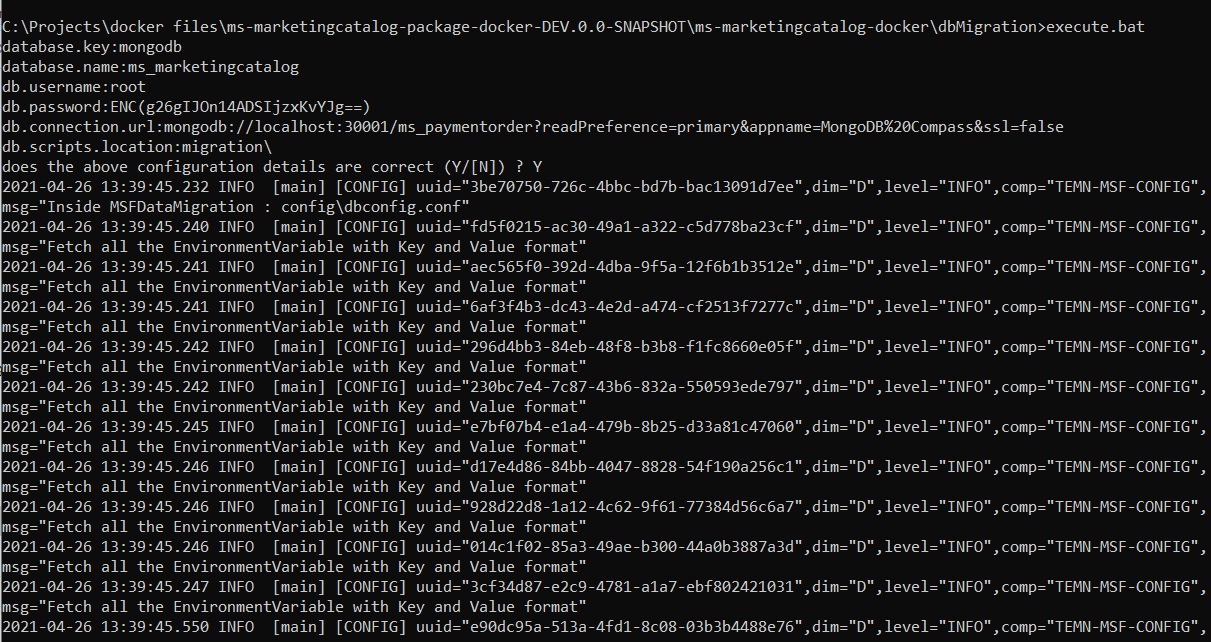
- Copy the mongodb-0 port number from mongo_services.yaml (\..\ms-marketingcatalog-docker\k8\on- premise\db\database\mongo\rs) and replace the port number in dbconfig.conf (\..\ms-marketingcatalog-docker\dbMigration\config). For more information, refer to dbconfig.conf.
- To load reference data into Marketing Catalog Microservice, go to \ms-marketingcatalog-docker-<release_number>ms-marketingcatalog-docker\dbMigration and run execute.bat.
- After the successful deployment, run kubectl get pods -n mongodb commands to check whether mongo pods are up and running.
- After the Marketing Catalog Microservice is up and running on K8, run the following URL to receive the response.
The structure of the URL of APIs is as follows.
- Base Path: http://<IP_ADDRESS>:<PORT>/<context-root>/api/<version>/
- For example, http://localhost:8002/ms-marketingatalog-api/api/v3.0.0/
- The resource path of the endpoint is available in the swagger document of the respective APIs.
- A sample endpoint of the Marketing Catalog could be http://localhost:8002/ms-marketingcatalog-api/api/v3.0.0/product/marketingCatalogue/products.
Alternatively, the Microservice status is obtained through the Health Check API.
- For BackOffice Ingestion, change the IP address of HTTP_BASE_PATH URL provided in start-marketingcatalog-mongo.sh to the respect T24 IP. Refer to Ingestion for more configurations.
| For Windows | For Linux | |
|---|---|---|
| MongoDB | start-marketingcatalog-mongo.bat | start-marketingcatalog-mongo.sh |
For PostgreSQL DB
For PostgreSQL DB, follow these steps:
Marketing Catalog Microservices for K8 deployment is available as single release bundle marketingcatalog-helm-postgresql-pack-<release_number>.zip to load the docker images and then deploy the service in kubernetes cluster for PostgreSQL DB.
- Unzip the marketingcatalog-helm-postgresql-pack file which contains the required images as the tar file.

- Navigate to the folder where the service, ingester and database images are available.
- Navigate to Helm-chart\svc\templates\svc.
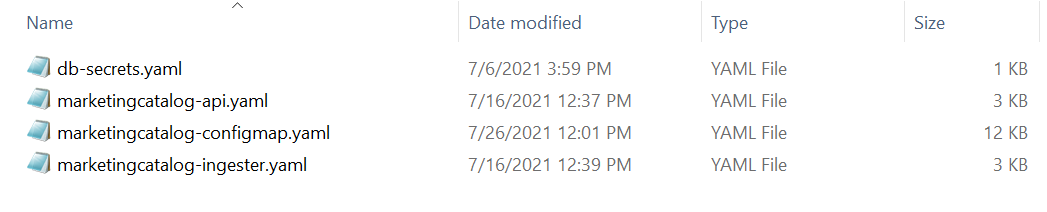
- Enable JWT Authentication and XACML in marketingcatalog-api-configmap.yml.
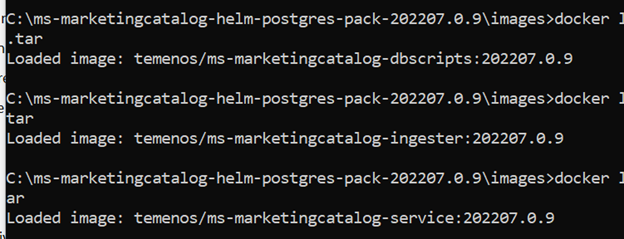
- Navigate inside the images folder.

- Load the images on the docker using the command docker load --input <image-name>.
- Once the images are loaded into the docker start the PostgreSQL DB scripts by navigating to the folder (
ms-marketingcatalog-package-docker<release_number>.zip\ms-marketingcatalog-docker\k8\on-premise\db) where the scripts are available and start the bat file....\ms-marketingcatalog-package\ms-marketingcatalog-package-docker\target\ms-marketingcatalog-docker\k8\on-premise\ db>start-postgresqldb-scripts.bat
- Once all the configurations are done start the Microservice by navigating to the folder where the bat and sh files are available undermarketingcatalog-helm-postgresql-pack folder.
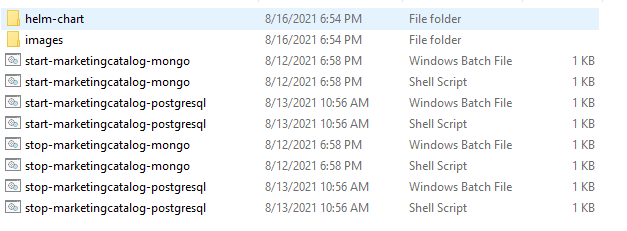
PostgreSQL Script Description start-marketingcatalog-postgresql.bat / start-marketingcatalog-postgresql.sh The script is used to deploy the necessary components for a Microservice. It includes the deployment of the streaming services to run the Microservice independently. - Use the following commands for the respective platforms.
For Windows For Linux PostgreSQL start-marketingcatalog-postgresql.bat start-marketingcatalog-postgresql.sh - After the Marketing Catalog Microservice is up and running on K8, run the following URL to receive the response.
The structure of the URL of APIs is as follows.
- Base Path: http://<IP_ADDRESS>:<PORT>/<context-root>/api/<version>/
- For example, http://localhost:8002/ms-marketingatalog-api/api/v3.0.0/
- The resource path of the endpoint is available in the swagger document of the respective APIs.
- A sample endpoint of the Marketing Catalog could be http://localhost:8002/ms-marketingcatalog-api/api/v3.0.0/product/marketingCatalogue/products.
Alternatively, the Microservice status is obtained through the Health Check API.
- For BackOffice Ingestion, IP address of HTTP_BASE_PATH URL provided in start-marketingcatalog-postgresql.sh to the respect T24 IP. Refer to Ingestion for more configurations.
In this topic