Integrating Keycloak with SAML
To integrate SAML and Keycloak with Transact Explorer, you must install and configure the Keycloak server and SAML Client Adaptor application.
Installing SAML Client Adaptor
To install and configure SAML Client Adaptor,
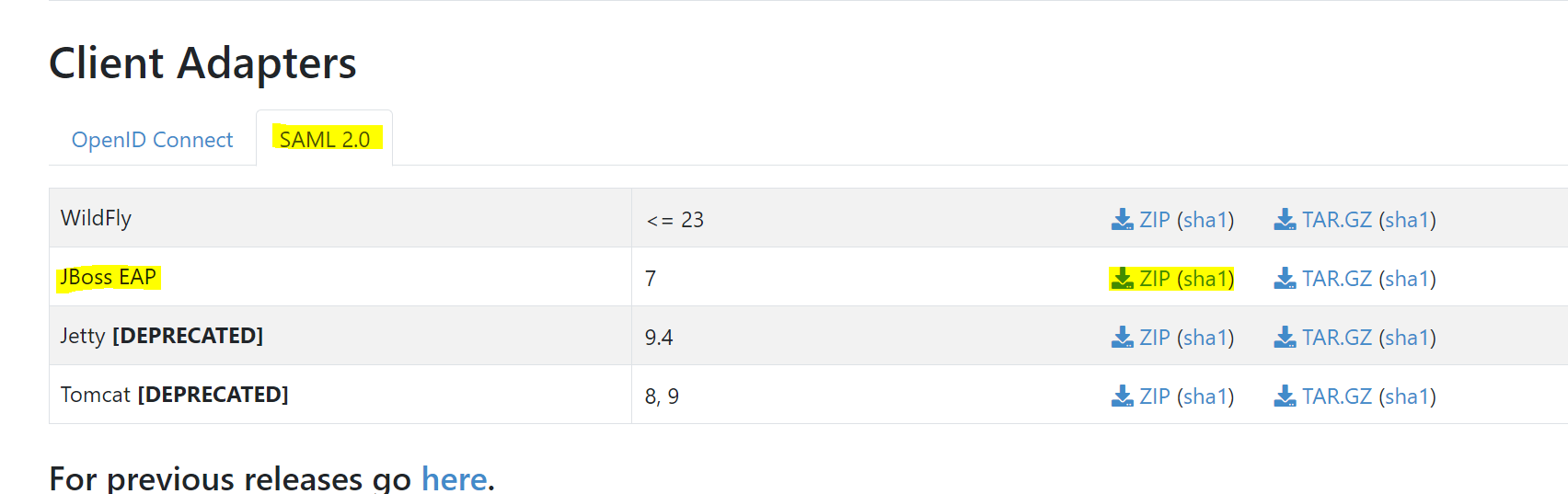
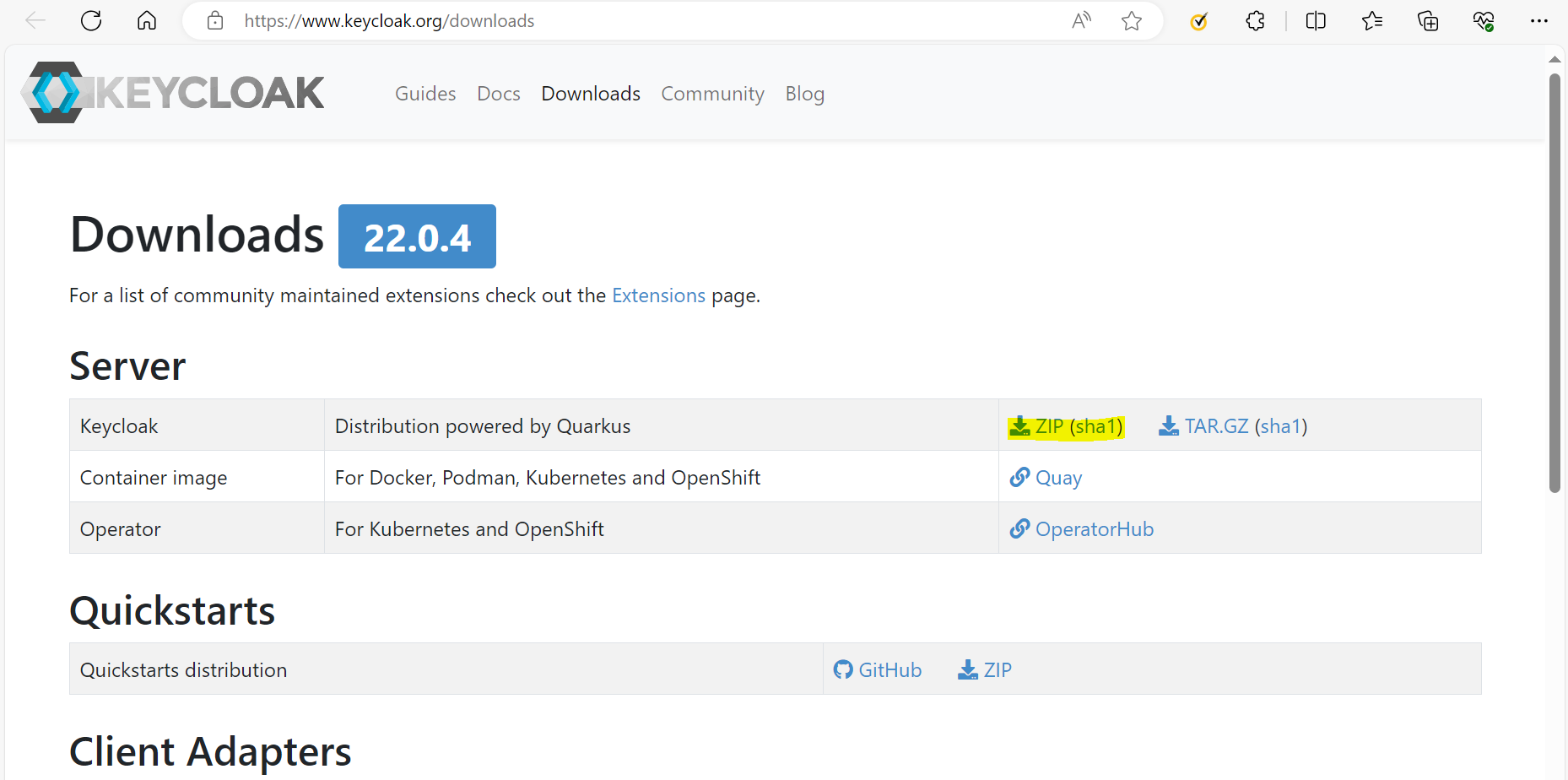
- Download SAML Client adaptor from https://www.keycloak.org/downloads.
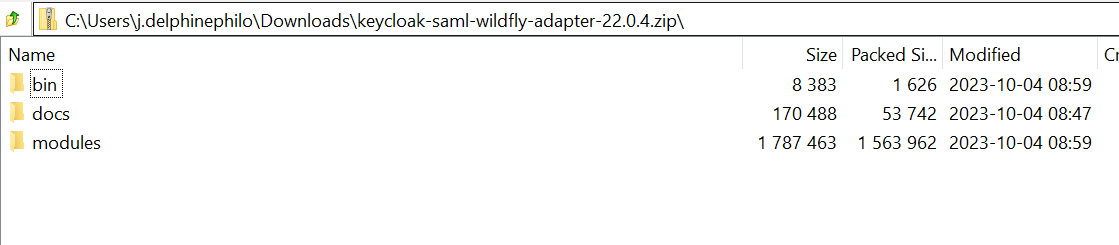
- Extract keycloak-saml-wildfly-adapter in any location.
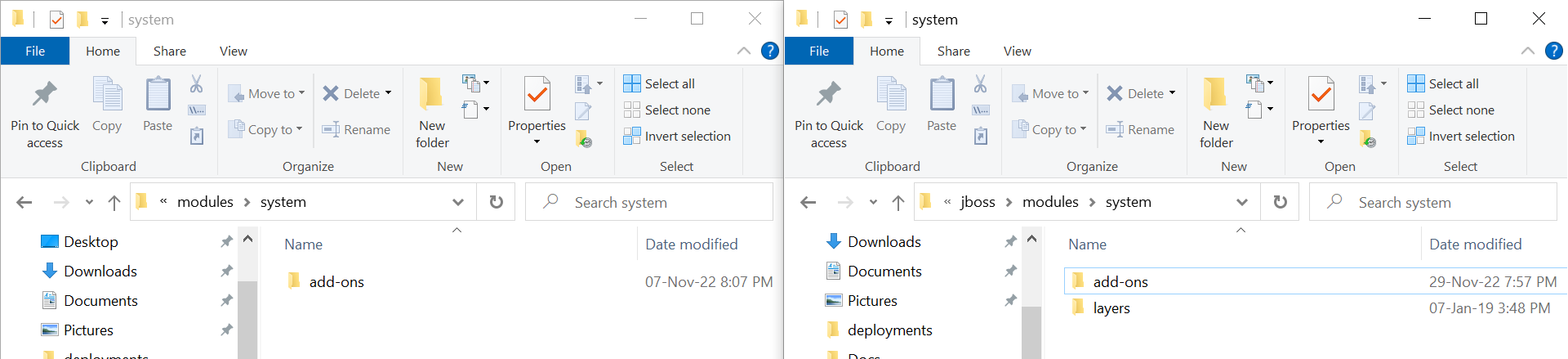
- Copy the contents of each folder and place it inside the same folder in your UTP area JBOSS home.
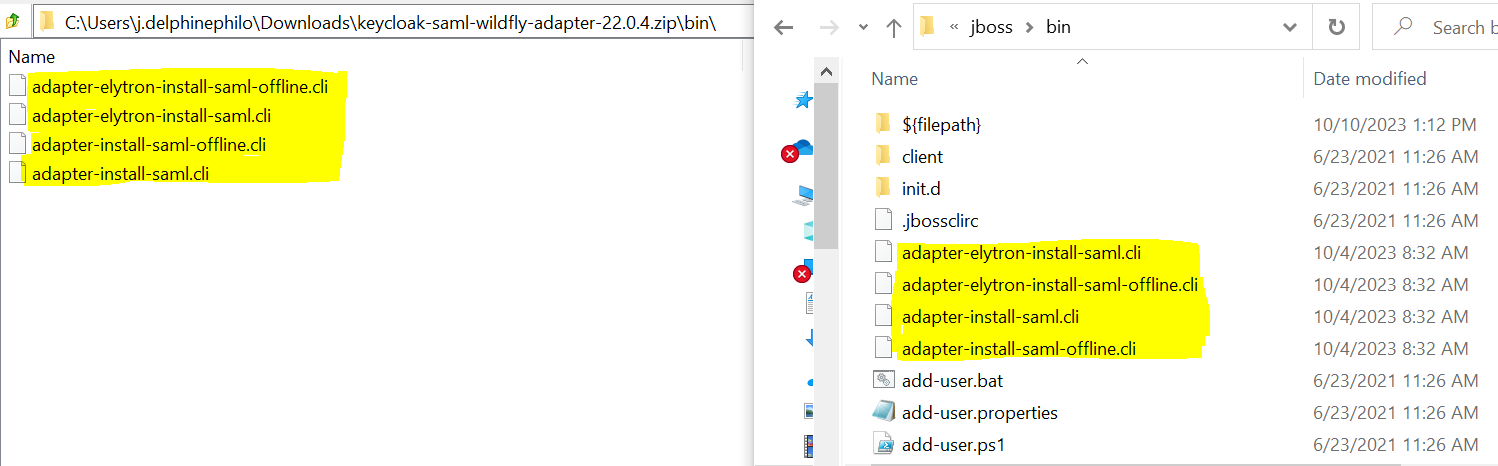
- Copy files from keycloak-saml-wildfly-adapter-22.0.4\bin to Temenos\jboss\bin.
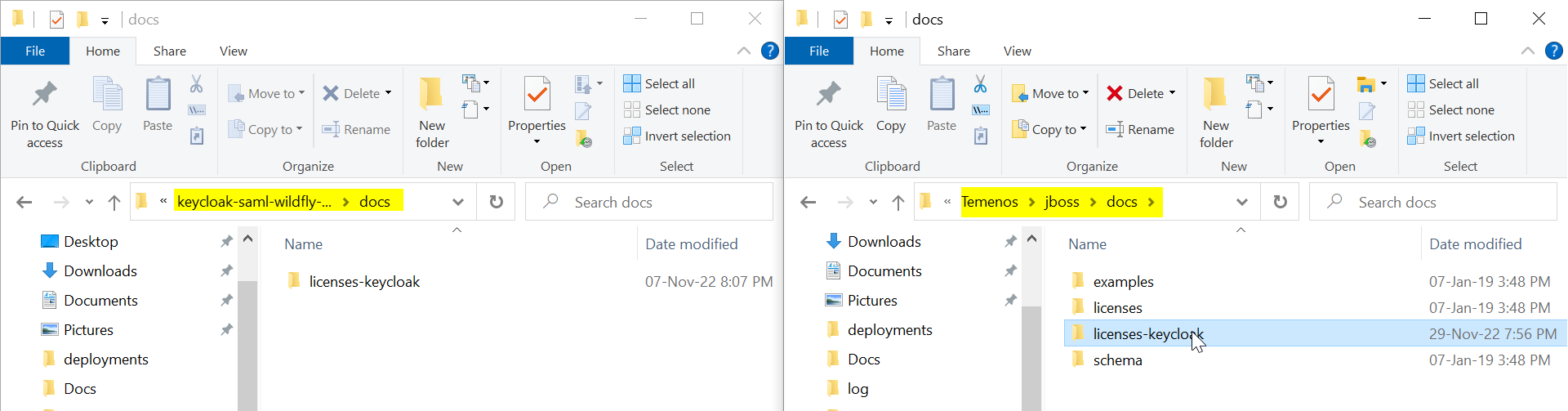
- Copy files from keycloak-saml-wildfly-adapter-22.0.4\docs to Temenos\jboss\docs.
- Copy files from keycloak-saml-wildfly-adapter-22.0.4\modules\system to Temenos\jboss\modules\system.
- Navigate to Temenos\jboss and launch Gitbash.
- Execute the below command.
./bin/jboss-cli.sh -c --file=bin/adapter-elytron-install-saml.cli
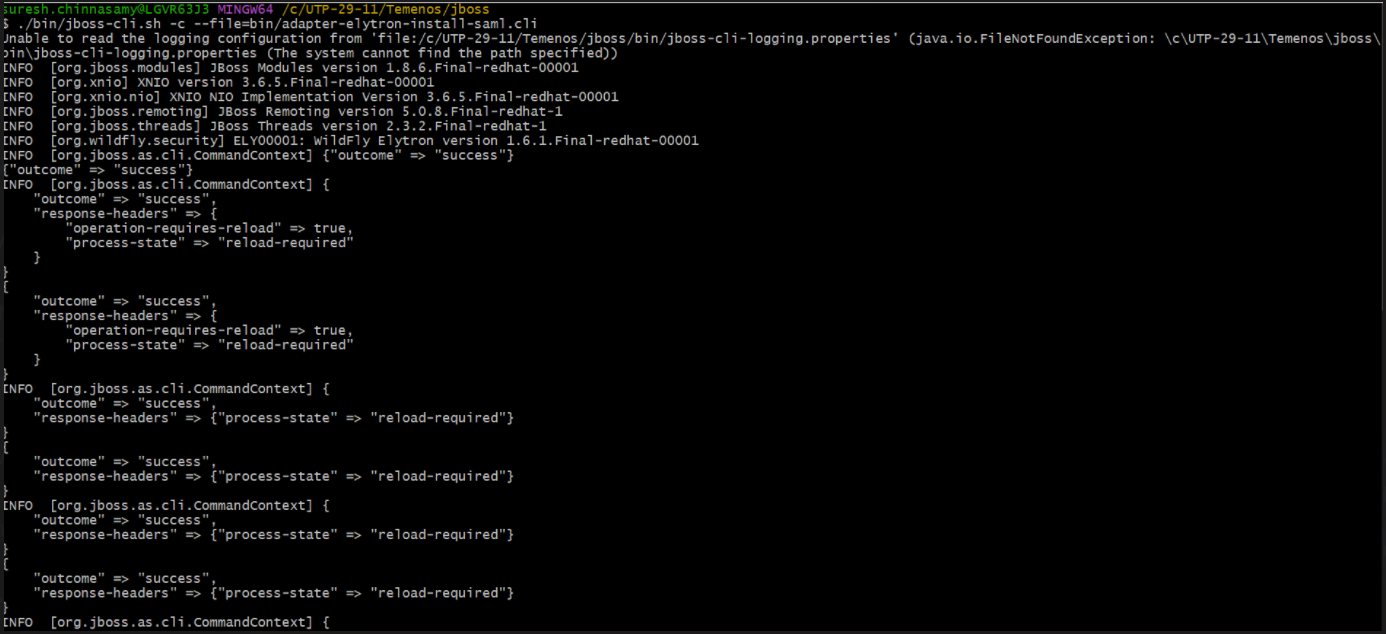
The script adds the extension, sub-system, and http-authentication-factory as highlighted below in Temenos\jboss\standalone\configuration\standalone-utp.xml.



You have now successfully installed the SAML Client adaptor.
Installing Keycloak Server and Creating New User
To install and configure the Keycloak server,
- Download and extract keycloakServer.zip in any location.
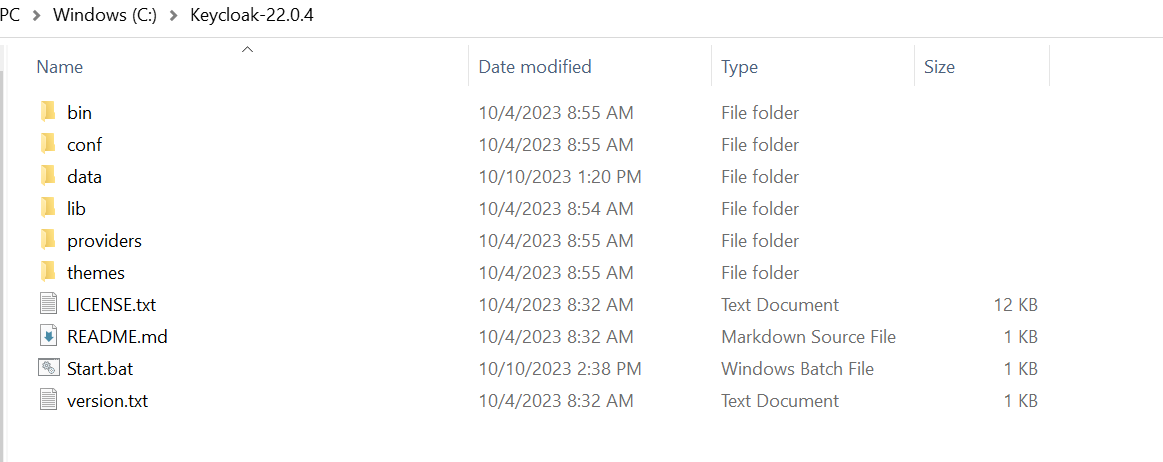
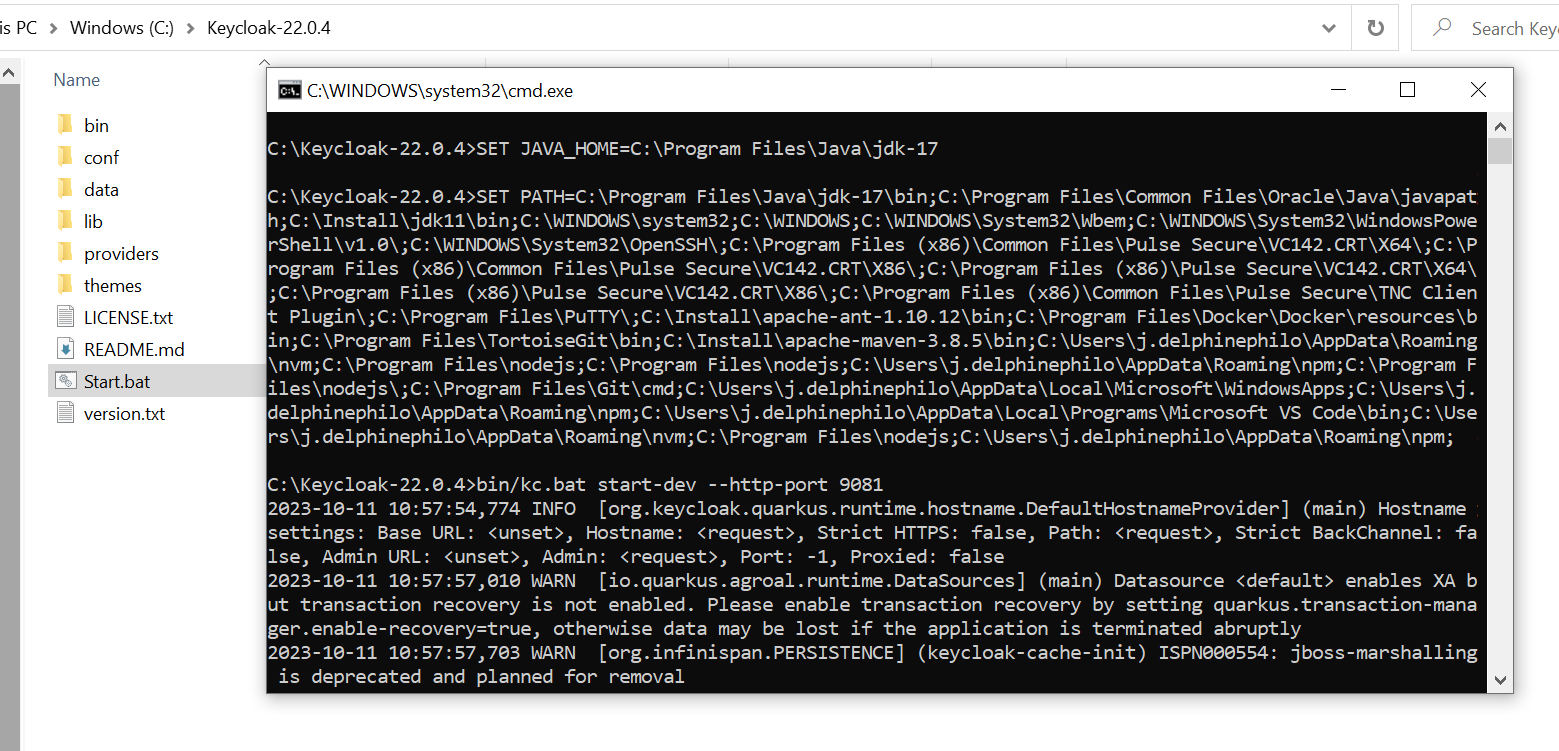
- Navigate to keycloak-22.0.4, launch the command prompt, and run Start.bat.
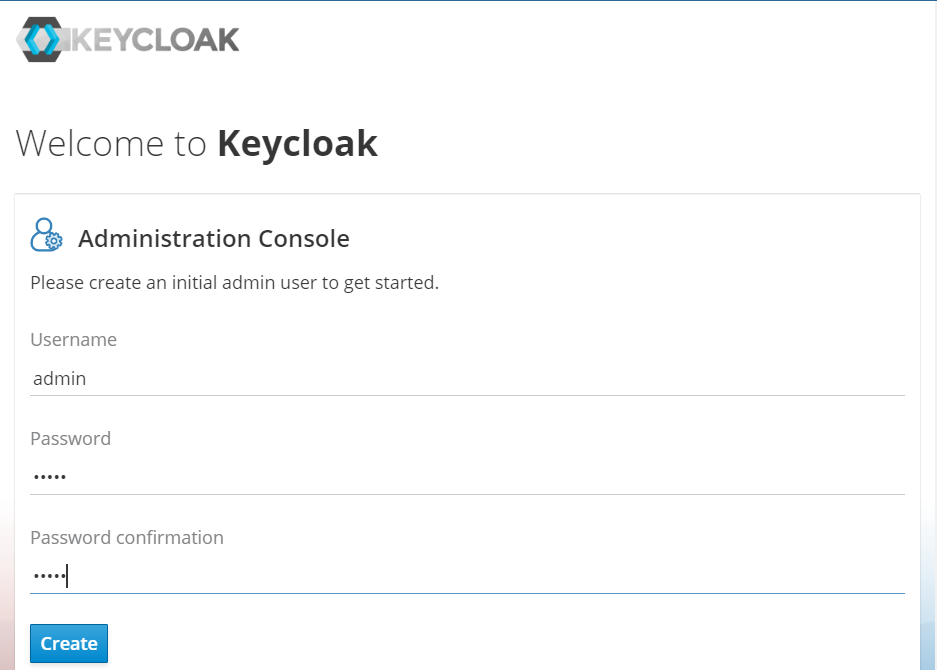
- Launch http://localhost:9081, create an admin user using the below credentials.
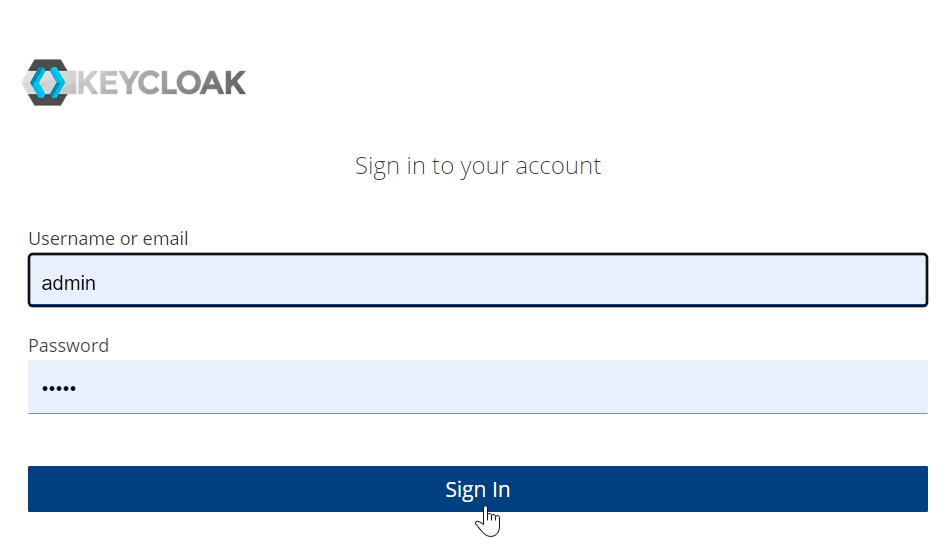
- Log in to Keycloak as an admin.
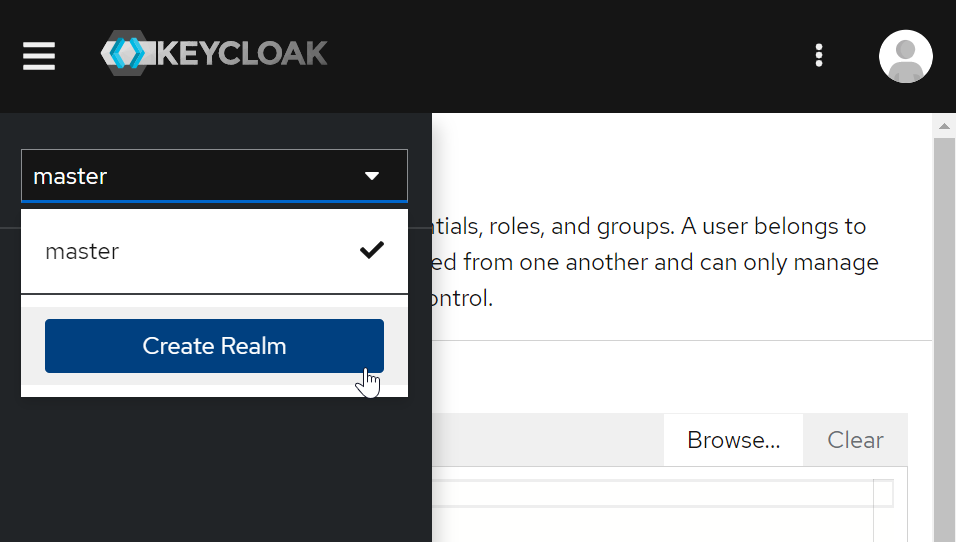
- On the left-navigation pane, select Master > Create Realm. Refer to the Enabling SSO between Keycloak and Transact Explorer topic for more information on creating a realm.
- On the left-navigation pane, select Realm settings for the selected realm.
- Click Users. On the Create User page, enter the details and click Create.
Username: admin
Password: admin
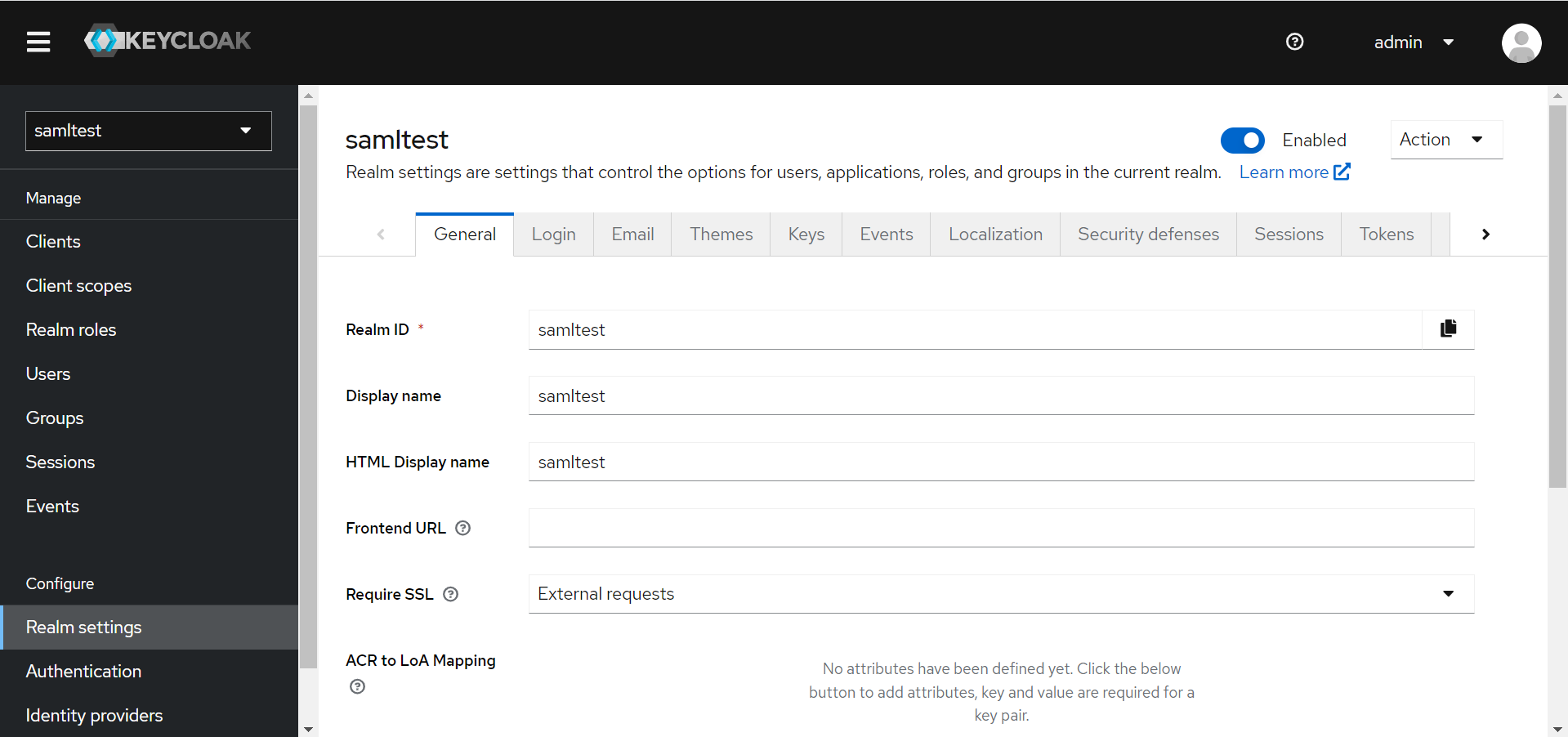
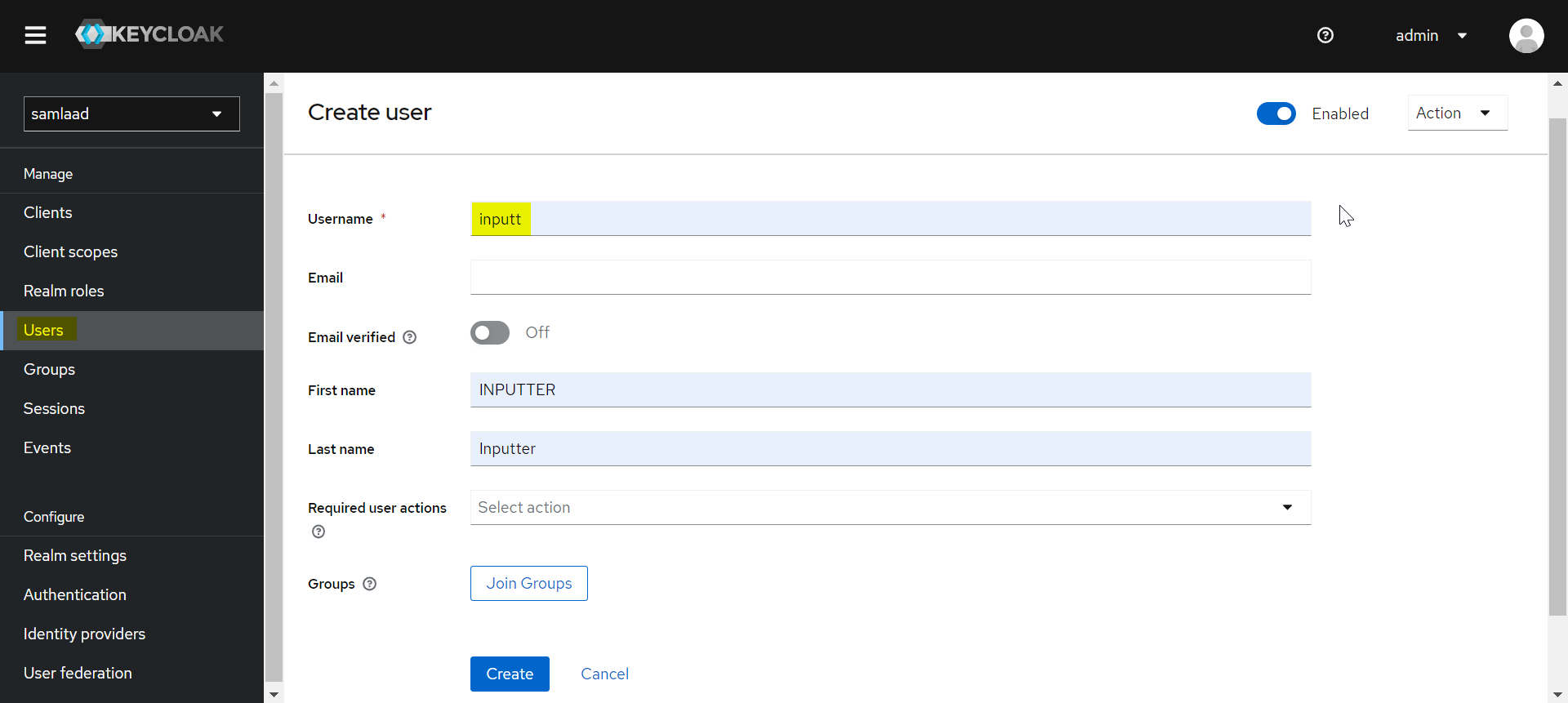
You have created a new user in Keycloak.
Creating and Configuring Client in Keycloak
To create and configure a new client,
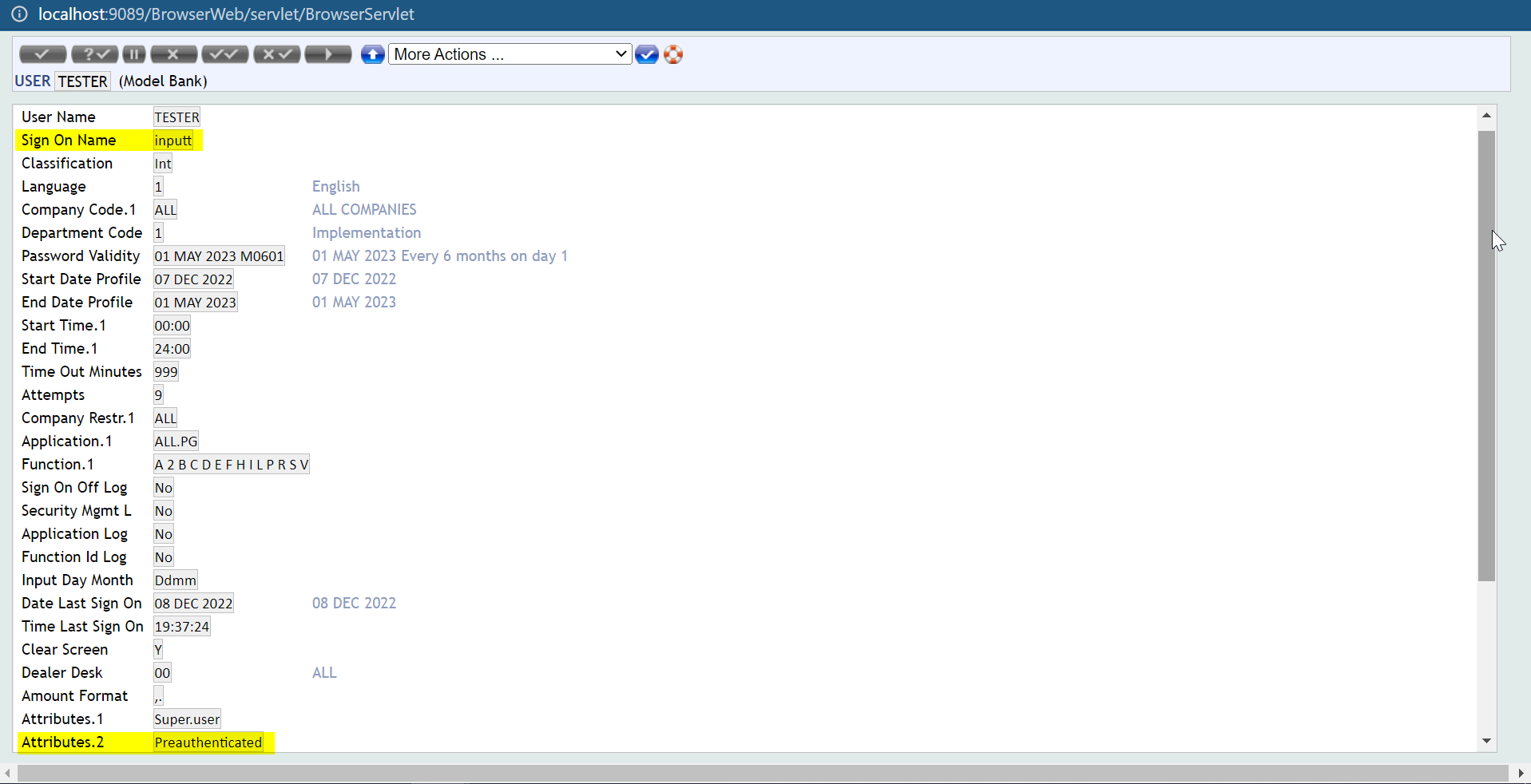
- Open Transact Explorer and create a new user profile. The Sign-On name should match the username created in Keycloak. The Preauthenticated attribute should be set in the user profile.
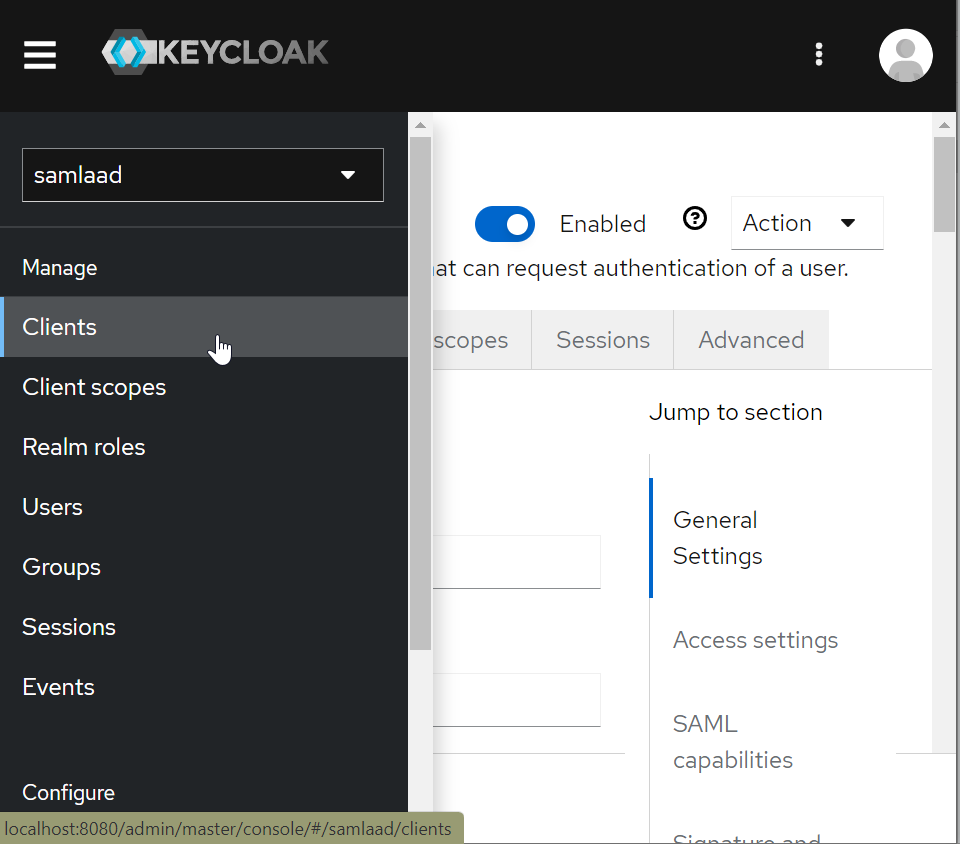
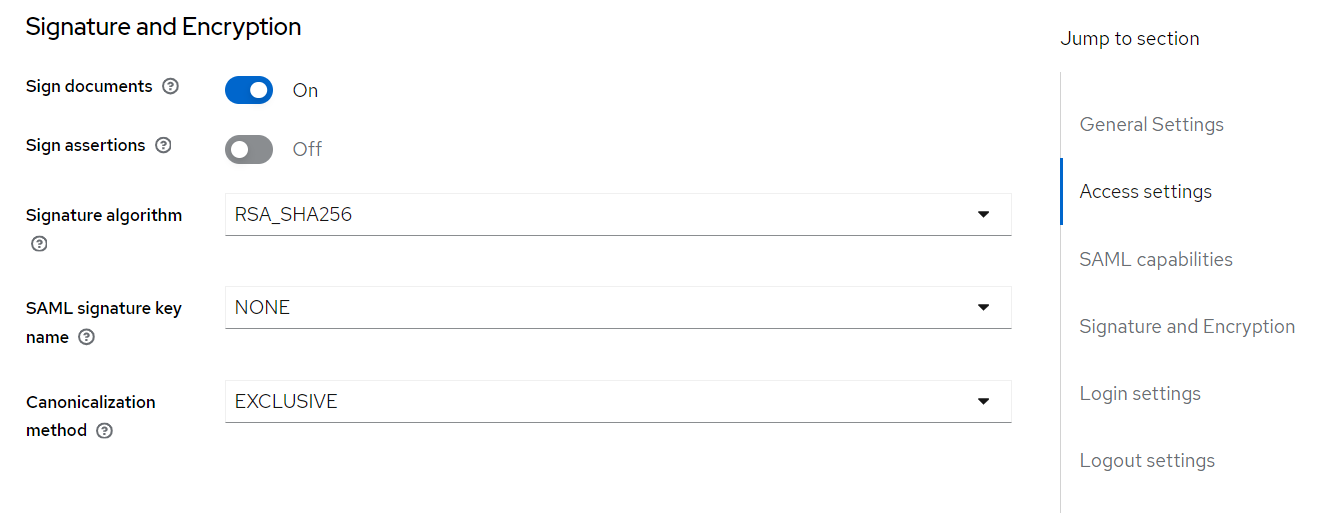
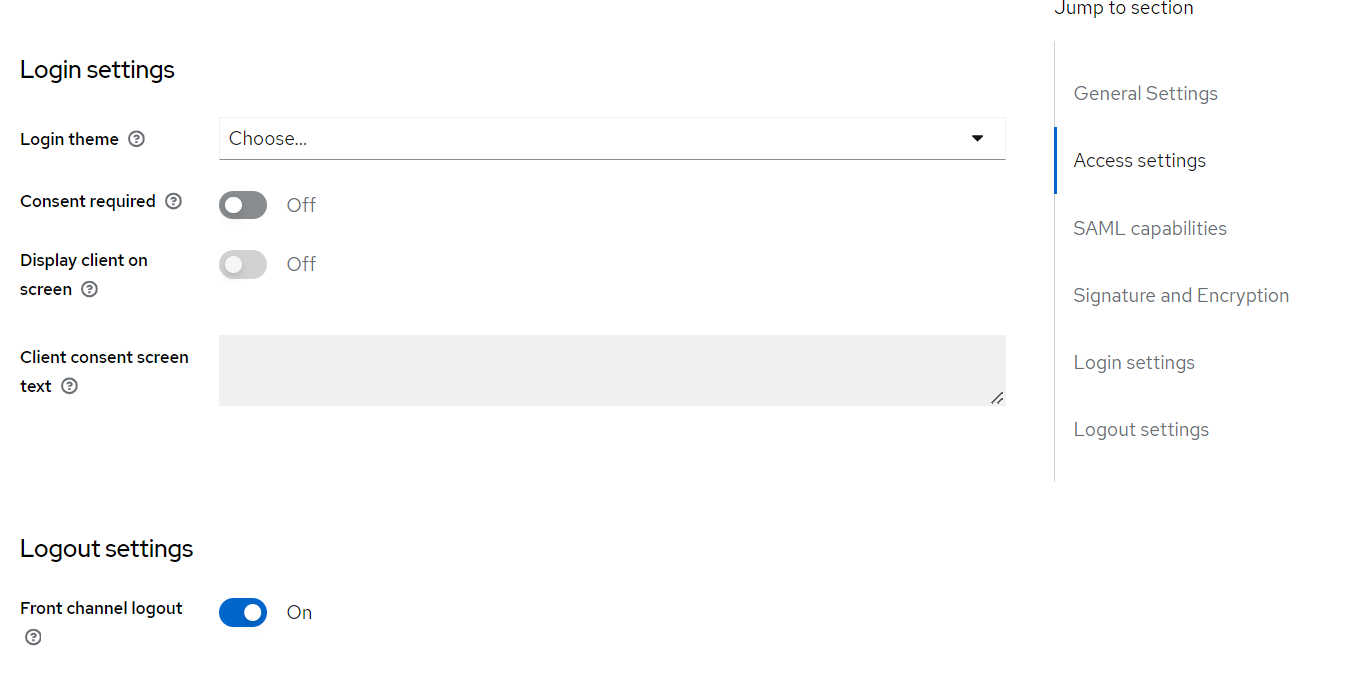
- Open Keycloak and on the left-navigation pane, select Client under the Realm. The Client page appears.
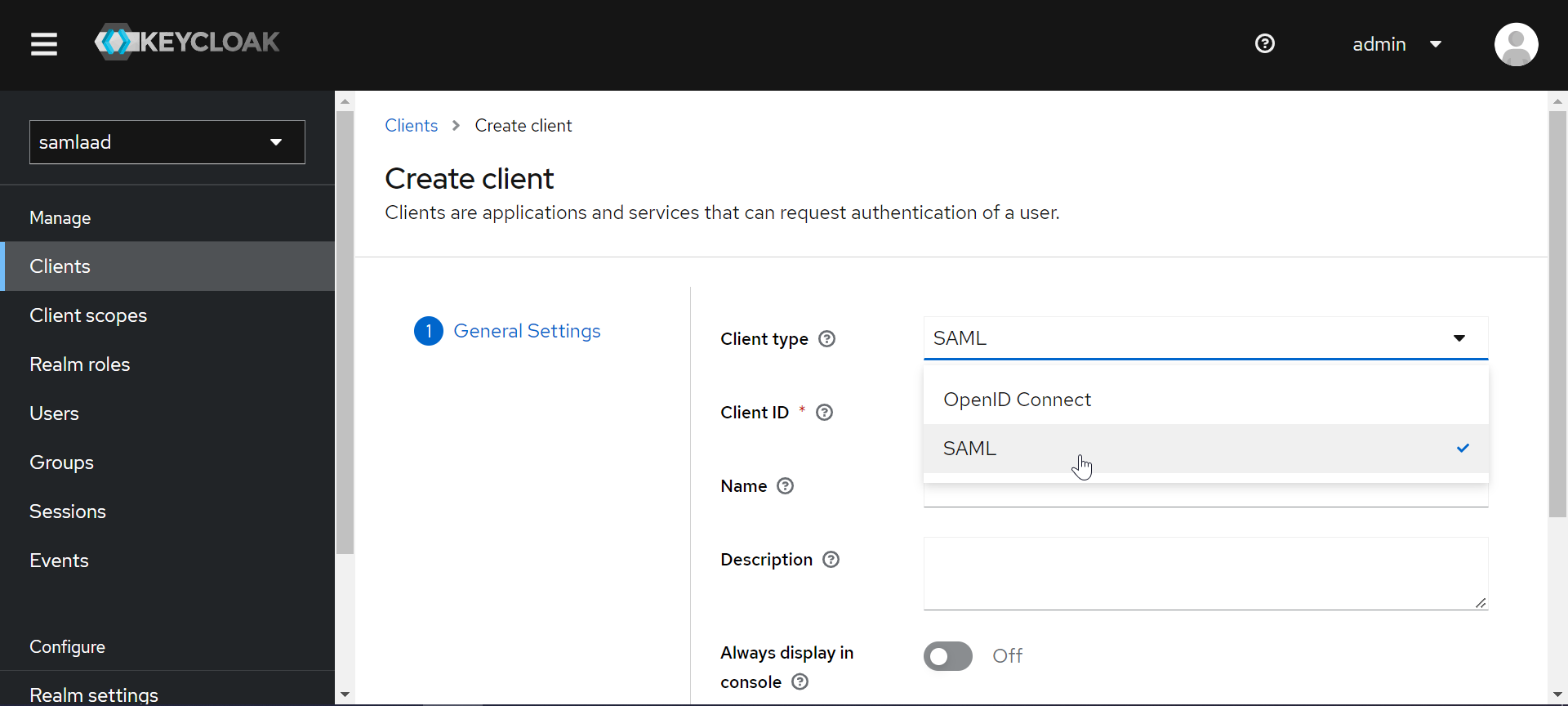
- Click Create Client. The Create client page appears.
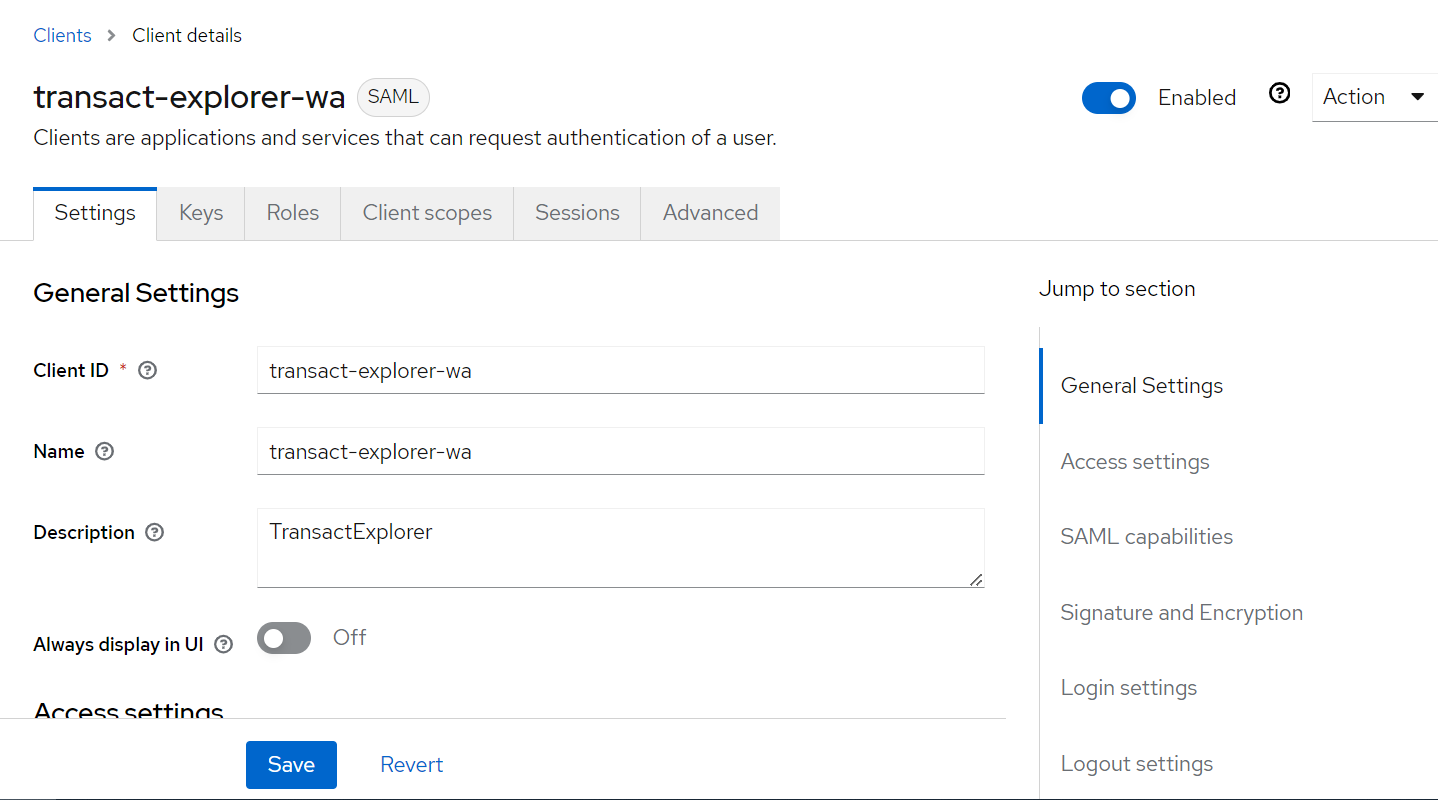
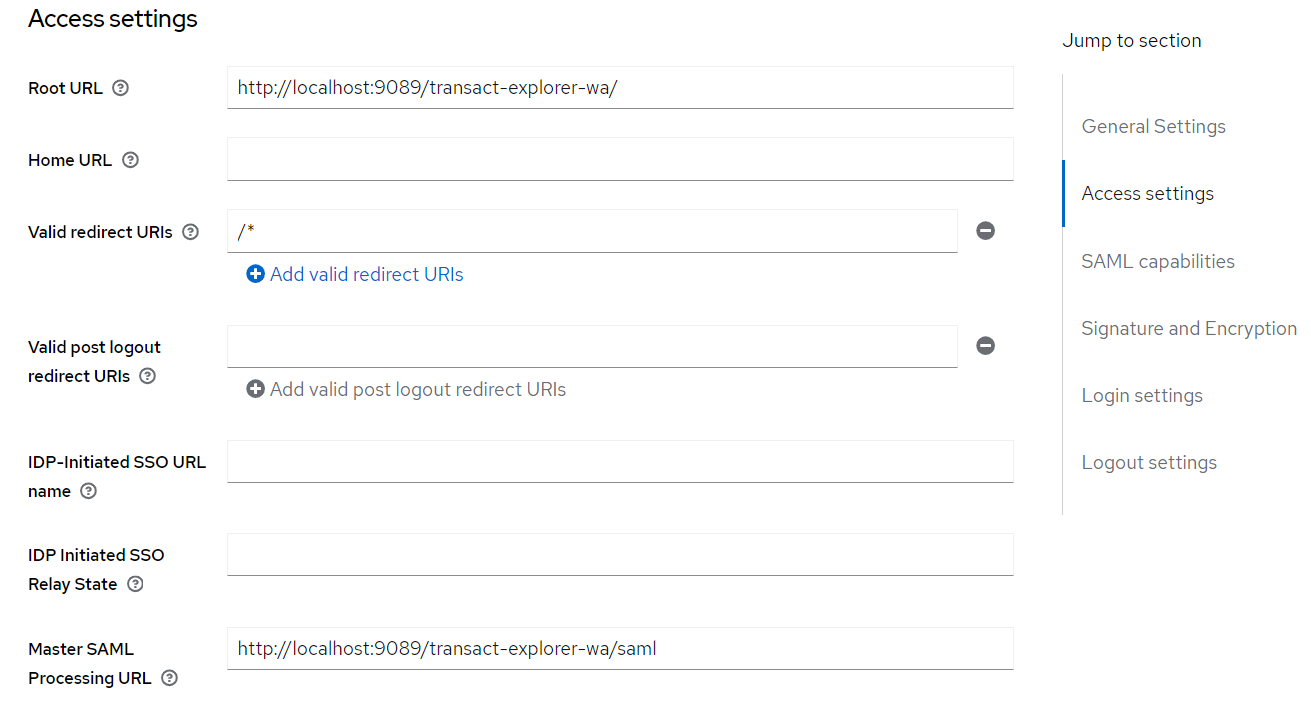
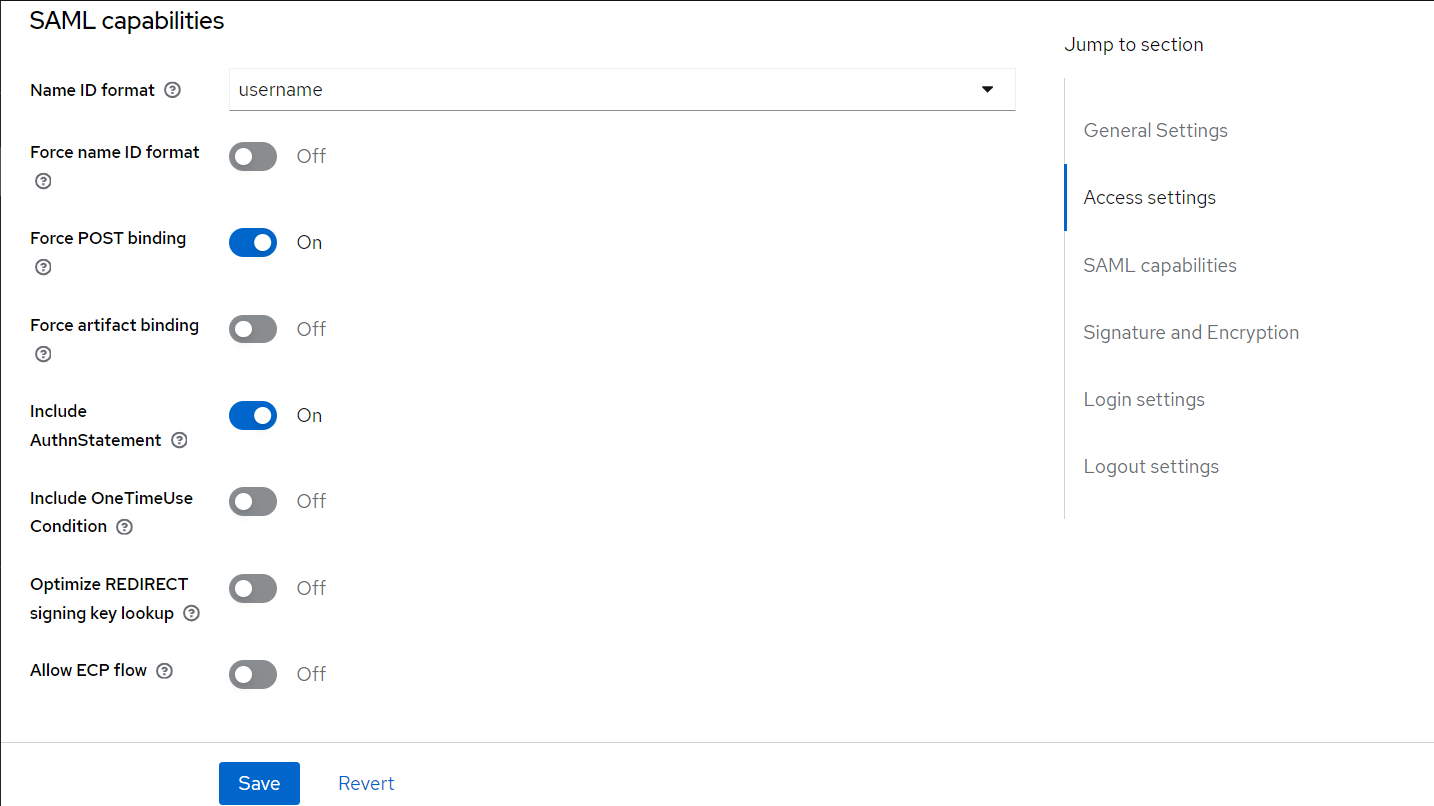
- Enter the details and click Save.
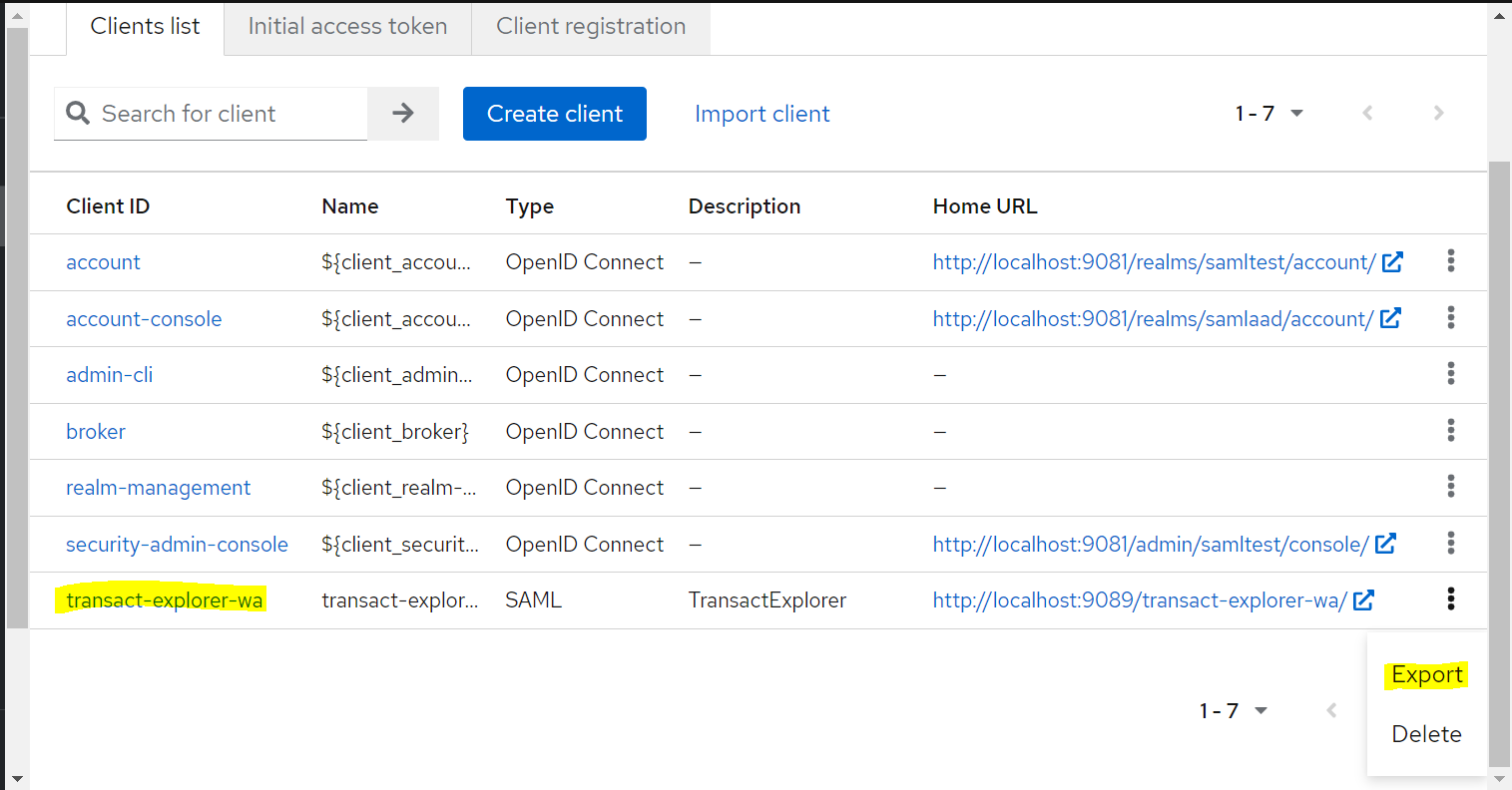
- In the Clients List tab, click
 across the transact-explorer-wa client (created in the above step) and select Export. JSON file is generated.
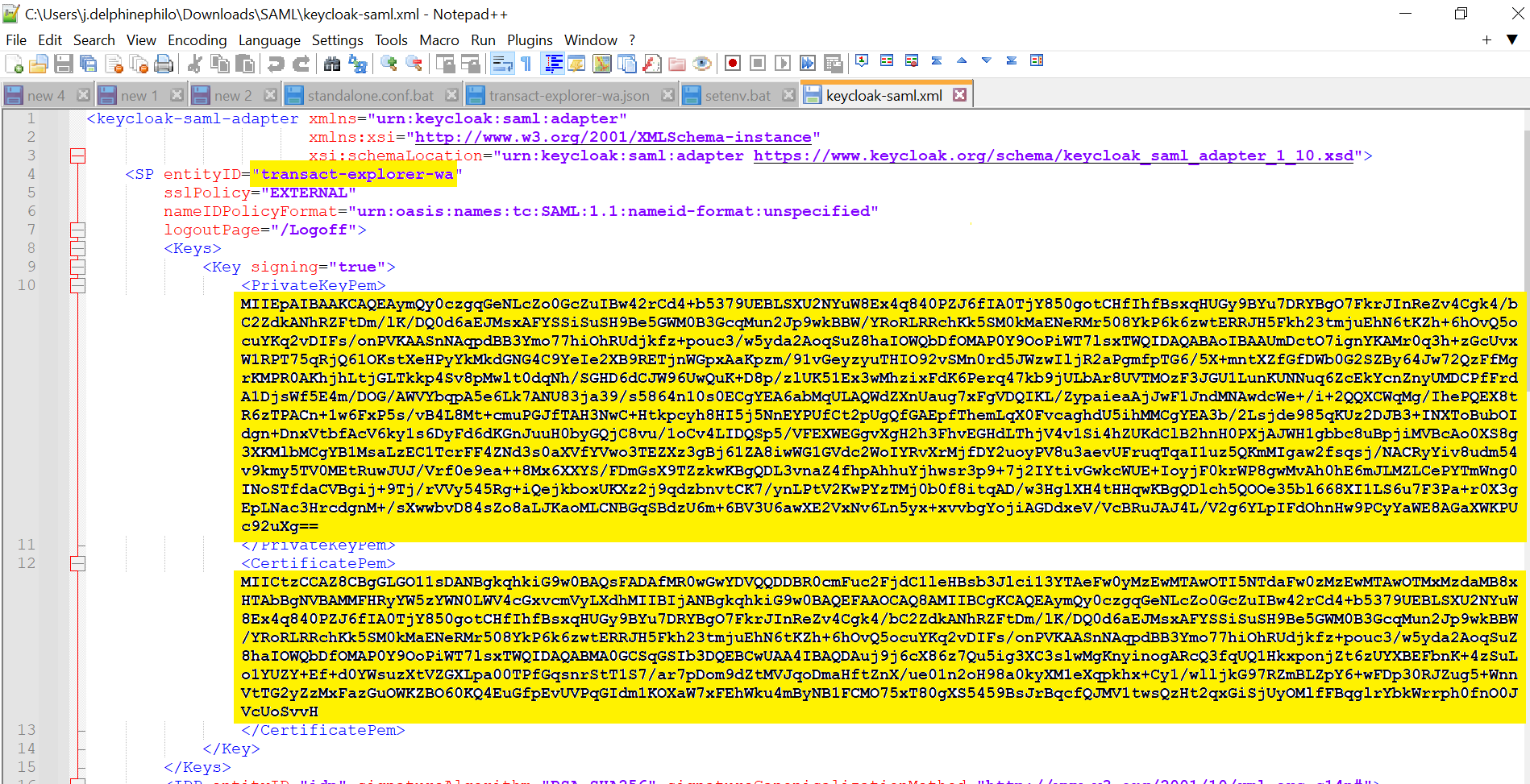
 - Copy the below keycloak-saml.xml file.
- Modify the below values in the keycloak-saml.xml file:
- SP entityID= transact-explorer-wa (should be the Client ID created in step 4).
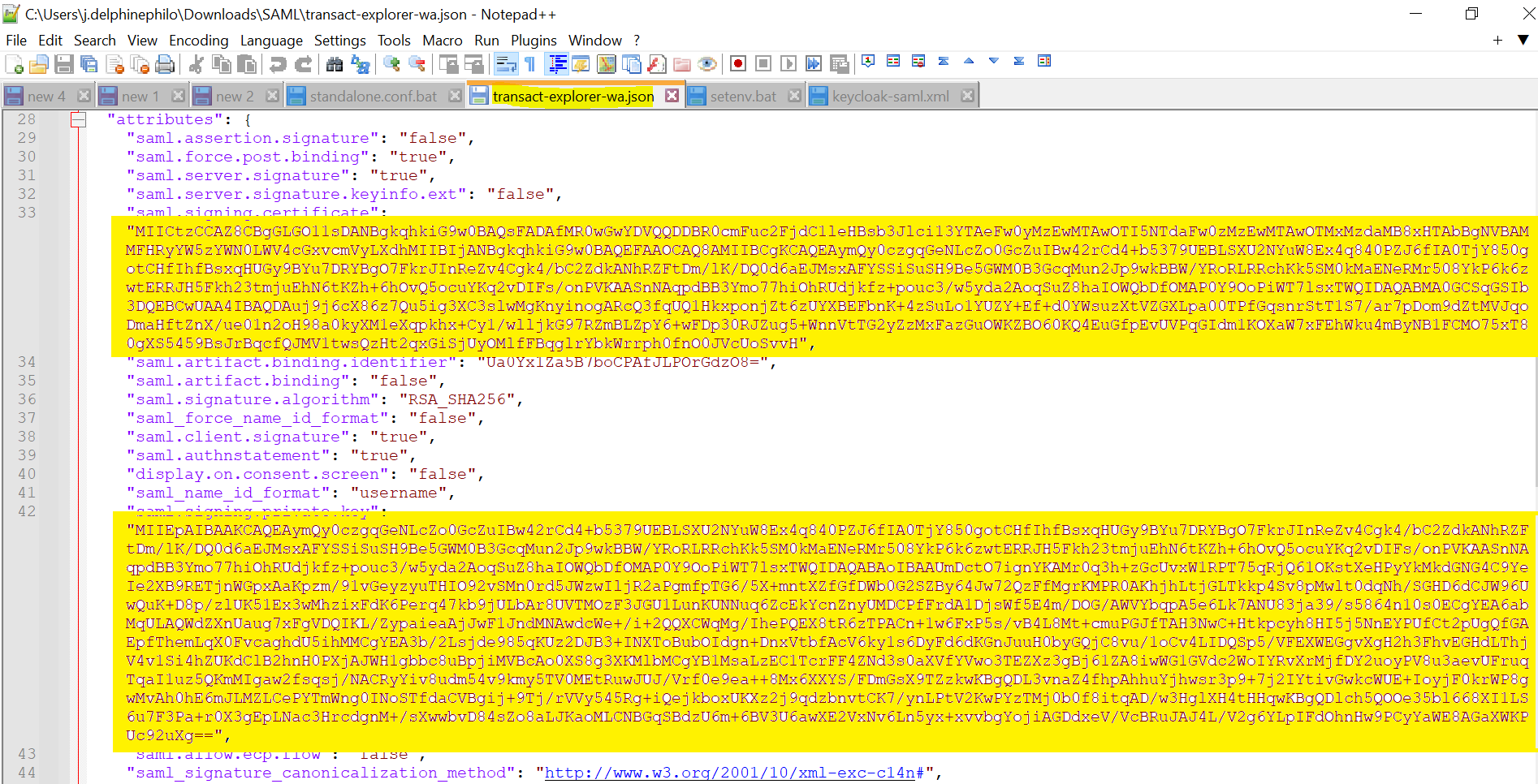
- PrivateKeyPem and CertificatePem (values extracted from the .json exported in step 5).
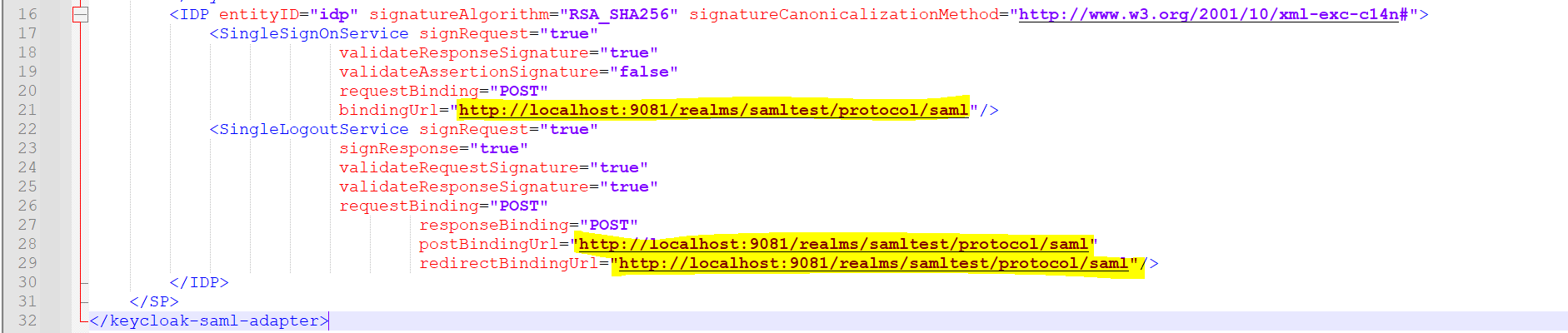
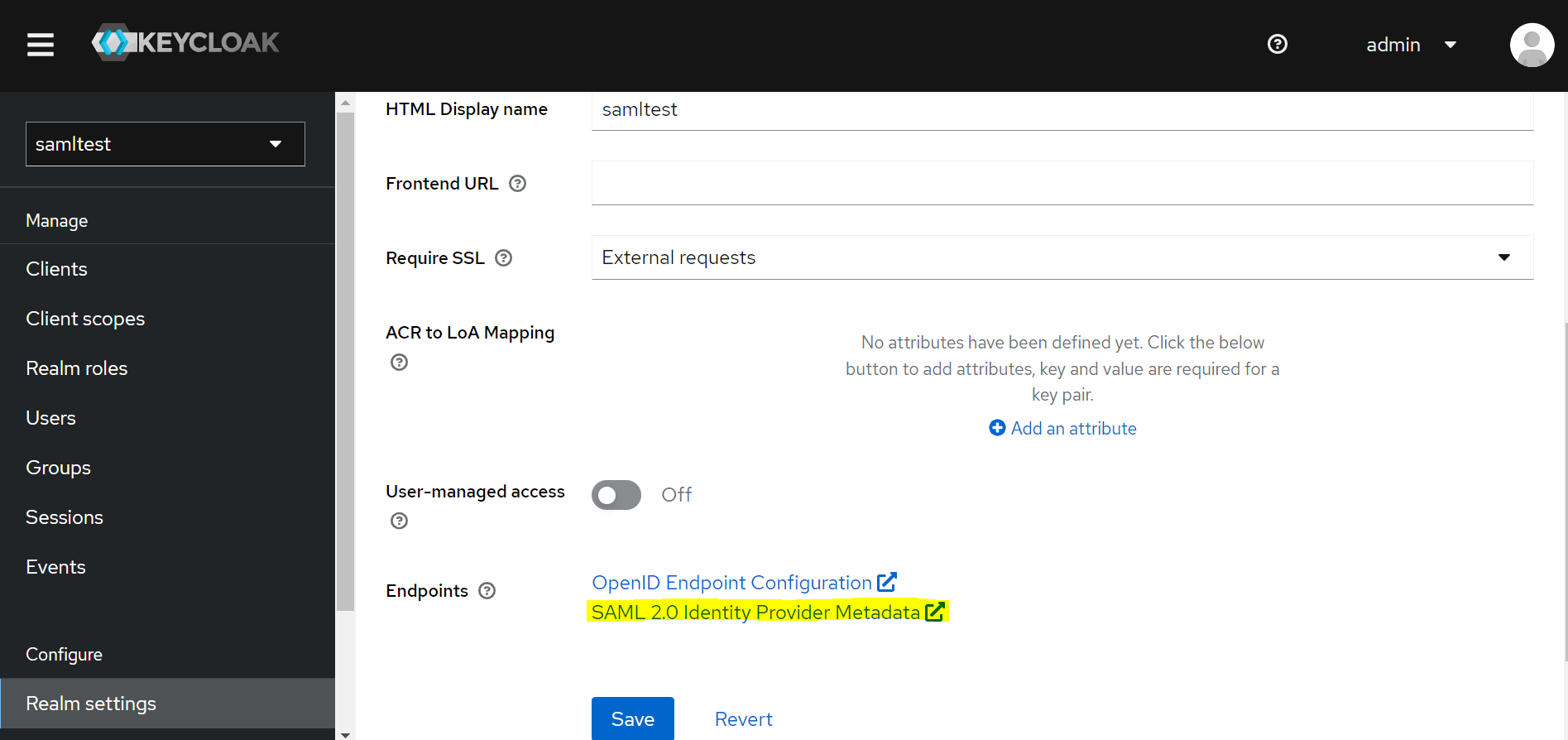
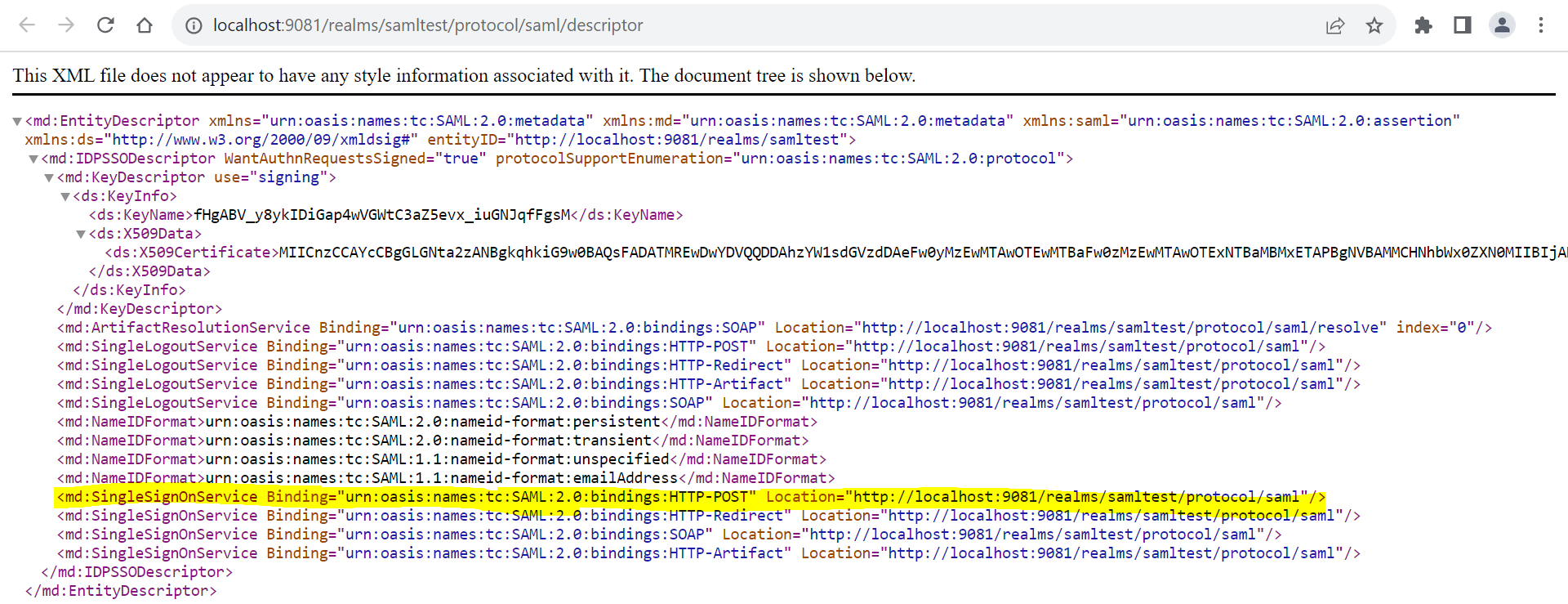
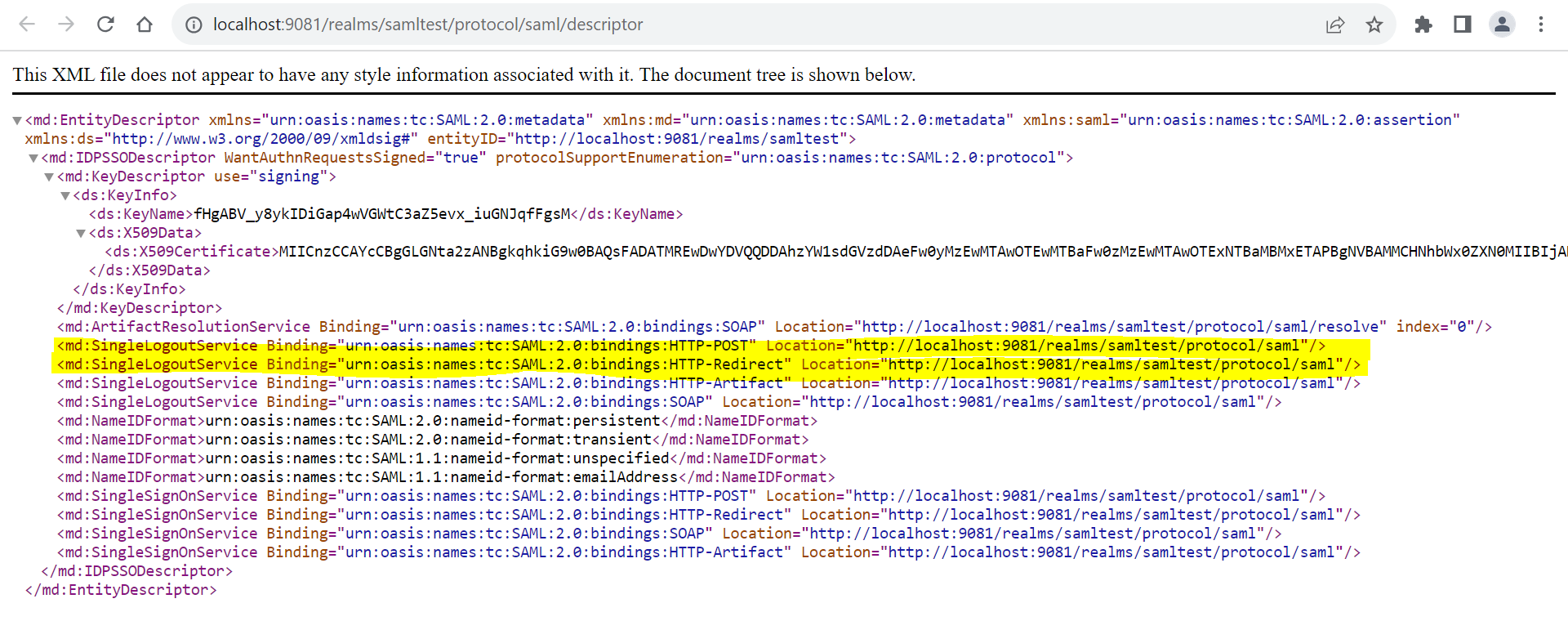
- SingleSignOnService > bindingUrl=http://localhost:9081/realms/samltest/protocol/saml (Get this value from Keycloak-SAML metadata descriptor, as shown in the below screenshots).
- SingleLogoutService > postBindingUrl="http://localhost:9081/realms/samltest/protocol/saml"
redirectBindingUrl=http://localhost:9081/realms/samltest/protocol/saml (Get this value from Keycloak-SAML metadata descriptor, as shown in the below screenshots).
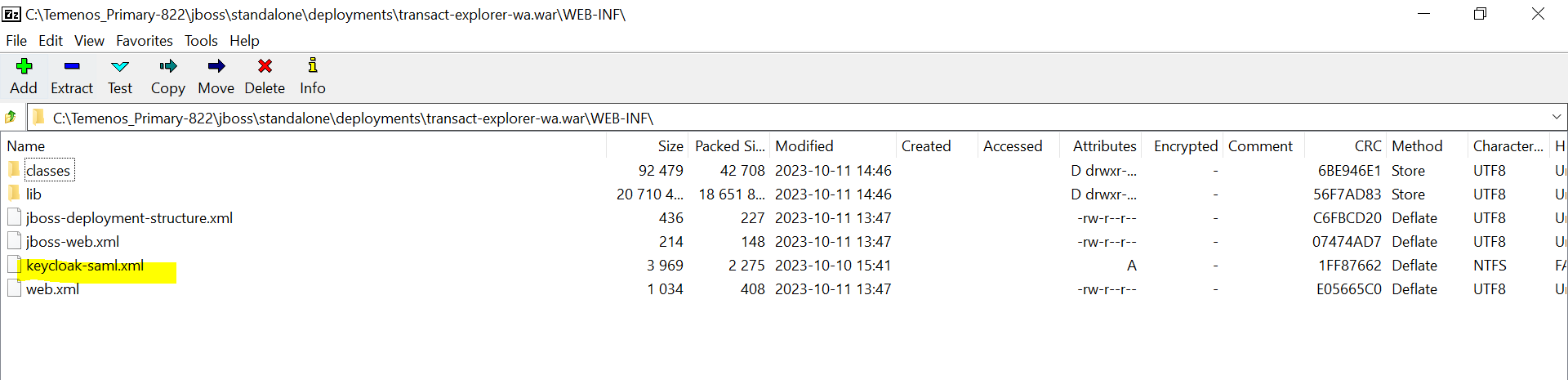
- Place the keycloak-saml.xml file in transact-explorer-wa.war\WEB-INF.
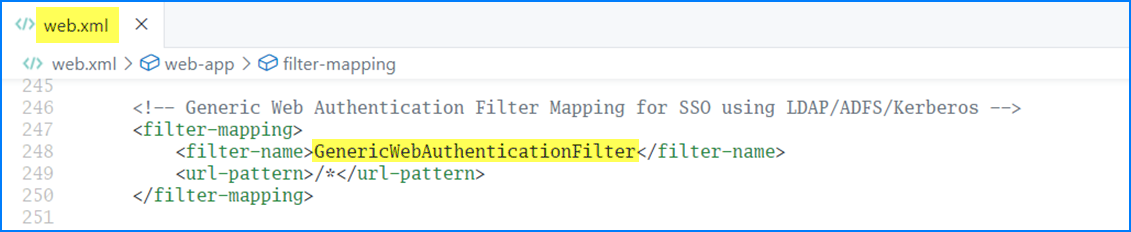
- In the transact-explorer-wa.war\WEBINF\web.xml file, enable the ‘GenericWebAuthenticationFilter’ filter and filter-mapping.
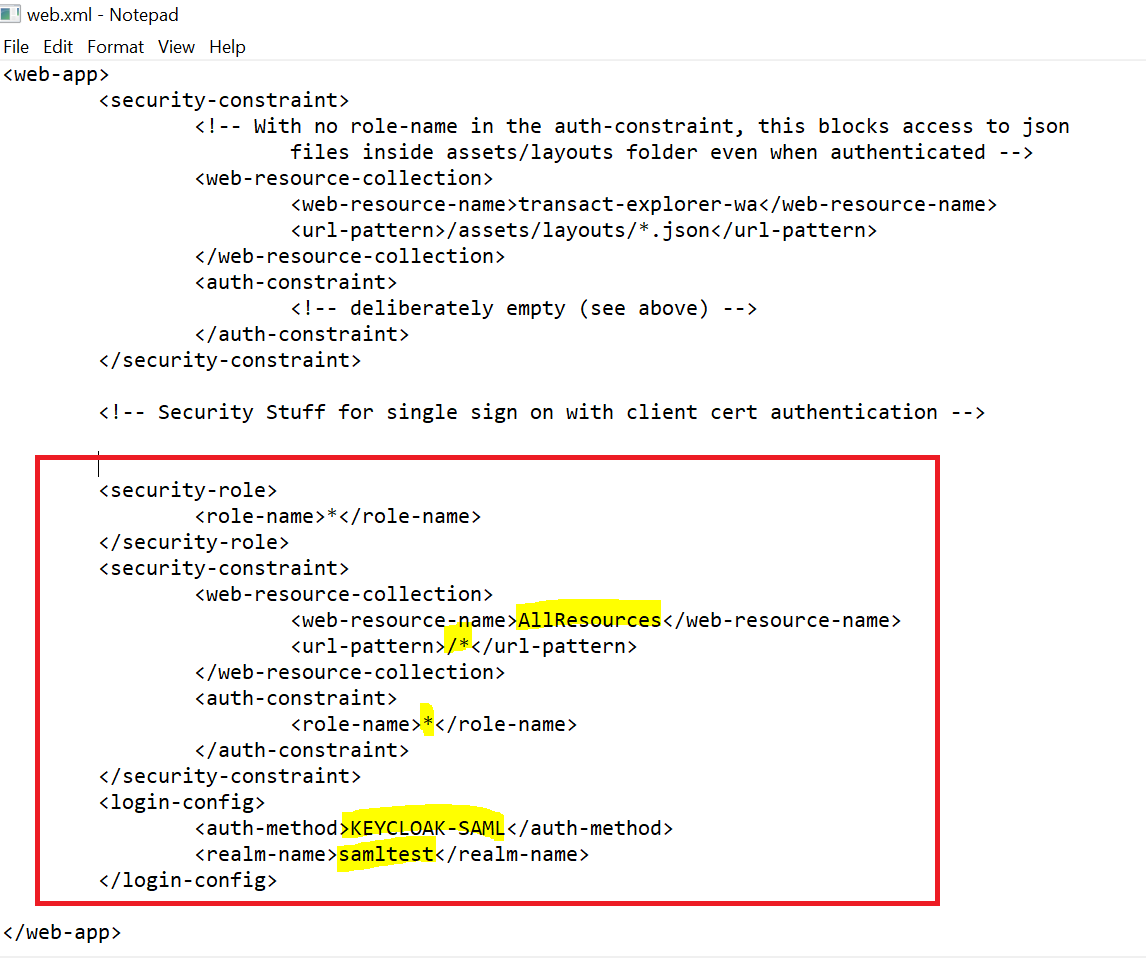
- Add the below highlighted security constraint and login-config details. The Realm name should be the one you created.
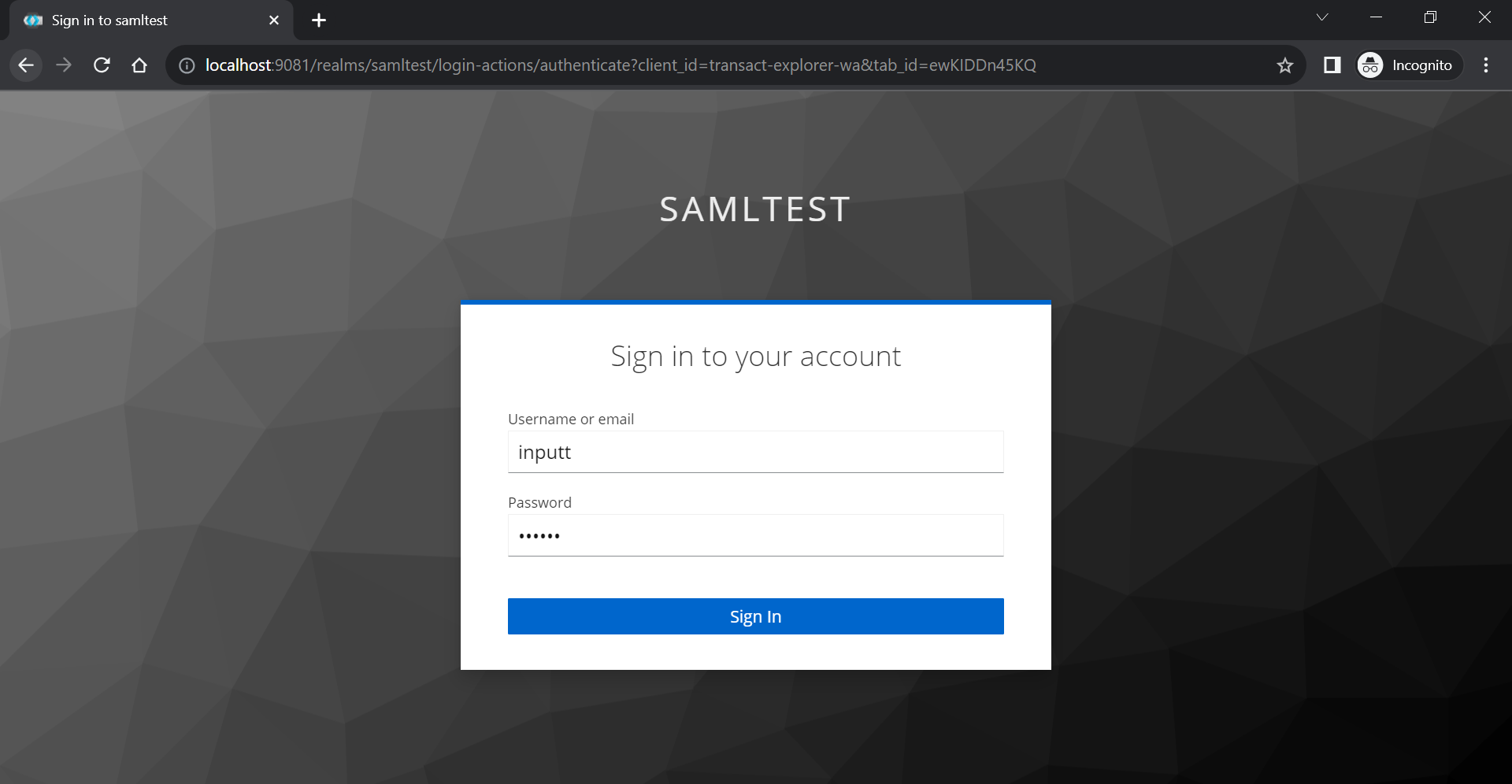
- Launch http://localhost:9089/transact-explorer-wa/. You are redirected to the Keycloak authentication page.
- Enter the credentials and sign in. The credentials should be the one you created in Keycloak.
Below is the sample JSON file.
{
						"clientId": "transact-explorer-wa",
						"name": "transact-explorer-wa",
						"description": "TransactExplorer",
						"rootUrl": "http://localhost:9089/transact-explorer-wa/",
						"adminUrl": "",
						"baseUrl": "",
						"surrogateAuthRequired": false,
						"enabled": true,
						"alwaysDisplayInConsole": false,
						"clientAuthenticatorType": "client-secret",
						"redirectUris": [
						"http://localhost:9089/transact-explorer-wa/*"
						],
						"webOrigins": [
						"http://localhost:9089"
						],
						"notBefore": 0,
						"bearerOnly": false,
						"consentRequired": false,
						"standardFlowEnabled": true,
						"implicitFlowEnabled": false,
						"directAccessGrantsEnabled": true,
						"serviceAccountsEnabled": false,
						"publicClient": true,
						"frontchannelLogout": true,
						"protocol": "saml",
						"attributes": {
						"saml.assertion.signature": "false",
						"saml.force.post.binding": "true",
						"saml.server.signature": "true",
						"saml.server.signature.keyinfo.ext": "false",
						"saml.signing.certificate": "MIICtzCCAZ8CBgGLGO11sDANBgkqhkiG9w0BAQsFADAfMR0wGwYDVQQDDBR0cmFuc2FjdC1leHBsb3Jlci13YTAeFw0yMzEwMTAwOTI5NTdaFw0zMzEwMTAwOTMxMzdaMB8xHTAbBgNVBAMMFHRyYW5zYWN0LWV4cGxvcmVyLXdhMIIBIjANBgkqhkiG9w0BAQEFAAOCAQ8AMIIBCgKCAQEAymQy0czgqGeNLcZo0GcZuIBw42rCd4+b5379UEBLSXU2NYuW8Ex4q840PZJ6fIA0TjY850gotCHfIhfBsxqHUGy9BYu7DRYBgO7FkrJInReZv4Cgk4/bC2ZdkANhRZFtDm/lK/DQ0d6aEJMsxAFYSSiSuSH9Be5GWM0B3GcqMun2Jp9wkBBW/YRoRLRRchKk5SM0kMaENeRMr508YkP6k6zwtERRJH5Fkh23tmjuEhN6tKZh+6hOvQ5ocuYKq2vDIFs/onPVKAASnNAqpdBB3Ymo77hiOhRUdjkfz+pouc3/w5yda2AoqSuZ8haIOWQbDfOMAP0Y9OoPiWT7lsxTWQIDAQABMA0GCSqGSIb3DQEBCwUAA4IBAQDAuj9j6cX86z7Qu5ig3XC3slwMgKnyinogARcQ3fqUQ1HkxponjZt6zUYXBEFbnK+4zSuLo1YUZY+Ef+d0YWsuzXtVZGXLpa00TPfGqsnrStT1S7/ar7pDom9dZtMVJqoDmaHftZnX/ue01n2oH98a0kyXM1eXqpkhx+Cy1/wlljkG97RZmBLZpY6+wFDp30RJZug5+WnnVtTG2yZzMxFazGuOWKZBO60KQ4EuGfpEvUVPqGIdm1KOXaW7xFEhWku4mByNB1FCMO75xT80gXS5459BsJrBqcfQJMV1twsQzHt2qxGiSjUyOMlfFBqglrYbkWrrph0fnO0JVcUoSvvH",
						"saml.artifact.binding.identifier": "Ua0Yx1Za5B7boCPAfJLPOrGdzO8=",
						"saml.artifact.binding": "false",
						"saml.signature.algorithm": "RSA_SHA256",
						"saml_force_name_id_format": "false",
						"saml.client.signature": "true",
						"saml.authnstatement": "true",
						"display.on.consent.screen": "false",
						"saml_name_id_format": "username",
						"saml.signing.private.key": "MIIEpAIBAAKCAQEAymQy0czgqGeNLcZo0GcZuIBw42rCd4+b5379UEBLSXU2NYuW8Ex4q840PZJ6fIA0TjY850gotCHfIhfBsxqHUGy9BYu7DRYBgO7FkrJInReZv4Cgk4/bC2ZdkANhRZFtDm/lK/DQ0d6aEJMsxAFYSSiSuSH9Be5GWM0B3GcqMun2Jp9wkBBW/YRoRLRRchKk5SM0kMaENeRMr508YkP6k6zwtERRJH5Fkh23tmjuEhN6tKZh+6hOvQ5ocuYKq2vDIFs/onPVKAASnNAqpdBB3Ymo77hiOhRUdjkfz+pouc3/w5yda2AoqSuZ8haIOWQbDfOMAP0Y9OoPiWT7lsxTWQIDAQABAoIBAAUmDctO7ignYKAMr0q3h+zGcUvxW1RPT75qRjQ61OKstXeHPyYkMkdGNG4C9YeIe2XB9RETjnWGpxAaKpzm/91vGeyzyuTHIO92vSMn0rd5JWzwIljR2aPgmfpTG6/5X+mntXZfGfDWb0G2SZBy64Jw72QzFfMgrKMPR0AKhjhLtjGLTkkp4Sv8pMwlt0dqNh/SGHD6dCJW96UwQuK+D8p/zlUK51Ex3wMhzixFdK6Perq47kb9jULbAr8UVTMOzF3JGU1LunKUNNuq6ZcEkYcnZnyUMDCPfFrdA1DjsWf5E4m/DOG/AWVYbqpA5e6Lk7ANU83ja39/s5864n10s0ECgYEA6abMqULAQWdZXnUaug7xFgVDQIKL/ZypaieaAjJwF1JndMNAwdcWe+/i+2QQXCWqMg/IhePQEX8tR6zTPACn+1w6FxP5s/vB4L8Mt+cmuPGJfTAH3NwC+Htkpcyh8HI5j5NnEYPUfCt2pUgQfGAEpfThemLqX0FvcaghdU5ihMMCgYEA3b/2Lsjde985qKUz2DJB3+INXToBubOIdgn+DnxVtbfAcV6ky1s6DyFd6dKGnJuuH0byGQjC8vu/1oCv4LIDQSp5/VFEXWEGgvXgH2h3FhvEGHdLThjV4v1Si4hZUKdClB2hnH0PXjAJWH1gbbc8uBpjiMVBcAo0XS8g3XKMlbMCgYB1MsaLzEC1TcrFF4ZNd3s0aXVfYVwo3TEZXz3gBj61ZA8iwWG1GVdc2WoIYRvXrMjfDY2uoyPV8u3aevUFruqTqaI1uz5QKmMIgaw2fsqsj/NACRyYiv8udm54v9kmy5TV0MEtRuwJUJ/Vrf0e9ea++8Mx6XXYS/FDmGsX9TZzkwKBgQDL3vnaZ4fhpAhhuYjhwsr3p9+7j2IYtivGwkcWUE+IoyjF0krWP8gwMvAh0hE6mJLMZLCePYTmWng0INoSTfdaCVBgij+9Tj/rVVy545Rg+iQejkboxUKXz2j9qdzbnvtCK7/ynLPtV2KwPYzTMj0b0f8itqAD/w3HglXH4tHHqwKBgQDlch5QOOe35bl668XI1LS6u7F3Pa+r0X3gEpLNac3HrcdgnM+/sXwwbvD84sZo8aLJKaoMLCNBGqSBdzU6m+6BV3U6awXE2VxNv6Ln5yx+xvvbgYojiAGDdxeV/VcBRuJAJ4L/V2g6YLpIFdOhnHw9PCyYaWE8AGaXWKPUc92uXg==",
						"saml.allow.ecp.flow": "false",
						"saml_signature_canonicalization_method": "http://www.w3.org/2001/10/xml-exc-c14n#",
						"saml.onetimeuse.condition": "false",
						"saml.server.signature.keyinfo.xmlSigKeyInfoKeyNameTransformer": "KEY_ID"
						},
						"authenticationFlowBindingOverrides": {},
						"fullScopeAllowed": true,
						"nodeReRegistrationTimeout": -1,
						"defaultClientScopes": [
						"role_list"
						],
						"optionalClientScopes": [],
						"access": {
						"view": true,
						"configure": true,
						"manage": true
						}
			}
<keycloak-saml-adapter xmlns="urn:keycloak:saml:adapter" xmlns:xsi="http://www.w3.org/2001/XMLSchema-instance" xsi:schemaLocation="urn:keycloak:saml:adapter https://www.keycloak.org/schema/keycloak_saml_adapter_1_10.xsd">
	<SP entityID="transact-explorer-wa" sslPolicy="EXTERNAL" nameIDPolicyFormat="urn:oasis:names:tc:SAML:1.1:nameid-format:unspecified" logoutPage="/Logoff">
	<Keys>
	<Key signing="true">
	<PrivateKeyPem>MIIEpAIBAAKCAQEAymQy0czgqGeNLcZo0GcZuIBw42rCd4+b5379UEBLSXU2NYuW8Ex4q840PZJ6fIA0TjY850gotCHfIhfBsxqHUGy9BYu7DRYBgO7FkrJInReZv4Cgk4/bC2ZdkANhRZFtDm/lK/DQ0d6aEJMsxAFYSSiSuSH9Be5GWM0B3GcqMun2Jp9wkBBW/YRoRLRRchKk5SM0kMaENeRMr508YkP6k6zwtERRJH5Fkh23tmjuEhN6tKZh+6hOvQ5ocuYKq2vDIFs/onPVKAASnNAqpdBB3Ymo77hiOhRUdjkfz+pouc3/w5yda2AoqSuZ8haIOWQbDfOMAP0Y9OoPiWT7lsxTWQIDAQABAoIBAAUmDctO7ignYKAMr0q3h+zGcUvxW1RPT75qRjQ61OKstXeHPyYkMkdGNG4C9YeIe2XB9RETjnWGpxAaKpzm/91vGeyzyuTHIO92vSMn0rd5JWzwIljR2aPgmfpTG6/5X+mntXZfGfDWb0G2SZBy64Jw72QzFfMgrKMPR0AKhjhLtjGLTkkp4Sv8pMwlt0dqNh/SGHD6dCJW96UwQuK+D8p/zlUK51Ex3wMhzixFdK6Perq47kb9jULbAr8UVTMOzF3JGU1LunKUNNuq6ZcEkYcnZnyUMDCPfFrdA1DjsWf5E4m/DOG/AWVYbqpA5e6Lk7ANU83ja39/s5864n10s0ECgYEA6abMqULAQWdZXnUaug7xFgVDQIKL/ZypaieaAjJwF1JndMNAwdcWe+/i+2QQXCWqMg/IhePQEX8tR6zTPACn+1w6FxP5s/vB4L8Mt+cmuPGJfTAH3NwC+Htkpcyh8HI5j5NnEYPUfCt2pUgQfGAEpfThemLqX0FvcaghdU5ihMMCgYEA3b/2Lsjde985qKUz2DJB3+INXToBubOIdgn+DnxVtbfAcV6ky1s6DyFd6dKGnJuuH0byGQjC8vu/1oCv4LIDQSp5/VFEXWEGgvXgH2h3FhvEGHdLThjV4v1Si4hZUKdClB2hnH0PXjAJWH1gbbc8uBpjiMVBcAo0XS8g3XKMlbMCgYB1MsaLzEC1TcrFF4ZNd3s0aXVfYVwo3TEZXz3gBj61ZA8iwWG1GVdc2WoIYRvXrMjfDY2uoyPV8u3aevUFruqTqaI1uz5QKmMIgaw2fsqsj/NACRyYiv8udm54v9kmy5TV0MEtRuwJUJ/Vrf0e9ea++8Mx6XXYS/FDmGsX9TZzkwKBgQDL3vnaZ4fhpAhhuYjhwsr3p9+7j2IYtivGwkcWUE+IoyjF0krWP8gwMvAh0hE6mJLMZLCePYTmWng0INoSTfdaCVBgij+9Tj/rVVy545Rg+iQejkboxUKXz2j9qdzbnvtCK7/ynLPtV2KwPYzTMj0b0f8itqAD/w3HglXH4tHHqwKBgQDlch5QOOe35bl668XI1LS6u7F3Pa+r0X3gEpLNac3HrcdgnM+/sXwwbvD84sZo8aLJKaoMLCNBGqSBdzU6m+6BV3U6awXE2VxNv6Ln5yx+xvvbgYojiAGDdxeV/VcBRuJAJ4L/V2g6YLpIFdOhnHw9PCyYaWE8AGaXWKPUc92uXg== </PrivateKeyPem>
	<CertificatePem>MIICtzCCAZ8CBgGLGO11sDANBgkqhkiG9w0BAQsFADAfMR0wGwYDVQQDDBR0cmFuc2FjdC1leHBsb3Jlci13YTAeFw0yMzEwMTAwOTI5NTdaFw0zMzEwMTAwOTMxMzdaMB8xHTAbBgNVBAMMFHRyYW5zYWN0LWV4cGxvcmVyLXdhMIIBIjANBgkqhkiG9w0BAQEFAAOCAQ8AMIIBCgKCAQEAymQy0czgqGeNLcZo0GcZuIBw42rCd4+b5379UEBLSXU2NYuW8Ex4q840PZJ6fIA0TjY850gotCHfIhfBsxqHUGy9BYu7DRYBgO7FkrJInReZv4Cgk4/bC2ZdkANhRZFtDm/lK/DQ0d6aEJMsxAFYSSiSuSH9Be5GWM0B3GcqMun2Jp9wkBBW/YRoRLRRchKk5SM0kMaENeRMr508YkP6k6zwtERRJH5Fkh23tmjuEhN6tKZh+6hOvQ5ocuYKq2vDIFs/onPVKAASnNAqpdBB3Ymo77hiOhRUdjkfz+pouc3/w5yda2AoqSuZ8haIOWQbDfOMAP0Y9OoPiWT7lsxTWQIDAQABMA0GCSqGSIb3DQEBCwUAA4IBAQDAuj9j6cX86z7Qu5ig3XC3slwMgKnyinogARcQ3fqUQ1HkxponjZt6zUYXBEFbnK+4zSuLo1YUZY+Ef+d0YWsuzXtVZGXLpa00TPfGqsnrStT1S7/ar7pDom9dZtMVJqoDmaHftZnX/ue01n2oH98a0kyXM1eXqpkhx+Cy1/wlljkG97RZmBLZpY6+wFDp30RJZug5+WnnVtTG2yZzMxFazGuOWKZBO60KQ4EuGfpEvUVPqGIdm1KOXaW7xFEhWku4mByNB1FCMO75xT80gXS5459BsJrBqcfQJMV1twsQzHt2qxGiSjUyOMlfFBqglrYbkWrrph0fnO0JVcUoSvvH </CertificatePem>
	</Key>
	</Keys>
	<IDP entityID="idp" signatureAlgorithm="RSA_SHA256" signatureCanonicalizationMethod="http://www.w3.org/2001/10/xml-exc-c14n#">
	<SingleSignOnService signRequest="true" validateResponseSignature="true" validateAssertionSignature="false" requestBinding="POST" bindingUrl="http://localhost:9081/realms/samltest/protocol/saml"/>
	<SingleLogoutService signRequest="true" signResponse="true" validateRequestSignature="true" validateResponseSignature="true" requestBinding="POST" responseBinding="POST" postBindingUrl="http://localhost:9081/realms/samltest/protocol/saml" redirectBindingUrl="http://localhost:9081/realms/samltest/protocol/saml"/>
	</IDP>
	</SP>
</keycloak-saml-adapter>
If the web.xml file is externalized and filters are unavailable, then add the below parameter in the setenv.bat file.

You have now successfully created and configured a new client.
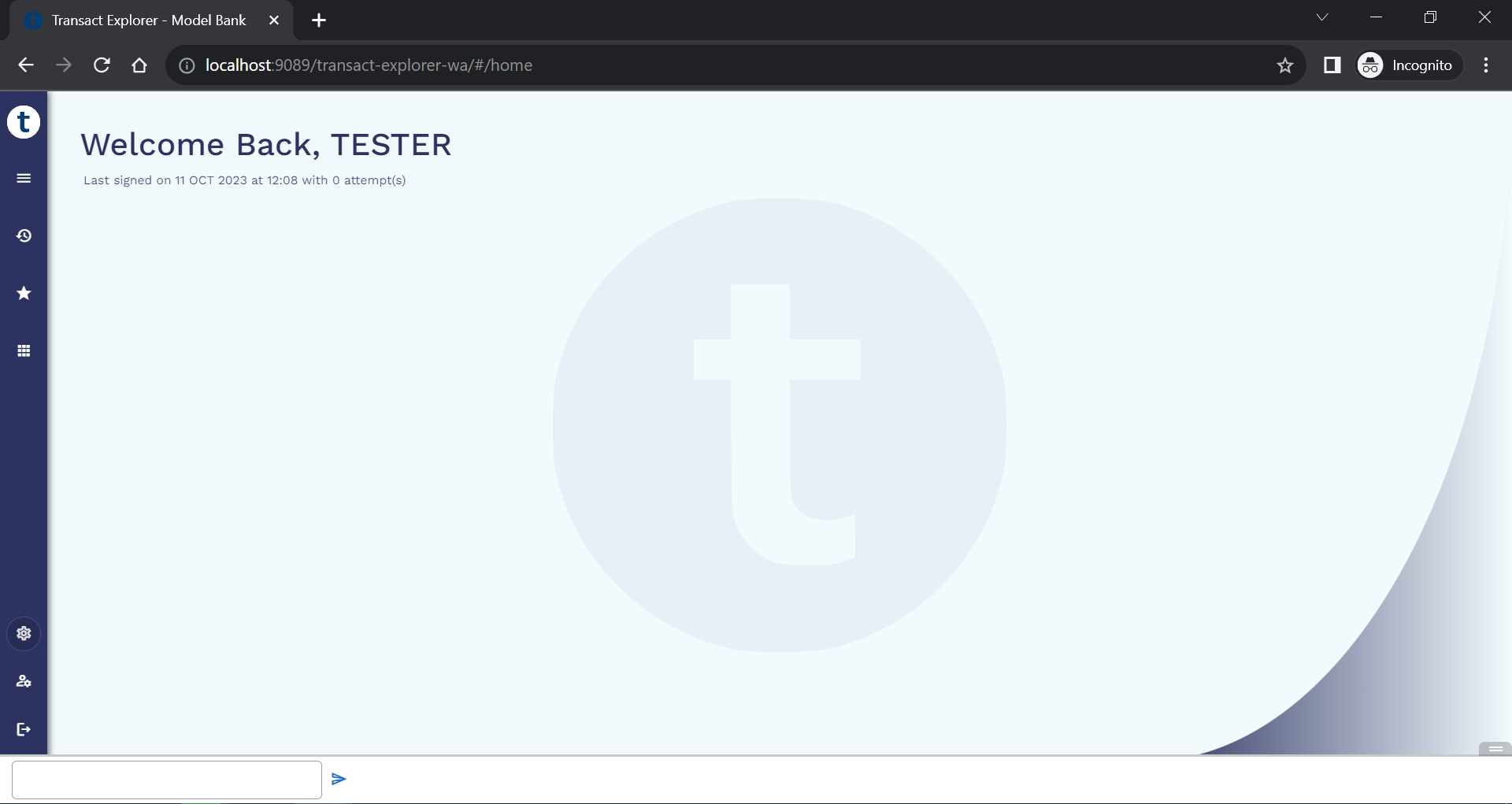
You are successfully redirected to Transact Explorer.
In this topic