Integrating OKTA
This topic provides detailed steps to configure OKTA, TB-server, and Transact Explorer to enable single sign on (SSO) feature using OIDC protocol.
Configuring OKTA
To create an OKTA account and assign users to the application,
- Create an OKTA developer account through https://developer.okta.com/login/.
- Sign up with your email address. Account activation link is sent to your registered email address.
- Click Activate and reset your password.
- Log in to OKTA.
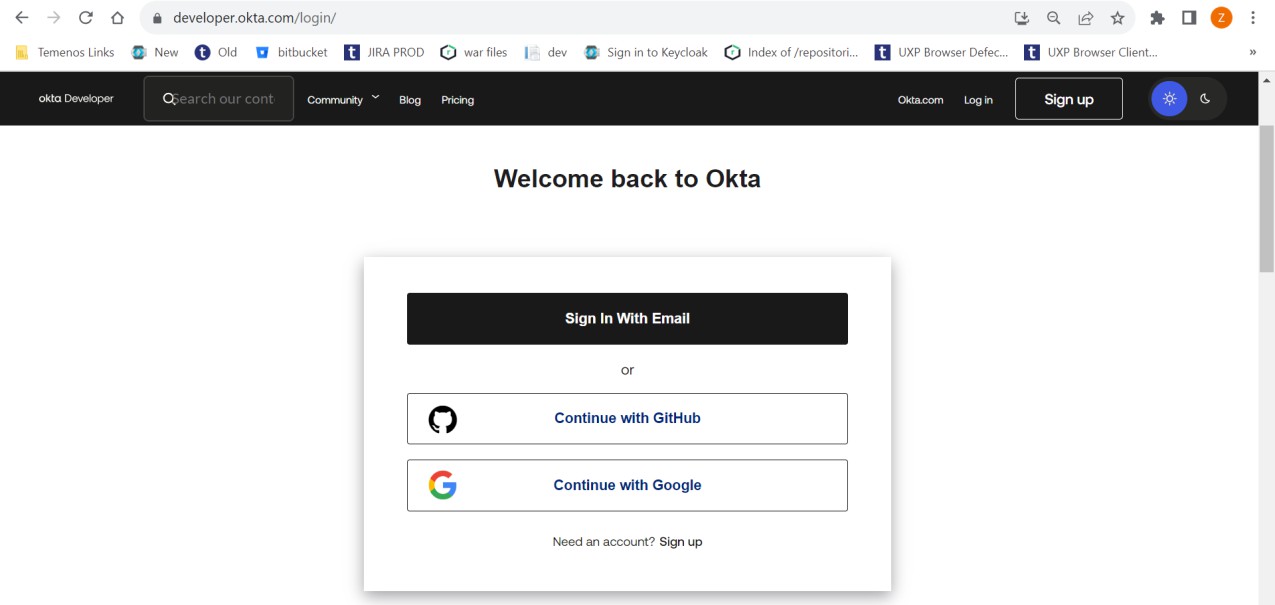
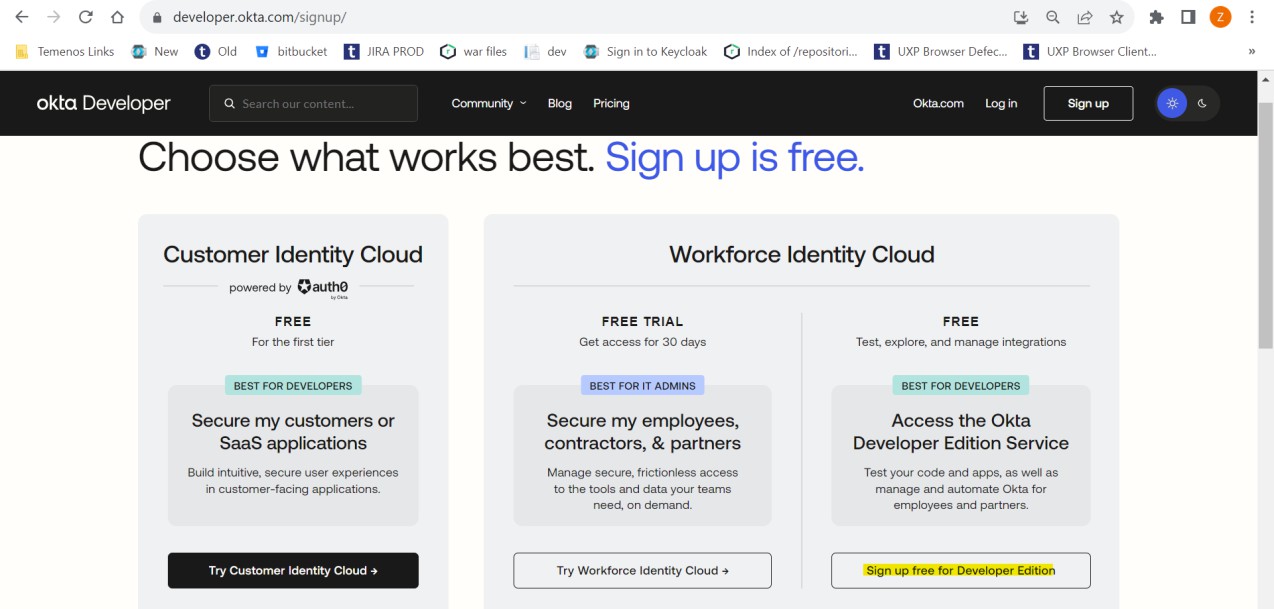
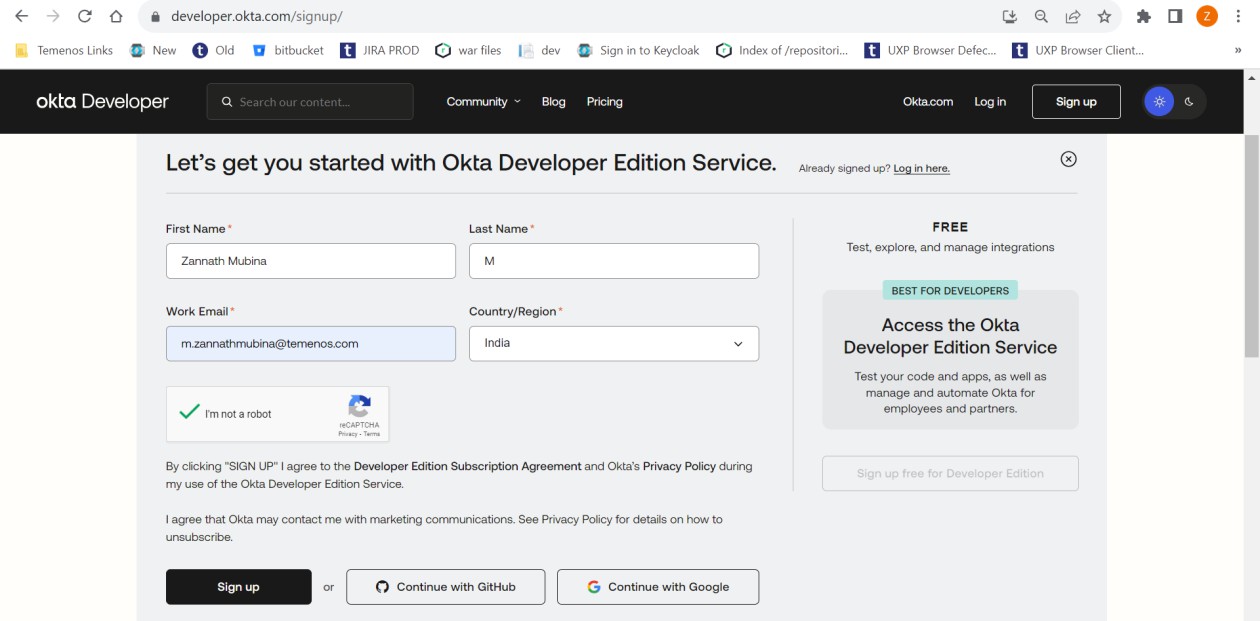
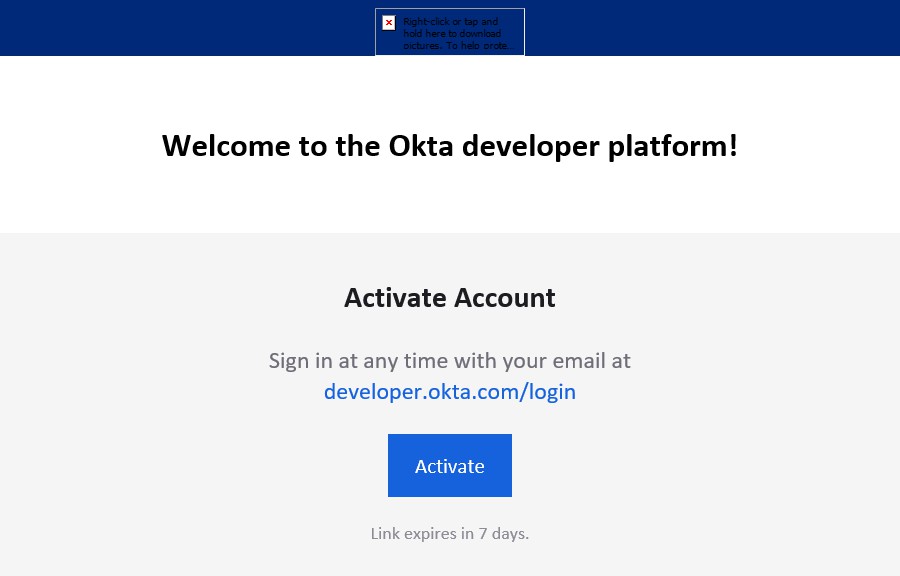
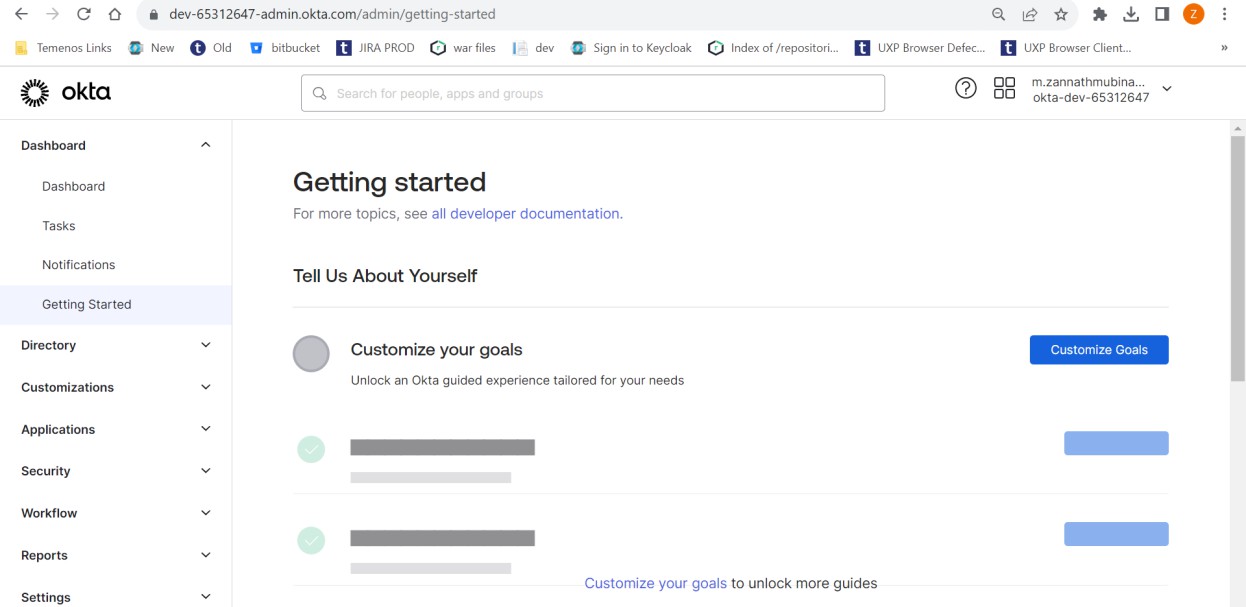
You are now successfully logged in to OKTA. You can now create an application and assign users to it.
To create an application,
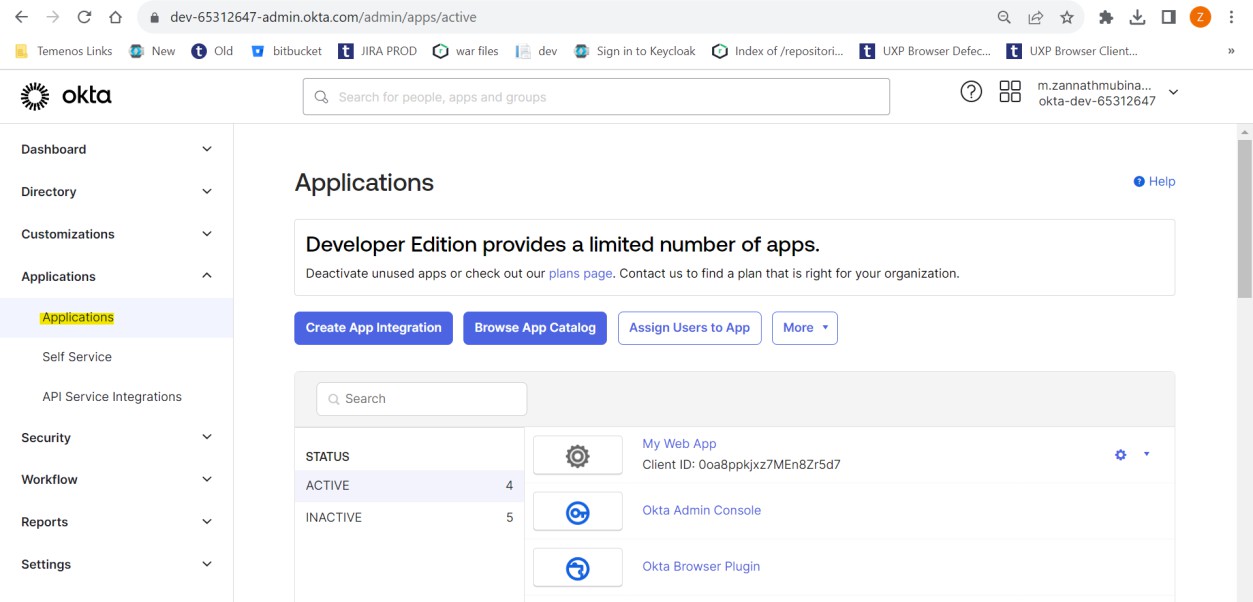
- Select Applications > Applications from the left navigation pane. The Applications page appears on the right pane.
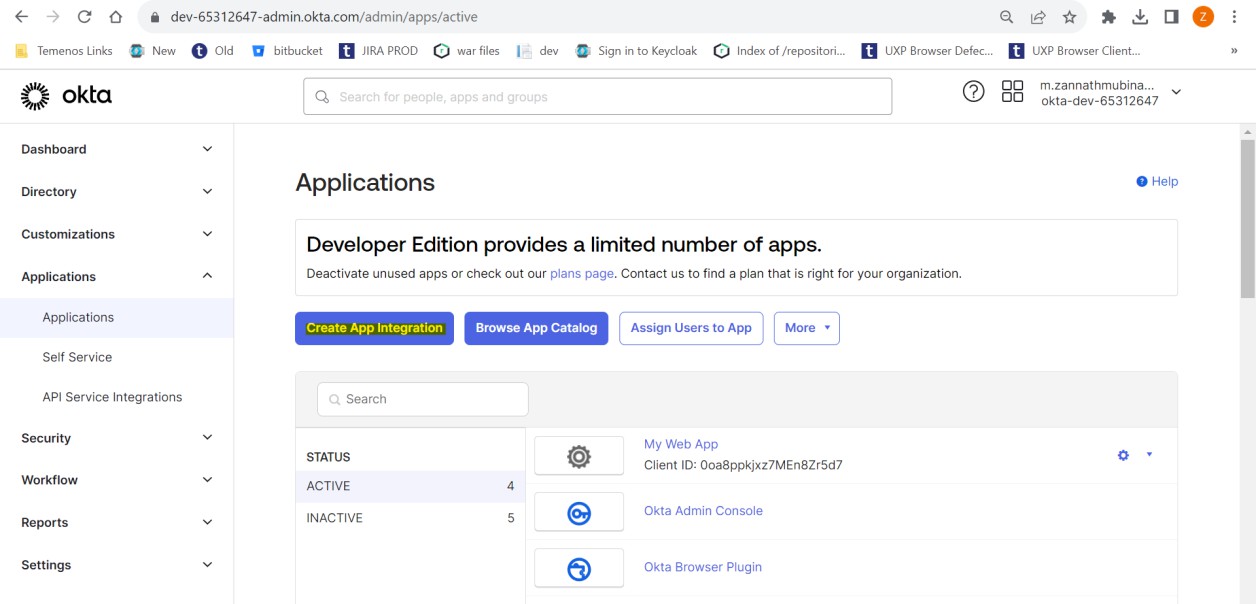
- Click Create App Integration. The Create a new app Integration pop-up window displays.
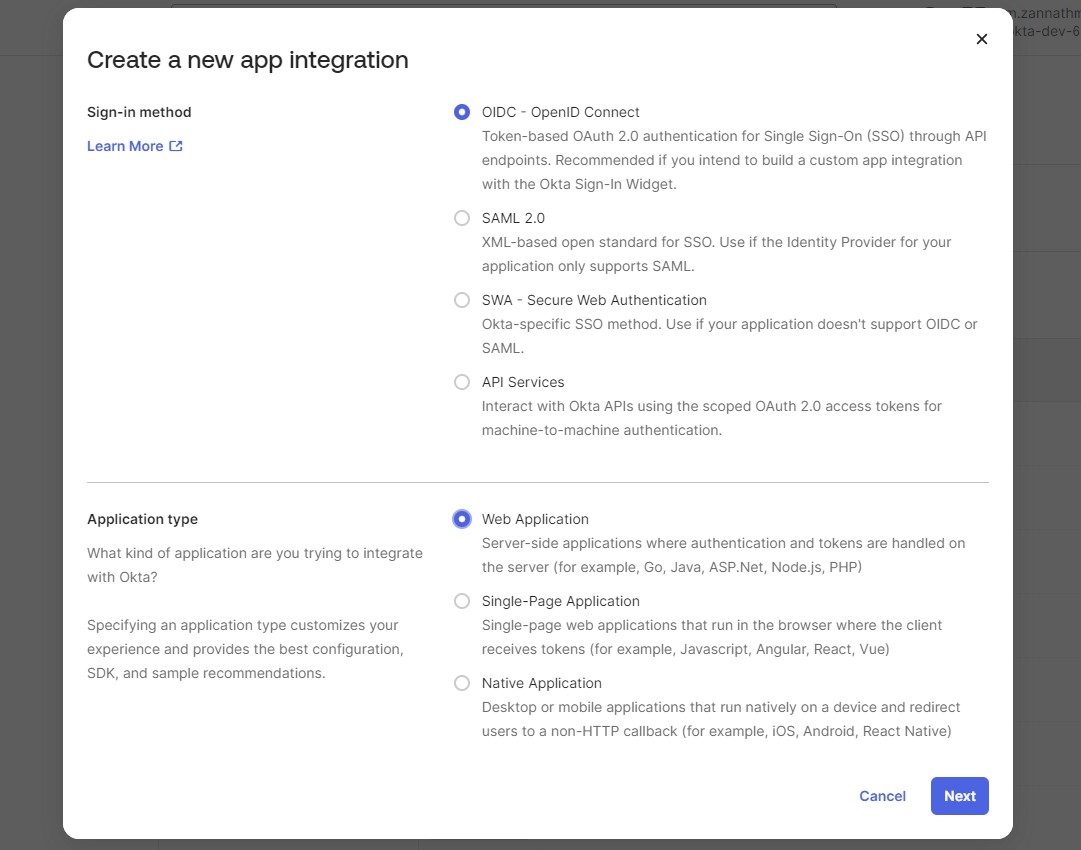
- Select Sign-in method as OIDC - OpenID Connect and Application type as Web Application and click Next.
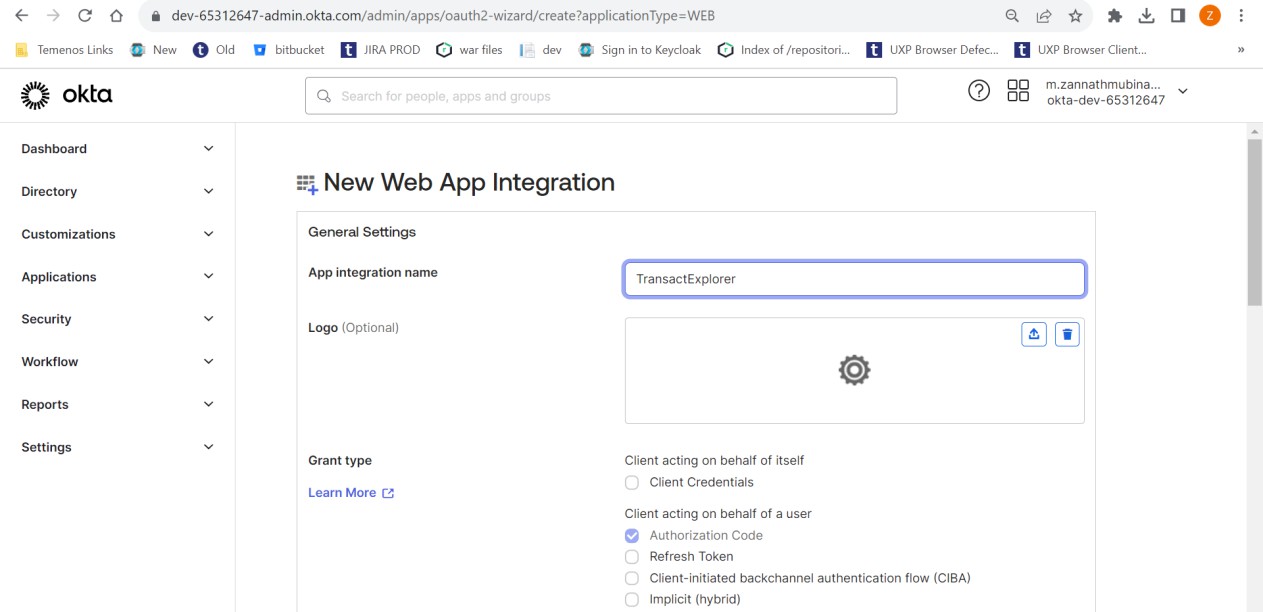
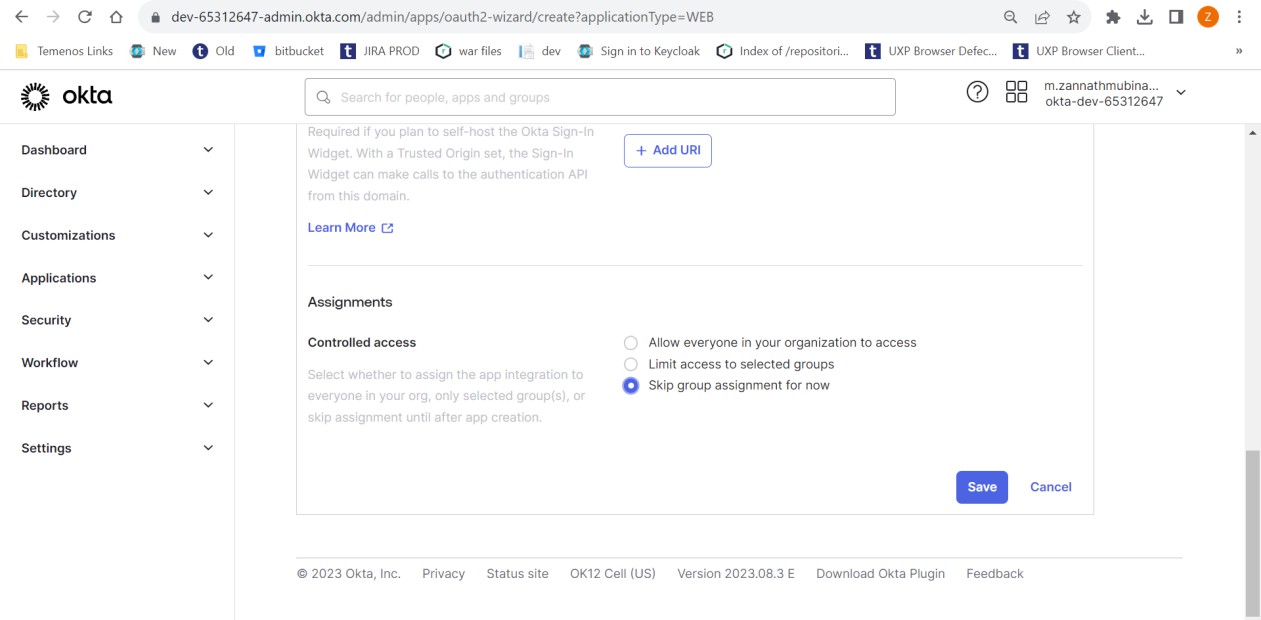
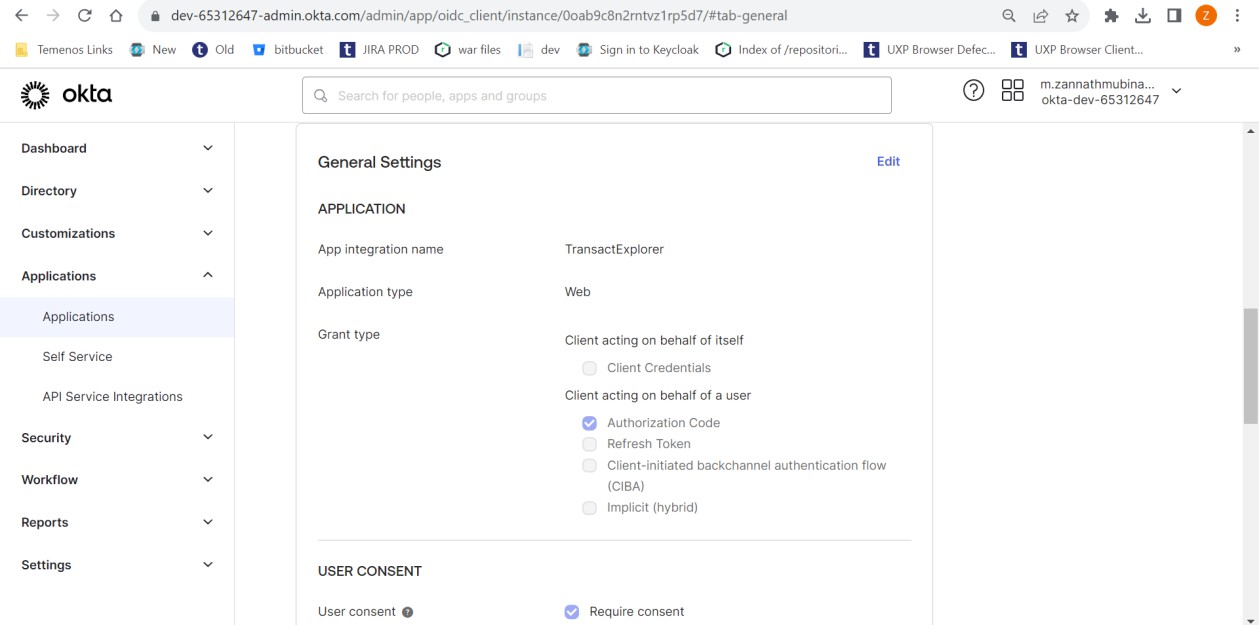
- Enter the below details in the New Web App Integration page and click Save.
- App integration name
- Grant type
- Sign-in redirect URI
- Assignments controlled access
- Navigate to the Sign On tab. In OpenID Connect ID Token section, click Edit and select Okta URL in the Issuer field.
After saving, you can view the Client ID and Client Secret in the General tab.
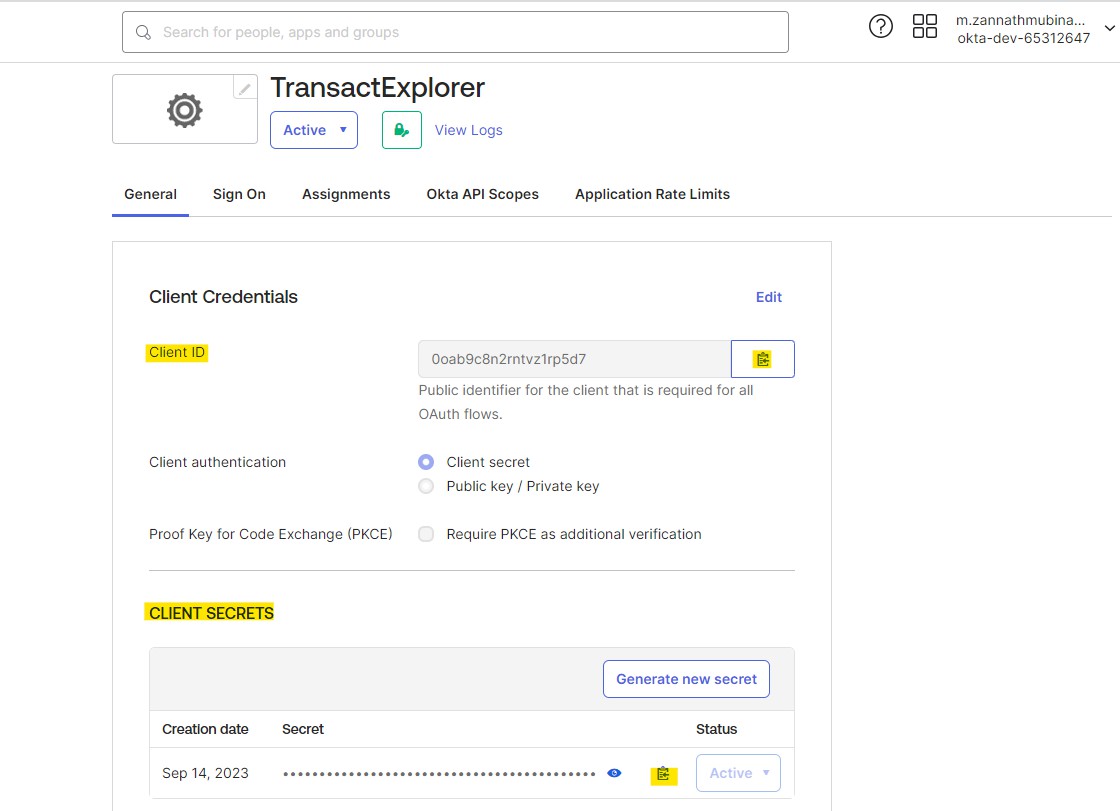
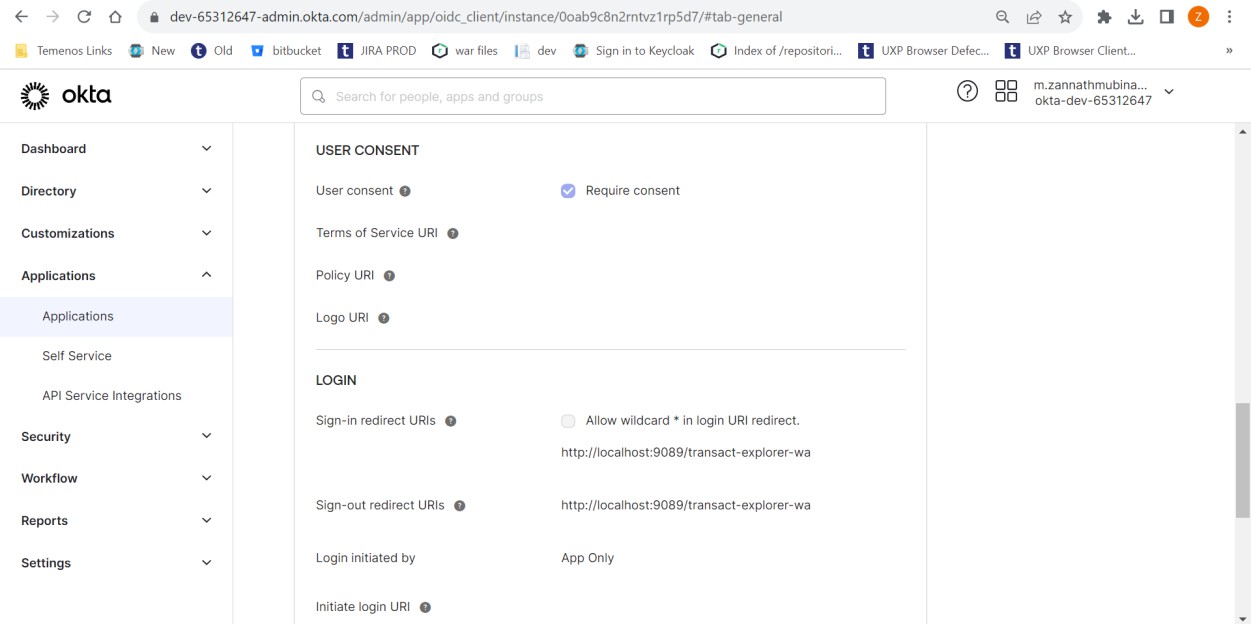
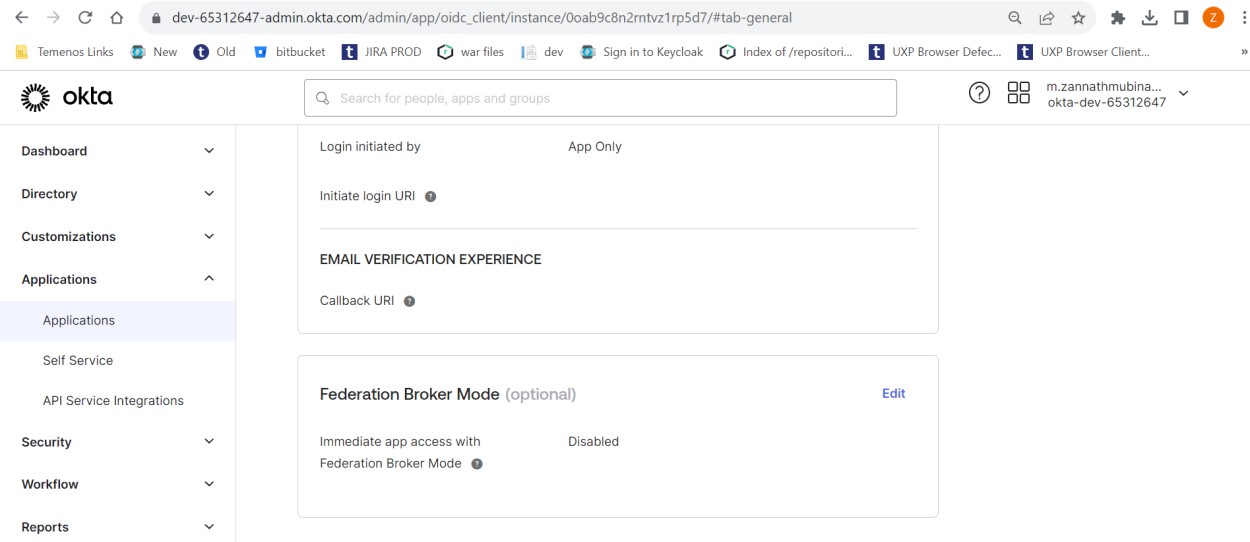
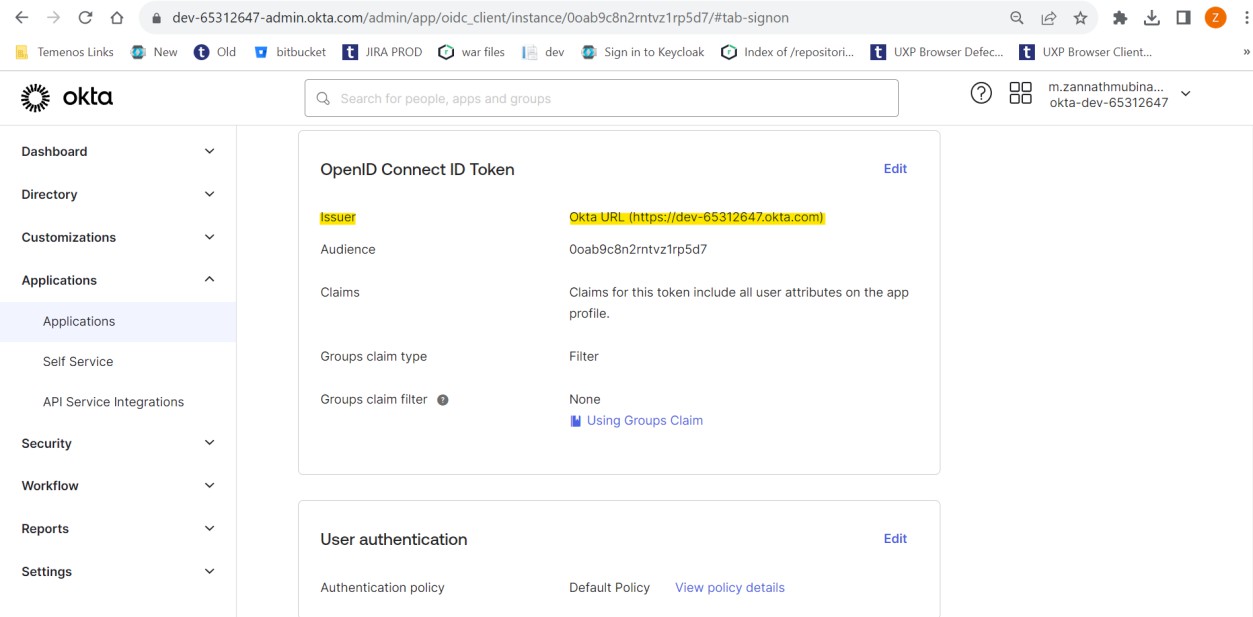
You have now successfully created an application.
To assign a user to the application,
- Navigate to the Assignments tab and click Assign > Assign to People. The Assign TransactExplorer to People pop-up window appears.
- Enter the name in the User Name field (this user should be available in Transact) and click Save and Go Back.
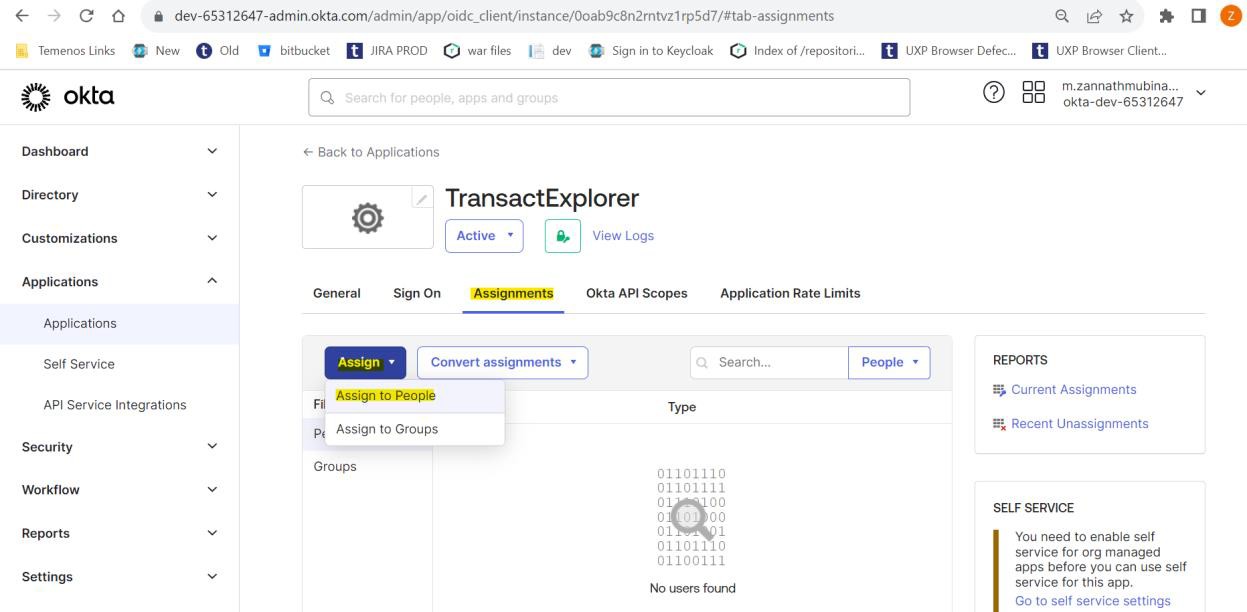
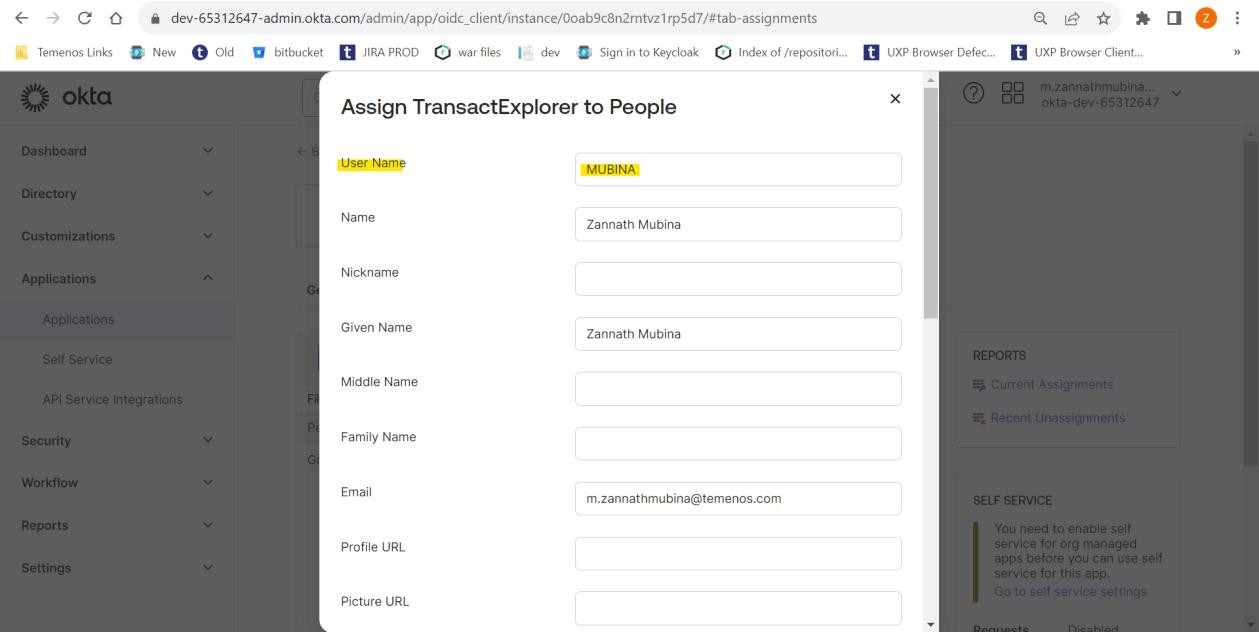
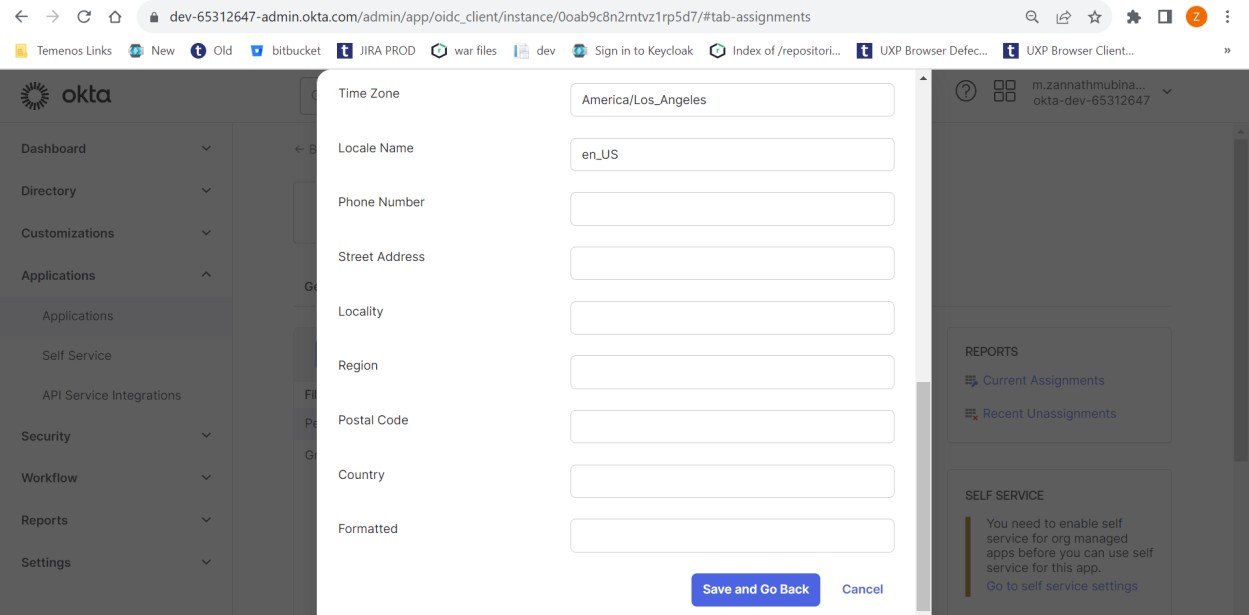
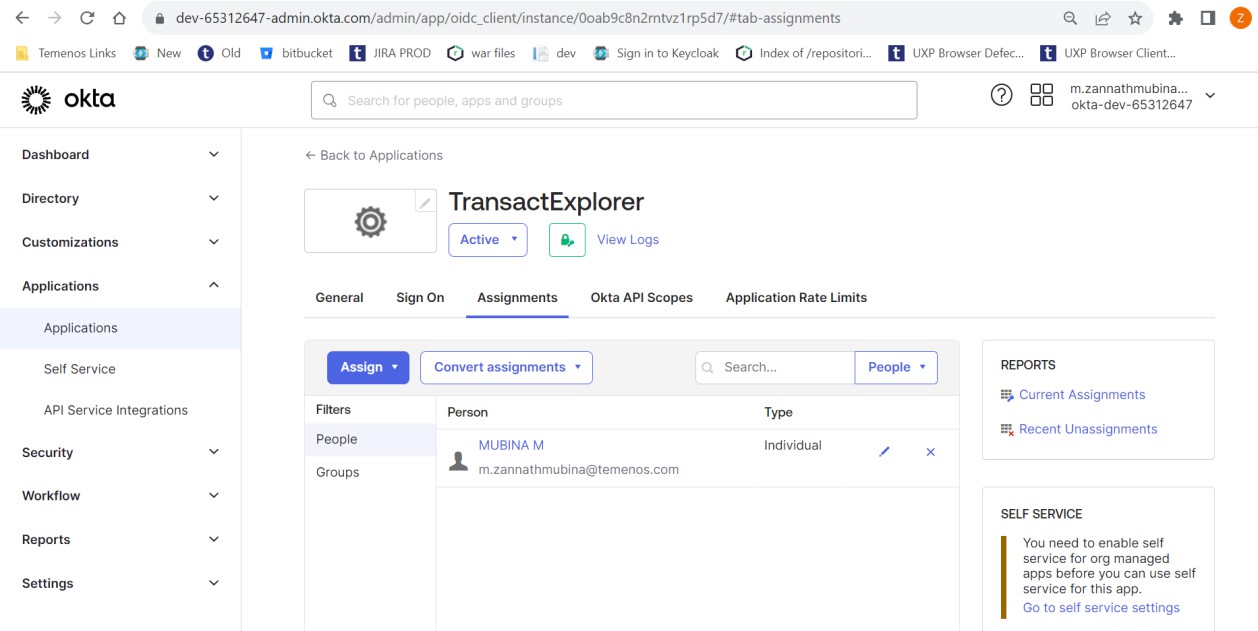
You have successfully assigned a user to the TransactExplorer application. You can now proceed configuring the tb-server.war and transact-exploere-wa.war files.
Configuring tb-server.war
To configure the tb-server.war file, you need to modify the below files.
 tb-server.war/WEB-INF/web.xml
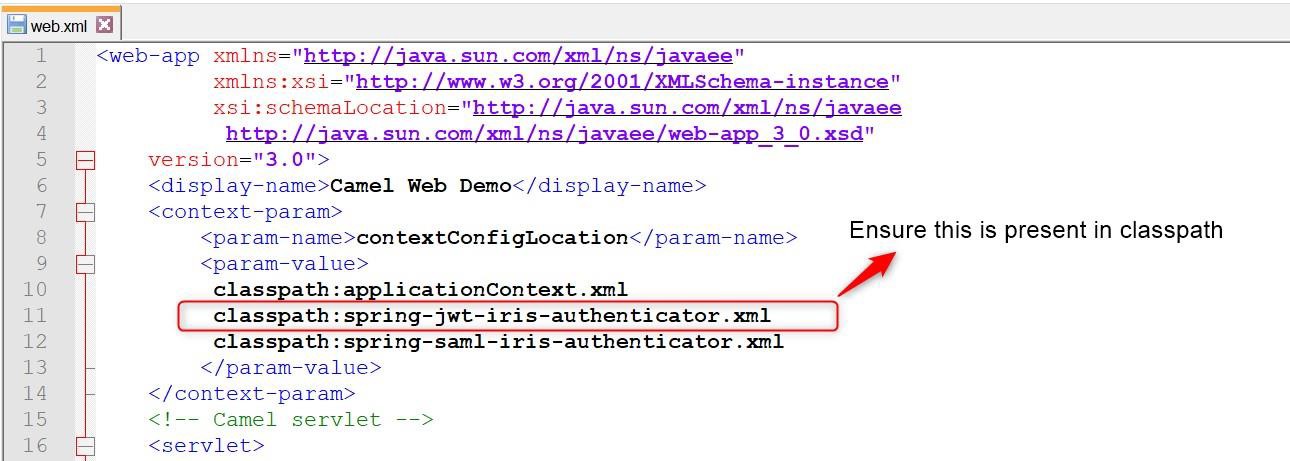
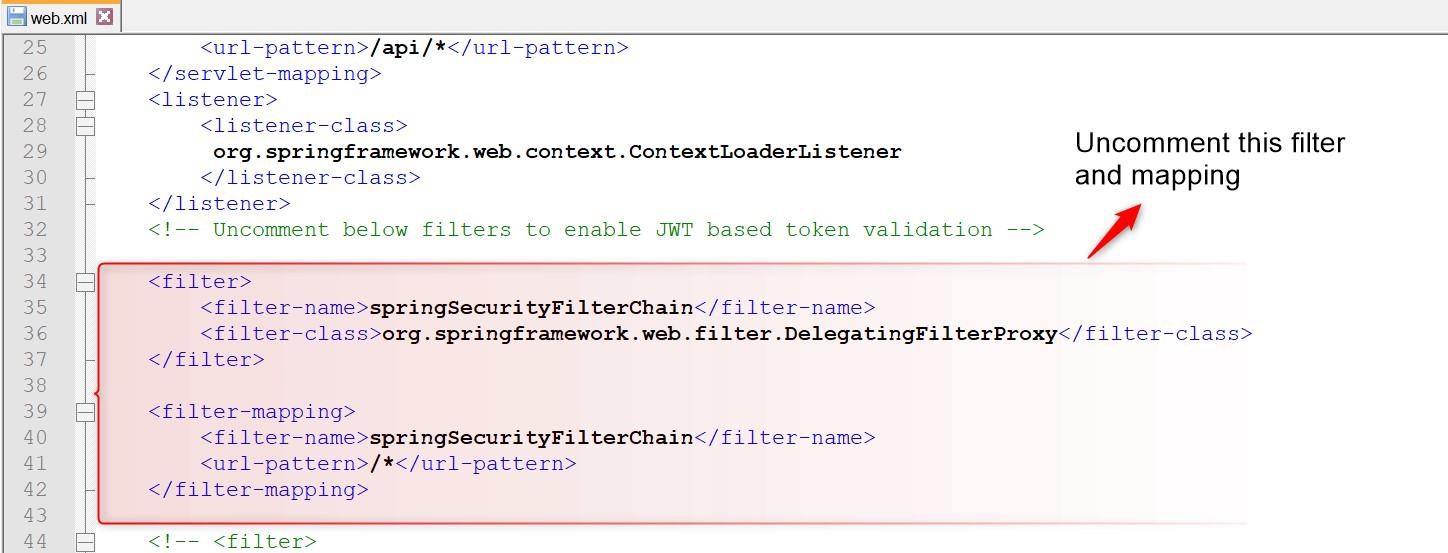
Enable Spring security filter and ensure that spring-jwt-iris-authenticator.xml is present in classpath. The Spring filter is necessary for JWT token authentication, without this filter enabled in web.xml, the JWT authentication does not work in Transact Browser Server.
tb-server.war/WEB-INF/classes/spring-jwt-iris-authenticator.xml
Below sections describe the actions performed in the spring-jwt-iris-authenticator.xml file.
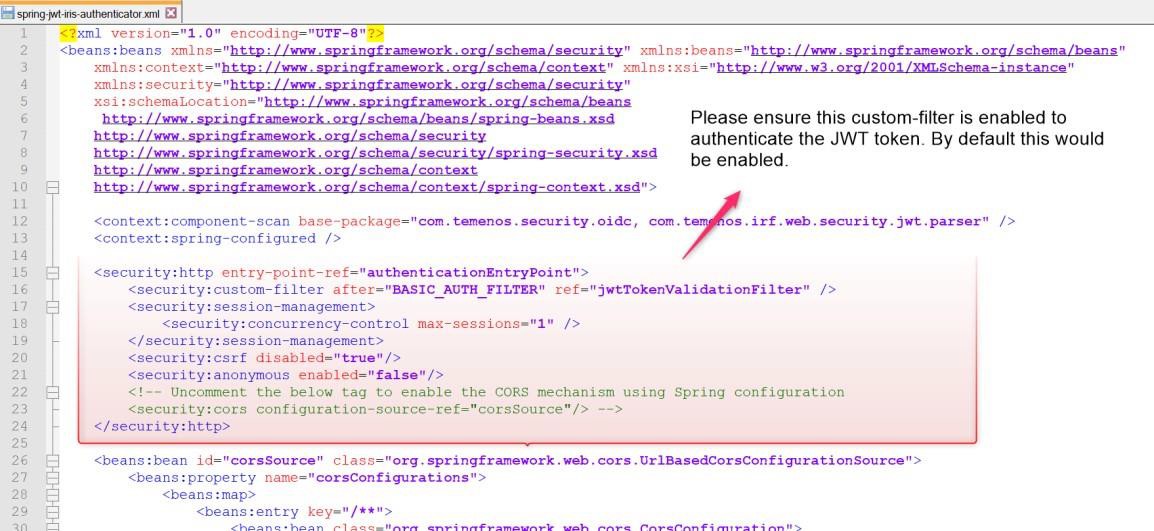
Enabling JWTTokenValidator Filter
Enable the JWTTokenValidator filter (custom filter) to authenticate the JWT token.
Validating Signature
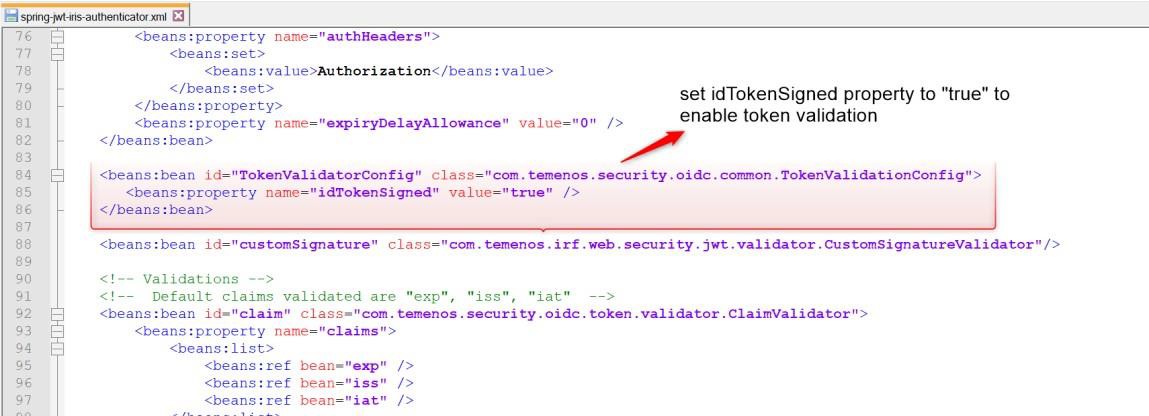
You can enable or disable the JWT token signature validation using the below property. By default, this property is set to false.
To enable the signature validation, set the below property to ‘true’.
<beans:property name="idTokenSigned" value="true" />
Extracting Claim
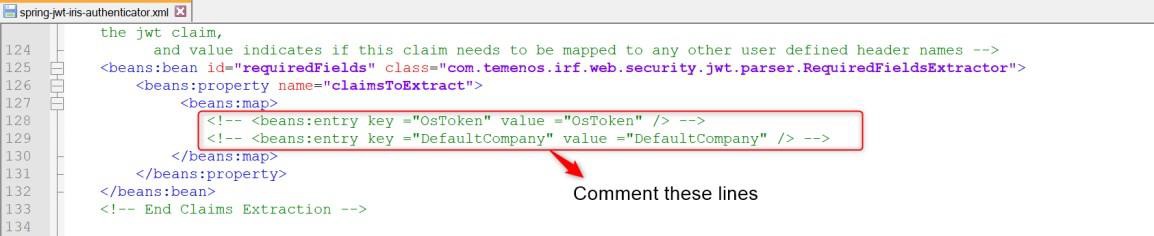
Claims specified in the below highlighted section are extracted from the JWT token and set in the request header. Transact Browser does not require any such token to be extracted and set in the request header. You need to comment the claims in this section.
Configuring OIDC Provider Server
To configure the OIDC provider server,
- Navigate to the below URL to get the metadata details of Okta client (TransactExplorer) https://${yourOktaDomain}/.well-known/openid-configuration?client_id=${yourClientId}.
- Get the values for issuer and pkJwksUri from metadata.
- In the spring-jwt-iris-authenticator.xml file, enter the below values
- Issuer (value obtained from the previous step)
- pkJwksUri (value obtained from the previous step)
- principalClaim as ‘preferred_username’.
- idTokenSignedAlg as ‘RS256’.
https://dev-65312647-admin.okta.com/.well-known/openid-configuration?client_id=0oab9c8n2rntvz1rp5d7

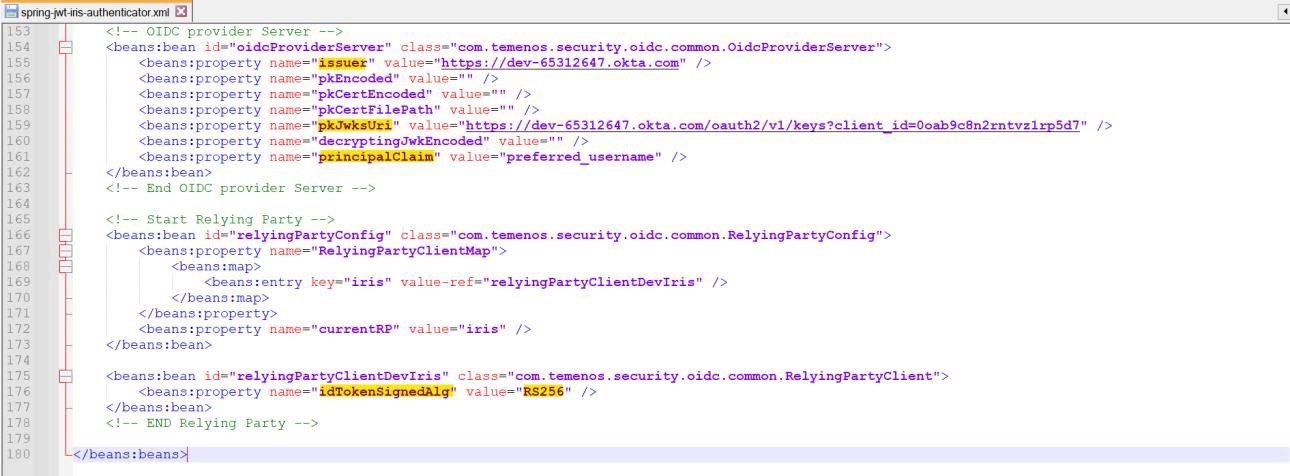
You have now successfully configured the tb-server.war file.
Configuring transact-explorer-wa.war
To configure the transact-explorer-wa.war file, modify the below files:
transact-explorer-wa.war/WEB-INF/web.xml
Enable the oidcAuthenticationFilter tag in the web.xml file. By default, this tag is disabled in the UI war.
If the WEB-INF folder is not available in the transact-explorer-wa.war file, the UI war is built only with the transact-explorer-angular (UI) component. Execute the Maven builds script to include the transact-explorer-server component in UI war.
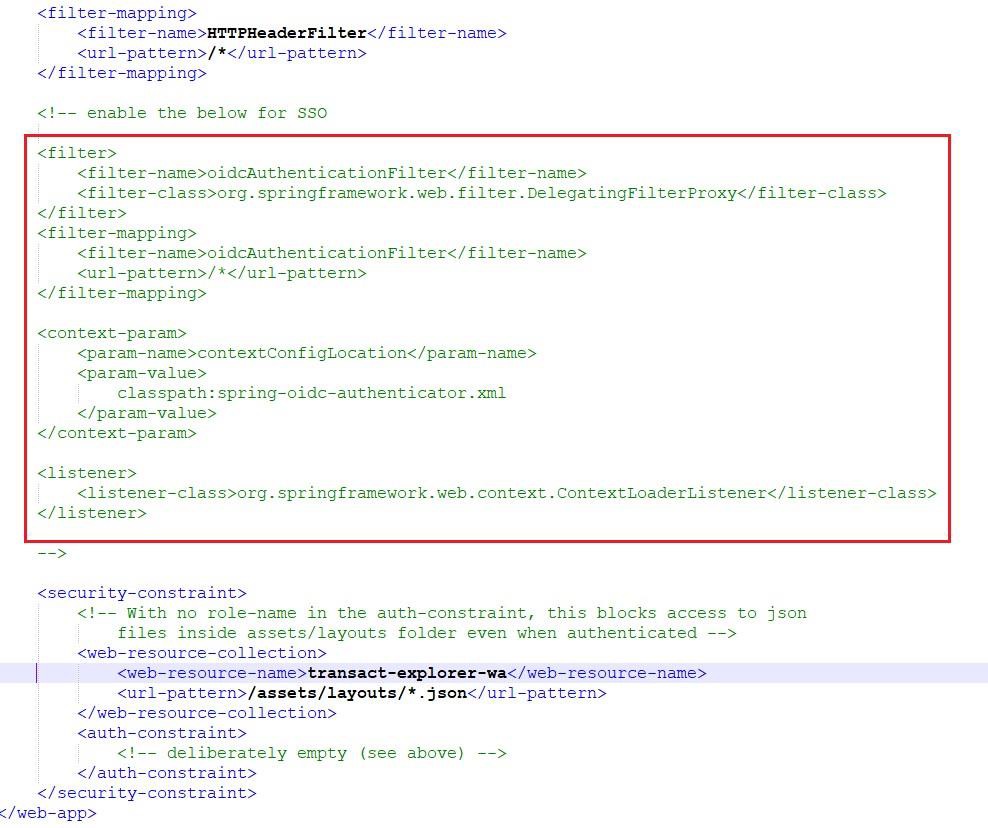
transact-explorer-wa.war/WEB-INF/classes/spring-oidc-authenticator.xml
For SSO enabled with OKTA, set the serverLogoutParameter property to ‘logoutredirect’. By default, this property is set to ‘commonAuthLogout’.
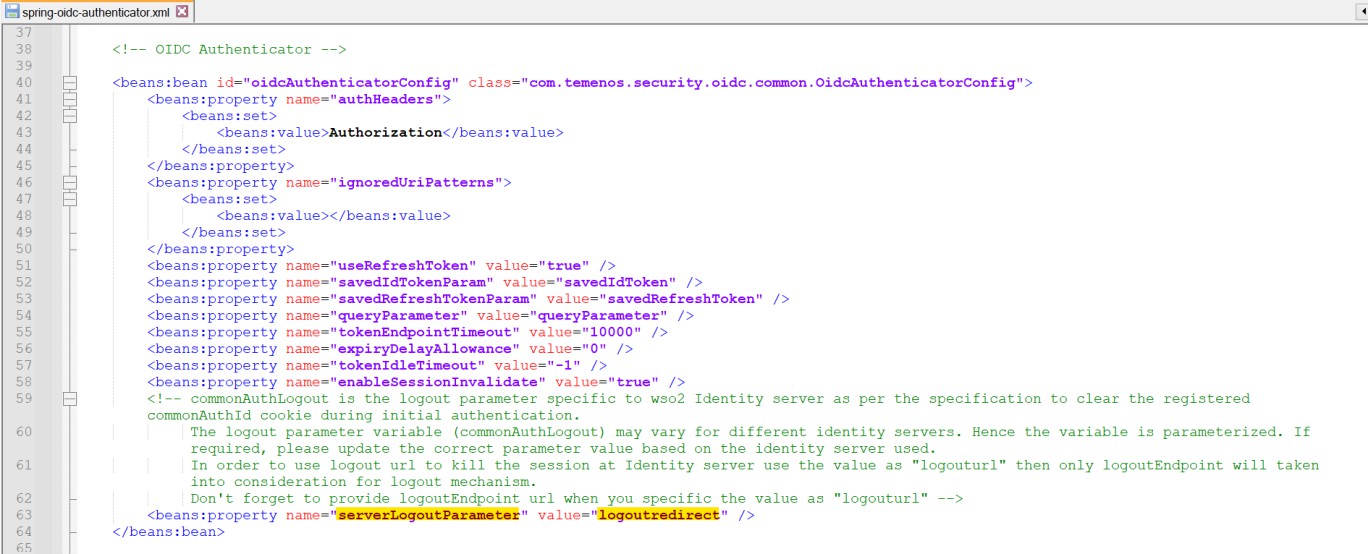
To configure the OIDC provider server,
- Navigate to the below URL and get the values for issuer, authzEndpoint, tokenEndpoint, logoutEndpoint, and pkJwksUri from the OKTA metadata.
https://dev-65312647-admin.okta.com/.well-known/openid-configuration?client_id=0oab9c8n2rntvz1rp5d7

-
In the spring-jwt-iris-authenticator.xml file, enter the following values:
- Issuer (value obtained from the previous step)
- Add a state parameter at the end of authzEndpoint as shown below: https://${yourOktaDomain}/oauth2/v1/authorize?state=babdhjajsbdj
- principalClaim as 'preferred_username'
- clientId - yourOktaClientId
- redirectUri - http://<host>:<port>/transact-explorer-wa
- Enter the OKTA client secret value in the defaultClientSecretProvider ID. Refer to Step 4 in the Creating Application section.
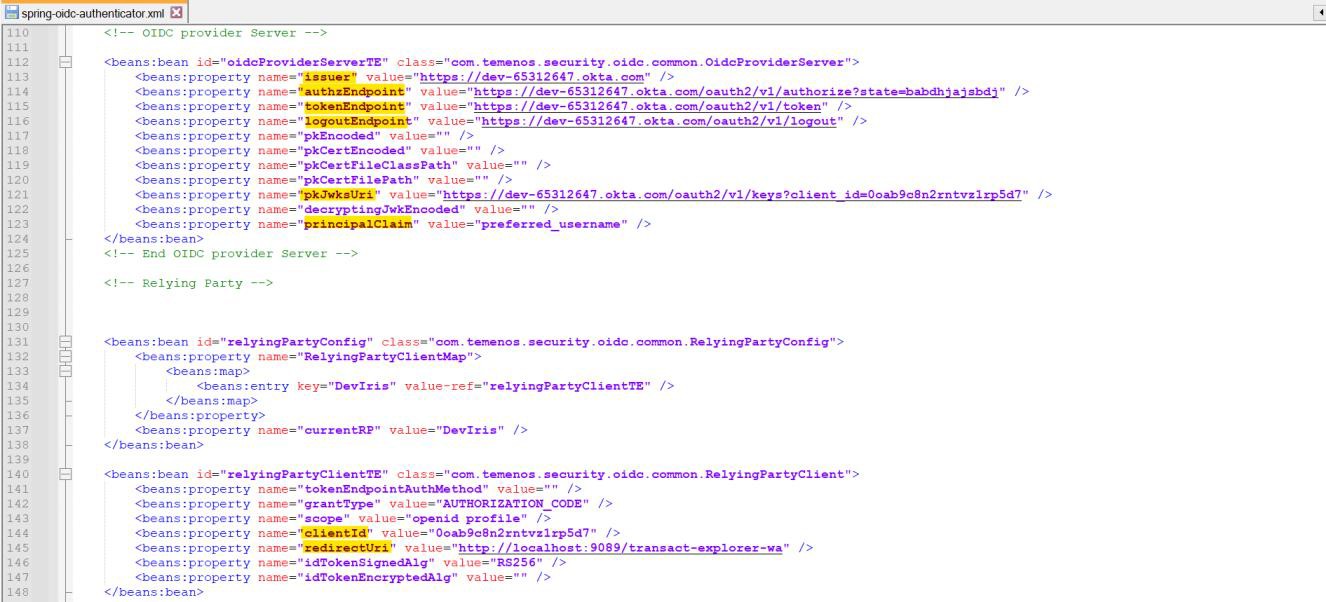

You have now successfully configured transact-explorer-wa.war.
Configuring Users in Transact
To configure a user in Transact,
- Create a new user profile with the Sign-On Name same as the user name created in OKTA.
- Set the PREAUTHENTICATED attribute for the user.
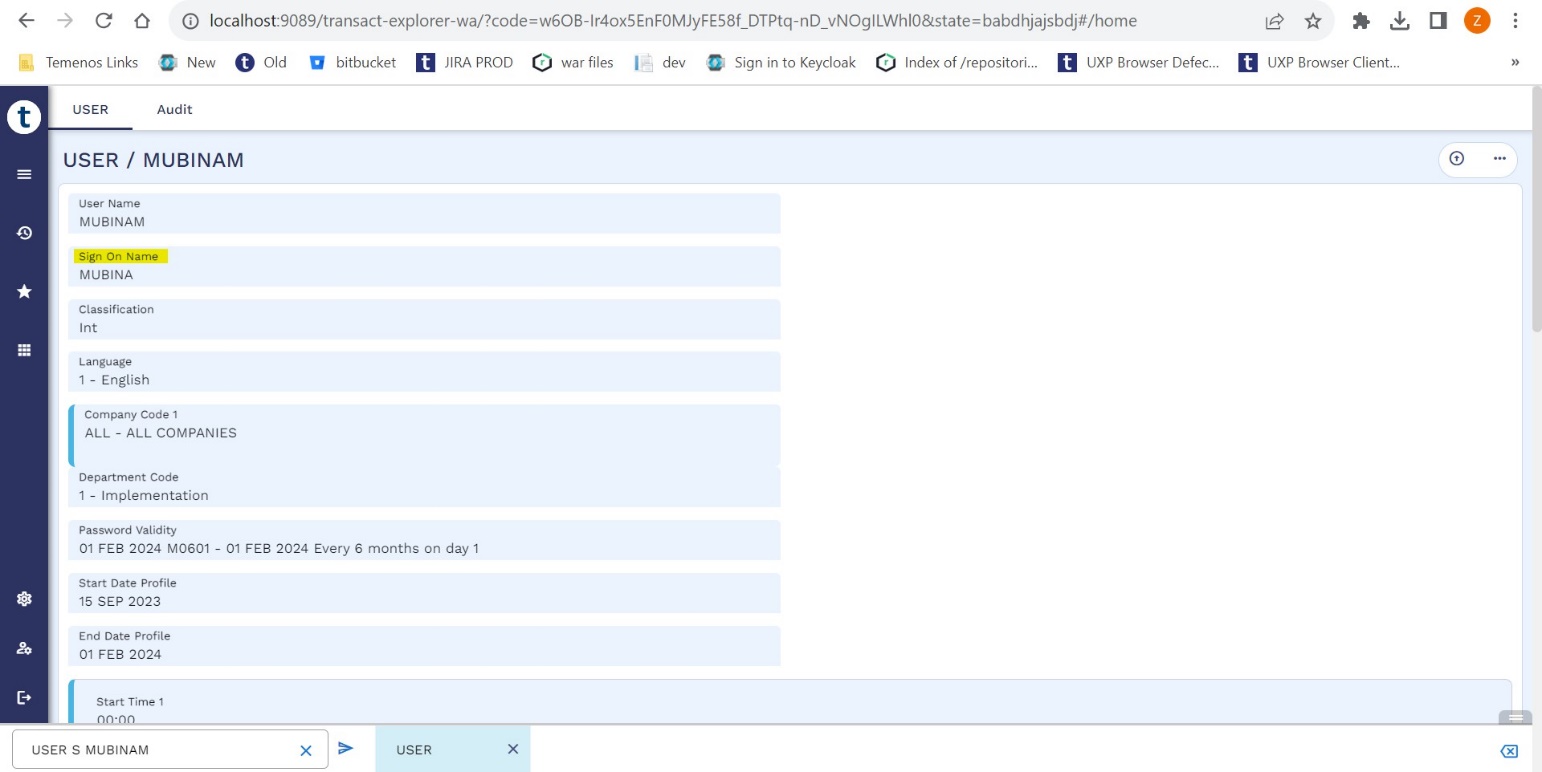
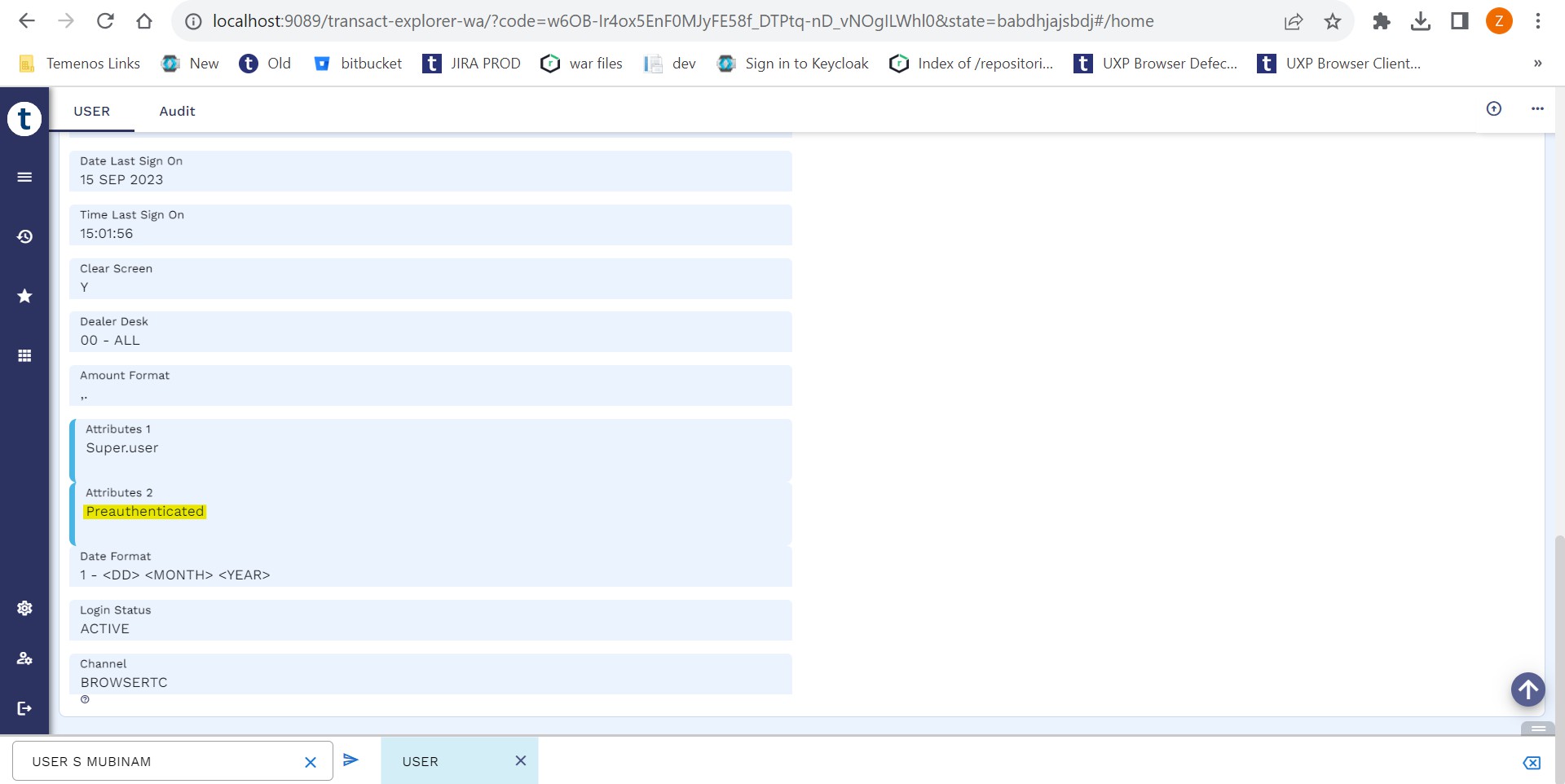
The user created in OKTA is now successfully configured in Transact.
To verify the OKTA integration with Transact,
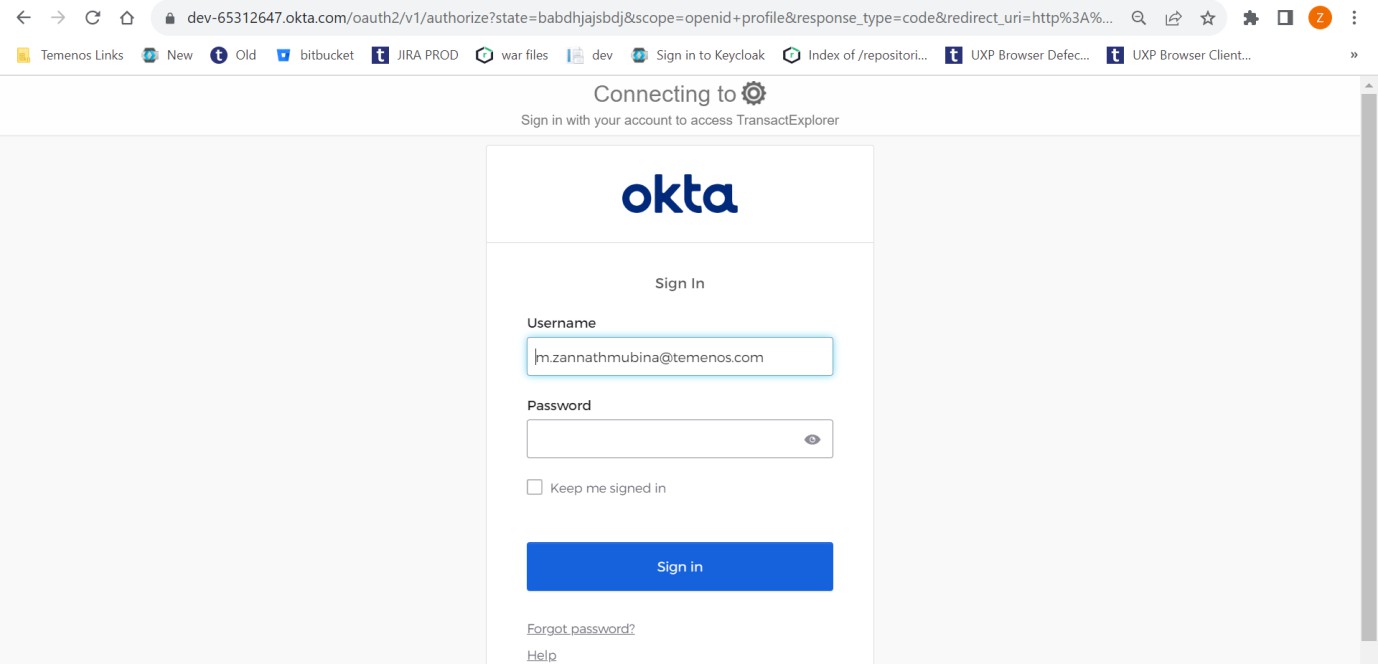
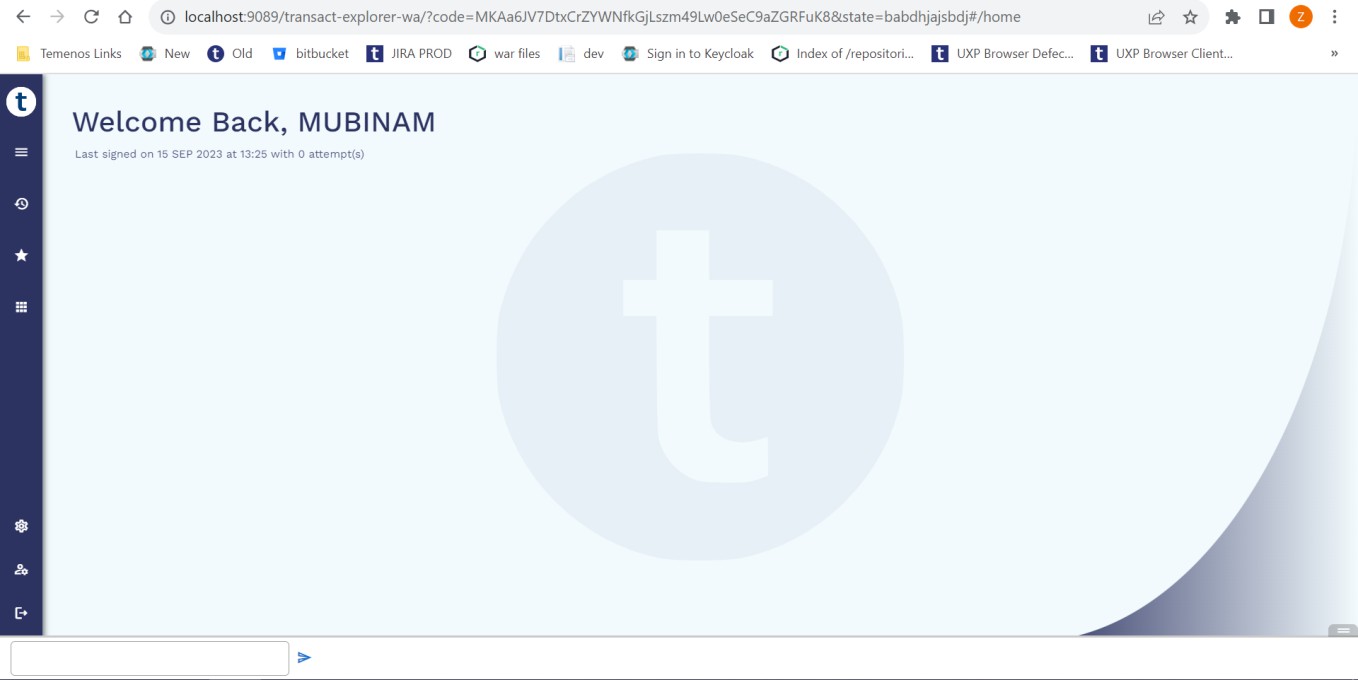
- Launch http://localhost:9089/transact-explorer-wa. The OKTA login page appears.
- Enter your credentials and sign in.
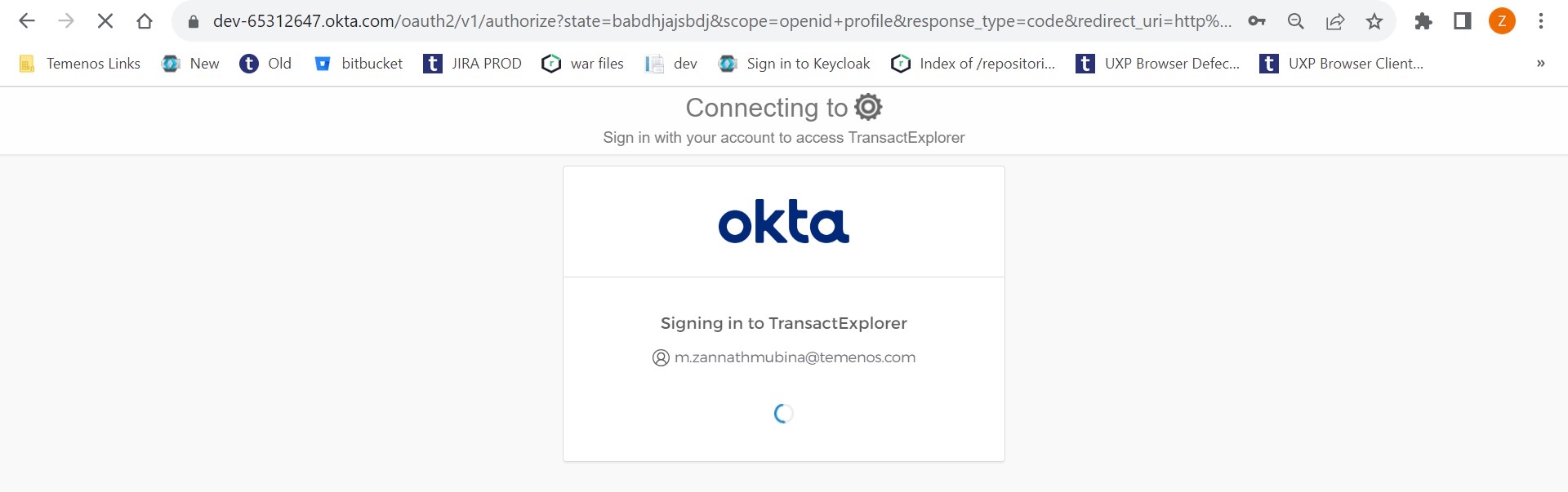
You are now redirected to Transact Explorer.
In this topic