Azure Deployment Artefacts
This section shows the folder structure of Marketing Catalog package. Marketing-Catalog Microservices for Azure deployment is available as release bundles with respect to databases as ms-marketingcatalog -package-azure-mongo<release_number>.zip and ms-marketingcatalog -package-azure-postgresql<release_number>.zip .

Deployment of Marketing-Catalog Microservice in Azure
MongoDB
The install.sh/install.bat or install-ms.sh/install-ms.bat script is used to deploy the Marketing-Catalog Microservices in Azure.
The destroy.sh/destroy.bat script to undeploy and remove the Azure services created in Azure environment.
Folder structure for the ms-marketingcatalog -package-azure-mongo<release_number>.zip

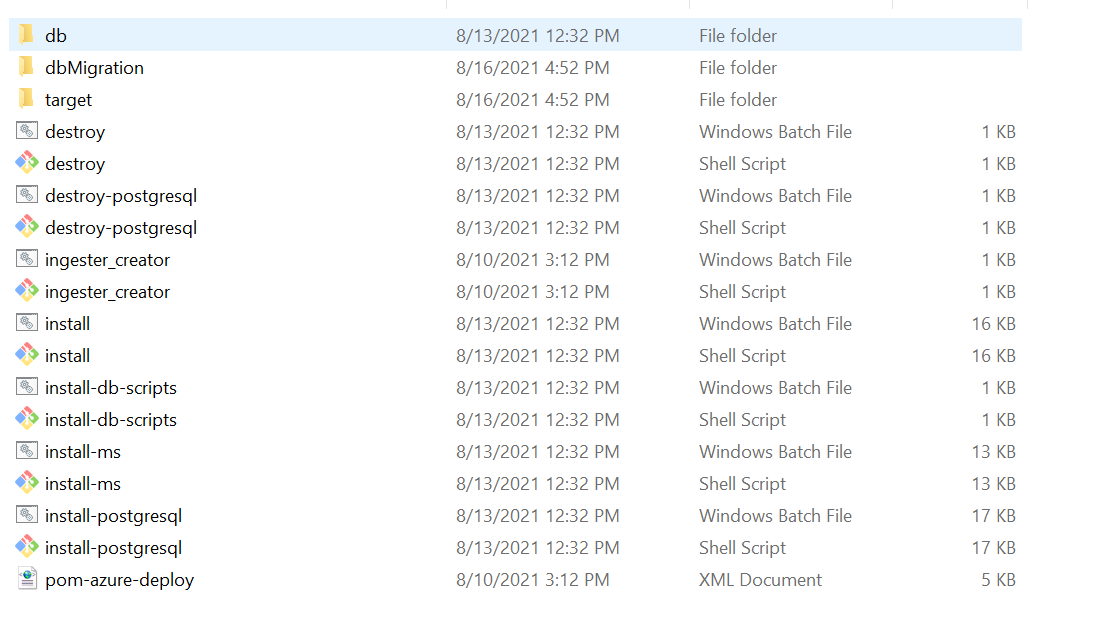
Pom-azure-deploy.xml file is getting used to deploy the azure function into the azure portal.

Prerequisite: Azure CLI, Maven, Mongo shell should be installed prior to the deployment and an active connection string of Mongo Atlas cluster is required.
- MONGODB_CONNECT_STR string must be obtained for Java driver version 3.4
- Download the mongo shell from the Mongo Atlas under the tab "connect with mongo shell" by clicking the connect button
- MONGOSHELL_CONNECT_STR string must be obtained under the tab "connect with MongoDB Compass" by clicking the connect button.
- Obtain the generated zip file (from target folder) in the installation directory. Unzip it.
- In command prompt, navigate to the installation directory.
- For BackOffice Ingestion, Change it to respective IP address of HTTP_BASE_PATH url provided in install.bat/install.sh .Please refer Ingestion for more configurations.
- Modify the Resource Group, Location, MONGODB_CONNECT_STR, MONGOSHELL_CONNECT_STR etc., in the install.sh/install.bat script specific to the installation. For example: SET MONGODB_CONNECT_STR="mongodb://Temenos:Temenos123@cluster0-shard-00-02.4o1ua.azure.mongodb.net:27017,cluster0-shard-00-00.4o1ua.azure.mongodb.net:27017,cluster0-shard-00-01.4o1ua.azure.mongodb.net:27017/ms_marketingcatalog?authSource=admin&gssapiServiceName=mongodb&replicaSet=atlas-vj913p-shard-0&ssl=true"
SET MONGOSHELL_CONNECT_STR="mongodb+srv://Temenos:Temenos123@cluster0.4o1ua.azure.mongodb.net"
- Default mongo.js file(Master Data) will be inserted into the MongoDB through install.bat/.shfile. Please follow the steps below to insert data other than master data
- Pre-requisite data can be loaded into Mongo DB through install-db-scripts.bat/.sh script file.
- Data can be loaded only through script files(.js).
- All the files need to be placed under folder path “ms-marketingcatalog-azure\target\azure-functions\<app folder>”.
- Below are the parameters need to send while executing the bat file.
|
uri |
need to provide Mongo string URL with username & password mentioned in the pre-requisite section |
| app_name | need to provide the app name which mentioned while deploying azure |
| scripts | need to provide the files names delimited by comma. |
- Command to execute
- For .bat file
- install-db-scripts.bat --uri <uri> --app_name <app_name> --scripts "<filename1>,<filename2>"
- Example :
- install-db-scripts.bat --uri --mongodb+srv://test:test@cluster0.4o1ua.azure.mongodb.net --app_name marketingcatalogapp --scripts "mongo1.js,mongo2.js"
- For .sh file
- install-db-scripts.sh --uri <uri> --app_name <app_name> --scripts <filename1>,<filename2>
- Example :
- install-db-scripts.sh --uri mongodb+srv://test:test@cluster0.4o1ua.azure.mongodb.net --app_name marketingcatalogapp --scripts mongo1.js,mongo2.js
- The default Azure function app name in the script can be changed. In case of app name changes, the folder available (ms-marketingcatalog-azure\target\azure-functions\<app folder>\) in the name of the app should also be renamed.
- To enable the in-house authentication in addition to the API key, perform the JWT Authentication in the installation scripts.
- Perform the XACML configurations in the installation scripts to enable security policies and access rights to the APIs,
- Perform Keycloak configuration in ingester container to enable third party authentication.
- Execute install.sh or install.bat.
| Script | Description |
|---|---|
| install sh / install.bat | To deploy all the necessary components for a Microservice including streaming services will be deployed, in order to run the Microservice independently. |
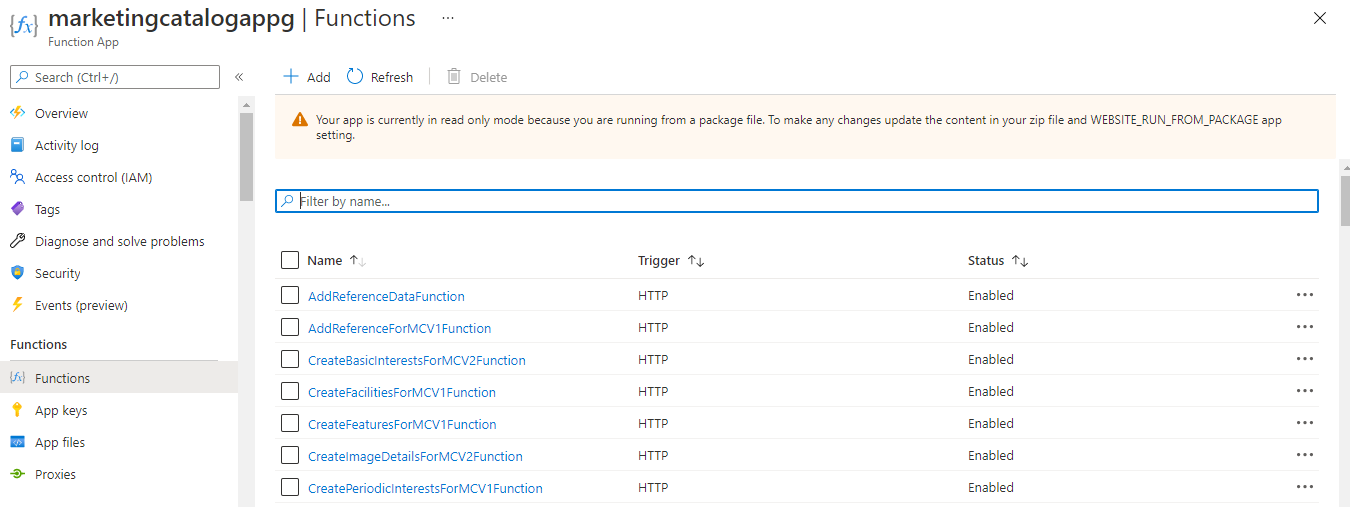
- Once the deployment is completed, Azure functions are created.
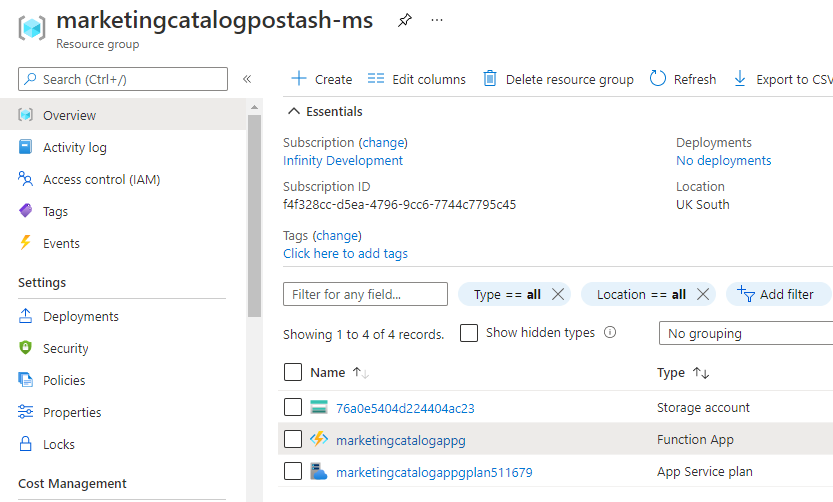
- Login into the Azure portal and check whether the Resource Group and Function app is created.
Resource Group:

Function App:
Marketing Catalog Functions:
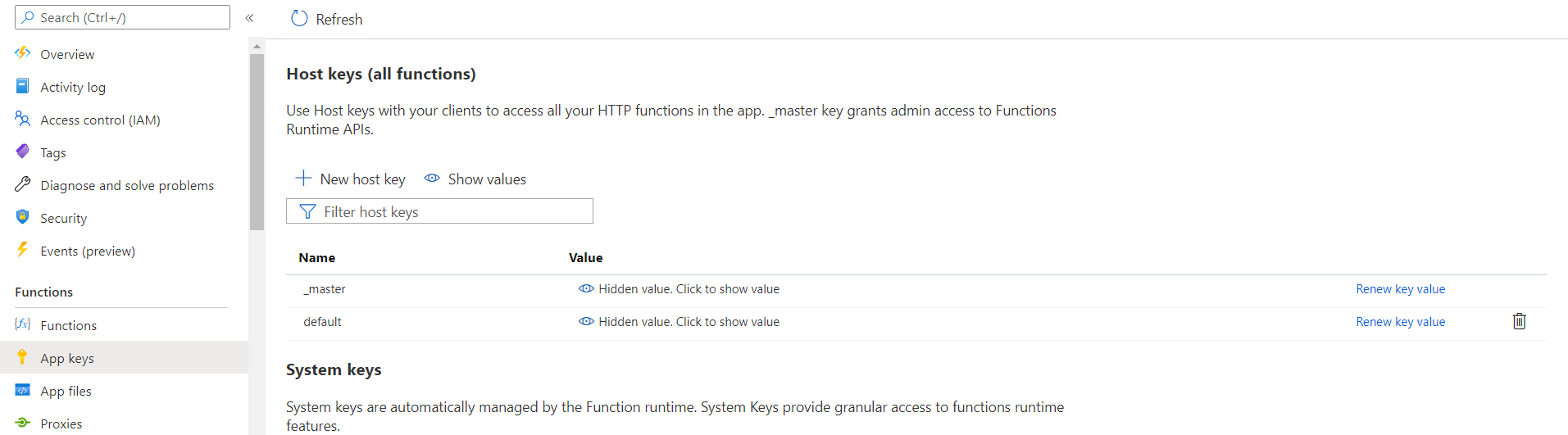
- API key for each endpoint in the function app can be obtained using the command, func azure functionapp list-functions <function-app-name> --show-keys or can be obtained alternatively, from the Azure function GUI.
- The endpoints of the azure function app can be obtained from the Azure Function App. Below is the URL of sample function.
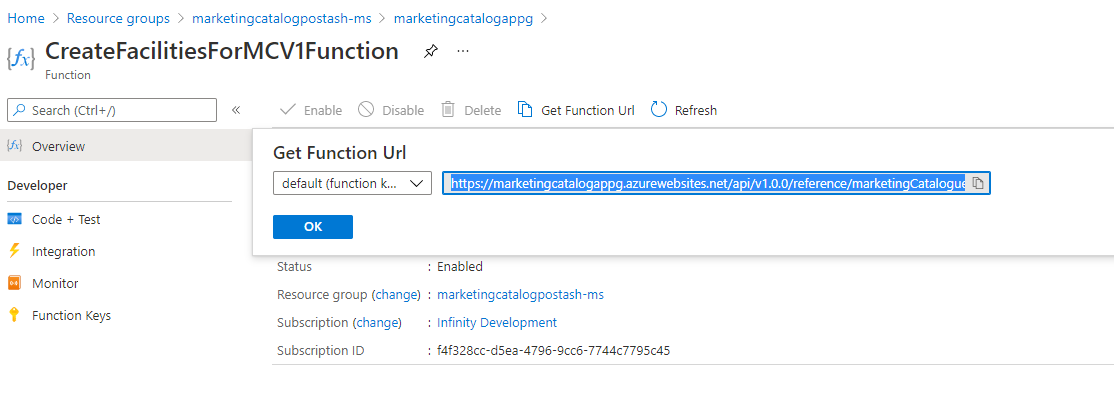
- The Get Function URL will provide the complete URL with API key.
- After the successful deployment, database, collections and the reference data(master data) are loaded into the mongo server database for Marketing Catalog Microservice.
In this topic