Installing Marketing Catalog Microservice on Azure
This section helps you to install the Marketing Catalog Microservice on Azure cloud.
Mongo DB
- The install.sh / install.bat or install-ms.sh / install-ms.bat script is used to deploy the Marketing Catalog Microservices in the Azure environment.
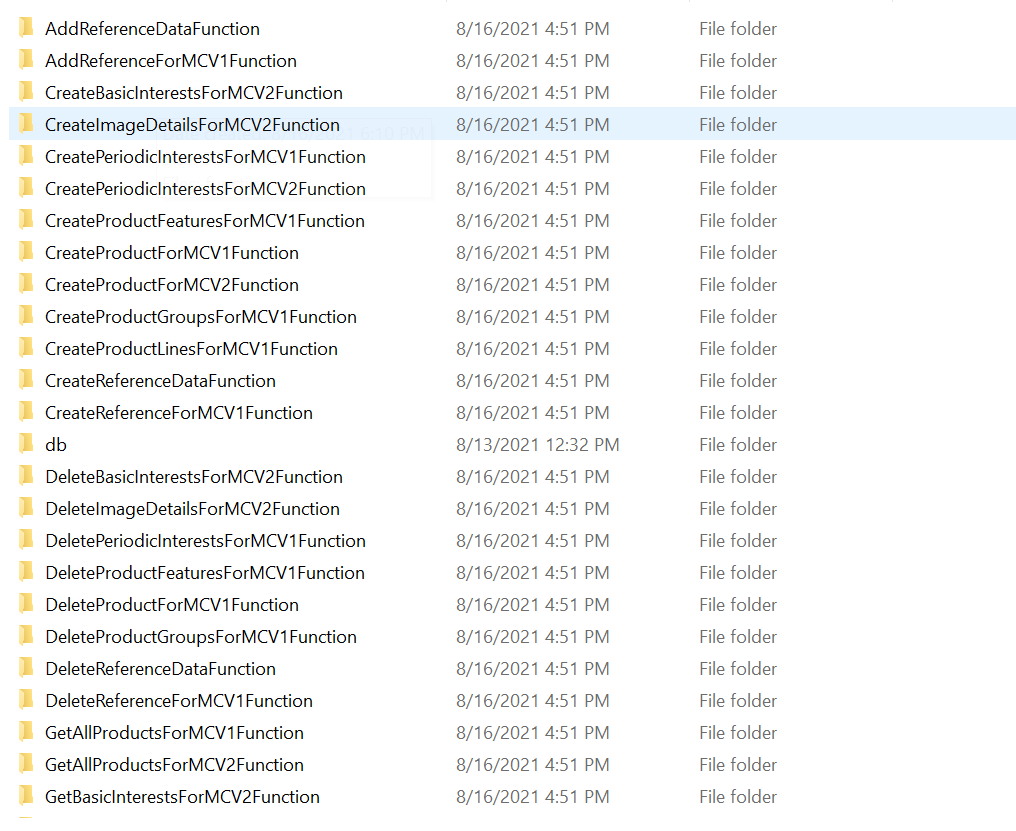
- The destroy.sh or destroy.bat script to undeploy and remove the Azure services created in Azure environment. Folder structure for the
ms-marketingcatalog -package-azure-mongo<release_number>.zip.
- The Pom-azure-deploy.xml file is getting used to deploy the azure function into the azure portal.
Prerequisites
The following are the prerequisites to install Azure on Mongo DB.
- Install the Azure Command Line Interface. For more information about the installation, click here.
- Install Maven.
- Install Mongo Shell.
- An active connection string of Mongo Atlas cluster. The Mongo Atlas Cluster must be acquired for Java driver version 3.4.
- MONGODB_CONNECT_STR string must be obtained for Java driver version 3.4.
- Download the mongo shell from the Mongo Atlas under the Connect with mongo shell tab by clicking Connect.
- MONGOSHELL_CONNECT_STR string must be obtained under the Connect with MongoDB Compass by clicking Connect.
To deploy Marketing Catalog Microservice on Azure, follow these steps.
- Download and extract the zip file.
- In a command prompt, go to the installation directory.
- For the BackOffice ingestion, change it to the respective IP address of HTTP_BASE_PATH url provided in the following files:
- install.bat/install.sh for Mongo DB
- install-postgresql.bat/install-postgresql.sh for Postgresql
For more configurations, refer to Ingestion.
- Modify the details such as resource group, location, MONGODB_CONNECT_STR, MONGOSHELL_CONNECT_STR, and so on., in the install.sh or install.bat script specific to the installation.
SET MONGODB_CONNECT_STR="mongodb://Temenos:Temenos123@cluster0-shard-00-02.4o1ua.azure.mongodb.net:27017,
cluster0-shard-00-00.4o1ua.azure.mongodb.net:27017,cluster0-shard-00-01.4o1ua.azure.mongodb.net:27017/
ms_marketingcatalog?authSource=admin&gssapiServiceName=mongodb&replicaSet=atlas-vj913p-shard-0&ssl=true"
SET MONGOSHELL_CONNECT_STR="mongodb+srv://Temenos:Temenos123@cluster0.4o1ua.azure.mongodb.net"
- Default mongo.js file (Master Data) is inserted into the MongoDB through the install.bat/.sh file. You can insert data other than master data by using the following steps:
- Pre-requisite data can be loaded into Mongo DB through install-db-scripts.bat/.sh script file.
- Data can be loaded only through script files (.js).
- All the files need to be placed under folder path
ms-marketingcatalog-azure\target\azure-functions\<app folder>. - The following are the required parameters while executing the bat file.
Parameter Description uri
Need to provide Mongo string URL with username & password mentioned in the pre-requisite section
app_name
Need to provide the app name which mentioned while deploying azure
scripts
Need to provide the files names delimited by comma
- Command to execute :
- For .bat file :
install-db-scripts.bat --uri <uri> --app_name <app_name> --scripts "<filename1>,<filename2>"
install-db-scripts.bat --uri --mongodb+srv://test:test@cluster0.4o1ua.azure.mongodb.net --app_name
 marketingcatalogapp --scripts "mongo1.js,mongo2.js"
- For .sh file
install-db-scripts.sh --uri <uri> --app_name <app_name> --scripts "<filename1>,<filename2>"
install-db-scripts.sh --uri mongodb+srv://test:test@cluster0.4o1ua.azure.mongodb.net  --app_name
 marketingcatalogapp  --scripts mongo1.js,mongo2.js
- For .bat file :
- The default Azure function app name in the script can be changed. In case of app name changes, the folder available (ms-marketingcatalog-azure\target\azure-functions\<app folder>\) in the name of the app should also be renamed.
- To enable the internal authentication in addition to API key, perform the JWT authentication in the installation scripts.
- To enable security policies and access rights to the APIs, perform the XACML configurations in the installation scripts.
- To enable third party authentication, perform Keycloak configuration in ingester container.
- Run the deployment script to create the resources in Azure.
Script Description install.sh / install.bat To deploy all the necessary components for a Microservice including streaming services, in order to run the Microservice independently. After the installation completes, all the functions are created in Azure.
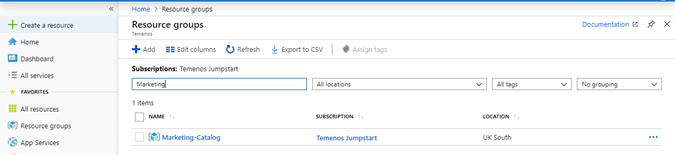
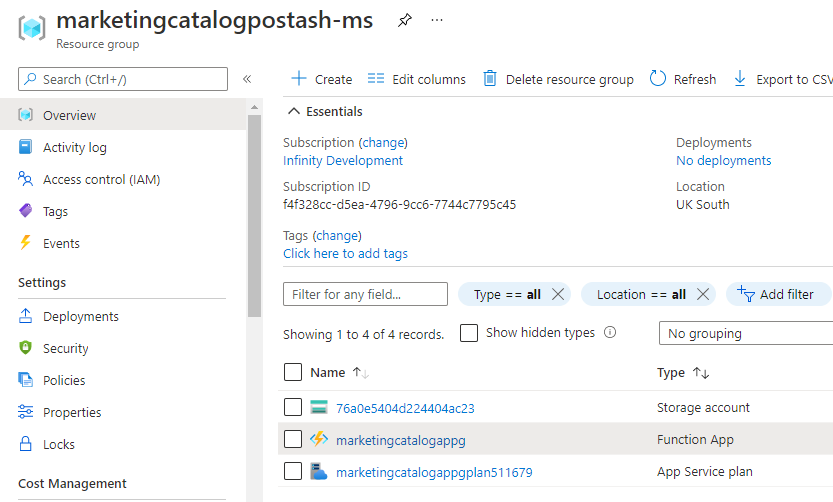
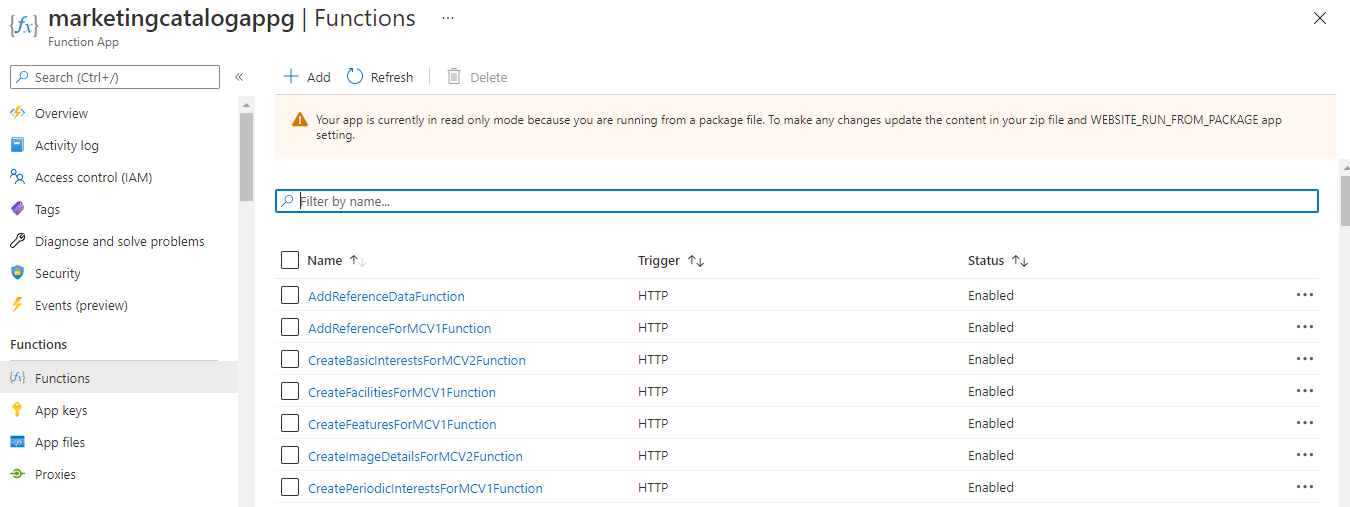
- Log in to Azure portal and check if the following have been created.
- Resource Group
- Function App
- Marketing Catalog App
- Resource Group
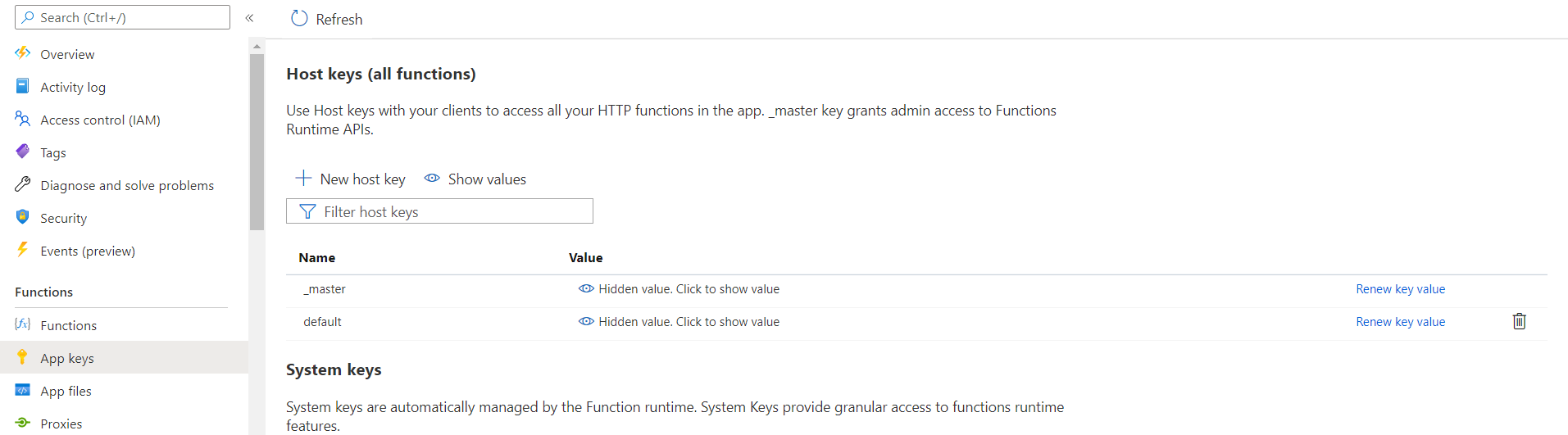
- You can retrieve the API key for each endpoint in the function app using the command below.
func azure functionapp list-functions <function-app-name> --show-keys
- You can also retrieve the API key using the Azure function GUI as shown below.
You can retrieve the endpoints of the azure function app from the Azure Function App. Below is the URL of sample function app.
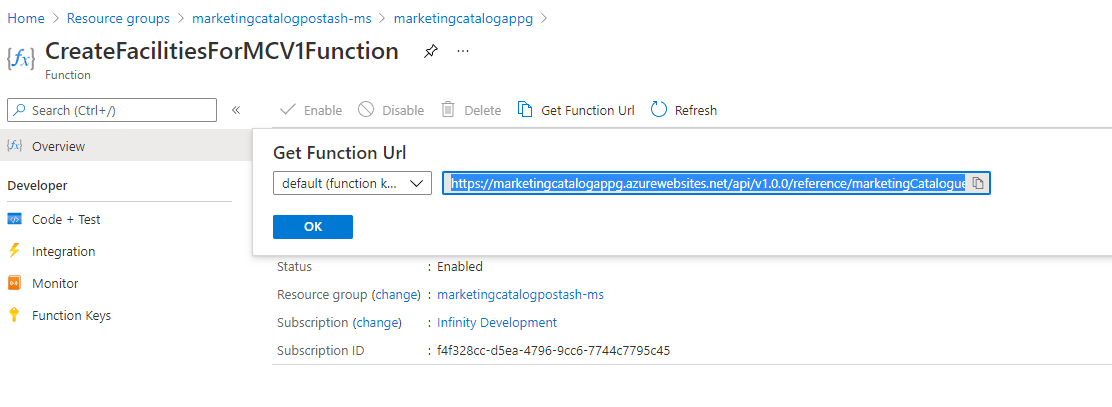
- The Get Function URL provides the complete URL with API key.
- After the successful deployment database, collections and the reference data (master data) are loaded into the Mongo database for Marketing Catalog Microservice.
PostgreSQL DB
- The
install-postgresql.sh/install-postgresql.batscript is used to deploy the Marketing-Catalog Microservices in the Standalone Mode. - The
destroy-postgresql.sh/destroy-postgresql.batscript to undeploy and remove the Azure services created in the Azure environment.
- Folder structure for the
ms-marketingcatalog -package-azure-postgresql<release_number>.zip.
Prerequisites
Before deploying marketing catalog Microservice on Azure ensure you have the following:
- Install the Azure Command Line Interface. For more information about the installation, click here.
- Install Maven.
To deploy Marketing Catalog Microservice on Azure, follow these steps.
- Download and extract the zip file.
- In a command prompt, go to the installation directory.
- For the BackOffice ingestion, change it to the respective IP address of HTTP_BASE_PATH url provided in install-postgresql.bat/install-postgresql.sh. For more configurations, refer to Ingestion.
- The default initmsdb.sql file(Master Data) is inserted into the PostgreSQL.
- The default Azure function app name in the script can be changed. In case of app name changes, the folder available (ms-marketingcatalog-azure\target\azure-functions\<app folder>\) in the name of the app should also be renamed.
- To enable the internal authentication in addition to API key, perform the JWT authentication in the installation scripts.
- To enable security policies and access rights to the APIs, perform the XACML configurations in the installation scripts.
- Perform Keycloak configuration in ingester container to enable third party authentication.
- Run the deployment script to create the resources in Azure.
Script Description install-postgresql.sh / install-postgresql.bat To deploy all the necessary components for a Microservice including streaming services will be deployed, in order to run the Microservice independently. - After the installation completes, all the functions are created in Azure.
- Log in to Azure portal and check if the following have been created.
- Resource Group
- Function App
- Marketing Catalog App
- Resource Group
- You can retrieve the API key for each endpoint in the function app using the command below.
func azure functionapp list-functions <function-app-name> --show-keys
- You can also retrieve the API key using the Azure function GUI as shown below.
- You can retrieve the endpoints of the azure function app from the Azure Function App. Below is the URL of sample function app.
The Get Function URL provides the complete URL with API key.
- After the successful deployment database, collections and the reference data (master data) are loaded into the postgreSQL database for Marketing Catalog Microservice.
In this topic