Installing Holdings Microservice in Azure
This section helps you to install the Holding Microservice in Azure.
MongoDB
To install the Holdings Microservice in Azure using MongoDB, follow these steps:
- Copy and extract the generated zip file (from the target folder) in the installation directory.
To run sh scripts, a Linux box or WSL or Mac OS is required. gitBash is not supported for azure cli currently.
- In the command prompt, navigate to the installation directory.
- Ensure that the folder name inside target/azure-functions is same as functionApp name you have provided in the script.
- Modify the resource group, location, database details and so on in the installMongo.sh or installMongo.bat script specific to the installation. Ensure any property name is changed in multiple areas across the script, if any.
This script expects an event hub connection for both T24(des) and Account Aggregation. In case of Account Aggregation, ensure you run the account aggregation script first and provide the event hub details. In case of T24(des), modify the event hub connection details for t24AmsApp in the script. If the event hub is not present, and you will use the APIs only, then no change is required. You might see some errors related to JSON decoding which can be safely ignored as the remaining part of the script will continue to be executed.
- In case of a multiple instance deployment, provide a unique value to
DEPLOYMENT_ENVIRONMENTproperty ininstall-mongo.bat/install-mongo.shfile, which creates unique Resource Group and app name
If theDEPLOYMENT_ENVIRONMENTproperty is not provided with any value, the default value of Resource Group and app name will be considered.
This script expects an event hub connection for transact (t24), account aggregation, and event processor (follow the pre-requisite) - Execute installMongo.sh or installMongo.bat. The functions are created in Azure after the installation is done.
- Login to Azure portal and check if resourcegroup and functionsapps is properly created.
- Navigate from the command prompt to the directory where the .bat and .sh files are available and execute the following command,
- for Windows: install-mongo.bat
- for Linux: bash install-mongo.sh
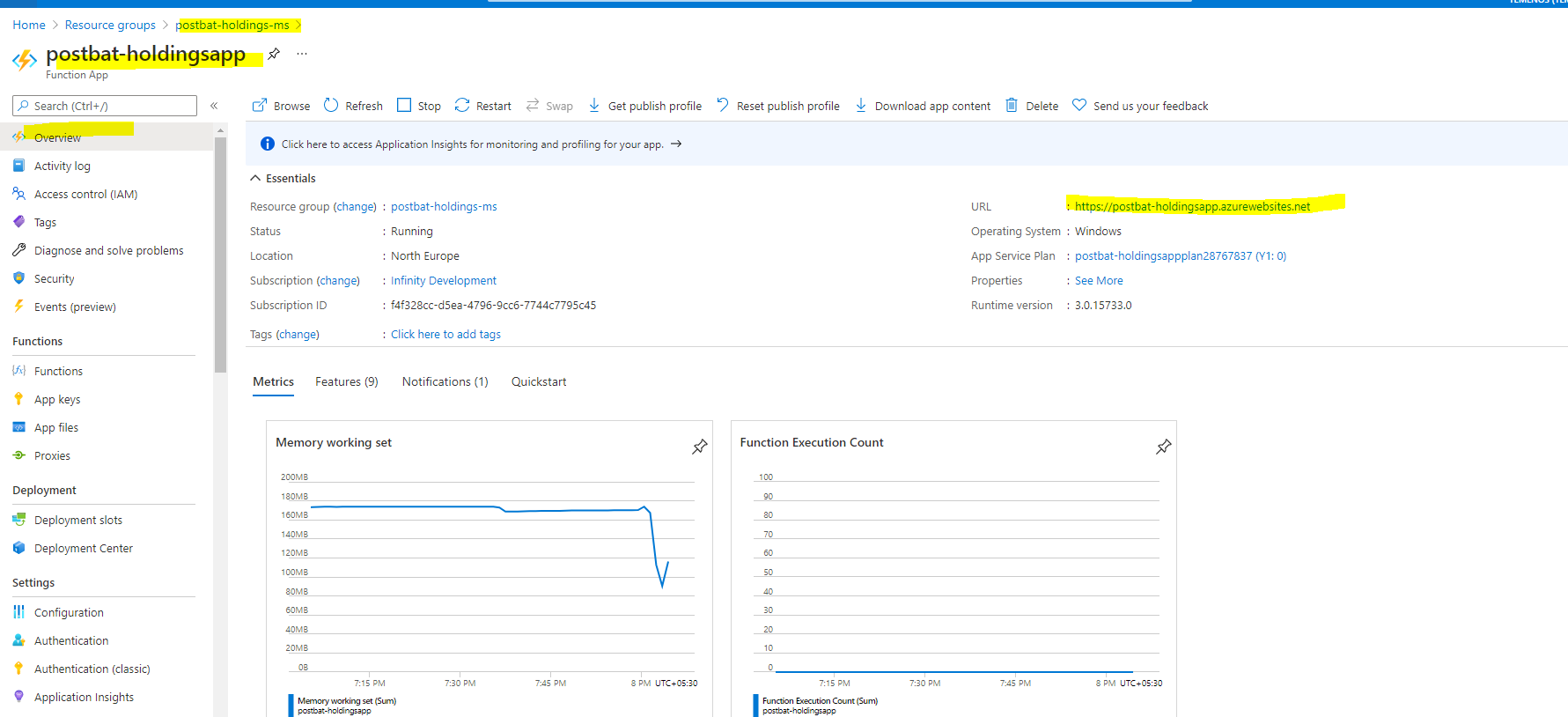
The master key token can be retrieved from the Azure portal, navigating as highlighted:

To invoke the Azure functions use:
The query parameter code as key and masterKeyToken fetched as value.
Alternatively, the Header x-functions-key as key and masterKeyToken fetched as value.
Add the command in Azure Install.bat file and set the following environmental variables:
RESOURCE_GROUP_NAME
APP_NAME
subscriptionid rem command to get the subscription Id
call az account list | python -c "import json,sys;
obj=json.load(sys.stdin); print(obj[0]['id'])" >> out.txt
SET /p subscriptionid=< out.txt
masterKeyToken rem command to get the master API token.
call az rest --method post --uri "/subscriptions/%subscriptionid%/
resourceGroups/%RESOURCE_GROUP_NAME%/providers/Microsoft.Web/sites/
%APP_NAME%/host/default/listKeys?api-version=2018-11-01" | python -c
 "import json,sys;obj=json.load(sys.stdin); print(obj['masterKey'])"
>> out.txt SET /p masterKeyToken=< out.txt
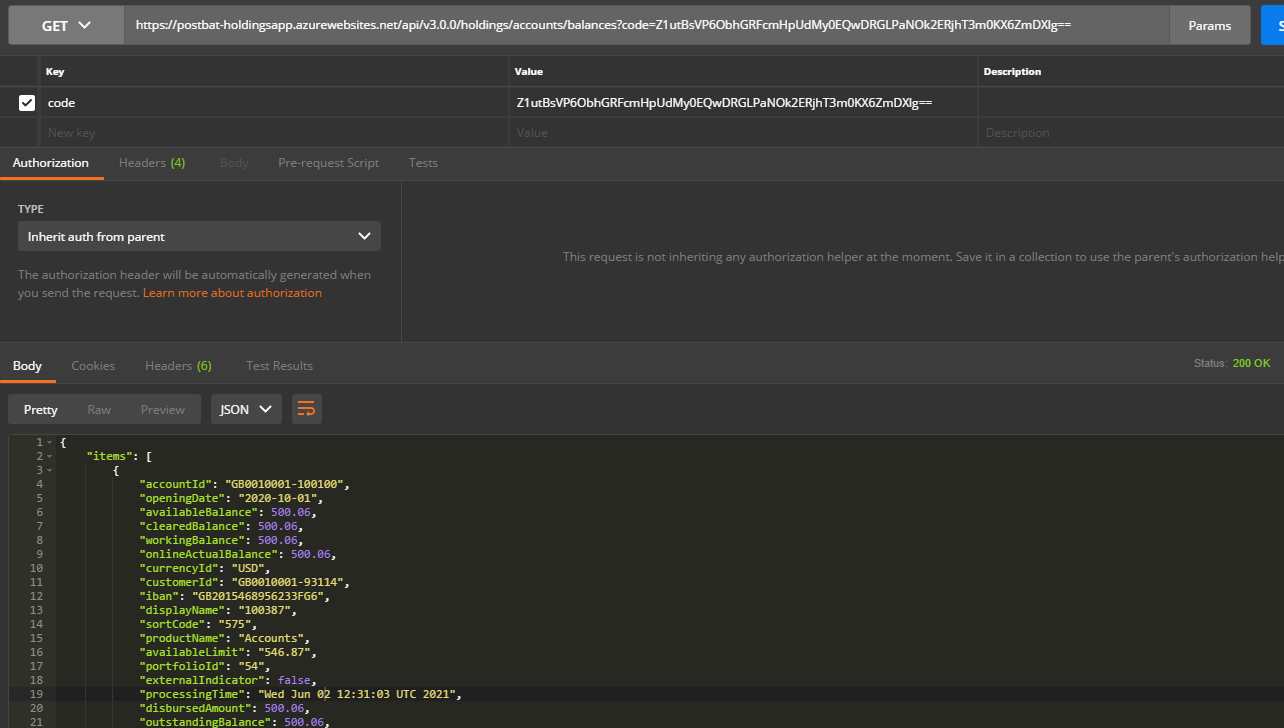
Furthermore, it can be hit from the postman also.
PostgreSQL
To install the Holdings Microservice in Azure using PostgreSQL, follow these steps:
- Copy the generated zip file (from the target folder) in the installation directory.
- Extract the zip file.
To run sh scripts, a Linux box or WSL or Mac OS is required. gitBash is not supported for azure cli currently.
- In the command prompt, navigate to the installation directory. Ensure that the folder name inside target/azure-functions is same as functionApp name you have provided in the script.
- In case of a multiple instance deployment, provide a unique value to
DEPLOYMENT_ENVIRONMENTproperty ininstall-postgresql.bat/install-postgresql.shfile, which creates unique Resource Group and app name.
If theDEPLOYMENT_ENVIRONMENTproperty is not provided with any value, the default value of Resource Group and app name will be considered.
This script expects an event hub connection for transact (t24), account aggregation, and event processor (follow the pre-requisite) - Execute installPostgre.sh or installPostgre.bat. The functions are created in Azure after the installation is done.
- Login to Azure portal and check if resourcegroup and functionsapps is properly created.
- Navigate from the command prompt to the directory where the .bat and .sh files are available and execute the following command,
- for Windows: install-postgresql.bat
- for Linux: bash install-postgresql.sh
The master key token can be retrieved from the Azure portal, navigating as highlighted:
To invoke the Azure functions use:
The query parameter code as key and masterKeyToken fetched as value.
Alternatively, the Header x-functions-key as key and masterKeyToken fetched as value.
Add the command in Azure Install.bat file and set the following environmental variables:
RESOURCE_GROUP_NAME
APP_NAME
subscriptionid rem command to get the subscription Id
call az account list | python -c "import json,sys;
obj=json.load(sys.stdin); print(obj[0]['id'])" >> out.txt
SET /p subscriptionid=< out.txt
masterKeyToken rem command to get the master API token.
call az rest --method post --uri "/subscriptions/%subscriptionid%/
resourceGroups/%RESOURCE_GROUP_NAME%/providers/Microsoft.Web/sites/
%APP_NAME%/host/default/listKeys?api-version=2018-11-01" | python -c
 "import json,sys;obj=json.load(sys.stdin); print(obj['masterKey'])"
>> out.txt SET /p masterKeyToken=< out.txt
Furthermore, it can be hit from the postman also.
In this topic