Deploying Party Microservice on Kubernetes (K8)
This section explains how to deploy the Party Microservice on K8. To do so, you need to perform the following tasks:
Deployment Artefacts
The Party Microservice for K8 deployment is available as a single release bundle. For example, ms-party-package-docker-<release_number>.zip.
Deploying Party Microservice on K8
Prerequisites
Before deploying Party Microservice on K8, ensure to meet the following prerequisites:
- Install the Docker engine on your deployment environment. For more information about the installation, click here.
- Turn on the Linux containers in Docker.
Enabling Kubernetes:
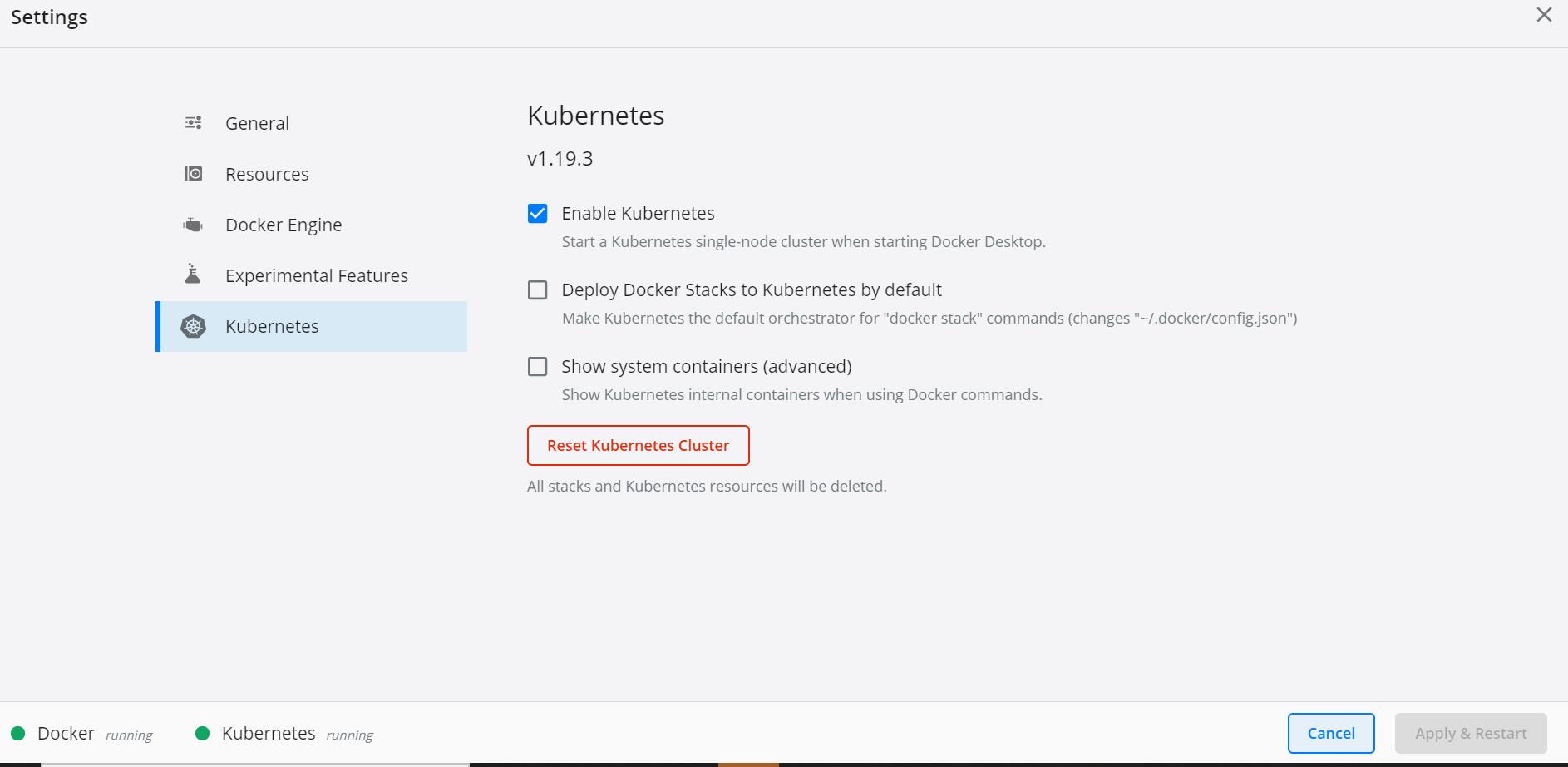
- After the Docker is installed, enable Kubernetes in the Docker Desktop app.
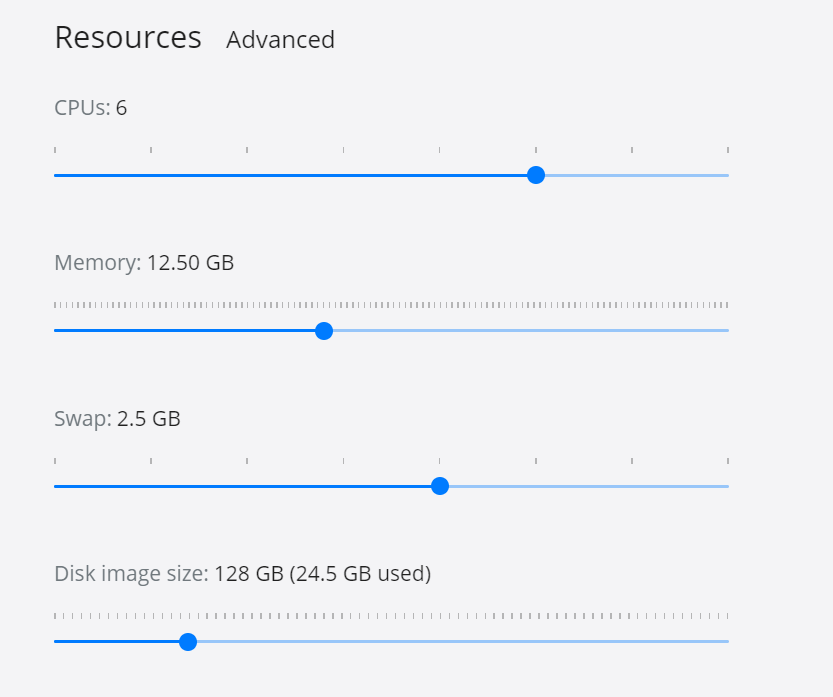
- Kubernetes requires a minimum of six CPUs to run smoothly. Go to Docker settings → Resources, and increase the CPU and Memory as shown here.
- Install Helm and set the helm path as an environment variable on the system.
Deployment of Party Microservice in Docker
- Extract the
ms-party-package-docker-<release_number>.zipfile.
The extracted package contains the configuration files. Go to k8/on-premise.
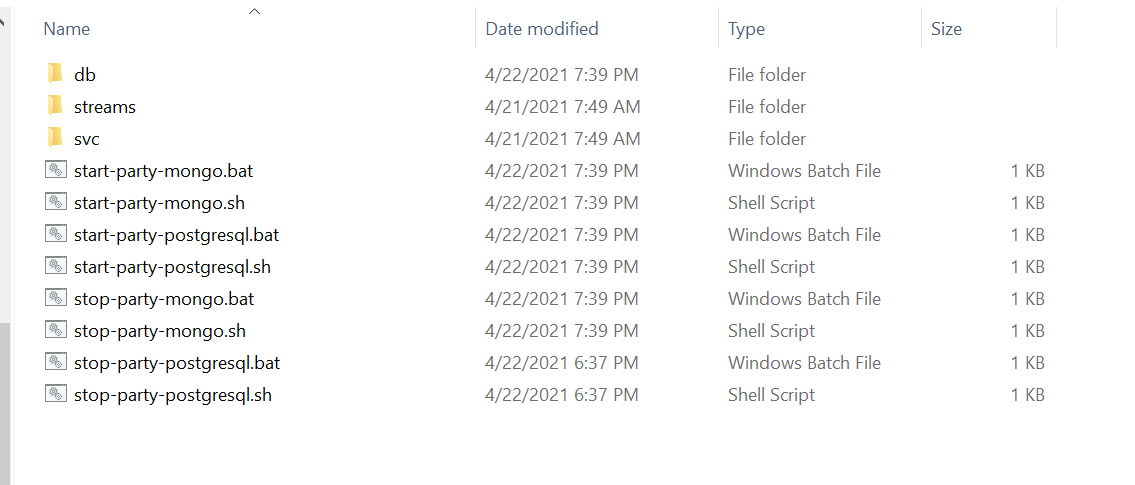
- Open the Command Prompt in an On-Premise folder.
If Strimzi is not installed in the machine, go to the Streams folder and run ./strimzi-install.sh.Repeat this step if the Kubernetes cluster resets.
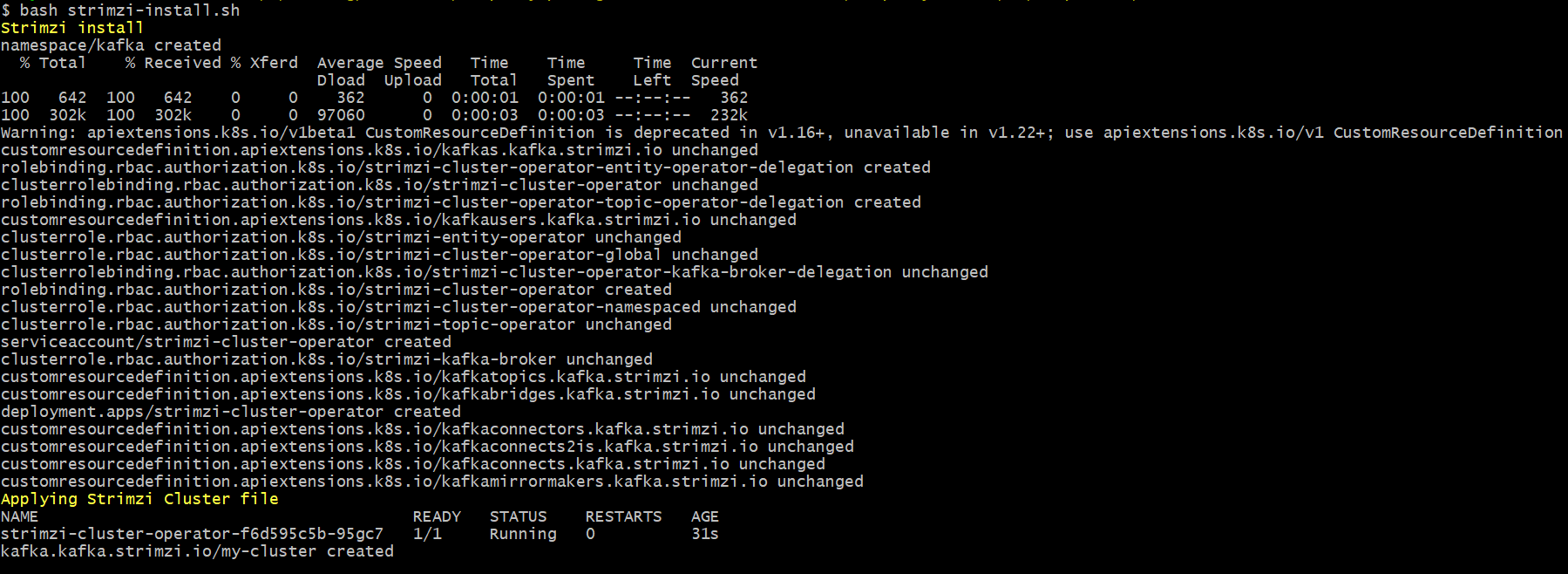
- To check if pods are up and running, execute kubectl get pods -n kafka.

- To enable authorization and authentication, follow these steps:
- In addition to the API key, enable JWT Authentication in party-configmap.yml.
- To enable security policies and access rights to the APIs, perform the XACML configurations in party-configmap.yml.
- Below are the list of containers with its CPU memory limit.
Containers Memory Limit API 812M Inbox-Outbox 812M Ingester 1G MDAL Ingester 1G Scheduler 1G
Deployment of Party Microservice K8 Images
For MongoDB
- Party Microservices for K8 deployment is available as single release bundle party-helm-mongo-pack-<release_number>.zip to load the docker images and then deploy the service in Kubernetes cluster for MongoDB. Unzip the party-helm-pack-mongo file, which contains the required images as the tar file.

- Navigate to the folder where the service, ingester, and database images are available.
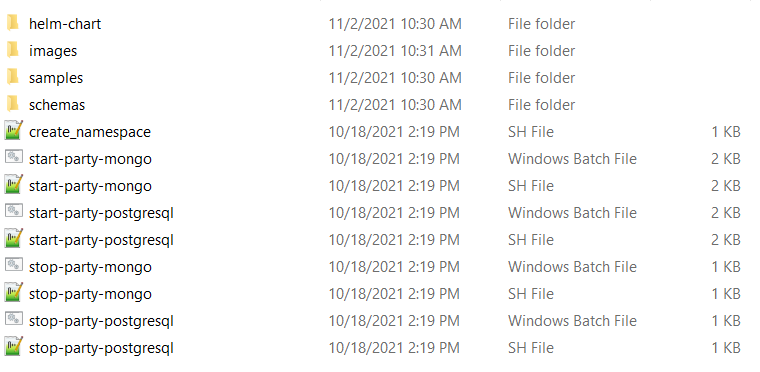
- Navigate inside the images folder.
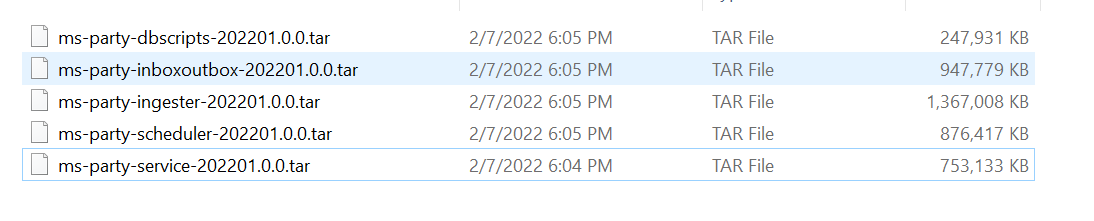
- Open a command prompt and load the images on the docker using the command docker load --input <image-name>.
...\party-helm-mongo-pack\party\images> docker load --input ms-party-ingester-202201.0.0.tar
Loaded image: temenos/ms-party-ingester:202201.0.0
...\party-helm-mongo-pack\party\images> docker load --input ms-party-dbscripts-202201.0.0.tar
Loaded image: temenos/ms-party-dbscripts:202201.0.0
...\party-helm-mongo-pack\party\images> docker load --input ms-party-service-202201.0.0.tar
Loaded image: temenos/ms-party-service:202201.0.0
...\party-helm-mongo-pack\party\images> docker load --input ms-party-inboxoutbox-202201.0.0.tar
Loaded image: temenos/ms-party-inboxoutbox:202201.0.0
- Once the images are loaded in to the K8, start the mongo scripts by navigating to the party-helm-mongo-pack folder where the bat and sh files are available.
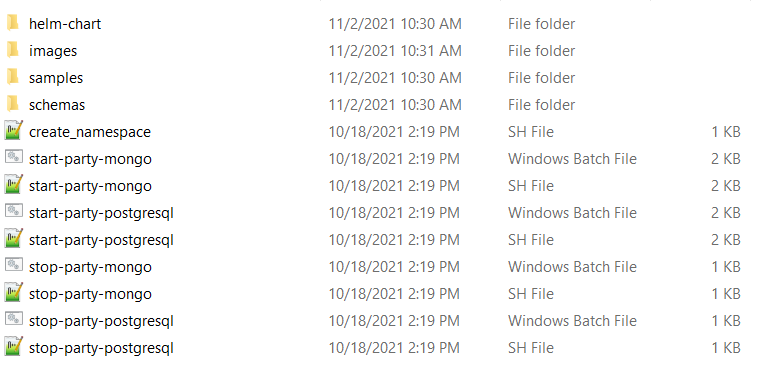
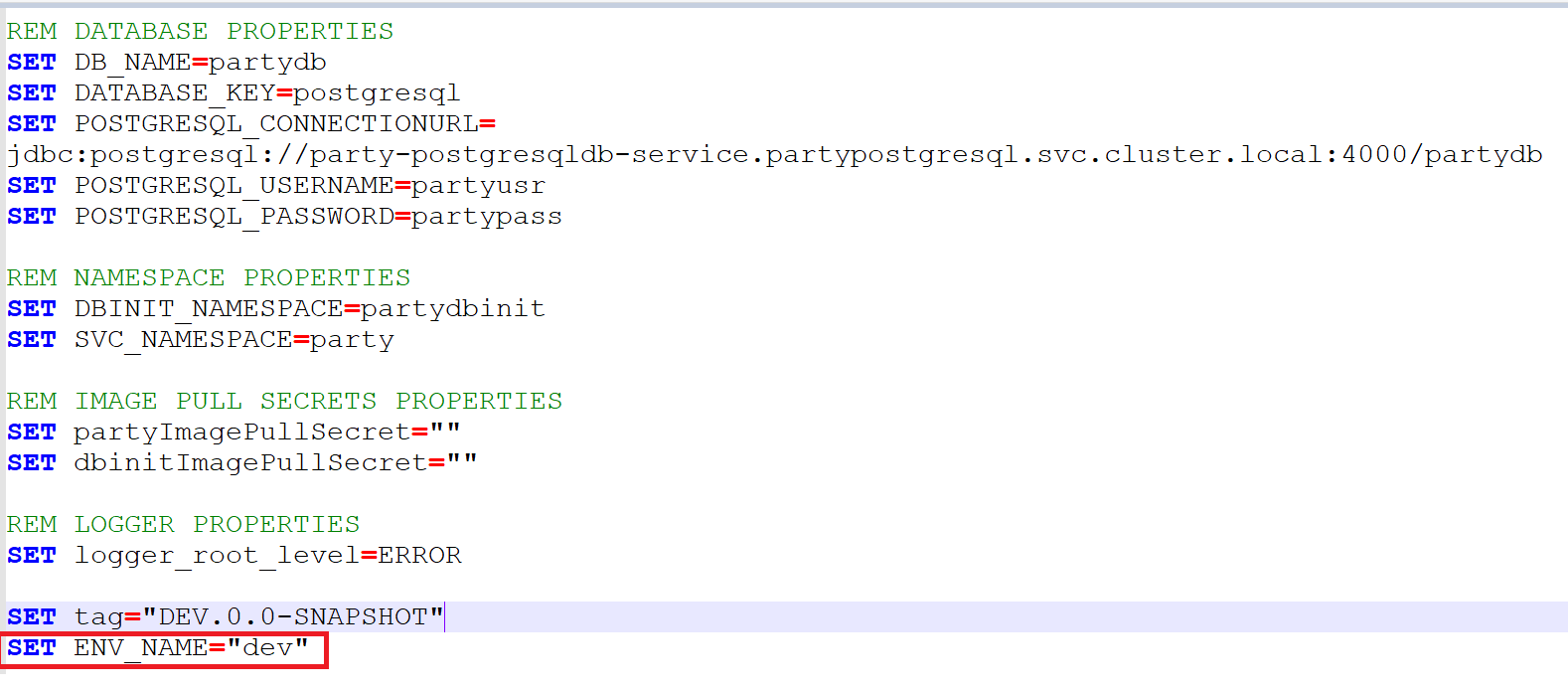
- Open the executable file and edit the environment-specific deployment variable with user-defined values if required.
- Once all the configurations are done, start the Microservice by navigating to the folder where the .bat and .sh files are available. Under the party-helm-pack-mongo folder and run below code
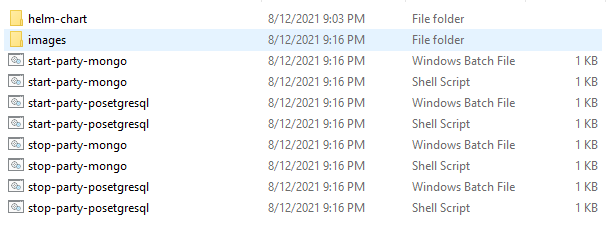
Script Description start-party-mongo.bat / start-party-mongo.sh The script deploys the necessary components for a microservice. It includes the deployment of the streaming services to run the Microservice independently. - Use the following commands for the respective platforms.
- For Windows:
start-party-mongo.bat - For Linux:
start-party-mongo.sh
- For Windows:
- After the Party Microservice is up and running on K8, check the API's in the package.
The structure of the URL of APIs is as follows.
- Base Path: http://<IP_ADDRESS>:<PORT>/<context-root>/api/<version>/
- For example, http://localhost:8000/ms-party-api/api/v3.0.0/
- The resource path of the endpoint is available in the swagger document of the respective APIs.
- A sample endpoint of the party could be http://localhost:8000/ms-party-api/api/v3.0.0/party/parties.
Alternatively, you can obtain the Microservice status through the Health Check API.
- After the Party Microservice is up and running on Docker, check the API's in the package. To know more on BackOffice Ingestion configurations, refer to Ingestion.
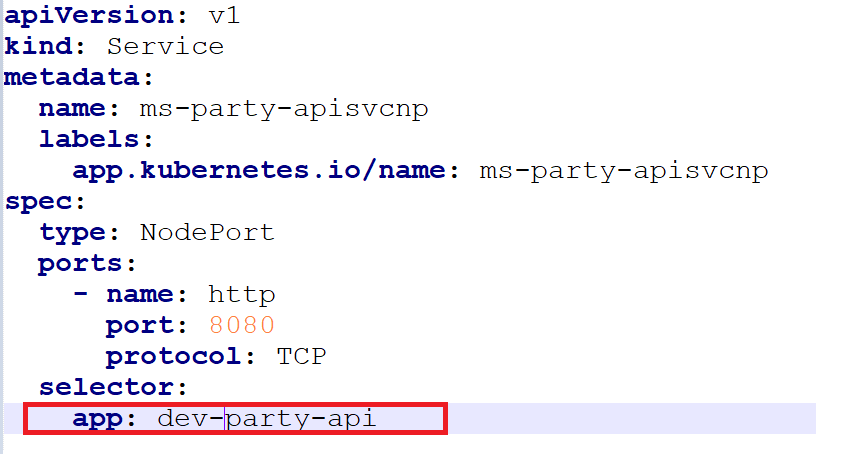
- If DES and Party are running in different machine, update hostAliases with DES IP for Kafka and Schema registry in party-api.yml and party-ingester.yml
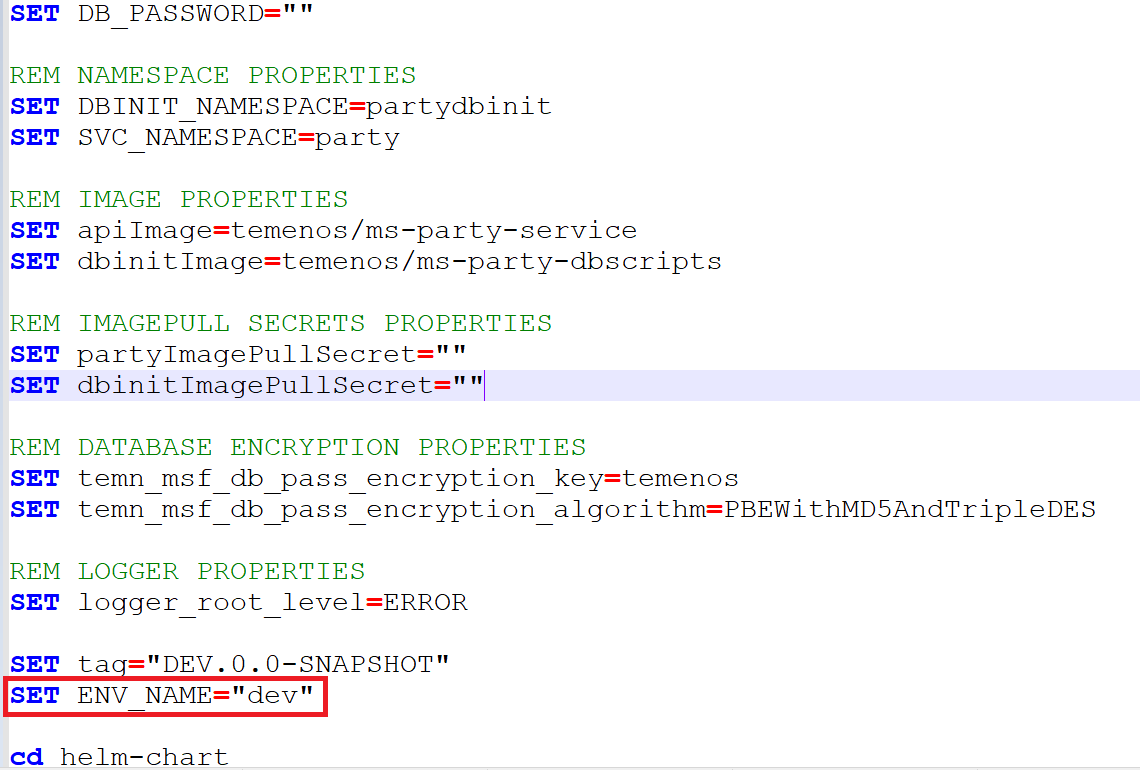
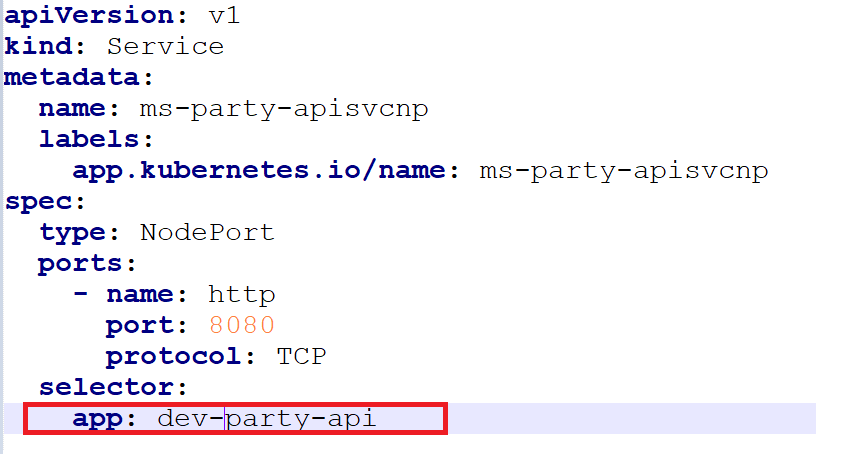
Party-api.yml
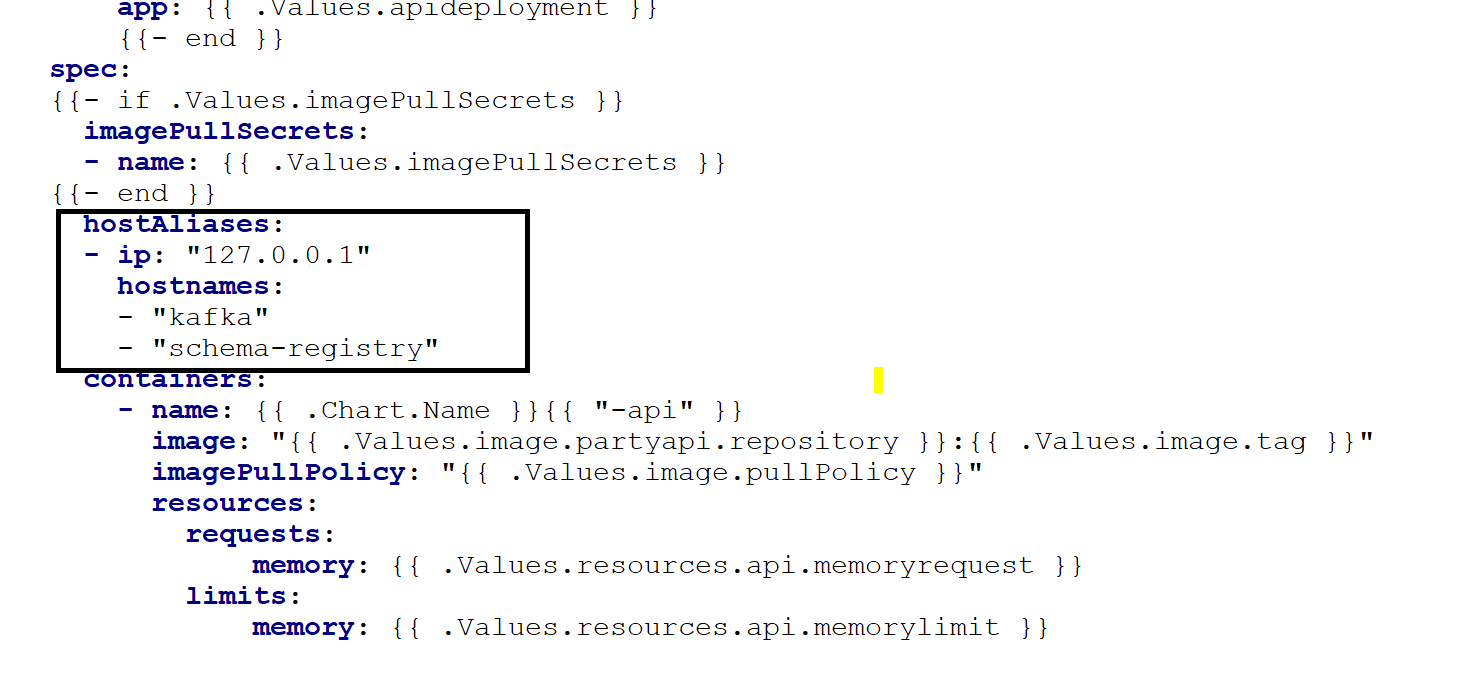
Party-ingester.yml
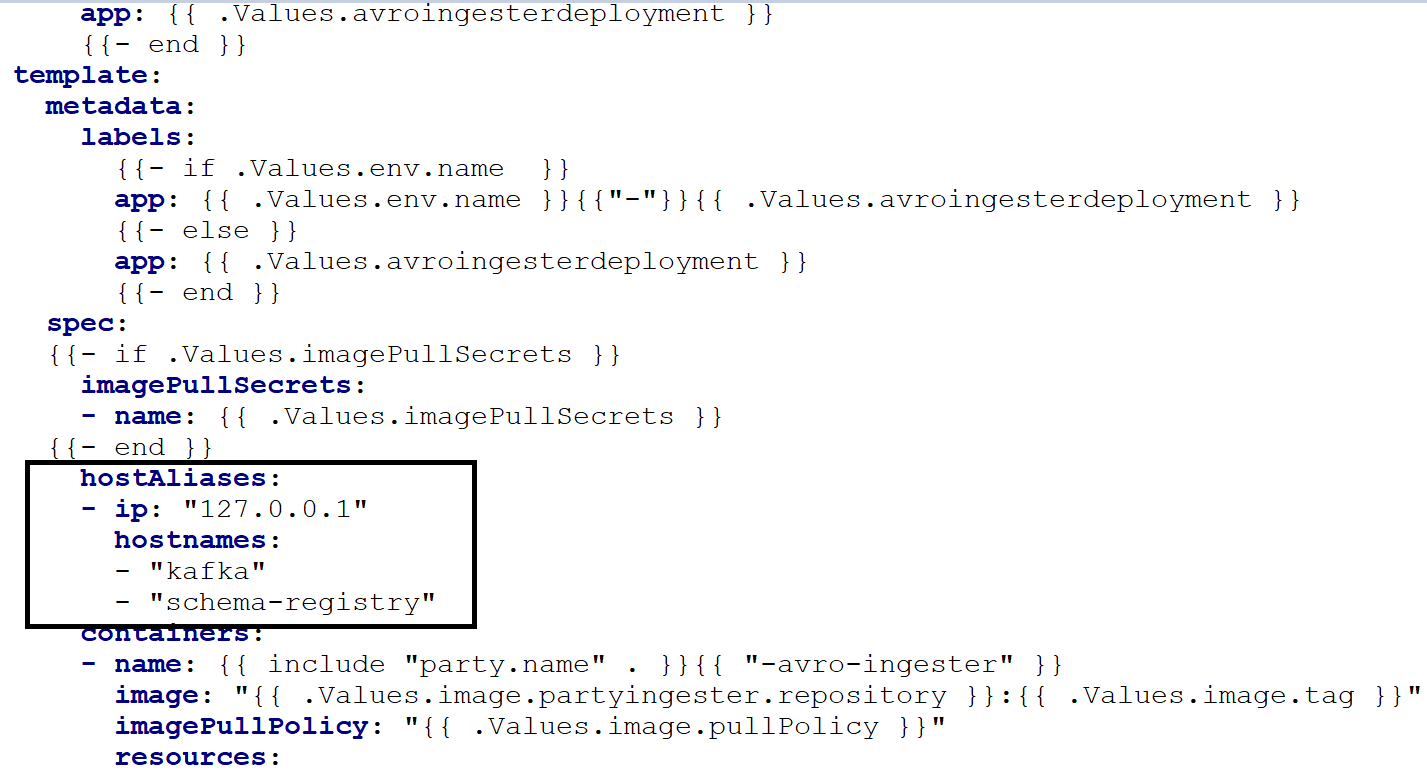
For PostgreSQL DB
- Party Microservices for K8 deployment is available as single release bundle party-helm-mongo-pack-<release_number>.zip to load the docker images and then deploy the service in Kubernetes cluster for PostgreSQL DB. Unzip party-helm-postgresql-pack file .
- Navigate to the folder where the service, ingester, and database images are available.
- Navigate inside the images folder.

- Open a command prompt and load the images on the docker using the command docker load --input <image-name>.
- Once the images are loaded in to the K8, start the postgresql scripts by navigating to the party-helm-postgresql-pack folder where the bat and sh files are available.

- Open the executable file and edit the environment-specific deployment variable with user-defined values if required.
- Once all the configurations are done, start the Microservice by navigating to the folder where the .bat and .sh files are available. Under the party-helm-postgresql-pack folder and run below code.
Script Description start-party-postgresql.bat / start-party-postgresql.sh The script deploys the necessary components for a microservice. It includes the deployment of the streaming services to run the Microservice independently. - Use the following commands for the respective platforms.
- For Windows:
start-party-postgresql.bat - For Linux:
start-party-postgresql.sh
- For Windows:
- After the successful deployment,load the database, collections, and reference data(master data) for the Party Microservice.
- After the Party Microservice is up and running in docker, run the following URL to receive the response.
The structure of the URL of APIs is as follows.
Base Path: http://<IP_ADDRESS>:<PORT>/<context-root>/api/<version>/
For example, http://localhost:8000/ms-party-api/api/v3.0.0/
The resource path of the endpoint is available in the swagger document of the respective APIs.
A sample endpoint of the party could be http://localhost:8000/ms-party-api/api/v3.0.0/party/parties.
Alternatively, you can obtain the Microservice status through the Health Check API.
- After the Party Microservice is up and running on Docker, check the API's in the package. To know more on BackOffice Ingestion configurations, refer to Ingestion.
- If DES and Party are running in different machine, update hostAliases with DES IP for Kafka and Schema registry in party-api.yml and party-ingester.yml
...\party-helm-postgresql-pack\party\images> docker load --input ms-party-ingester-202201.0.0.tar
Loaded image: temenos/ms-party-ingester:202201.0.0
...\party-helm-postgresql-pack\party\images> docker load --input ms-party-service-202201.0.0.tar
Loaded image: temenos/ms-party-service:202201.0.0
...\party-helm-postgresql-pack\party\images> docker load --input ms-party-inboxoutbox-202201.0.0.tar
Loaded image: temenos/ms-party-inboxoutbox:202201.0.0
...\party-helm-postgresql-pack\party\images> docker load --input ms-party-dbscripts-202201.0.0.tar
Loaded image: temenos/ms-party-dbscripts:202201.0.0
Party-api.yml
Party-ingester.yml
Undeployment
For MongoDB
To stop and delete the existing container, run the following command from the party docker's location.
- For Windows:
stop-party-mongo.bat - For Linux:
stop-party-mongo.sh
For PostgreSQL DB
To stop and delete the existing container, run the following command from the party docker's location.
- For Windows:
stop-party-postgresql.bat - For Linux:
stop-party-postgresql.sh
In this topic