Installing Holdings Microservice in Docker
This section helps you to install the Holdings Microservice in Docker.
Deployment of Holdings Microservice in Docker
Following are the steps to deploy the Holdings Docker package:
- Copy the
ms-holdings-package-docker-release_number>.zipfile into the installation directory. - Extract the zip file. The extracted package contains the configuration files for the docker and the respective bat and sh files.
- Depending on the data ingestion type, ensure that you modify the following:
- For Transact Ingestion, modify the IP where DES/Transact is running in the holdingsMongo.yml & holdingsPostgresql.yml from the extracted zip as follows:
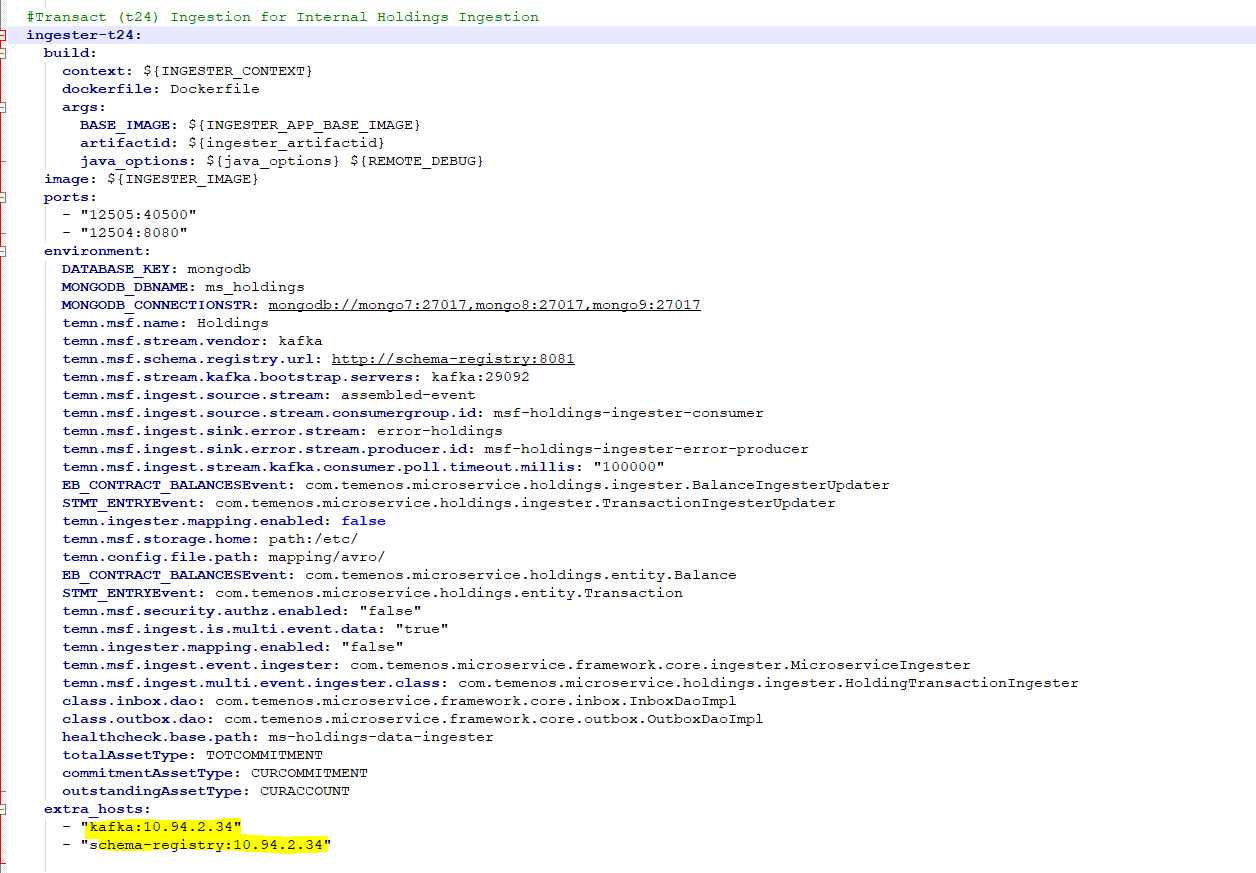
Ensure that the Transact DES Setup is configured. For more information, refer to Configuration DES - HMS (Kafka - Docker/J2EE) & HMS RR.PARAM and ILP Configuration.
- For Generic External Ingestion, modify the IP and Kafka where Account Aggregation Kafka is running in the holdingsMongo.yml & holdingsPostgresql.yml as follows:
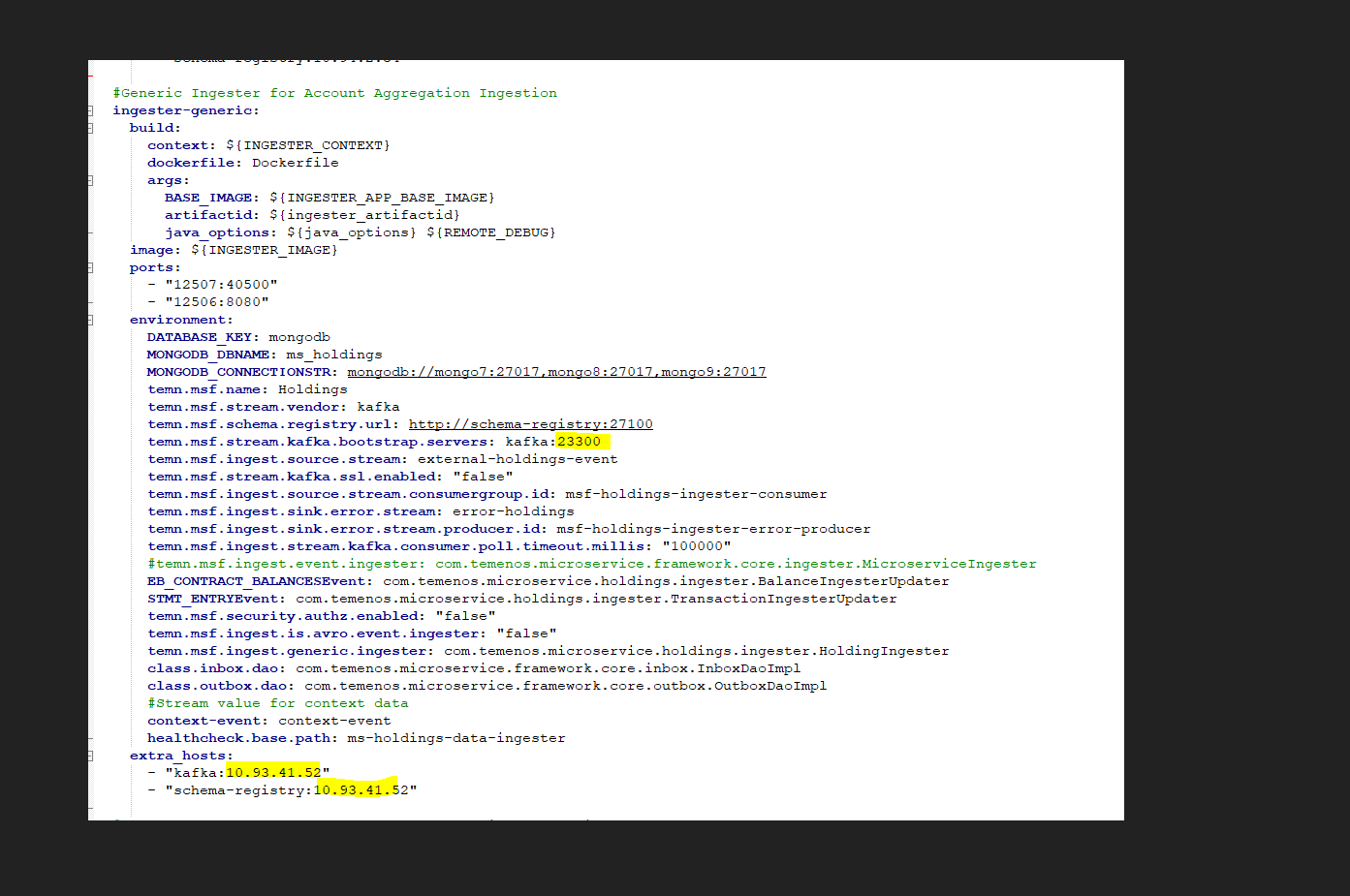
Ensure that the Account Aggregation Kafka setup is configured. For more information, refer to Deployment - Account Aggregation (Docker).
- For Event Processor External Ingestion, Change the IP and Kafka where Standalone Kafka is running in the holdingsMongo.yml and holdingsPostgresql.yml as follows:
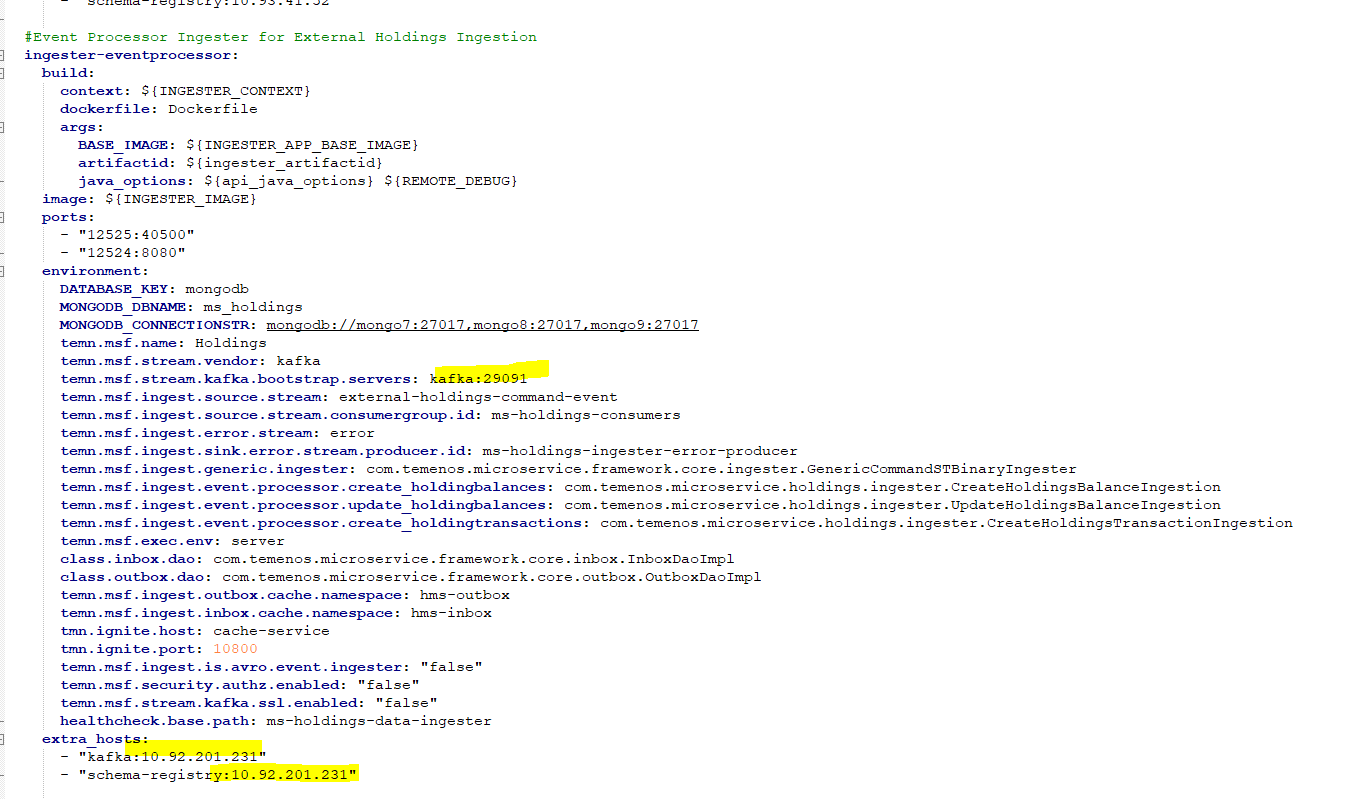
Ensure that the Kafka is running in some port in any system.
- For Transact Ingestion, modify the IP where DES/Transact is running in the holdingsMongo.yml & holdingsPostgresql.yml from the extracted zip as follows:
MongoDB
- Enable JWT Authentication and XACML in
holdingsMongo.yml. - Navigate from the command prompt to the directory where the .bat and .sh files are available and execute the following command which creates an image and docker container for the image.
- Windows: holdingsMongo.bat up --build -d
- Linux: holdingsMongo.sh up --build -d
- After the successful deployment, the database, collections, and the reference data(master data) are loaded into the MongoDB for Holdings Microservice.
After the deployment is successful, the APIs can be tested.
PostgreSQL
- In PostgreSQL, enable JWT Authentication and XACML in
holdingsPostgresql.yml. - Navigate from the command prompt to the directory where the .bat and .sh files are available. Then execute the following command which creates an image and docker container for the image.
- For Windows :
holdingsPostgresql.bat up --build -d - For Linux :
holdingsPostgresql.sh up --build -d
- For Windows :
- After the successful deployment, the database, collections, and the reference data(master data) are loaded into the mongo database for Holdings Microservice.
After the deployment is successful, the APIs can be tested.
Undeploying Microservice
To stop and remove the existing container, execute the following command from the location where the Holdings docker is started.
MongoDB
- For Windows : holdingsMongo.bat down
- For Linux : holdingsMongo.sh down
PostgreSQL
- For Windows : holdingsPostgresql.bat down
- For Linux : holdingsPostgresql.sh down
Troubleshooting
If an exception occurs and you are not able to connect to MongoDB, follow these steps:
- Go to the path:
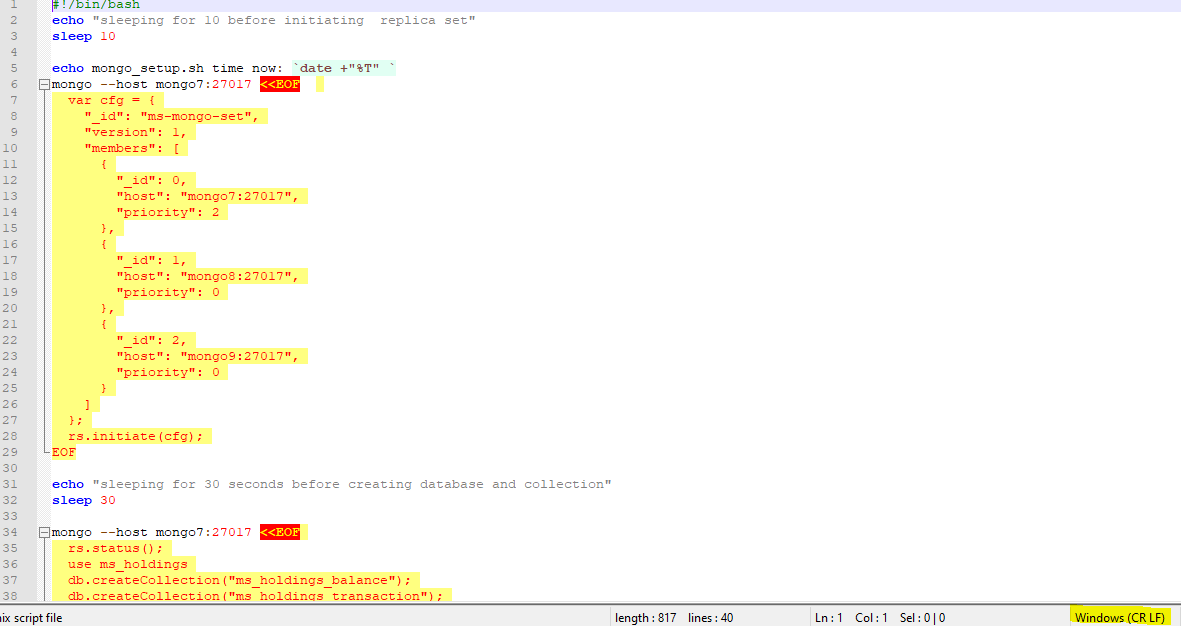
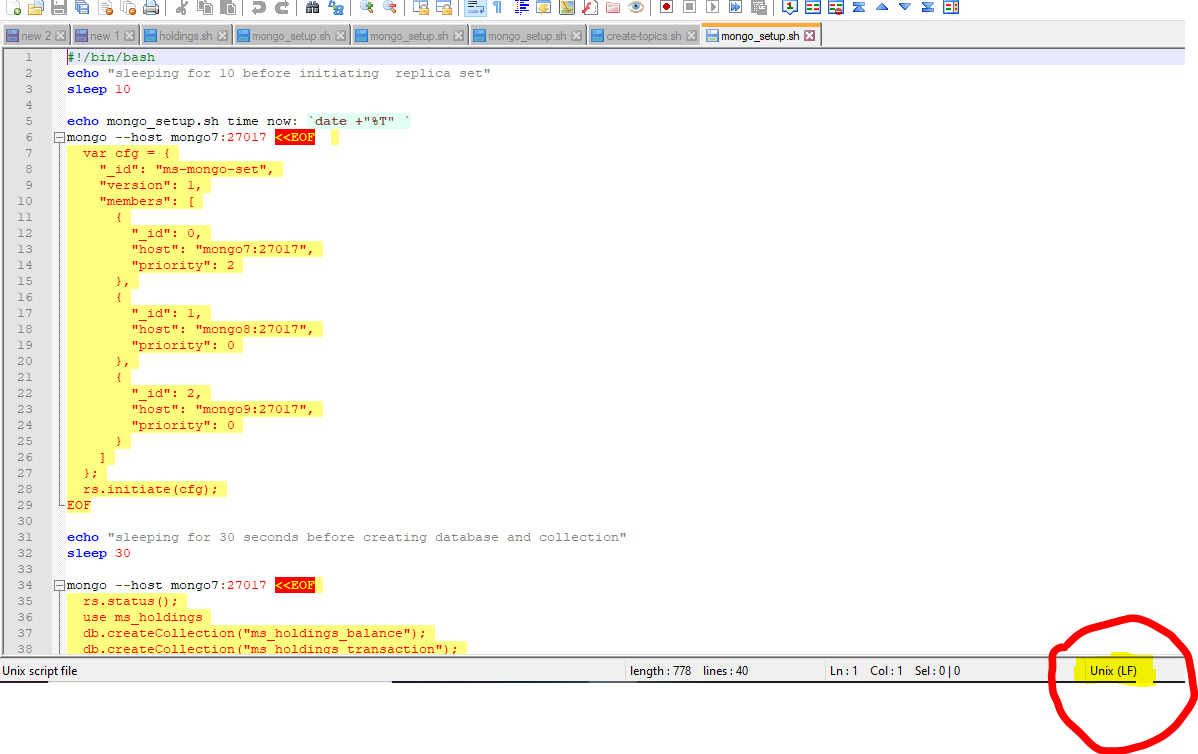
\Holdings-Docker\db\mongo\init\mongo_setup.sh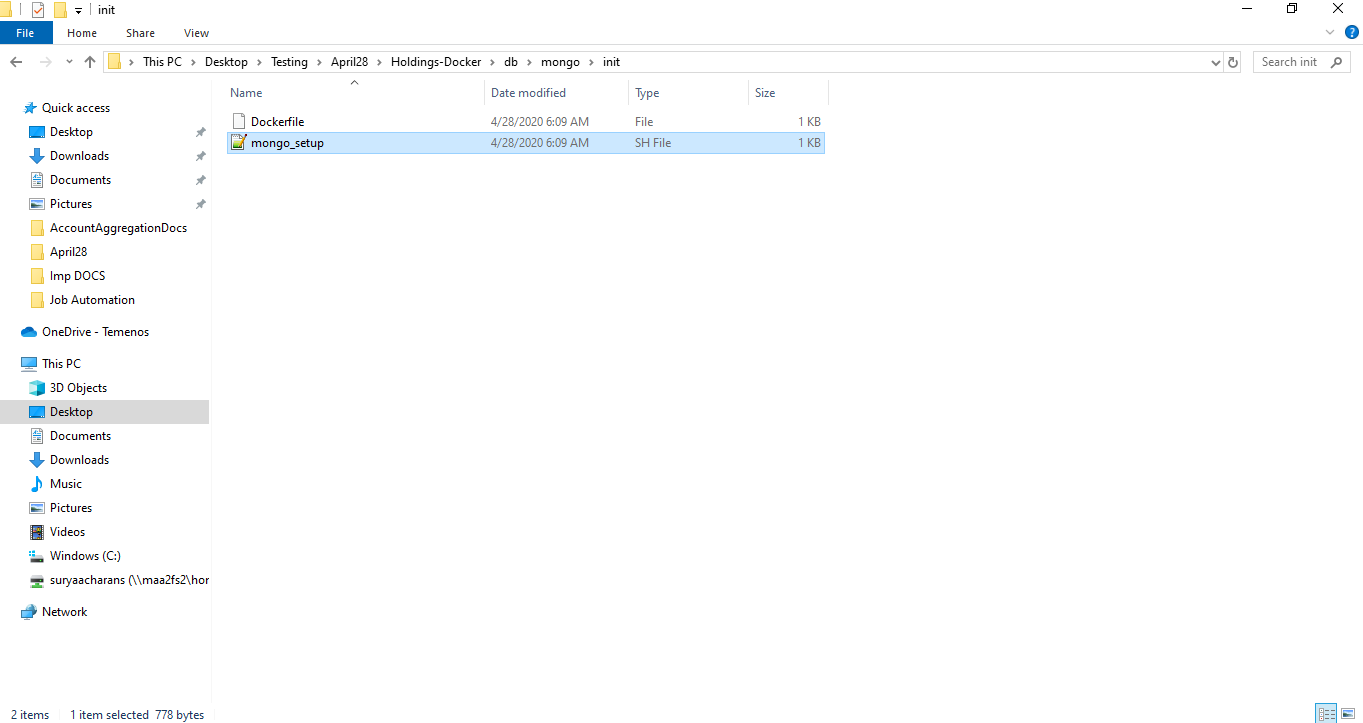
- Open it and ensure that the file is in UNIX(LF) format. If it is in Windows(CR LF) format, change it to Unix and up the package.
In this topic